
Item groups sort your items into a tree, for example Drinks with Beer and Wine under it. Each item is in exactly one group. Tags are labels across the groups, for example Vegetarian or Seasonal, and an item can have several. You manage both in Edit → Items…, in the panel on the left, and in the Groups tab of the item. The other two choices of the panel are described in Modifier classes and combo sets.
The panel in the Items window
Click Groups in the Items window to show the panel, then choose Groups or Tags in the list at its top. Click an entry to list only its items. The program remembers the last choice for each user.
| Button under the panel | What it does |
|---|---|
| New group, New tag | Opens the window below. The selected entry becomes the parent. |
| Edit group, Edit tag | Opens the selected entry. |
| Delete group, Delete tag | Active only when the selected entry lists no items. See Delete a group or a tag. |
| Sort groups by name, Sort tags by name | Asks “Are you sure you want to sort all groups by name? This will permanently change their order.” and sorts every level of the tree. |
The search button under the panel opens a field that finds an entry by name. To move a group or a tag under another one, drag it in the panel and confirm Move Group or Move Tag.
Item groups
A new item goes to the group that is selected when you click New. The default group, named Default group in a new database, is always there and cannot be deleted. Deleted holds the items that could not be deleted because documents use them.
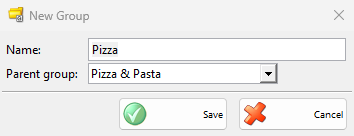
| Field | What it does |
|---|---|
| Name: | Required: “Group name cannot be empty!”. A name that another group already has asks “Group with this name already exists! Do you want to continue?”. |
| Parent group: | <none> puts the group at the top level. A group cannot go under itself, under its own subgroups or under the default group. |
To move items to another group, select them in the list, drag them onto the group and confirm Move Items. You can also choose the group in the Groups tab of the item (see Adding, editing and deleting items).
Item tags
A tag gives items a common label without moving them. Choose Tags in the panel and click New tag.
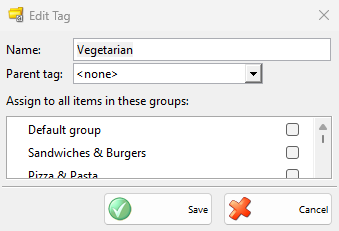
| Field | What it does |
|---|---|
| Name: | Required, as for a group. |
| Parent tag: | Puts the tag under another tag, to keep a long list in order. |
| Assign to all items in these groups: | Every item of a ticked group has the tag, also the items added to the group later. Ticking a group ticks its subgroups too. |
To give the tag to single items, select them in the list, drag them onto the tag and confirm Attach Tag. In the item window the tags are under Tags in the Groups tab. That part shows when tags exist and Show tags is ticked in the settings of the item window.
To take a tag away, select the tag in the panel, select the items, drag them onto Drop here to remove tag at the end of the panel and confirm Remove Tag. A tag that an item has through its group stays: “The tag was not removed. Make sure the tag is not assigned to the item group.” Clear the group in the tag window instead.
All Items at the top of the panel lists every item. With Ctrl+click you can select several tags: the list then shows the items that have all of them.
Where groups and tags are used
| Where | What they do there |
|---|---|
| Reports | The Item group: filter, and Item tag: when tags exist, limit the report to these items. |
| Price rules | A rule can apply only to the items of a group or a tag. |
| Users | With Locked items tag: the user sees only the items with that tag. |
| Touch Screen | A Dynamic items group button always shows the current items of a group. Limit the items in the search screen to those with tag: narrows the search. |
| Kitchen Display | A profile can show only the items of some groups or of a tag, and Measure items with tag: chooses the items to weigh. |
Delete a group or a tag
Select the entry. Delete group or Delete tag becomes active when the entry lists no items. The program then checks:
- A group with items or subgroups: “This group cannot be deleted, because it is not empty. Please, delete or move to another group the contents of this group in order to be able to delete it!”. The items in Deleted do not count.
- A tag given to an item or a group, or with tags under it: “This tag cannot be deleted, because it is in use. Please, remove this tag from all items in order to be able to delete it!”.
- The default group cannot be deleted at all: “Cannot delete group “Default group”!”.
Permissions
The permissions are under Items… in Edit → Administration → Permissions….
| Permission | What it allows | Not allowed by default for |
|---|---|---|
| New | Adding groups and tags. | Operators |
| Edit | Changing and sorting groups and tags. | Operators |
| Delete | Deleting groups and tags. | Operators |
FAQ
Should I use a group or a tag?
Use groups for the one place of an item in your catalogue, and tags for anything that crosses the groups. A vegetarian pizza stays in Pizza and also gets the tag Vegetarian.
Why does an item have a tag I did not give it?
Its group is ticked in Assign to all items in these groups: of the tag.
Why is the Tags part missing in the item window?
No tags exist yet, or Show tags is cleared in the settings of the item window.