
The Protel Cash Receipts server prints a cash receipt on the fiscal printer of this workstation for each invoice printed in the Protel hotel system. Protel saves the invoice as an XML file in a folder, and the server reads the file, prints the receipt and deletes the file. The list of servers is in Servers, and the fields that every server has are in Adding, editing and deleting servers.
What you need
- A Pro license on the workstation that runs the server.
- Protel installed on this computer or on a folder that this computer can open, and a folder for the XML invoices that both programs can reach.
- A fiscal printer with Print cash receipts set up in Devices on this workstation.
- A VAT group with the code A, B, C or D for each Protel VAT value you map.
The server does not work with the Bulgaria – SUPTO localization, which does not allow cash receipts without a sale. Only one IncoPOS on a computer can read the Protel invoices at a time.
Set up the server
- Go to Edit → Administration → Servers… and click New.
- Select Protel Cash Receipts in Server type:.
- Select the two folders and fill in the mappings, see the table below.
- Click Save. When the server starts, it writes the file ProtelIncoPOSFiscalPrinter.xml into the SYSTEM\CKIT\XML folder of Protel. This XML module makes Protel save its invoices into the invoices folder.
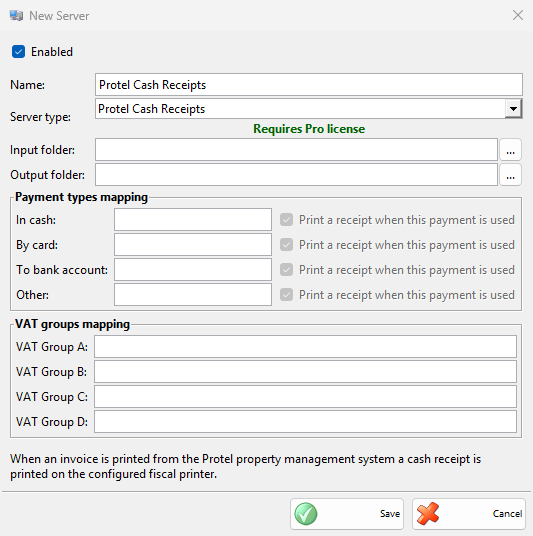
| Field | What it does |
|---|---|
| Input folder: | The folder where Protel saves the XML invoices. It must exist when the server starts. |
| Output folder: | The Protel installation folder, the one that holds SYSTEM\CKIT\XML. |
| Payment types mapping | One field for each payment type of IncoPOS (In cash:, By card:, To bank account:, Other:). Enter the names of the Protel payments that are paid that way, separated by commas. Upper and lower case do not matter. |
| Print a receipt when this payment is used | Next to each payment type, selected by default. It can be changed once its field has a name. An invoice whose payments are all of types without this option prints no receipt. |
| VAT groups mapping | VAT Group A: to VAT Group D:: the Protel VAT values that go to the VAT group with that code, separated by commas. |
How it works
Every second the server looks in the invoices folder for files named pinvoice_*_*_*.xml. It prints only the invoices that Protel marks as fiscalized. Each receipt has the guest name from the invoice, one line per invoice line with its text, quantity and amount and the VAT group of its Protel VAT value, and the payments of the invoice. The receipt is printed without any window, and the file is deleted after it.
When an invoice has a payment or a VAT value that is not in the mappings, the server shows “Trying to print a receipt from Protel with payment type … which is not configured in the Hotel Link module!” or the same message for the VAT group, and does not print it. The file stays in the folder and is tried again when Protel saves it again. An invoice that cannot be printed because of the printer stays in the folder too. An invoice without lines or without payments is deleted without a receipt.
Troubleshooting
| Problem | Solution |
|---|---|
| “Input folder not selected!”, “Output folder not selected!” | Select both folders. |
| “A value for VAT group A is specified, but a VAT group with code A is not configured in IncoPOS!” | Clear the field, or add a VAT group with this code in VAT Groups. |
| No receipts are printed and no message shows | The server did not start. Check that the invoices folder exists, that Output folder: is the Protel folder with SYSTEM\CKIT\XML, that Windows lets IncoPOS write into it, and that no other IncoPOS on this computer runs the same server. Then save the server again to restart it. |
| “Trying to print a receipt from Protel with payment type … which is not configured in the Hotel Link module!” | Add the payment name from the message to the field of its payment type and save. Then print the invoice in Protel again. |
| An invoice prints no receipt and no message shows | Check that the invoice is fiscalized in Protel and that one of its payments has Print a receipt when this payment is used. |