
A workstation is a computer or a cash register that works with the database under its own name. Each workstation keeps its own settings and devices in the database, so two computers that work with the same database can print on different printers and open different windows. Each computer remembers which workstation it is for each database. The Workstations window lists the workstations of the database. Open it with Edit → Workstations…. The program first asks “Before editing the workstations all tabs have to be closed. Do you want to close all open tabs?” and opens the window only after the tabs are closed.
The first start on a computer
When a computer opens a database for the first time, the program asks for a name in “Choose a name for this workstation”. Type a name for a new workstation, or select Load: and choose an existing workstation to use its settings, for example after IncoPOS was installed again. The program selects the workstation that was saved with the network card of this computer, if there is one.
The Workstations window
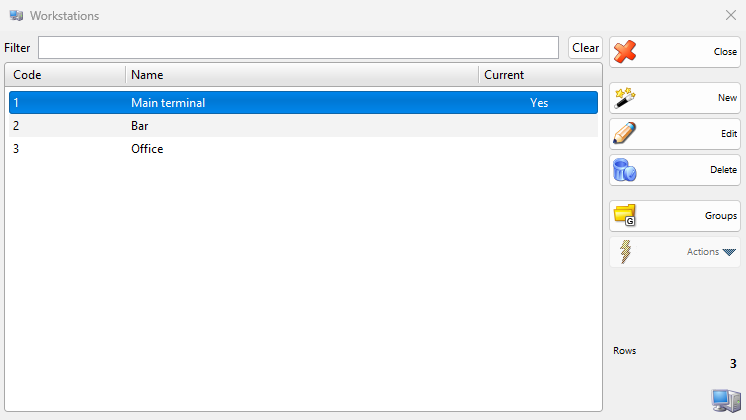
| Control | What it does |
|---|---|
| Filter | Shows only the workstations whose code, name or network card address contains the typed text. |
| Clear | Clears Filter. |
| Groups | Shows or hides the groups of workstations. See Groups. |
| Code, Name, Current | The columns of the list. Yes in Current marks the workstation of this computer. |
| New | Opens the New Workstation window. |
| Edit | Opens the selected workstation in the Edit Workstation window. A double-click does the same. |
| Delete | Deletes the selected workstations. See Delete a workstation. |
| Close | Closes the window. |
The same list opens with OK and Cancel when you choose a workstation elsewhere, for example for Settings for workstation: in Settings or for a condition of a price rule.
Add or change a workstation
- Go to Edit → Workstations… and click New, or select a workstation and click Edit.
- Enter Code: and Name:.
- To make this computer work as this workstation, select This is the current workstation.
- Click Save.
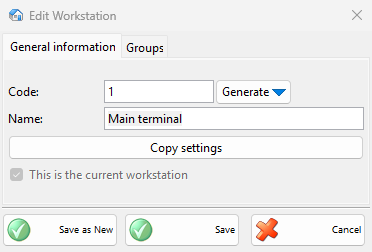
| Field | What it does |
|---|---|
| Code: | The code of the workstation. Generate fills it with Use next available code or Use first available code. With Auto generate workstation codes on the Codes tab of Settings, a new workstation gets a code at once and an empty code is filled in on saving. |
| Name: | The name of the workstation. It is required. |
| This is the current workstation | On saving, this computer becomes this workstation: the program saves the settings, links the network cards of this computer to the workstation and loads its settings and devices. The box is selected and dimmed on the workstation of this computer. |
| Copy settings | Opens “Select Workstation to Copy Settings from” and copies the settings of the chosen workstation into this one. The devices are not copied. The copy is saved at once, even if you then click Cancel. The button works only on a saved workstation. |
| Groups tab | The group of the workstation. The Deleted group keeps the workstation and its settings but shows it only under that group. |
Save and New in the New Workstation window saves the workstation and starts the next one with the same name to change. Save as New in the Edit Workstation window saves the changes as a new workstation and leaves the original as it was.
Groups
Click Groups to show the groups next to the list. The buttons above them add, rename and delete a group and sort the groups by name. To move workstations, select them and drag them onto a group, then answer the question with Yes. A group that still holds workstations or subgroups cannot be deleted. A price rule can apply only to a workstation or to a group with the Workstation and Workstation group conditions. The group is chosen in the Choose Workstations Group window.
Delete a workstation
- Select one or more workstations and click Delete.
- Answer “Do you want to delete workstation with name “…”?” with OK.
Deleting a workstation also deletes its settings and devices. The first workstation of the database cannot be deleted. To keep the settings, move the workstation to the Deleted group instead.
Permissions
The permissions are set in Edit → Administration → Permissions…, under Workstations….
| Permission | What it allows | Not allowed by default for |
|---|---|---|
| Workstations… | Opening the window. | Operators |
| New | Adding workstations. | None |
| Edit | Changing workstations and their groups. | None |
| Preview | Without Edit, the button becomes Preview and opens the workstation with only a Close button. | None |
| Delete | Deleting workstations. | None |
Troubleshooting
| Message | Solution |
|---|---|
| “Workstation name cannot be empty!” | Enter Name:. |
| “Workstation with the name “…” already exists! Do you want to save the workstation anyway?”, “Workstation with the code “…” already exists. Do you want to save the workstation anyway?” | A warning. No returns to the window. |
| “Invalid code value!” | Validate workstation codes with regular expression is on in the Codes tab of Settings and the code does not match its pattern. Change the code. |
| “The current workstation cannot be deleted!” | The workstation of this computer cannot go to the Deleted group. Choose another group. |
| “Cannot delete workstation “…”!” | This is the first workstation of the database. |
| Another computer prints on the wrong printer or opens the wrong window | Both computers work as the same workstation. On one of them, add a workstation, select This is the current workstation and set up its devices and settings. |