
The Locations window lists your warehouses, shops, restaurant halls and other places which hold stock and make operations. Use it to find, add, change and delete locations. Open it with Edit → Locations…. To add or change a location, see Adding, editing and deleting locations.
The Locations window
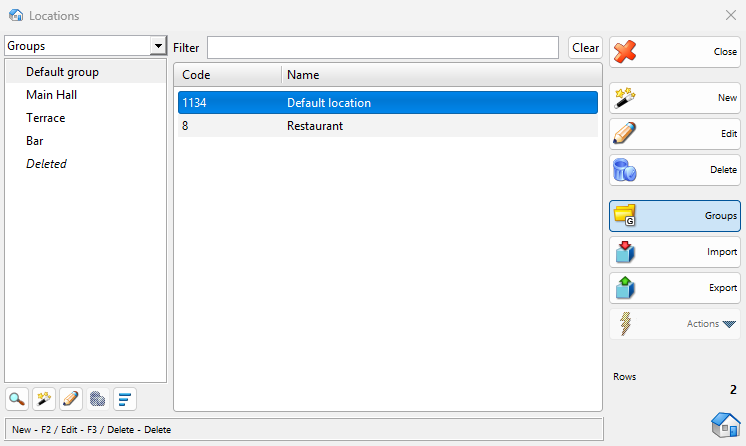
| Control | What it does |
|---|---|
| Filter | Shows only the locations whose code or name contains the typed text. |
| Clear | Clears Filter. |
| New (F2) | Opens the New Location window. The location goes to the selected group. |
| Edit (F3) | Opens the selected location. A double-click does the same. |
| Delete | Deletes the selected locations. The Delete key does the same. |
| Groups | Shows or hides the panel on the left. |
| Import, Export | See Import and export. |
| Rows | The number of listed locations. |
Groups and tags
The list at the top of the left panel switches between Groups and Tags. Click an entry to list only its locations. Each location is in one group and can have several tags. The buttons under the panel search it and add, edit, delete and sort the entries. A group can be deleted only when it is empty.
To move locations, select them, drag them onto an entry in the panel and confirm:
- Onto a group: the locations move to it. Onto Deleted: they are deleted. A deleted location dragged onto another group is restored.
- Onto a main location: they become its sub-locations. Operations which affect stock stay on the original locations, and the program offers to move the other operations.
- Onto a tag: the tag is added. Drop here to remove tag removes it.
Import and export
Import opens Import Entities. Choose the format and the file in Import from:, click OK and match the columns of the file with the location fields.
Export opens Export Entities and exports the locations in the list, so the selected group and Filter apply. Hide the panel with Groups to export all locations.
Choose a location in an operation
The same window opens when you choose a location in an operation, with the OK and Cancel buttons. Select the location and click OK, or double-click the row.
Permissions
All permissions are set in Edit → Administration → Permissions…, under Locations….
| Permission | What it allows | Not allowed by default for |
|---|---|---|
| New | Adding locations. | Operators |
| Edit | Changing locations and groups. | Operators |
| Preview | Without Edit, the button becomes Preview and opens the location with only a Close button. | Operators |
| Delete | Deleting locations. | Operators |
| Import, Export | The buttons of the same name. | Operators |
| Settings | The settings button of the location window. | Operators, managers |
Troubleshooting
| Problem | Solution |
|---|---|
| A location is not in the list | Check Filter and the selected group. A deleted location is in Deleted. |
| “This group cannot be deleted, because it is not empty. Please, delete or move to another group the contents of this group in order to be able to delete it!” | Move the locations and the subgroups first. |