
The Activity Fields window holds every field that the CRM activity types can use, such as Contact person, Result or Next contact. A field has a label and a kind, for example text, date, dropdown or item. Each type then picks its fields in Edit Activity Types and sets there whether a field is required, its group and its default value. A field used by several types is defined once, so a change here applies to all of them.
Open the Activity Fields window
- Go to Operations → CRM → Edit Activity Types… and click Activity Fields.
- Or click Add field in the window of a type. The window then also has OK and Cancel: select the fields for the type and click OK.
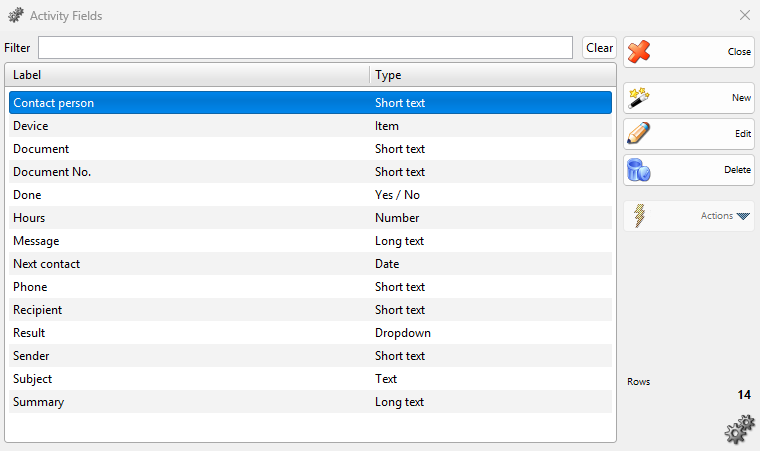
| Control | What it does |
|---|---|
| Filter | Shows only the fields whose label contains the typed text. |
| New | Opens the New Field window. |
| Edit | Opens the selected field. A double-click does the same. |
| Delete | Deletes the selected fields after “Do you want to delete field “Hours”?” (see Delete a field). |
| Close | Closes the window. |
The list is sorted by label. Sender, Recipient, Subject, Message, Document and Document No. are the built-in fields of the E-mail type.
Create or change a field
- Click New, or select a field and click Edit.
- Enter Label:, choose Field type: and fill in the settings that the type shows.
- Click Save.
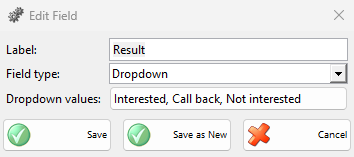
| Field | What it does |
|---|---|
| Label: | The name of the field in the activity window, in the search of the activities and in the document templates. Required. |
| Field type: | The kind of the field (see the next table). |
| Decimal precision: | For Number: from 1 to 0.000001. The default is 0.01. |
| Dropdown values: | For Dropdown and Searchable dropdown: the button shows the values and opens them for editing (see Dropdown values). |
| Item details: | For Item: Serial number, Expiration date, Production date, Lot name and Lot location add these boxes under the item in the activity window. |
| Validation pattern: | For the text kinds: a regular expression that the value must match, for example ^[0-9 +()-]{6,20}$ for a phone number. Empty accepts any text. |
| Valid range: | For Number and Integer: the lowest and the highest value. Either can stay empty. |
| Validation error message: | For the text and number kinds: the message when a value breaks the pattern or the range. Empty shows “Field “…” has an invalid value.” |
| Save and New | In a new field: saves it and keeps the window open with the same settings for the next field. |
| Save as New | In an existing field: saves the changes as a new field. The original stays as it was. |
Field types
| Field type | What the user enters | Settings |
|---|---|---|
| Text | One line of text across the window | Pattern, message |
| Short text | One line in a narrow box, for a name or a phone number | Pattern, message |
| Long text | Several lines, for notes | Pattern, message |
| Number | A number with decimals, for example hours or an amount | Precision, range, message |
| Integer | A whole number | Range, message |
| Date | A date with a calendar | None |
| Date / Time | A date and a time | None |
| Dropdown | One value from a fixed list | Dropdown values |
| Searchable dropdown | One value from a long list, found by typing | Dropdown values |
| Partner | The name of a partner, for example the person who referred the customer | None |
| Yes / No | A check box | None |
| Item | An item, with the boxes chosen in Item details:. It becomes a row of the activity for transformations. | Item details |
The search in Edit CRM Activities offers the labels of the Text, Short text, Long text, Dropdown and Searchable dropdown fields. For the Item fields it offers Item name and, if a field uses them, Serial number and Lot.
Dropdown values
Click the button next to Dropdown values:. The Dropdown Values window opens. Enter one value per line and click OK. A line has up to three parts separated by |:
| Part | What it is for |
|---|---|
| key | Saved in the activity. Keep it unchanged once activities use it. |
| display value | Shown in the list of the activity window. |
| document value text | Printed in the documents. Optional: without it the display value is printed. |
For example, INT|Interested|The customer is interested in an offer shows Interested in the window and prints the longer text. A line with one part uses it for all three. Because the activities keep the key, you can change the display value later and the saved activities show the new text.
Change the kind of a used field
If saved activities have values for the field, the program converts them for these changes and asks first in Change Field Type:
| Change | Question |
|---|---|
| Number to Integer | “3 existing values will be converted from decimal numbers to whole numbers. Values with a fractional part will be rounded. Do you want to continue?” |
| Text, Short text or Long text to Integer | “… from text to whole numbers. Values that are not whole numbers will be left unchanged. Do you want to continue?” |
| Integer to Number | “… from whole numbers to decimal numbers. Do you want to continue?” |
| Integer to a text kind | “… from whole numbers to text. Do you want to continue?” |
Cancel keeps the field unchanged. Other changes do not convert the saved values, so choose the kind before the field is used.
Delete a field
Select the field and click Delete. For several fields the question is “Do you want to delete the selected 2 fields?”.
| Case | Message |
|---|---|
| A type uses the field, or saved activities have values for it | “The field “Hours” cannot be deleted because it is in use.” Remove it from the types first. A field with saved values stays. |
| A field of the E-mail type | “The field “Sender” is a built-in field and cannot be deleted.” |
In a built-in field only Label: can change.
Permissions
Edit Activity Fields under Operations → CRM in Edit → Administration → Permissions… shows the Activity Fields button. Its New, Edit and Delete rights allow these buttons. Operators do not have it by default.
Troubleshooting
| Problem | Solution |
|---|---|
| “Please enter a label for the field.” | Fill in Label:. |
| “This is not a valid regular expression: …” | Correct Validation pattern:. The message names the error. |
| “Minimum value must be a number.” or “… must be a whole number.” | Enter numbers in Valid range:, whole numbers for Integer. |
| “Minimum cannot be greater than maximum.” | Swap the two values of Valid range:. |