
Use Edit → Documents → Management → Warranty Card… to change or annul a saved warranty card. The edit window works like the Warranty Card window. That page describes the header, the rows and the printed card, and this page covers only what is different.
Open a warranty card for editing
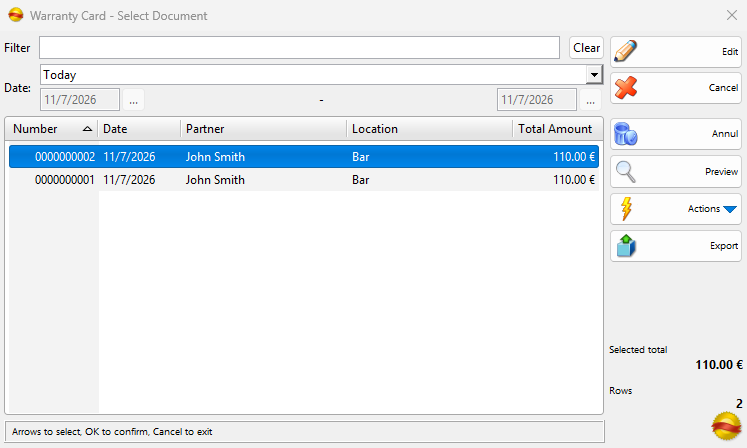
- Go to Edit → Documents → Management → Warranty Card…. The Warranty Card – Select Document window opens.
- Find the warranty card with Date: and Filter.
- Select the warranty card and click Edit, or double-click the row. One card opens at a time: if several rows are selected, only the row with the cursor opens.
You can also open a warranty card from a report: select its row and use Actions → Edit. The limits below apply there too.
| Control | What it does |
|---|---|
| Filter | Shows only the warranty cards whose number, partner or location contains the typed text. A valid 12 or 13 digit barcode of the number also works. |
| Date: | The period of the listed warranty cards. Today is used the first time. Choose Custom Dates to enter a start and end date. The window remembers the last period. |
| Clear | Clears the filter text and sets Today. |
| Edit | Opens the warranty card for editing. |
| Cancel | Closes the window. |
| Annul | Annuls the selected warranty cards (see Annul a warranty card). |
| Preview | Shows or hides a preview of the selected warranty card. |
| Actions | Edit, Print, Transform Selected Documents, Related Documents and Show Changes History. Print works as in Reprint Warranty Card. |
| Export | Exports the listed or the selected warranty cards. Shown when exporters are available. |
Draft in the Number column marks an unfinished warranty card (see Warranty Card). Rows shows the number of listed warranty cards and Selected total the total of the selected ones. The Total Amount column depends on Show totals in the choose operations dialogs (slower loading) in Tools → Settings… → Operations.
Warranty cards that cannot be edited
The program checks the selected warranty card when you click Edit.
| Case | Message | Result |
|---|---|---|
| The warranty card is older than your user may change | “You don’t have access to edit operations that far in the past!” | The warranty card does not open. The limit is Allowed operations modification: in the user’s settings. |
| The warranty card is pending in another database | “Pending operations cannot be edited! Please wait for the operation to be completed at the managing database.” | The warranty card does not open until that database completes it. |
What you can change
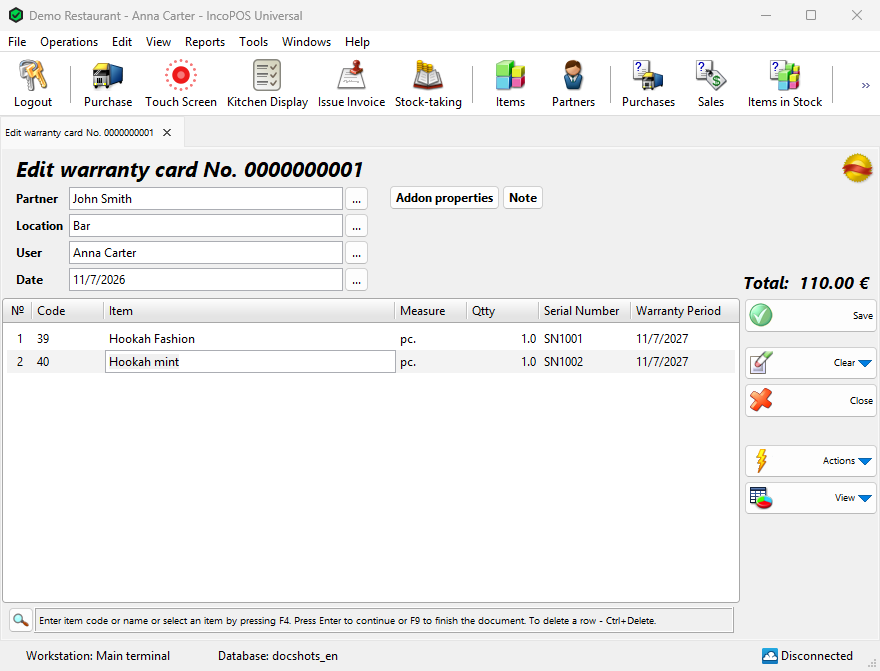
The window title shows Edit warranty card No. and the number of the warranty card, which cannot change. A draft opens as Edit warranty card draft.
| Part | How it works in an edit |
|---|---|
| Partner, Location | Change them as in a warranty card. Location is disabled when Document numbers per location is selected in Tools → Settings… → Special. |
| User, Date | Require the Edit User and Edit Date permissions. |
| Rows | Change the item or the quantity in the cell. Press Enter on the last row to add a row. The Serial Number and Warranty Period of an added row start empty. |
| Serial Number, Warranty Period | Free text in the cell. Warranty Period does not follow Date. Only an added row with a quantity above 1 offers to split into one row per serial number. A saved row is not split. |
| Delete a row | Press Ctrl+Delete, use Clear → Delete current row or set Qtty to 0. The row stays struck through and disappears when you save. |
| Note, Addon properties | The same tabs as in a warranty card. |
Lowering a quantity, deleting a saved row or replacing its item requires Make Corrections In Operations. Clear → Delete all rows asks “Do you want to delete all the rows from the operation?” and sets all quantities to 0: saving such a warranty card annuls it.
A saved warranty card cannot become a draft. If you close the window with changes, the program asks “Exit without saving the changes?”: OK loses the changes and Cancel returns to the warranty card.
Save the changes
- Press F9 or click Save.
- The program asks “Do you want to save the changes?”. OK saves and Cancel returns to the warranty card.
- If printing is available, the program asks “Do you want to print the warranty card?”. With Yes the print preview opens. With Always in Print documents: in Tools → Settings… → Printing the preview opens without the question. With Never the question still appears.
The tab then closes.
What saving changes
| Where | Result |
|---|---|
| Stock | No change. A warranty card does not use stock. |
| Payments | None. A warranty card has no payments. |
| Row prices | The window has no price columns. Saved rows keep their prices. An added row or a replaced item takes the item’s price, which counts only in Total:. |
| Item prices | No change. Saving a warranty card never changes the prices of the items. |
| Source document | No change. The sale or the other document the card came from stays as it is. |
| History | Actions → Show Changes History shows the earlier versions of the rows. |
Annul a warranty card
- In Warranty Card – Select Document select one or more warranty cards and click Annul.
- Answer “Are you sure you want to annul this warranty card?” with Yes. For several warranty cards the question is “Are you sure you want to annul the selected 2 warranty cards?”.
The warranty card leaves the list. The stock and the source document do not change. Annul is also in the Reprint Warranty Card window.
Permissions
All permissions are set in Edit → Administration → Permissions….
| Permission | What it allows | Not allowed by default for |
|---|---|---|
| Documents → Management → Warranty Card… | The menu item, Annul and Actions → Edit. | Operators, through Documents |
| Export | The Export button. | Operators |
| Manage operators and view their operations | Seeing the warranty cards of all users. Without it the list shows only the warranty cards with your user in User. | Operators |
Troubleshooting
| Problem | Solution |
|---|---|
| A warranty card is not in the list | Check Date: and Filter. |
| “This is a free version of the Warranty Card operation! To save your operation please purchase a license.” | Warranty Card is part of the paid Advanced Operations module. Without a license you cannot save the changes. |
| “You don’t have permission to make discounts or corrections to the operation!” | A user with Make Corrections In Operations can log in after the message to allow the change. For rows you added in this edit, Make Corrections In New Operations is enough. |
| “The operation was already modified and cannot be saved!” | Another user saved this warranty card after you opened it. Close the tab and open the warranty card again. The check comes from Check if the operation was modified before save in Tools → Settings… → Operations. |
| “You don’t have access to annul operations that far in the past!” | The warranty card is older than Allowed operations modification: allows. |
FAQ
Can I change the number of a warranty card?
No. An edit keeps the number.
Does the warranty period change when I change the date of the card?
No. Warranty Period is text, so change it in each row.
How do I print the edited warranty card?
Answer Yes to the print question after saving, or use Reprint Warranty Card later.
Related pages
- Warranty Card
- Reprint Warranty Card (Edit → Reprint Documents → Management → Warranty Card…)
- Transform Document
- Warranty cards report