
Use Edit → Administration → Export to Accounting… to save invoices, notes, uninvoiced sales, cash reports and payments to a file for your accounting program. The export only reads the data: the documents do not change and are not marked as exported, so you can export them again.
Choose the accounting program
- Go to Tools → Settings… and open Accounting. You can also click Change… in the export window: Yes to “This window will be closed so that you can change the accounting program. Do you want to continue?” opens the same page.
- Select the program in Program:. Until you select one, the export uses Microinvest Delta Pro.
- If the program has versions, select one in Version:.
- Fill the account numbers if the page shows them. Only some programs use them.
- Save the settings. They apply to this workstation.
The list holds Microinvest Delta Pro, 1С, Бонев Софт Ажур, Бизнес Навигатор, Плюс Минус, Rival, Workflow, OfficePlus and НАП България (ДДС Дневници).
Export the documents
- Go to Edit → Administration → Export to Accounting…. The Export to Accounting window opens. If the program is 1С, see Export to 1С.
- Select the document types to export. The window shows only the types that the selected program accepts.
- Limit the export by number, date or location, if you need to.
- Click OK. The Export Entities window opens. Бонев Софт Ажур asks for a folder instead.
- Check the file name in Export to file:, click … to choose another one, and click Export.
The file is saved and the window closes. Import the file in your accounting program.
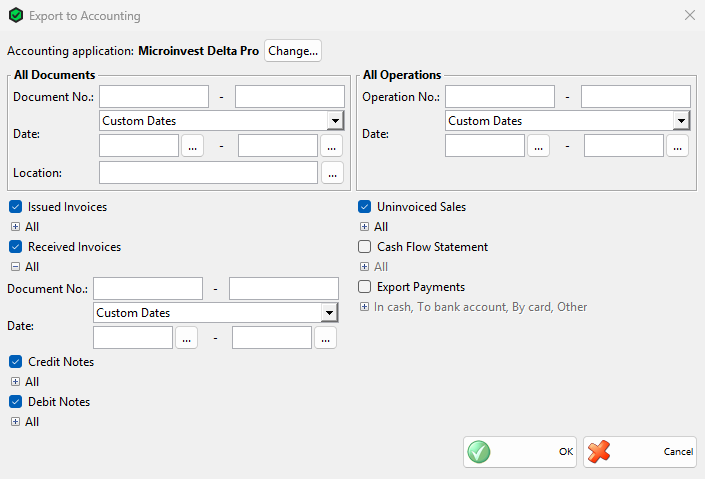
| Control | What it does |
|---|---|
| Accounting application: | The program selected in the settings. Change… leads to the settings and needs the Settings… permission. |
| All Documents | Document No.: and Date: are copied to all invoice and note groups below. Location: limits every export type in the window. Empty fields mean all documents. |
| All Operations | Operation No.: and Date: are copied to Uninvoiced Sales and Cash Flow Statement. |
| Issued Invoices, Received Invoices, Credit Notes, Received Credit Notes, Debit Notes, Received Debit Notes | The documents to export. Open the group under a type to give it its own number and date range. Its title shows the selected period. |
| Uninvoiced Sales | Exports the sales without an invoice. |
| Cash Flow Statement | Exports a cash report instead of the sales. Selecting it clears Uninvoiced Sales, and the other way round. |
| Export Payments | Adds the payments. Open the group to choose the payment types. It needs at least one document type. |
| Item groups mapping | Links item groups to accounting categories. Shown for Бонев Софт Ажур. |
The window remembers the selected types and filters for the next export.
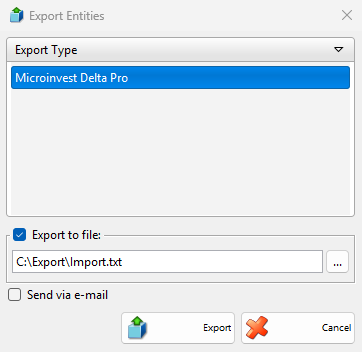
Send via e-mail also sends the file to an address you enter.
Export to 1С
With 1С selected, the menu item opens the Export to 1C window. Accounting application: shows the program with its version, and Set… leads to the settings.
- Set the period.
- Under Documents: select Purchases, Sales, Wastes, Stock-takings, Transfers, Write-offs, Returns, Payments and cash book or Production. Received invoices and Issued invoices are available for all versions except 7.7.
- Select Use internal ID-s and enter Prefix: if your 1С setup needs them.
- Click OK and save the file in the Export Entities window.
Permissions
Export to Accounting… has its own entry in Edit → Administration → Permissions…. The Administration menu is closed by default for operators.
Troubleshooting
| Problem | Solution |
|---|---|
| “Please specify at least one type of documents to export.” | Select a document type. Export Payments alone is not enough. |
| A document type is not in the window | The selected accounting program does not accept it. Check Program: in the settings. |
| “You don’t have a permission to change the accounting program. Please contact your manager.” | Your user lacks the Settings… permission. |
| “Please specify an export file before continuing.” | The file name is empty or its folder does not exist. Choose a file. |
| “Error occurred while saving export to “…”. Please check if you have write permissions to that location.” | Choose another folder or close the program that holds the file. |
| “This is not a licensed Basic version of IncoPOS! Only up to 10 lines can be exported at once.” | The file holds only the first 10 documents. A full export needs a license. |