
A sale is the document for the items and services you sell to a customer. Saving it takes the quantities out of the stock of the selected location and records the payment. Any amount that is not paid stays due from the partner.
Open the Sale window
Go to Operations → Sale → Sale or press F2.
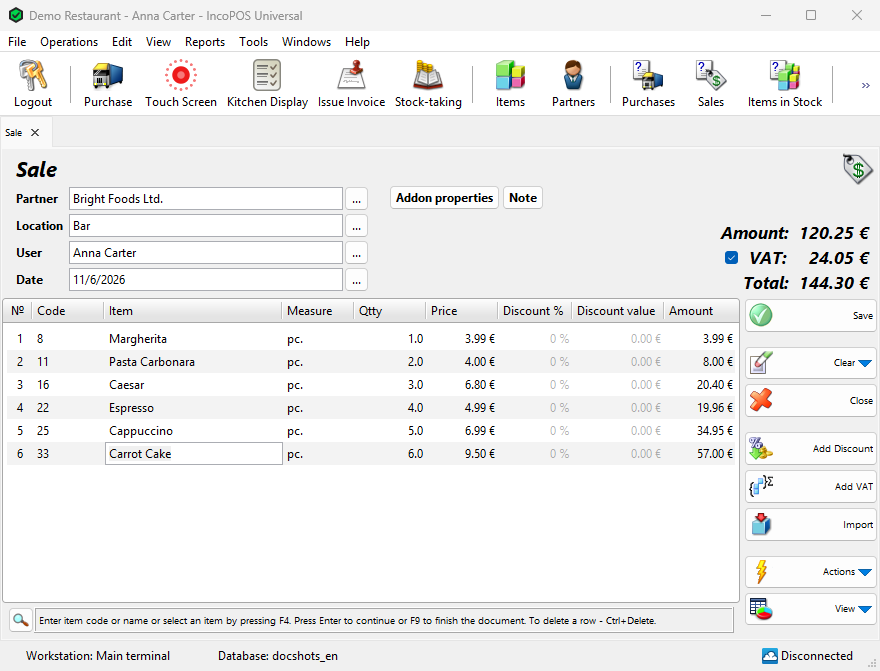
Fill in the header
In each header field type a name or code and press Enter, or open the list with F4, a double-click in the field or the … button.
| Field | What to enter |
|---|---|
| Partner | The customer. Required. Your user’s default partner is filled in, if there is one. The prices follow the partner’s price group. A VAT exempt partner makes the document VAT exempt. |
| Location | The location that sells the items: the quantities leave its stock. Its price group can also affect the prices. Your user’s default location is filled in, or the only location if there is just one. |
| User | The user responsible for the document. The logged-in user is filled in. |
| Date | The document date. Today is filled in. Press F4 or double-click to use the calendar. |
Changing the user or the date requires the Edit User or Edit Date permission (Operations), which operators do not have by default.
Add items
- In the Item column type the item name, code or barcode and press Enter. To choose from the list, press F4 or double-click the cell. In the list you can select several items with Ctrl+click, or with Shift and the arrow keys.
- In the Qtty column enter the quantity and press Enter. To read the weight from a connected electronic scale, press Ctrl+F.
- In the Price column check or change the price and press Enter. Enter moves through the remaining editable columns and opens a new row after the last one.
- To delete the current row press Ctrl+Delete.
A scanned barcode fills in the item and the quantity and opens a new row. If the item is already on a row with the same price, that row’s quantity increases instead. To enter the quantity with the code, use an asterisk in the Item column, for example 3*1234.
| Column | Meaning |
|---|---|
| Price | Filled in from the item’s price for the price group of the partner and the location. |
| Discount %, Discount value | A discount for the row. Shown only when Allow percent discounts or Allow value discounts is enabled in Tools → Settings… → Operations and your user has the Make Percent Discounts or Make Value Discounts permission. |
| Amount | Quantity × price after the discount. Editable with Enable totals edit in the settings. |
| Code, Markup % | Shown with Enable item code and Enable markup in the settings. |
| Lot, Serial number, Expiration date, Production date, Lot location | Shown only when you work with lots (see Lots and serial numbers). |
The totals Amount:, VAT: and Total: are shown at the top right. Clearing the check box next to VAT: makes the whole document VAT exempt after a confirmation. Price rules can change prices and discounts as you enter the rows; the program then shows “Price rule applied”.
Availability
If the location does not have enough quantity, the Qtty cell is highlighted and the sale cannot be saved. To sell below zero, select Work with negative availability in Tools → Settings… → Operations. Items marked Non-inventory or service and items made with Auto production are not checked.
Lots and serial numbers
A sale uses lots only when Item management: in Tools → Settings… → Operations is FIFO, LIFO, FEFO or Choice. Each lot column has its own option there, for example Enable lot name or Enable serial number.
You cannot type in these columns in a sale: lot data is entered in the Purchase. A lot without a name is shown as NA. The quantity is taken according to the method:
| Method | Where the quantity comes from |
|---|---|
| FIFO | The oldest lot first. |
| LIFO | The newest lot first. |
| FEFO | The earliest expiration date first. |
| Choice | The lots you select in the “item – Select Lot” window, which opens when more than one lot is available. A single lot is used without asking. A row left without a lot cannot be saved. |
If one lot does not have enough quantity, the row is split into one row per lot. You can also type a lot’s serial number in the Item column: the program finds the item and uses that lot.
Buttons
| Button | What it does |
|---|---|
| Save (F9) | Opens the Payment window (see Save and pay). |
| Clear | Its menu has Delete current row and Delete all rows. |
| Close (Esc) | Closes the window. With unsaved rows the program asks first (see Drafts). |
| Add Discount (Ctrl+Shift+D) | Spreads a percent or value discount for the whole document over the rows. Shown under the same conditions as the discount columns. |
| Add VAT / Subtract VAT | Recalculates all entered prices. Add VAT is shown when the program works with prices with VAT included: use it if you entered prices without VAT. Subtract VAT is the opposite. After a click the button switches, so you can undo it. |
| Import | Loads the item rows from a file, as in Proforma Invoice. Shown only when data importers are available. Fill in the header first. |
| Actions | For a new sale it has Save and Transform (see Transform the sale). |
| Note, Addon properties | Tabs next to the header for a note and additional document properties. |
Save and pay
- Press F9 or click Save. If price rules ask for a confirmation, click Apply in the Confirm Price Rules window.
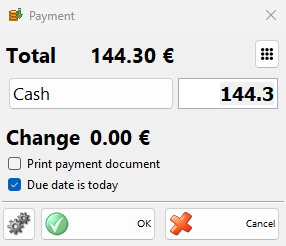
- In the Payment window choose the payment type and check the amount.
- Click OK. The sale is saved and the stock decreases. Cancel returns to the sale without saving.
The window is then cleared for the next sale and keeps the partner and the location. A connected external display shows the current row, the total and the change.
| Field | What it does |
|---|---|
| Payment type button | Shows the selected type, for example In cash. Click it to choose another one. Default payment type: in Tools → Settings… → Operations sets the starting type. |
| Amount field | The received amount. Default payment amount: in the settings starts it at Total owed or Zero. |
| Change | The received amount minus the total. A negative value, in red, means that money is missing. |
| Print cash receipt | Shown when a cash receipt printer is set up in Devices. It starts selected for the payment types set to print by default. |
| Print payment document | Opens the print preview of a payment document for each new payment. |
| Due date is today | Clear it to enter the Due Date or the Remaining Days for the unpaid amount. |
| Settings icon | Opens the Settings panel, which shows or hides the options of this window and limits the amount. Requires the Payment Dialog Settings permission, which operators do not have by default. |
These options are hidden until you turn them on in the Settings panel:
| Option | What it does |
|---|---|
| Use advance payments, Use payments we owe | Pay with the partner’s advances or with money you owe the partner, if there are such amounts. |
| Change is returned | Selected, the recorded payment is reduced to the total. Cleared, the whole received amount is recorded. Always return change in the settings removes this choice. |
| No invoice | Click it to select a partner and print an invoice receipt. Needs a receipt printer and a license. |
Several payments and unpaid amounts
If the amount is less than the total, the program asks “The paid amount is less than the total. Do you want to add another payment?”.
- Yes: the amount goes to Payments and the rest is filled in. Choose the next payment type and click OK. This is how you split a sale between payment types.
- No: the sale is saved and the rest stays due. If Only fully paid sales can be saved is selected, which is the default, the window stays open instead.
The question comes from Ask to add a payment if the operation is not fully paid. If Only fully paid sales can be saved is selected, a new sale always asks, even with that setting off. Both settings are in Tools → Settings… → Operations.
Receipts and documents
After OK, the program goes through these steps, depending on your devices and settings:
- Cash receipt: printed if Print cash receipt is selected and an amount is received.
- Kitchen order: printed for a new sale on the kitchen printers set up for its items.
- Receipt copy: if Receipt copies: in Tools → Settings… → Printing is Ask, the program offers a copy.
- Invoice: with Auto create invoice on sale in Tools → Settings… → Operations, the invoice window opens for a new sale. Otherwise see Issue invoices.
- Stock receipt: the program asks “Do you want to print a stock receipt?”. Yes opens the print preview and Don’t ask me again remembers the answer. Print documents: in Tools → Settings… → Printing controls the question.
Drafts
A draft keeps an unfinished sale for later. It does not change the stock, has no payments and gets a document number only when you save it. Click Close or press Esc in a window with valid rows and click Save draft. OK closes the window and loses the rows, and Cancel returns to the sale.
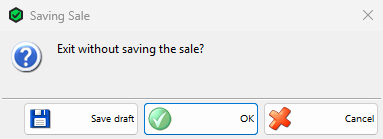
To continue, select the draft in Reports → Drafts… and use Actions → Edit. The window then shows “Edit sale draft”. Saving it through the Payment window turns it into a normal sale.
Transform the sale
A transformation creates a new document, for example a Return, from the rows of the sale. For a new sale click Actions → Save and Transform: the sale goes through the Payment window and is saved first. For saved sales use Operations → Transform Document… (Ctrl+T). See Transform Document.
Troubleshooting
| Problem | Solution |
|---|---|
| “Opening the Sale screen is not allowed!” | Ask an administrator to allow Sale for your user in Edit → Administration → Permissions…. |
| “The sale cannot be saved due to insufficient availability of item “…”.” | Lower the quantity or enter a Purchase. With lots, check that the row has a lot. |
| “There are no valid rows in the sale document!” | Add at least one item. |
| “The sale price of item “…” is zero. You are not allowed to use zero prices! Please contact the administrator for more information.” | Enter a price, or ask an administrator to select Allow sales using zero prices for your user. |
| “You don’t have permission to make discounts or corrections to the operation!” | Lowering a quantity, deleting a row, replacing an item or raising a discount requires Make Corrections In Operations or Make Corrections In New Operations. A user with one of them can log in after the message to allow the change. |
| “To print a receipt for an operation without VAT you need to define a 0% VAT group in IncoPOS and in the receipt printer if necessary!” | Add a group with 0% in Edit → VAT Groups… and in the printer if needed. |
| “Payment was cancelled or failed. Please try again.” | The sale is not saved. Save it again or choose another payment type. |
FAQ
Can a customer pay later?
Yes, if Only fully paid sales can be saved is cleared (see Save and pay).
Why is there no cash receipt for an unpaid sale?
A sale with no received amount prints a receipt only if its payment type has Print full payment if sale is not fully paid when using this payment.
Related pages
- Edit Sales (Edit → Documents → Sale…)
- Reprint Sale (Edit → Reprint Documents → Sale…)
- Touch Screen
- Partners
- Items
- Settings