
The Booking window records a reservation: the guest, the rooms, the dates of the stay and the rate. It builds the folio of the stay, a sale to the guest for every room and night, and keeps the check-in, the check-out, the payments and the invoice of the booking together. The Booking section page shows how the booking windows work together. Booking is part of the paid Advanced Operations module: without a Pro license you can fill in the window but not save it.
Before the first booking
The window takes its rooms, room types and rates from the current booking profile in Edit → Administration → Booking Settings… (see the Booking Settings page):
- A room is a location from Edit → Locations…. A location is a room when it has a location tag that the profile uses as a room type, for example Standard double.
- A rate type, for example Room only or Bed and breakfast, is sold as an item. Its price can differ for each room type.
- Packages add items to the nights of a rate, for example a breakfast for each adult.
The profile can call the rooms by another name, for example apartments. The window then uses that name in its labels and messages, and this page says room. It can also bill by the hour instead of by the night.
Open the Booking window
Go to Operations → Booking → Booking. The window opens with one room row and empty dates. A saved booking opens from Edit Booking, the Booking Plan and the Booking Sheet.
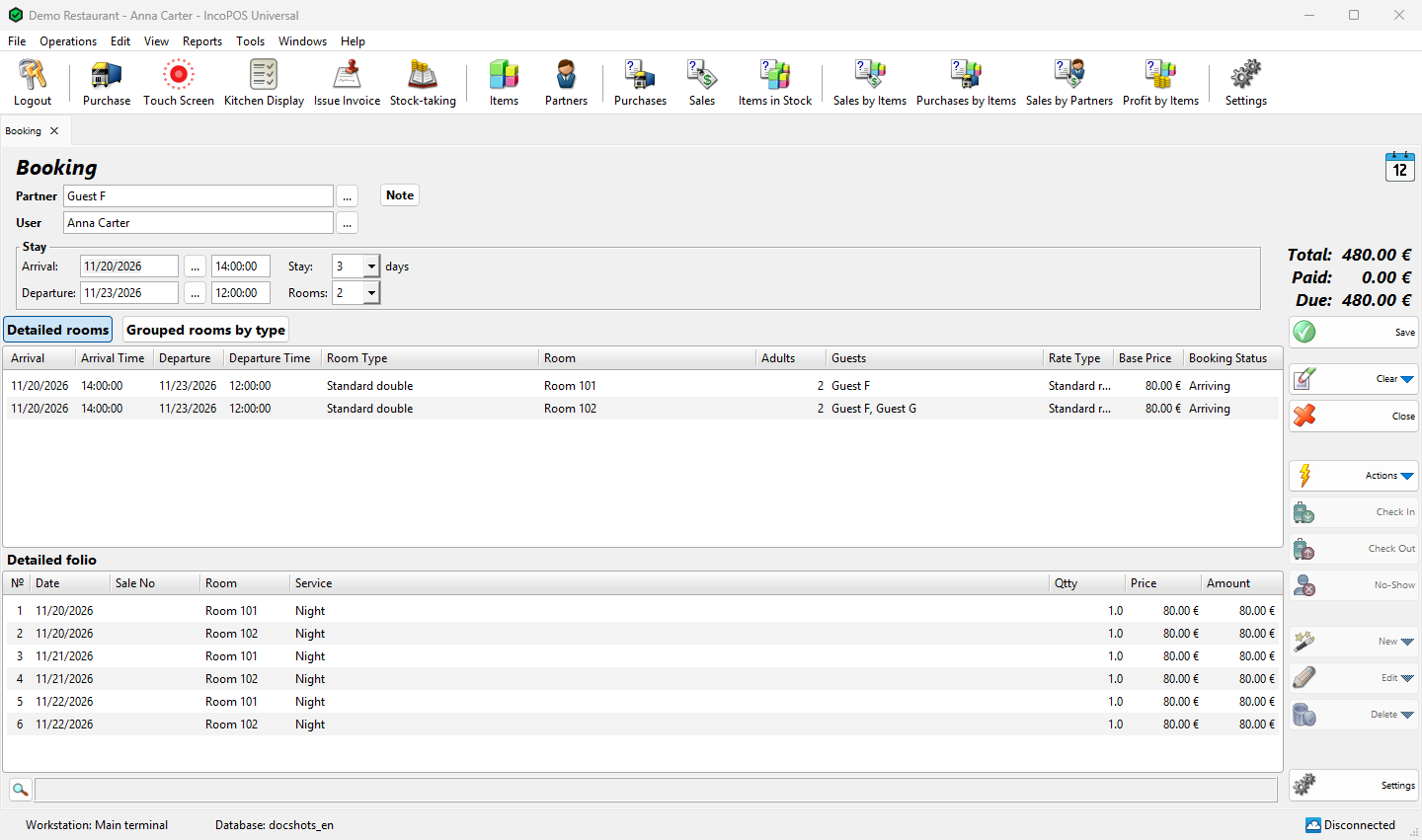
Fill in the header
| Field | What it does |
|---|---|
| Partner | The guest or the company that books and pays. Required. The partner also becomes the guest of every room that has no other guest. |
| User | The user responsible for the booking. The logged-in user is filled in. |
| Arrival: | The arrival date and, when the profile uses times, the arrival time (14:00 by default). An arrival date before today asks “You are entering an arrival date in the past. Are you sure you want to continue?”. Changing it moves the arrival of all rooms. |
| Departure: | The departure date and time (12:00 by default). Changing it moves the departure of all rooms. |
| Stay: | The number of nights, or hours with an hourly profile. Choose 1 to 10 or type a number up to 100, and Departure: moves. |
| Rooms: | The number of rooms. Choose 1 to 5 or type a number: the window adds or removes rows. |
| Note, Addon properties | Tabs next to the header for a note and additional document properties. |
Choose the rooms
The Detailed rooms tab has a row for each room. In a cell, type a value and press Enter, or press F4 or double-click to choose from a list. Pressing Enter on the last row asks “Do you want to add another room to the booking?”. Ctrl+Delete removes the current row; the last row cannot be removed.
| Column | What it does |
|---|---|
| Arrival, Arrival Time, Departure, Departure Time | The stay of this room, when it differs from the header. The time columns are shown when the profile uses times. |
| Room Type | The type of the room. The list Select Room Type shows the room types of the profile that are free for the dates of the row. |
| Room | The exact room, by name or code. The list Select Room shows the rooms of the row’s type that are free for its dates and not already in this booking, or “No available room could be found!”. Choosing a room fills in its type. You can leave the room empty and assign it later, but check-in needs a room. |
| Adults, Children | The number of guests in the room. The package items per adult or per child follow them. Children is shown when the profile counts children. |
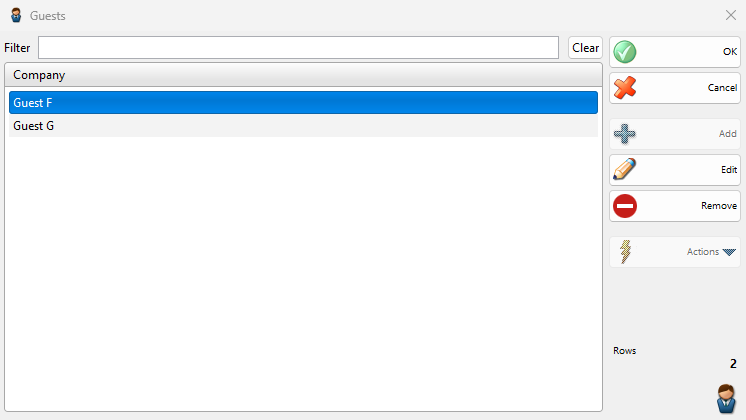
| Guests | The names of the guests. Double-click to open the Guests window: Add chooses partners from the partner list, Edit opens the selected partner and Remove takes it out of the room. A room takes at most as many guests as its adults and children. The registration cards are printed for these guests. |
| Rate Type | The rate of the room. The list Select Rate Type shows each rate type with its Base Rate for the room type of the row. |
| Base Price | The price of one night. It comes from the rate type and the room type. You can change it only when the item of the rate type is a Variable price item; otherwise the window shows “This rate type is not with a variable price and the base price cannot be changed manually!”. A price of 0 returns to the rate. |
| Booking Status | Arriving for a new room. Double-click to choose another status in Select Booking Status (see Check-in, check-out and no-show). |
Choosing a room, a room type or the guests from a list requires the Locations… permission (Edit). Without it you type the name.
Rooms grouped by type
The Grouped rooms by type tab books a number of rooms of a type without choosing them: each row has Arrival, Departure, Room Type, Quantity and Rate Type. A quantity of 3 makes three rows in Detailed rooms, where you assign the rooms later.
The detailed folio
The lower table, Detailed folio, shows what the guest will pay. The window fills it in while you enter the rooms: a row with the item of the rate type for every room and night, or hour, of the stay, and the items of the packages of that rate on the days that each package sets, for example a breakfast. Its columns are Date, Sale No, Room, Service, Qtty, Price and Amount. You do not type in it: change the rooms, the dates or the rate type instead.
Below the table, Total: is the amount of the folio, Paid: the payments so far and Due: the rest.
Save the booking
- Press F9 or click Save. The program asks “Do you want to save the operation?”. OK saves, Save draft keeps an unfinished booking as a draft and Cancel returns to the window.
- The program checks that every room is free for its dates. A room that another booking holds, or that a blocking takes out of inventory, stops the save with “The booking cannot be saved because room “…” is not available for the selected period.”. A room that a blocking marks out of service asks “Room “…” is blocked for the selected period. Are you sure you want to save to booking for these dates?”: Yes saves anyway. The same checks run for the rows that have only a room type, against the number of rooms of that type.
- If printing is available, the program asks “Do you want to print a booking confirmation?”. Yes opens the confirmation in the print preview. Don’t ask me again remembers the answer.
The window is then cleared for the next booking. A draft continues from Reports → Drafts… with Actions → Edit.
Check-in, check-out and no-show
These buttons work on the rooms that have an exact room. With several such rooms, the program first opens Select Room, where you can select several.
| Button | What it does |
|---|---|
| Check In | For rooms that are Arriving. After “Are you sure you want to check in room …?” the room becomes In-House and its room status becomes dirty, for the housekeeping. If printing is available, the program asks “Do you want to print the booking registration cards for this room?”. |
| Check Out | For rooms that are In-House. The room becomes Checked Out when its amount or the whole booking is paid; otherwise the program shows “The room cannot be checked out because the whole amount is not paid yet!”. |
| No-Show | For rooms that are Arriving, when the guest did not come. The room becomes No-Show. |
In Booking Status you can also set Cancelled, or go back to Arriving. A room that is No-Show or Cancelled loses its unpaid nights from the folio; nights that are paid, have a cash receipt or an invoice stay. A room that is Checked Out, No-Show or Cancelled no longer holds the room for other bookings. Save the booking to keep the new status.
Payments, deposits and extras
New and Delete work on a saved booking or a draft, so open it again after the first save. Their changes are saved at once.
| Button | What it does |
|---|---|
| New → Payment | Takes a payment for the folio of the selected rooms. The Select Room list shows the Due Amount of each room. With several sales, “Add payment for all sales?”: Yes opens the payment window, which spreads the amount over the unpaid nights; No opens the payments window with these sales (see Payments). Shown while something is due. |
| New → Deposit | Takes money in advance, split equally between the selected rooms. For each room the program saves a sale of the default deposit item, paid at once, and a sale of the deposit discount item for minus the same amount, so the deposit is taken off what the guest owes. Both items are set in Deposits… of the booking profile; without them the program shows “Default deposit item is required in order to add a deposit!” or “Deposit discount item is required in order to add a deposit!”. |
| New → Sale | Opens a Sale for the guest in the selected room, for example for the minibar. When you save it, the sale joins the folio. Shown while a room is Arriving or In-House. |
| New → Invoice | Issues an invoice (see Invoice the booking). |
| Delete → Payment | Removes the payments of the selected rooms. With several sales, “Delete all payments?”: Yes deletes them all and No opens the payments window with these sales, to delete them one by one. |
A sale made in another window can also be charged to the booking with the payment processor Hotel Link – IncoPOS Internal Booking.
Invoice the booking
- In the saved booking click New → Invoice, or go to Operations → Invoicing → Issue Invoice from Booking… and select one or more bookings of the same partner.
- Answer “Issue invoice for all sales in the selected bookings?”. Yes takes the whole folio. No opens Issue Invoices – Select Document with the sales of the booking, where you choose which ones to invoice, for example only the extras.
- Fill in and save the invoice as described in Issue invoices.
With Yes, a booking that already has an invoice on one of its sales stops with “Operation No…. cannot be attached to an invoice because the issued invoice No…. is already attached to it.”. Invoiced nights cannot be changed afterwards.
Split and merge
The Edit button of a saved booking has:
- Split: divides the stay of one room at a date that you choose in Select Split Date, so that the two parts can have, for example, another room or rate. The stay must be longer than one night (“Cannot split booking. Booking must be for more than 1 day.”).
- Merge: joins two rows of the booking whose stays follow each other. You choose the row that is kept and then the second one. Rows that do not fit bring “No compatible booking rows found to merge.”.
- Split folio sale: divides a sale added with New → Sale, for example to bill a part to another guest. The nights of the stay cannot be split this way. It requires the Split sale permission (Edit → Documents → Sale…), which operators do not have by default.
Buttons
| Button | What it does |
|---|---|
| Save (F9) | Saves the booking (see Save the booking). |
| Clear | In a new booking, returns to one room for one night. In a saved booking, annuls it after “Do you want to annul the operation and all the sales from the detailed folio?”. |
| Close (Esc) | Closes the window. With unsaved rows the program asks “Exit without saving the booking?”. |
| Check In, Check Out, No-Show | See Check-in, check-out and no-show. |
| New, Delete | See Payments, deposits and extras. |
| Edit | See Split and merge. |
| Settings | Opens Booking Settings after closing all open tabs (“Before editing the settings all tabs have to be closed. Do you want to close all open tabs?”). Shown to users who may open Booking Settings…. |
What a saved booking changes
| Where | Result |
|---|---|
| Sales | The folio is saved as sales to the partner: one for each room and night, in the location of the room, with the rate item and the package items. They appear in the sales reports and take the stock of the package items that are goods. |
| Payments | The sales are due until you add payments or deposits. |
| Availability | The rooms are taken for their dates in the Booking Plan, the Booking Sheet and the other bookings. |
| Room status | A check-in marks the room dirty. |
Permissions
Permissions are set in Edit → Administration → Permissions….
| Permission | What it allows | Not allowed by default for |
|---|---|---|
| Booking (Operations → Booking) | Opening the window, also for editing. | Nobody, but the business type can hide it (see Booking) |
| Edit fixed base prices in bookings | Changing a row that keeps a fixed base price. Without it the program shows “This booking is made with a fixed base price! You don’t have permissions to edit it!”. | Operators, managers and administrators |
| Booking Settings… (Edit → Administration) | The Settings button and opening the profile from the deposit message. | Operators |
| Locations… (Edit) | The lists of rooms, room types and guests. | Nobody |
Troubleshooting
| Problem | Solution |
|---|---|
| “Opening the Booking screen is not allowed!” | Ask an administrator to allow Booking (Operations → Booking) for your user. |
| “This is a free version of the Booking operation! To save your operation please purchase a Pro license.” | Booking needs a Pro license to save. |
| The room lists are empty or “No available room could be found!” | Check that the rooms have the tags of the room types chosen in Booking Settings, and that a room is free for the dates of the row. |
| “Invalid room at row 1!” | Enter a room or a room type in that row. |
| “Invalid rate type at row 1!” | Choose a rate type. The rate types come from Booking Settings. |
| “The booking cannot be saved because room “…” is not available for the selected period.” | Another booking or a blocking out of inventory has the room. Choose another room or change the dates; the Booking Sheet shows the free rooms. |
| “The room cannot be checked out because the whole amount is not paid yet!” | Add the payment with New → Payment, then check out. |
| “Changing the booking is not allowed, because there is an invoice issued for it!” | An invoiced night cannot be removed with No-Show. Annul the invoice first. |
| New is disabled | Save the booking first and open it again, from Edit Booking, the Booking Plan or the Booking Sheet. |
FAQ
Can one booking hold rooms with different dates?
Yes. Each row has its own Arrival and Departure. Changing the dates in the header moves all rows.
How do I move a guest to another room in the middle of the stay?
Save the booking, use Edit → Split at the date of the move and enter the other room in the second row.
Where do I see which rooms are free?
In the Booking Sheet, and in the Select Room list of a row, which shows only the free rooms for its dates.
Related pages
- Booking (the section page)
- Blocking
- Edit Booking (Edit → Documents → Booking → Booking…)
- Reprint Booking (Edit → Reprint Documents → Booking)
- Booking Plan, Booking Sheet and Booking Settings
- Issue invoices