
Use Edit → Administration → Copy Database… to make a separate database with only the data you select: lists, settings and, if you want, the operations from a date on. The same window can also archive the current database: the program keeps all of it under a new name and goes on working with the smaller copy under the old name.
The copy is made on the same database server, with the same login. A local database is copied to a file in the same data folder. Open a copy with File → Change Database….
Before you start
- Only an owner can run the command. The permission is not allowed by default for operators, managers and administrators, and the command checks the level again.
- The command needs a Pro license.
- All tabs of this workstation must be closed. The program asks to close them and asks for your password.
- The copy does not stop the other workstations. Ask all users to leave the program first: what they save while the copy runs may be missing from it.
Copy to a new database
- Go to Edit → Administration → Copy Database….
- If tabs are open, answer Yes to “Before copying the database all tabs have to be closed. Do you want to close all open tabs?”.
- Enter your password. The Copy Database window opens with Copy to a new database selected.
- In Target database: enter the name of the copy. The program proposes the name of your database with
_copyat the end. - Select the lists, the settings and the operations to copy (see the tables below).
- Click Start. The Copying Database window shows the progress of each step and the overall progress.
- Wait for “Database copy finished successfully.”. The program keeps working with the current database.
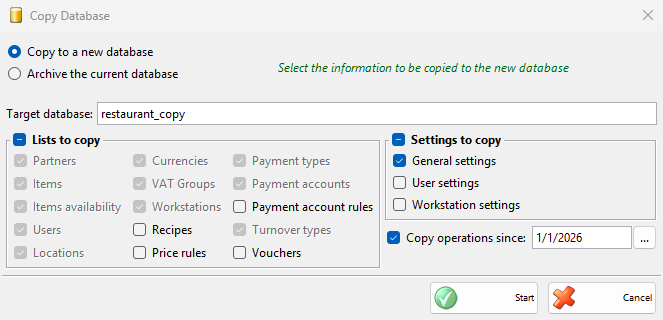
Lists to copy
The company information is always copied. Select the lists you need, or the check box of Lists to copy to select all of them. Some lists need others: selecting such a list also selects the lists it needs and locks them while it stays selected.
| List | What is copied |
|---|---|
| Partners | The partners with their groups, tags, images and properties. |
| Items | The items with their groups, tags, images and properties. |
| Items availability | The quantity and the price of each item in each location as they are now, with the lots. Also selects Items. Without it the copy has no stock. |
| Users | The users with their groups, levels, tags, images, properties and permissions. |
| Locations | The locations with their groups, tags, images and properties. |
| Currencies | The currencies. |
| VAT Groups | The VAT groups. The label is Tax Groups when the program uses sales tax. |
| Workstations | The workstations and their groups. |
| Recipes | The recipes. Also selects Items. |
| Price rules | The price rules. Also selects Partners, Items, Users, Locations, VAT Groups, Workstations and Payment types. |
| Payment types | The payment types. |
| Payment accounts | The payment accounts and their groups. |
| Payment account rules | The payment account rules. Also selects Partners, Users, Locations, Workstations, Payment types, Payment accounts and Turnover types. |
| Turnover types | The turnover types. |
| Vouchers | The vouchers. Also selects Payment types. |
Settings to copy
| Setting | What is copied |
|---|---|
| General settings | The settings of the whole database, which belong to no user and no workstation. Without it the copy starts with the default settings. |
| User settings | The settings of each user. Also selects Users. |
| Workstation settings | The settings of each workstation. Also selects Workstations. |
The settings of a user on one workstation are copied only when both User settings and Workstation settings are selected.
Copy operations since
Select Copy operations since: and enter the first date to copy. Operations dated on that day are copied too. The option selects and locks Partners, Items, Items availability, Users, Locations, Currencies, VAT Groups, Workstations, Payment types, Payment accounts and Turnover types.
| Data | In the copy |
|---|---|
| Operations | All operations from the date on, with their rows and properties. Recipes are copied only with Recipes. |
| Payments | The payments of these operations, the cash deposits, withdrawals and cash balances from the date on, and all advance payments of any date. |
| Cash book, cash receipts and invoices | The cash book entries from the date on, and the cash receipt records and the invoices of the copied operations. |
| Consignments | A consignment that started before the date and has sales or returns after it is copied whole. |
| Stock | A stock-taking with the note “Initial stock-taking” on the selected date in each location holds the quantities of the day before. The availability is the same as in the current database. |
| Document numbers | Numbering continues after the last numbers of the current database, for each document type and location. |
Without this option the copy has no operations and no payments.
Archive the current database
Use this to keep working in a smaller database without losing the old one. The program copies the selected data to a temporary database and then swaps the names: the current database gets the archive name, and the copy takes the name of the current database. Workstations that open this name afterwards work with the copy.
- Open the Copy Database window as above and select Archive the current database.
- In Archive database: enter the name for the old database. The program proposes the name of your database with
_archiveat the end. - Select the data that the working database keeps, for example all lists, all settings and the operations since the start of the year.
- Click Start and wait for the copy.
- On a database server the program shows “Database copy finished successfully. Please stop all workstations that may be using the current database before swapping the database with the new database.”. Close the program on all other workstations, then click OK. Cancel stops before the swap, and the current database stays as it is.
- Wait for “Database swap finished successfully.”. The program restarts with the copy.
To see the old documents, open the archive database with File → Change Database….
Troubleshooting
| Problem | Solution |
|---|---|
| “Only owners may copy the database.” | Log in as a user with the owner level. |
| “The Copy Database function requires a Pro license! To use this feature please purchase a license.” | The database has no Pro license. |
| “Please, enter the name of the new database!” | Enter the name in Target database: or Archive database:. |
| “The entered database name contains invalid characters!” | Use only letters, digits and the characters your database server allows in a name. |
| “A database with the name of “…” already exists!” | Enter another name. The command never writes into an existing database. |
| “Please select a valid date since which operations should be copied!” | Enter a date in Copy operations since:, or clear the option. |
| “Please select the information that should be copied to the new database!” | Select at least one list, setting or Copy operations since:. |
| “An error occurred while performing database copy!” | The current database did not change. Check the free disk space and the rights of the database user to create databases, then try again. |
| “An error occurred while performing database swap!” | The names could not be changed, for example because another workstation still used the database. Before you try again, check which databases exist: the current database may already have the archive name. |
Permissions
The Copy Database… permission under Administration in Permissions is not allowed by default for operators, managers and administrators. Giving it to them is not enough: the command runs only for owners.
FAQ
Does the copy keep working with the old database?
With Copy to a new database, yes: the program stays on the current database and the copy is separate. With Archive the current database the program restarts on the copy.
Is this a backup?
No. It holds only the company information and the data in the tables above, and the operations from the selected date on. Keep a separate backup of the database.