
The Edit → Reprint Documents → Booking menu prints the documents of a saved booking again: the confirmation for the guest, the bill of the stay and the registration cards of the guests. Printing does not change the booking, its sales or its payments.
Select and print a booking
- Go to Edit → Reprint Documents → Booking and choose Booking Confirmation…, Booking Bill… or Booking Registration Cards…. The Booking – Select Document window opens.
- Find the booking with Date: and Filter.
- Select the booking and click Print, or double-click the row.
- The document opens in the print preview, where you print or export it.
Each menu item prints one booking. With several bookings selected, only the first one opens in the preview.
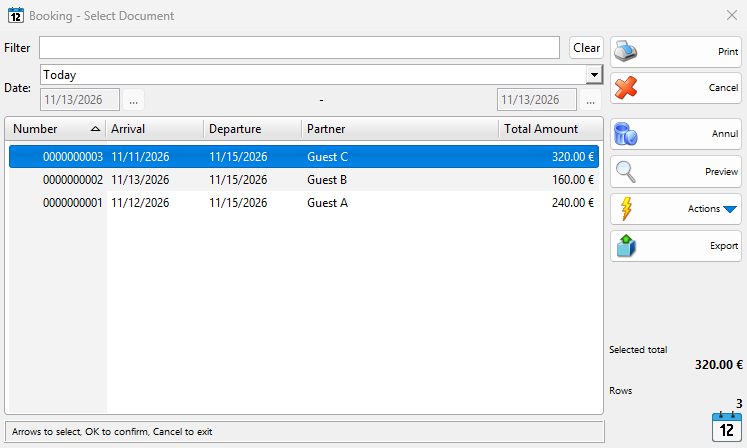
| Control | What it does |
|---|---|
| Filter | Shows only the bookings whose number or partner contains the typed text. |
| Date: | Lists the bookings whose stay is in the period for at least one day. Choose Custom Dates to enter a start and end date. The window remembers the last period. |
| Clear | Clears the filter text and sets Today. |
| Prints the selected booking as described above. | |
| Cancel | Closes the window. |
| Annul | Annuls the selected bookings (see Annul a booking). |
| Preview | Shows or hides a preview of the selected booking. |
| Actions | Actions for the selected bookings, for example Related Documents. |
| Export | Exports the listed or the selected bookings. Shown to users with the Export permission for editing bookings. |
Without Manage operators and view their operations the list shows only the bookings with your user in User. Reprinting has no limit for old dates.
Booking Confirmation
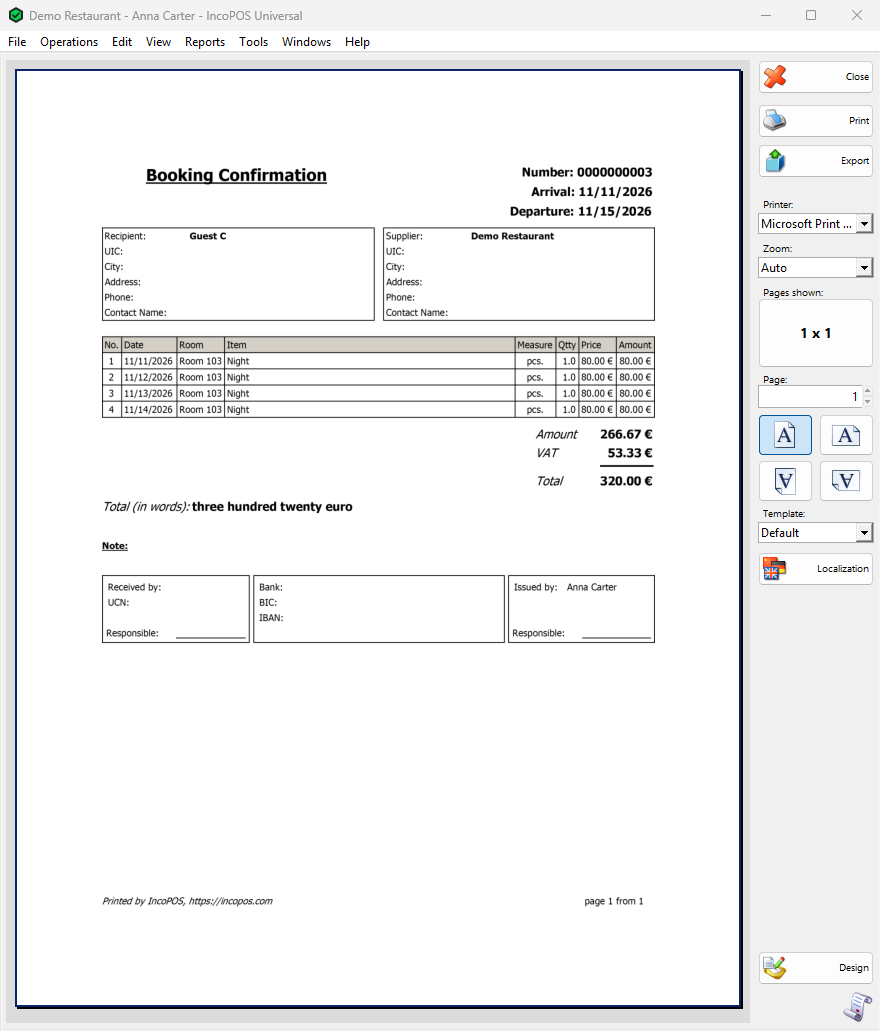
The same confirmation that the Booking window offers after saving. It shows the current content of the booking:
- the title Booking Confirmation, the number of the booking and the arrival and departure dates;
- the details of the partner and of your company;
- the rows of the folio with their date and room, the item, the quantity, the price and the amount;
- the totals, the note and the lines for the signatures.
With Combine items when printing Booking Confirmation selected on the Bookings tab of Tools → Settings…, the rows of the same item and room are merged into one row without a date.
Booking Bill
The bill of the stay, for example to hand over at the check-out. When the booking has several rooms, the program first opens Select Room: select one or more rooms, and the bill has only their rows, with the extras sold to these rooms. The bill has the same parts as the confirmation, with the amounts grouped by VAT group instead of the totals. Combine items when printing Booking Bill merges its rows like the confirmation. A booking whose rooms are not assigned yet prints no bill.
Booking Registration Cards
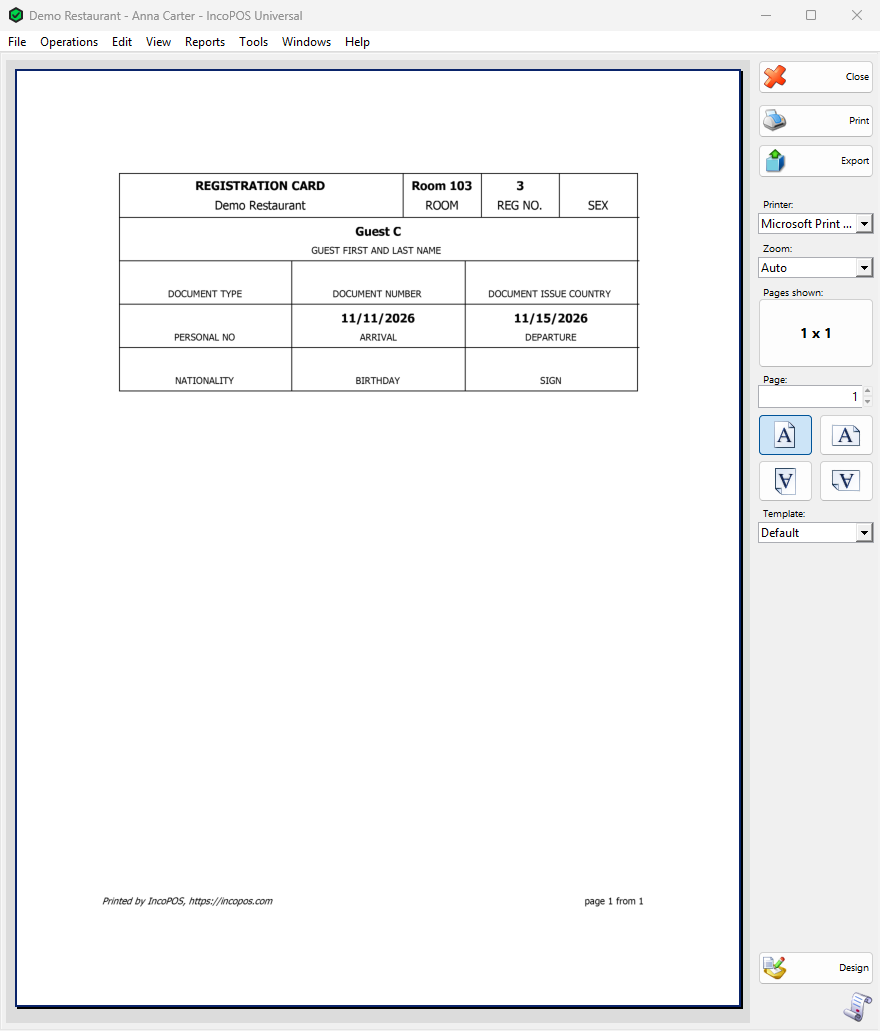
A registration card for every guest of every room of the booking, the same cards that Check In offers to print. Each card has:
- REGISTRATION CARD, ROOM and REG NO., which is the number of the booking;
- GUEST FIRST AND LAST NAME, SEX, BIRTHDAY, NATIONALITY and PERSONAL NO;
- DOCUMENT TYPE, DOCUMENT NUMBER and DOCUMENT ISSUE COUNTRY;
- ARRIVAL, DEPARTURE and SIGN.
The guest data comes from the partner of each guest (see Adding, editing and deleting partners): the gender, the country as the nationality, the birthday, the personal number that a person has instead of UIC:, and Document type:, Document number: and Document issue country:. Empty fields print empty, for the guest to fill in by hand. A room without guests prints no card.
Permissions
Permissions are set in Edit → Administration → Permissions….
| Permission | What it allows | Not allowed by default for |
|---|---|---|
| Reprint Documents → Booking and its three items | The menu items. | Nobody, but the business type can hide Booking (see Booking) |
| Manage operators and view their operations | Seeing the bookings of all users. | Operators |
Troubleshooting
| Problem | Solution |
|---|---|
| Reprint Documents is disabled | The computer has no printer and no document exporter. Install a printer. |
| A booking is not in the list | Set Date: to a period that includes its nights, and check Filter. |
| Only one of the selected bookings is printed | Each menu item prints one booking. Print the others one by one. |
| The Booking Bill does not open | Assign the rooms in Edit Booking, or select at least one room in Select Room. |
| A registration card has empty fields | Fill in the data of the guest in the partner, then print again. |
| “An error occurred while generating the booking confirmation!”, “An error occurred while generating the booking bill!” or “An error occurred while generating the booking registration cards!” | Check the booking in Edit Booking and the printer settings, then try again. |
Related pages
- Booking
- Edit Booking (Edit → Documents → Booking → Booking…)
- Print Preview
- Document Designer