
Use Edit → Documents → Management → Price Change… to change or annul a saved price change. The edit window works like the Price Change window. That page describes the header, the rows and which prices change, and this page covers only what is different. Saving an edit changes an item price only for the rows in What saving changes.
Open a price change for editing
- Go to Edit → Documents → Management → Price Change…. The Price Change – Select Document window opens.
- Find the price change with Date: and Filter.
- Select the price change and click Edit, or double-click the row. To edit several price changes, select them with Ctrl+click: each one opens in its own tab.
You can also open a price change from a report: select its row and use Actions → Edit. The limits below apply there too.
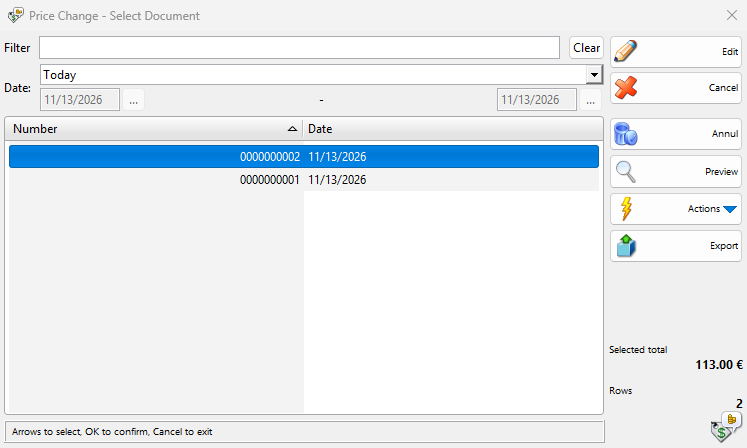
| Control | What it does |
|---|---|
| Filter | Shows only the price changes whose number contains the typed text. A valid 12 or 13 digit barcode of the number also works. |
| Date: | The period of the listed price changes, by their date. Today is used the first time. Choose Custom Dates to enter a start and end date. The window remembers the last period. |
| Clear | Clears the filter text and sets Today. |
| Edit | Opens the selected price changes for editing. |
| Cancel | Closes the window. |
| Annul | Annuls the selected price changes (see Annul a price change). |
| Preview | Shows or hides a preview of the selected price change. |
| Actions | Edit, Print, Transform Selected Documents and Related Documents. Print works as in Reprint Price Change. |
| Export | Exports the listed or the selected price changes. Shown when exporters are available. |
Draft in the Number column marks an unfinished price change, which has not changed any price yet.
Price changes that cannot be edited
The program checks each selected price change when you click Edit.
| Case | Message | Result |
|---|---|---|
| The price change is older than your user may change | “You don’t have access to edit operations that far in the past!” | The price change does not open. The limit is Allowed operations modification: in the user’s settings. |
| The price change is pending in another database | “Pending operations cannot be edited! Please wait for the operation to be completed at the managing database.” | The price change does not open until that database completes it. |
What you can change
The window title shows Edit price change No. and the number of the price change, which cannot change. A draft opens as Edit price change draft.
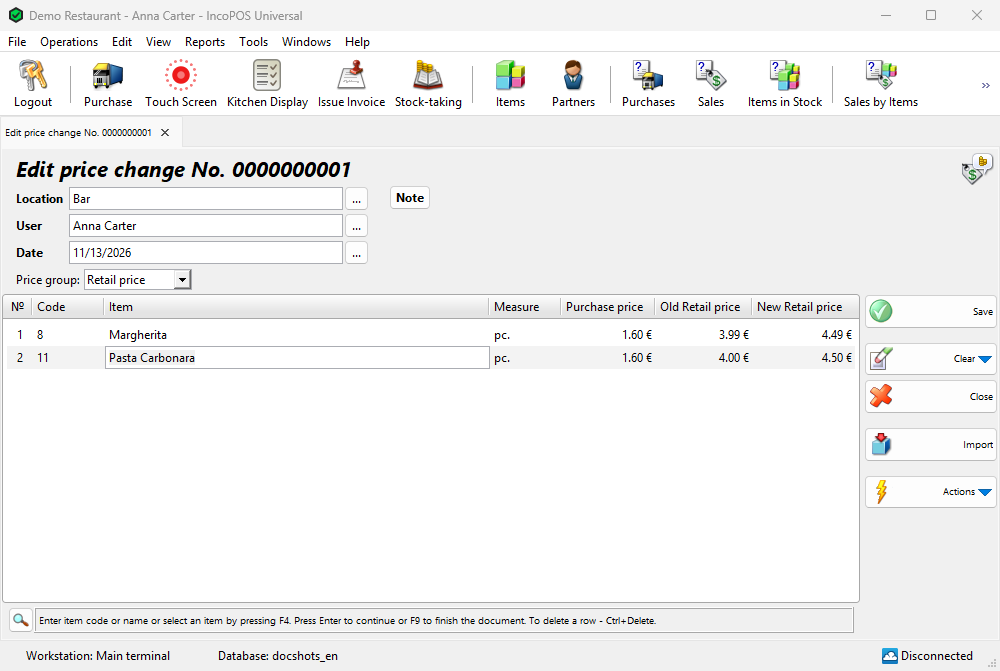
| Part | How it works in an edit |
|---|---|
| Location | Changing it sets Price group: to the price group of the location. Location is disabled when Document numbers per location is selected in Tools → Settings… → Special. |
| User, Date | Require the Edit User and Edit Date permissions. |
| Price group: | Changing it asks the same question about the prices as in a price change. |
| Old price column | For the saved rows, the price before this price change, as in the Old Price column of the protocol (see Reprint Price Change). For new rows, and for all rows after you change Price group: or, with Location price, the location, the current price of the item. |
| Rows | Change the new price, replace the item or press Enter on the last row to add an item. |
| Delete a row | Press Ctrl+Delete or use Clear → Delete current row. The row stays struck through and disappears when you save. |
| Note | The same tab as in a price change. |
Deleting a saved row or replacing its item requires Make Corrections In Operations. A saved price change cannot become a draft. If you close the window with changes, the program asks “Exit without saving the changes?”: OK loses the changes and Cancel returns to the price change.
Save the changes
- Press F9 or click Save.
- The program asks “Do you want to save the changes?”. OK saves and Cancel returns to the price change.
- If printing is available, the program asks “Do you want to print a price change protocol?”. Yes opens the print preview.
The tab then closes.
What saving changes
| Where | Result |
|---|---|
| Rows you did not change | The item keeps its current price, also when it was changed after this price change. |
| A row with another new price | The item gets the new price only if it still has the price that this row set. If its price was changed after this price change, the item keeps it, and only the document shows the corrected price. |
| New rows, rows with another item | The item gets the new price. The old price of the row is the price of the item at the save. |
| Another Price group: or location | With another Price group:, or another location with Location price, every row sets its new price there, with the current price as the old price. |
| Deleted rows | The item keeps its current price. It does not get its old price back. |
| Saved documents | No change. Their rows keep their prices. |
| Stock, payments | No change. A price change has neither. |
| History | A row that sets a price different from the current price of the item is added to Reports → Items → Items Prices History…. |
Annul a price change
- In Price Change – Select Document select one or more price changes and click Annul.
- Answer “Are you sure you want to annul this price change?” with Yes. For several price changes the question is “Are you sure you want to annul the selected 2 price changes?”.
The price change leaves the list and the item prices stay as they are: annulling neither restores the old prices nor sets the prices of the price change. To go back, make another price change with the old prices from the Old Price column of the protocol. Annul is also in the Reprint Price Change window.
Permissions
All permissions are set in Edit → Administration → Permissions…. The defaults apply when a user is added, reset or given another level.
| Permission | What it allows | Not allowed by default for |
|---|---|---|
| Documents | The Edit → Documents menu. | Operators |
| Documents → Management → Price Change… | The menu item, Annul and Actions → Edit. | Operators |
| Export | The Export button. | Operators |
| Price Change (Operations → Management) | Opening the edit window. | Operators |
| Manage operators and view their operations | Seeing the price changes of all users. Without it the list shows only the price changes with your user in User. | Operators |
Troubleshooting
| Problem | Solution |
|---|---|
| A price change is not in the list | Check Date: and Filter. Without Manage operators and view their operations you see only your own price changes. |
| “Opening the Price Change screen is not allowed!” | The edit window also needs the Price Change permission (Operations → Management). |
| The item did not get the corrected price | Its price was changed after this price change, for example in another price change or in Change prices. Make a new price change for the item. |
| “This is a free version of the Price Change operation! To save your operation please purchase a license.” | Price Change is part of the paid Advanced Operations module. Without a license you cannot save the changes. |
| “You don’t have permission to make discounts or corrections to the operation!” | A user with Make Corrections In Operations can log in after the message to allow the change. For rows you added in this edit, Make Corrections In New Operations is enough. |
| “The operation was already modified and cannot be saved!” | Another user saved this price change after you opened it. Close the tab and open it again. The check comes from Check if the operation was modified before save in Tools → Settings… → Operations. |
| “You don’t have access to annul operations that far in the past!” | The price change is older than Allowed operations modification: allows. |
FAQ
Can I change the number of a price change?
No. An edit keeps the number.
Does editing an old price change undo the prices set later?
No. A row you do not change leaves the item price as it is, and a corrected row sets its price only while the item still has the price that this row set.
Related pages
- Price Change
- Reprint Price Change (Edit → Reprint Documents → Management → Price Change…)
- Change prices
- Management reports (Reports → Management → Price Changes…)