
The Blocking window takes rooms out of use for a period, for example for a repair, a renovation or for the owner’s own use, so that they are not booked. A blocking has no guest, no price and no payments. The Booking section page shows how it fits with the other booking windows. Blocking is part of the paid Advanced Operations module: without a Pro license you can fill in the window but not save it.
Out of service and out of inventory
| Status | What it means for bookings |
|---|---|
| Out Of Service | The room should not be sold, but can be. Saving a Booking with this room for these dates asks “Room “…” is blocked for the selected period. Are you sure you want to save to booking for these dates?”, and Yes saves the booking. |
| Out Of Inventory | The room is not available at all. A booking with this room for these dates cannot be saved: “The booking cannot be saved because room “…” is not available for the selected period.”. |
Both count as taken rooms in the Booking Sheet, in the room lists of the Booking window and when a booking has only a room type.
Open the Blocking window
Go to Operations → Booking → Blocking. The window opens with one room row and empty dates. A saved blocking opens from Edit Blocking.
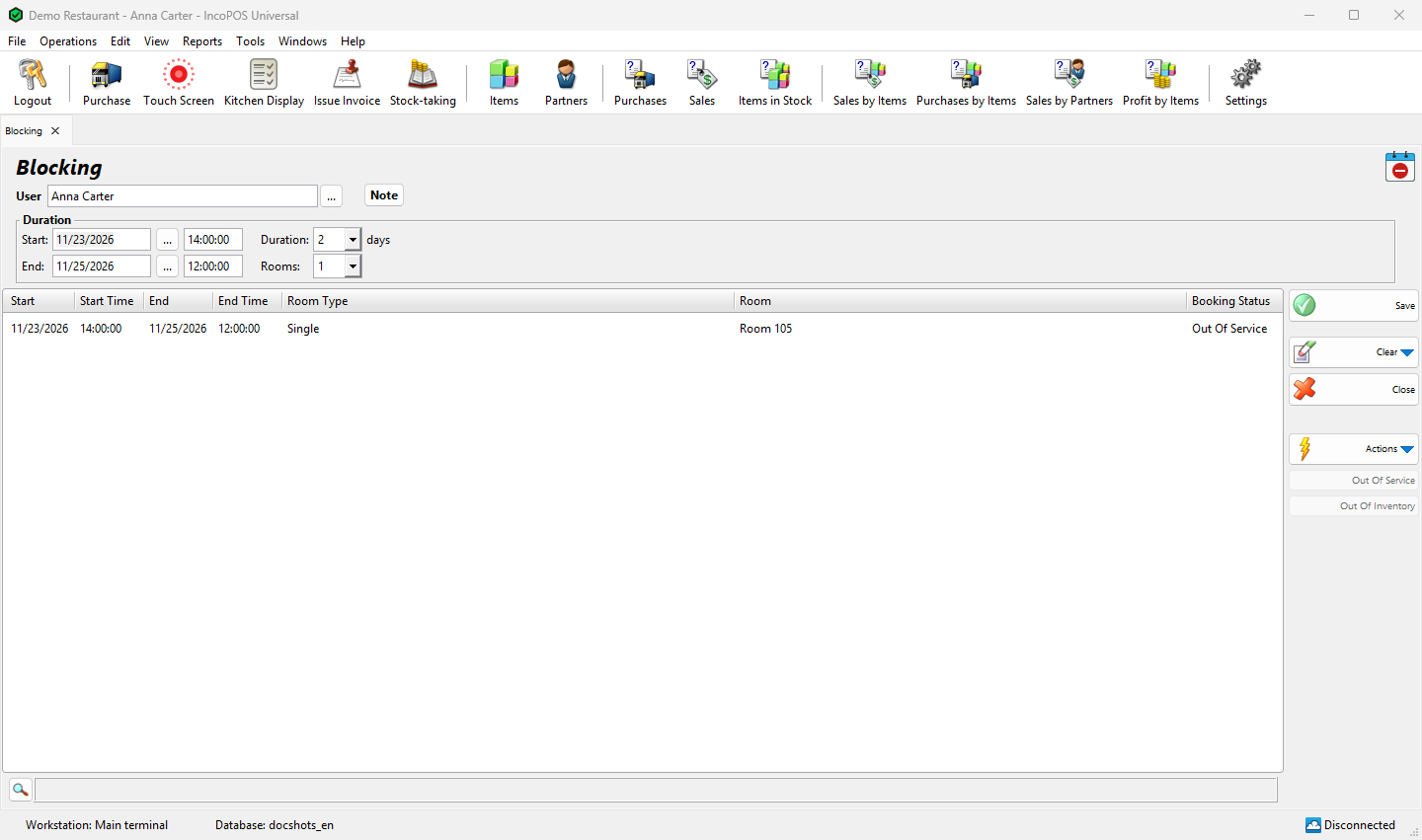
Fill in the blocking
| Field or column | What it does |
|---|---|
| User | The user responsible for the blocking. The logged-in user is filled in. |
| Start:, End: | The period of the blocking, with the times when the booking profile uses times. A start date before today asks “You are entering a start date in the past. Are you sure you want to continue?”. Changing them moves all rows. |
| Duration: | The number of days, or hours with an hourly profile. Choose 1 to 10 or type a number, and End: moves. |
| Rooms: | The number of rooms. Choose 1 to 5 or type a number: the window adds or removes rows. Enter on the last row asks “Do you want to add another room to the blocking?” and Ctrl+Delete removes a row. |
| Start, Start Time, End, End Time | The period of the row, when a room is blocked for other dates than the others. |
| Room Type, Room | The room to block, chosen as in the Booking window (see Choose the rooms). A row with only a room type blocks one room of that type, without saying which. |
| Booking Status | Out Of Service for a new row. Double-click to choose Out Of Service or Out Of Inventory in Select Blocking Status. |
| Note, Addon properties | Tabs next to the header for a note and additional document properties. |
The buttons Out Of Service and Out Of Inventory change the status of several rooms at once. Out Of Service works on the rooms that are out of inventory and asks “Are you sure you want to block as out of service room …?”; Out Of Inventory works the other way. With several rooms, the program first opens Select Room.
Save the blocking
- Press F9 or click Save. The program asks “Do you want to save the operation?”. OK saves, Save draft keeps the blocking as a draft and Cancel returns to the window.
- The program checks that every room is free for its period. A room that has a booking or another blocking stops the save with “The blocking cannot be saved because room “…” is not available for the selected period.” and puts the cursor on that row.
The window is then cleared for the next blocking. Nothing is printed.
Buttons
| Button | What it does |
|---|---|
| Save (F9) | Saves the blocking (see Save the blocking). |
| Clear | In a new blocking, returns to one room for one day. In a saved blocking, annuls it after a question. |
| Close (Esc) | Closes the window. With unsaved rows the program asks “Exit without saving the blocking?”. |
| Out Of Service, Out Of Inventory | Change the status of the selected rooms, as described above. |
Troubleshooting
| Problem | Solution |
|---|---|
| “Opening the Blocking screen is not allowed!” | Ask an administrator to allow Blocking (Operations → Booking) for your user in Edit → Administration → Permissions…. |
| “This is a free version of the Blocking operation! To save your operation please purchase a Pro license.” | Blocking needs a Pro license to save. |
| “The blocking cannot be saved because room “…” is not available for the selected period.” | A guest is booked in the room, or the room is already blocked. Change the dates or move the booking to another room first. |
| “Invalid room at row 1!” | Enter a room or a room type in that row. |
| “There are no valid rows in the blocking document!” | Enter at least one room. |
FAQ
How do I end a blocking early?
Open it in Edit Blocking, set an earlier End and save, or annul it.
Can I block a room that a guest has booked?
No. Move the booking to another room first, then save the blocking.
Related pages
- Booking (the section page)
- Booking (the window)
- Edit Blocking (Edit → Documents → Booking → Blocking…)
- Booking Sheet