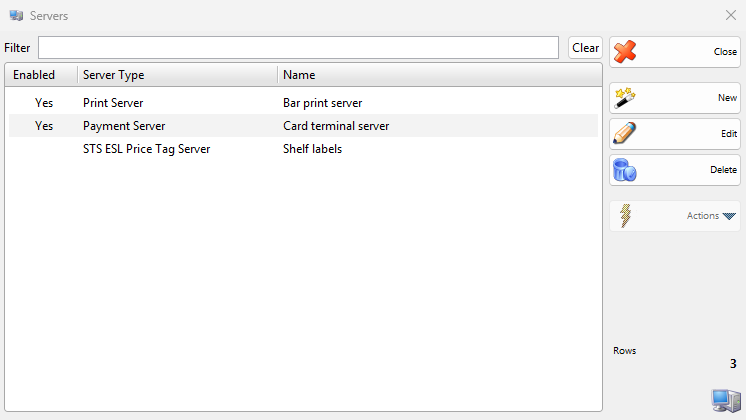
A server is a background service of a workstation. It starts when IncoPOS opens the database on that workstation and runs while the program is open, for example to print the receipts of other workstations or to update electronic shelf labels. The Servers window lists the servers of the workstation you work on: each workstation has its own list. Open it with Edit → Administration → Servers…. To add or change a server, see Adding, editing and deleting servers. To print the receipts of several workstations on one printer, see Print Server.
The Servers window
Control
What it does
Filter
Shows only the servers whose name contains the typed text.
Clear
Clears Filter.
Enabled, Server Type, Name
The columns of the list. Yes in Enabled marks a server that starts with the program.
New
Opens the New Server window.
Edit
Opens the selected server in the Edit Server window. A double-click does the same.
Delete
Deletes the selected servers. Only a server without Enabled can be deleted.
Close
Closes the window.
Server types
Type
What it does
License
Print Server
Prints the receipts of other workstations on the printers of this workstation. See Print Server.
Pro
Payment Server
Passes the payment requests of other workstations to the payment processor of this workstation.
Basic or better
STS ESL Price Tag Server
Sends information to e-ink electronic shelf labels through an STS Base Station ESL.
Pro
Access Control Manager
Enables the sold access cards on the door and turnstile controllers and disables them when their period ends.
Pro
Protel Cash Receipts
Prints a cash receipt on the fiscal printer of this workstation for each invoice printed in the Protel hotel system.