
A payment account is the place that holds the money of a payment, for example the cash desk, the safe or a bank account. Every payment is recorded in one account, and the Cash Book shows the balance of each account. Use Edit → Payments → Payment Accounts… to add, edit and delete the accounts, and Edit → Payments → Payment Account Rules… to choose the account of a payment automatically.
Open the Payment Accounts window
Go to Edit → Payments → Payment Accounts…. The Payment Accounts window opens. The program starts with one account, Default payment account, and records every payment there until you add more accounts and rules.
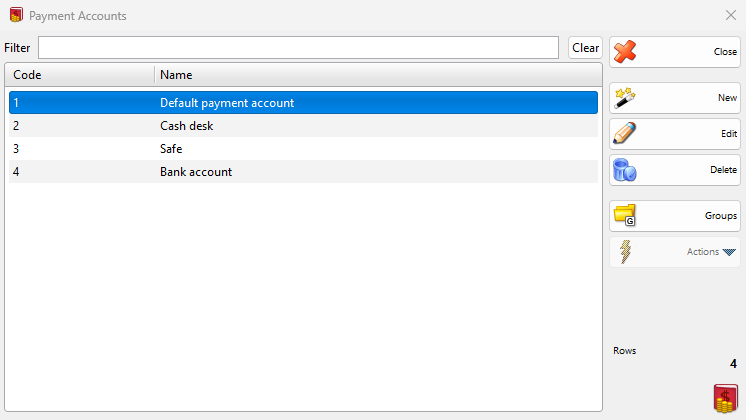
| Control | What it does |
|---|---|
| Filter | Shows only the accounts whose code or name contains the typed text. |
| Clear | Clears Filter. |
| Groups | Shows or hides the groups panel. See Groups. |
| New | Opens the New Payment Account window. |
| Edit | Opens the selected account in the Edit Payment Account window. A double-click does the same. |
| Delete | Deletes the selected accounts. See Delete a payment account. |
| Close | Closes the window. |
Add or edit a payment account
- Click New, or select an account and click Edit.
- Enter Name:. A new account already has the next free code in Code:.
- To put the account in a group, open the Groups tab and select the group.
- Click Save. Cancel closes the window and nothing changes.
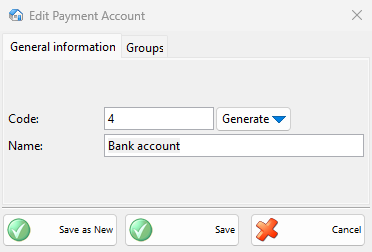
| Field | What it does |
|---|---|
| Code: | The code of the account. A new account gets the next free number, and an account saved with an empty code gets one too. Generate offers Use next available code and Use first available code. |
| Name: | Required. This is the name in the Payment window, the Cash Book and the permissions. |
| Groups tab | The group of the account. Selecting Deleted hides the account. |
| Save and New | In a new account: saves it and starts the next one with a new code. The name stays in the field, so change it before you save again. |
| Save as New | In a saved account: saves a copy as a new account and keeps the original. |
A name or a code that another account already has brings a question, for example “Payment account with the name “Bank account” already exists! Do you want to save the payment account anyway?”. Yes saves the account, No returns to the window.
Groups
Click Groups to show the groups panel on the left. Click a group to list only its accounts. The buttons under the panel add, edit, delete and sort the groups. Default group cannot be deleted, and another group only when it is empty.
To move accounts, select them, drag them onto a group and answer “Are you sure you want to move the selected payment accounts to group “…”?” with Yes. Accounts dragged onto Deleted are hidden from the lists, so nobody can choose them, and their payments keep them. Drag an account from Deleted onto another group to restore it.
Delete a payment account
- Select one or more accounts and click Delete.
- Answer “Do you want to delete payment account with name “…”?” with OK. For several accounts the question is “Do you want to delete the selected 2 payment accounts?”.
| Case | Message |
|---|---|
| Default payment account, the account the program starts with. You can still rename it. | “Cannot delete payment account “Default payment account”!” |
| The account is used in a payment. Move it to Deleted instead. | “The payment account “Cash desk” cannot be deleted, because it is used in operations!” |
Deleting an account also deletes its entries under Payment Accounts View and Payment Accounts Use in the permissions.
Choose the account in the Payment window
The Payment window of a document takes the account from the payment account rules, otherwise Default payment account. To see or change it:
- In the Payment window, open the Settings panel and select Show payments accounts. Each workstation remembers this.
- The account of the new payment and of each payment in the list appears as a button. Click it, select the account in Payment Accounts and click OK.
The account buttons work only with the Payment Dialog – Edit Payment Account permission, and the list offers only the accounts your user may use. See the Payment window in Sale for its other options.
Payment account rules
A payment account rule chooses the account, and optionally the turnover type, of a payment when its conditions are met, for example card payments go to the bank account. Go to Edit → Payments → Payment Account Rules…. The Payment Account Rules window opens.
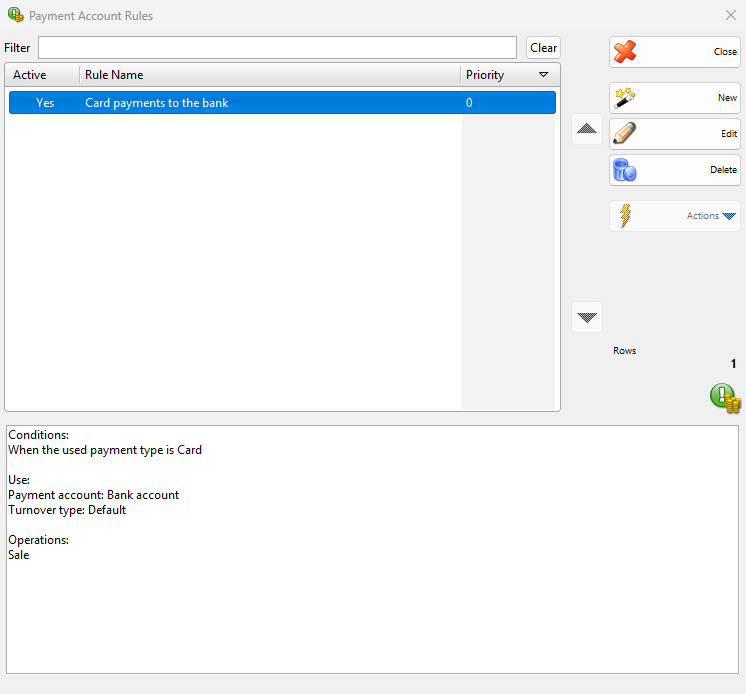
| Control | What it does |
|---|---|
| Active, Rule Name, Priority | The columns of the list. Yes in Active marks a rule that works. The list is sorted by Priority. |
| Up and down arrows | Move the selected rule in the list. |
| The panel below the list | The conditions, the account, the turnover type and the operations of the selected rule as text. A rule that refers to something missing, for example a deleted payment type, is shown in red. |
| New, Edit, Delete | Add, change and delete rules. Deleting asks “Do you want to delete the payment account rule “…”?”. |
Create a rule
- Click New. The rule window opens with Active and Sale selected.
- Enter Name.
- Under Conditions, click Add a condition, select the condition in Choose Condition Type and enter its values. Repeat for each condition. Click a condition to change it, or Remove to delete it.
- Under Action, choose Payment account: and, if needed, Turnover type:.
- Under Operations, select the documents where the rule works.
- Click Save.
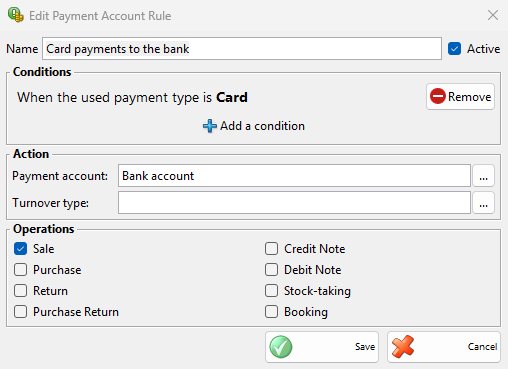
| Field | What it does |
|---|---|
| Name | Required. The name in the list. |
| Active | The rule works. Clear it to stop the rule and keep it. |
| Conditions | At least one. All conditions must be met. They are the conditions of the price rules for the partner, location, user, logged-in user, workstation, date, time, days of week, amounts, the items in the document, Payment type used, Operation status and The database is updated. Payment type used checks the type of the payment itself. |
| Payment account: | Required. The account that the payment gets. Type the name or click the button to choose it. |
| Turnover type: | Optional. Empty keeps the default turnover type of the document, for example Income (sale) for a sale. |
| Operations | Sale, Purchase, Return, Purchase Return, Credit Note, Debit Note, Stock-taking and Booking. A rule for Sale also works for restaurant orders and reservations. |
When a rule works
The rules work when a payment type is chosen in the Payment window, and for the payments the program makes itself, such as the paid shortage of a stock-taking or an advance used to pay a document. When several active rules match a payment, the one lowest in the list wins. If the user may not use the account of the rule, the Payment window takes the first account the user may use. A user with the Payment Dialog – Edit Payment Account permission can still change the account before saving.
Permissions
All permissions are set in Edit → Administration → Permissions….
| Permission | What it allows | Not allowed by default for |
|---|---|---|
| Edit → Payments → Payment accounts… | The menu item. Its New, Edit and Delete allow the buttons with these names. Without Edit, the button becomes Preview when Preview is allowed, and opens the account with only a Close button. | Operators |
| Edit → Payments → Payment Account Rules… | The menu item and all changes to the rules. | Operators |
| Operations → Payment Dialog – Edit Payment Account | Changing the account in the Payment window. | Operators, managers |
| Payment Accounts View, one entry for each account | Seeing the payments of the account in the Cash Book and the Sales Book. | Nobody |
| Payment Accounts Use, one entry for each account | Choosing the account for a payment. | Nobody |
Troubleshooting
| Problem | Solution |
|---|---|
| The Payment window shows no account | Select Show payments accounts in its Settings panel. The panel needs the Payment Dialog Settings permission. |
| The account button cannot be clicked | Your user needs Payment Dialog – Edit Payment Account. |
| A rule does not choose its account | Check Active, Operations and the conditions, and that no matching rule is lower in the list. Check that the user may use the account under Payment Accounts Use. |
| “Payment account name cannot be empty!” | Enter Name:. |
| “The name of a payment account rule must not be empty.” | Enter Name in the rule. |
| “A payment account rule must contain at least one condition.” | Click Add a condition. |
| “A payment account rule must contain a valid payment account.” | Choose an existing account in Payment account:. |
| “A payment account rule must contain at least one operation type.” | Select at least one entry under Operations. |
FAQ
How do I keep card payments apart from cash?
Add an account for the bank, then a rule with the condition Payment type used set to your card payment type and that account in Payment account:. The Cash Book then shows the card money on the bank account.
Can an operator see only the cash desk account?
Yes. In the permissions of the operator, clear the other accounts under Payment Accounts View and Payment Accounts Use.