
The print preview shows a document or a report as it will look on paper. From it you print the document, export it to a file or send it by e-mail. Nothing you do here changes the saved document, except Set by default for partner, which changes the partner.
When it opens
- After you save an operation and answer Yes to the question about printing. The question depends on Print documents: in Tools → Settings… → Printing.
- From Edit → Reprint Documents.
- From Actions → Print in a report or a Select Document window.
- From the Document button of a report.
The window covers the work area of the program, without the toolbar and the tabs. Close it to return to where you were.
Controls
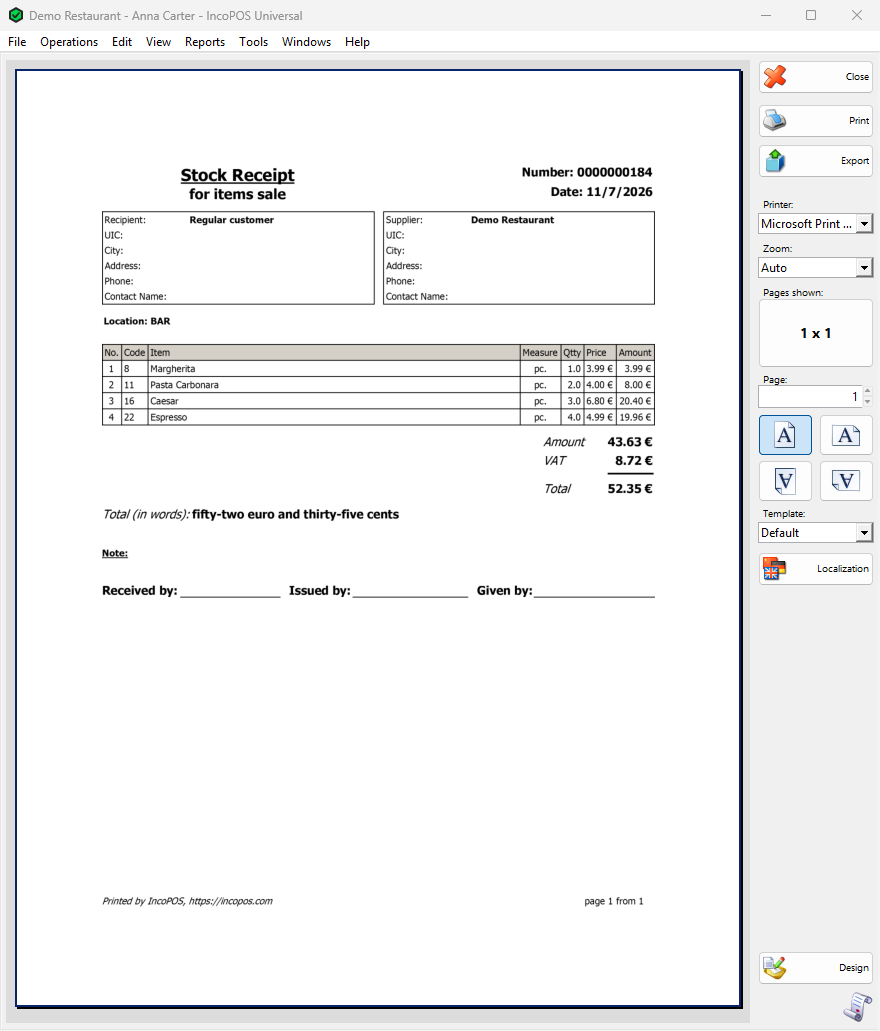
| Control | What it does |
|---|---|
| Close | Closes the print preview. |
| Prints the document on the printer in Printer:, with no further question. Disabled when the computer has no printer. For an invoice or a note it prints all that you selected in Original, Copies and International. | |
| Export | Opens the Export Document window. Shown when a document exporter is available. |
| Printer: | The printer for this print. It starts with the printer from Tools → Settings… → Printing, or the default printer of the computer with Use default printer. Choosing another one redraws the preview for its paper. |
| Zoom: | Auto fits the pages in the window. The other values go from 500% to 10%. |
| Pages shown: | Click and choose how many pages to show at once, from 1 x 1 to 3 x 2 (columns x rows). This sets Zoom: to Auto. |
| Page: | The page to show. Type a number or use the arrows. |
| Page orientation buttons | The four buttons under Page: set portrait, landscape, and each of them upside down. The print uses the same orientation. The document template sets the starting value. |
| Template: | The template of the document: Default, or a template that you made in the Document Designer. The print uses the selected template. |
| Localization | Shows or hides the Localization panel. Shown only for documents that can be printed in another language or currency. |
| Design | Opens this document in the Document Designer. When you return, the template list and the preview are updated. |
Localization
Click Localization to open the panel, change the values and click Update. The preview and the print follow the panel, and the saved document stays as it is. Sales, purchases, invoices, debit notes, credit notes and proforma invoices have this panel. Documents such as transfers and consignment protocols do not.
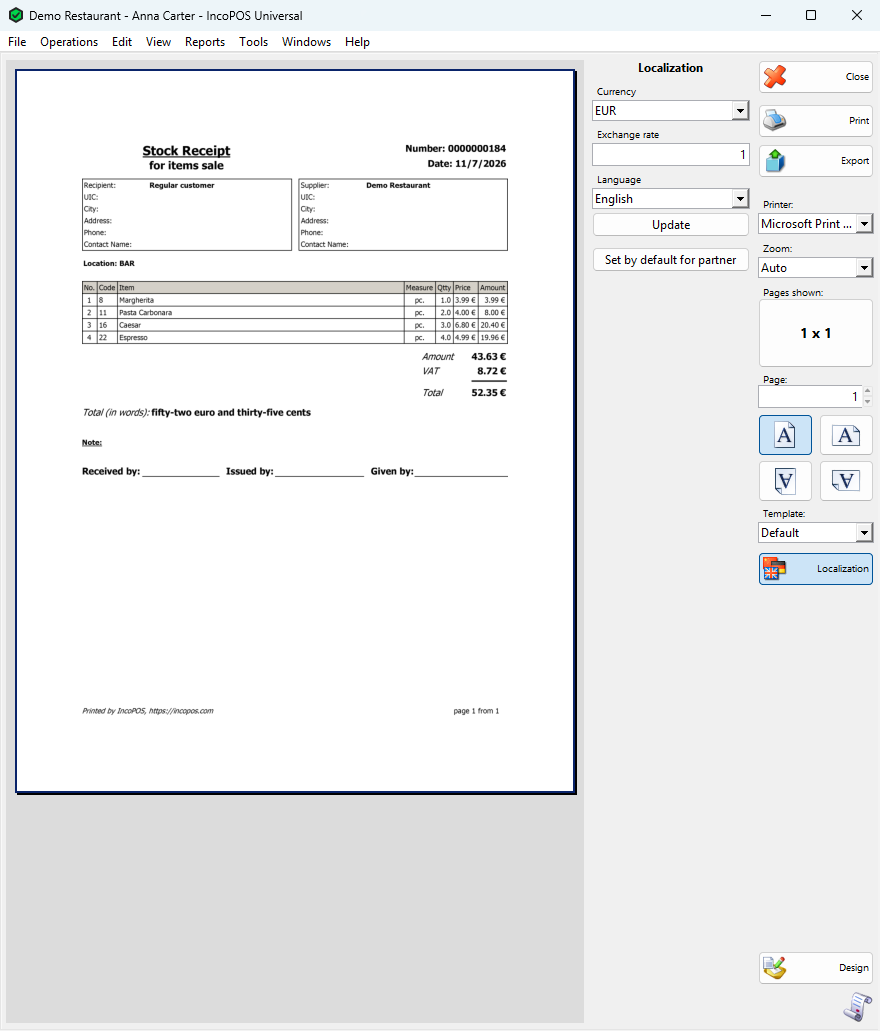
| Control | What it does |
|---|---|
| Currency | The currency of the amounts. Choosing a currency fills in its Exchange rate. |
| Exchange rate | The rate used for this print. You can change it. |
| Language | The language of the labels in the document. |
| Update | Applies the values to the preview. |
| Set by default for partner | Saves Currency and Language as the preferred currency and language of the partner. Later documents of this partner open with them. Shown when the document has a partner and you have the Edit permission under Partners…. Disabled when the partner already has these values. |
When the partner has a preferred currency or language, the document opens with them. The international form of an invoice or a note is always in English.
Export a document
Click Export, select the options in the Export Document window and click Export.
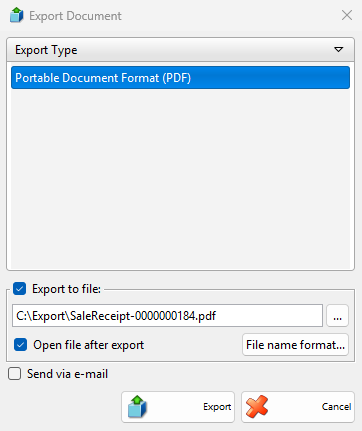
| Option | What it does |
|---|---|
| Export Type | The file format, for example Portable Document Format (PDF). |
| Export to file: | The file to create. The … button chooses the folder and the name. |
| Open file after export | Opens the file when it is ready. |
| File name format… | Sets how the names of exported files are built. |
| Send via e-mail | Shows the fields for the recipient, the subject and the message. Send to partner fills in the e-mail of the partner, if it has one. |
Keyboard shortcuts
| Key | What it does |
|---|---|
| F9 | Prints the document. |
| Esc | Closes the print preview. |
| Left and Right arrows | Show the previous or the next page. |
| Ctrl+Home, Ctrl+End | Show the first or the last page. |
Troubleshooting
| Problem | Solution |
|---|---|
| Print is disabled | The computer has no printer. Install a printer. |
| “An error occurred while printing document!” | Check the printer in Printer: and try again. |
| Localization is not shown | This document has one language and one currency. See Localization. |
| Set by default for partner is not shown | The document has no partner, or your user may not edit partners. |
| “Please specify an export file before continuing.” | Enter a file in Export to file:. |