
A voucher is a code with a balance, for example a gift voucher, that pays for a document. The cashier types or scans the code in the Payment window, and the program takes the amount from the voucher balance. Use Edit → Payments → Vouchers… to add, edit and delete the vouchers.
Open the Vouchers window
Go to Edit → Payments → Vouchers…. The Vouchers window opens.
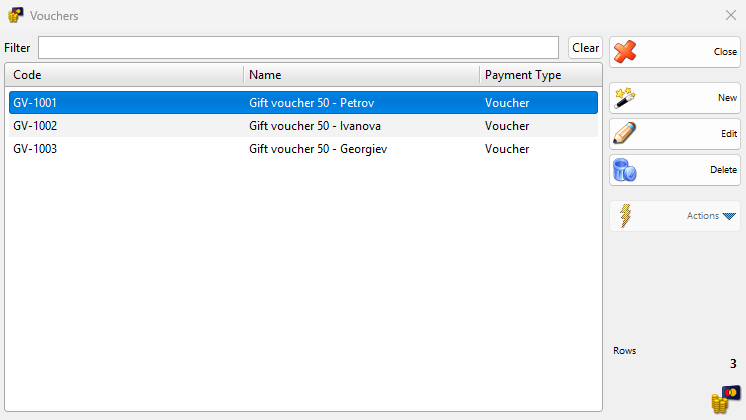
| Control | What it does |
|---|---|
| Filter | Shows only the vouchers whose code or name contains the typed text. |
| Clear | Clears Filter. |
| Code, Name, Payment Type | The columns of the list. Open a voucher to see its balance and status. |
| New | Opens the New Voucher window. |
| Edit | Opens the selected voucher in the Edit Voucher window. A double-click does the same. |
| Delete | Deletes the selected vouchers after the question “Do you want to delete voucher “…”?”, or “Do you want to delete the selected 2 vouchers?” for several. |
| Close | Closes the window. |
Add or edit a voucher
- Click New, or select a voucher and click Edit.
- Enter Code:, Name: and Balance:.
- If the voucher expires, enter Valid until:.
- Click Save. Cancel closes the window and nothing changes.
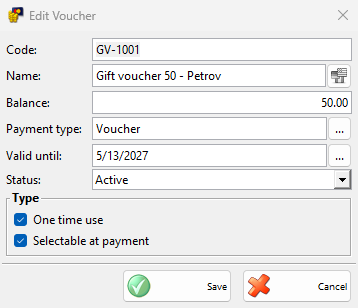
| Field | What it does |
|---|---|
| Code: | Required. The code the cashier types or scans, for example the barcode printed on the voucher. The code of an active voucher cannot be given to another voucher. |
| Name: | Required. The name in the list and in the question at payment. The button next to the field stores the name in other languages. |
| Balance: | The amount left on the voucher. Each payment with the voucher lowers it, and deleting such a payment adds the amount back. |
| Payment type: | Required. The payment type of the payments made with the voucher. A new voucher starts with the voucher payment type that the program starts with. Type the name or click the button to choose another one. |
| Valid until: | The last day the voucher can be used. Empty means no limit. The button next to the field opens a calendar. |
| Status: | Active, Inactive or Used. Only an active voucher can pay. Set Inactive to stop a voucher and keep it in the list. |
| One time use | The first payment with the voucher sets Status: to Used, even when part of the balance is left. |
| Selectable at payment | The Payment window finds the voucher by its code. It is selected in a new voucher. |
A name that an active voucher already has brings the question “Voucher with name “…” already exists! Do you want to save the voucher anyway?”. Yes saves the voucher.
Pay with a voucher
- In the Payment window of a document, open the Settings panel and select Check for voucher code when entering amount. Each workstation remembers this.
- Type or scan the voucher code in the amount field and click OK.
- Answer “Voucher “…” scanned. Do you want to use it?” with Yes. The program adds a payment with the payment type of the voucher, for the balance of the voucher or the amount still due, whichever is smaller.
- Pay the rest with another payment type, if anything is due, and save as usual.
The program lowers the voucher balance when it saves the payment. A code that matches no voucher with Selectable at payment is read as an amount. See the Payment window in Sale for its other options.
Permissions
All permissions are set in Edit → Administration → Permissions….
| Permission | What it allows | Not allowed by default for |
|---|---|---|
| Edit → Payments → Vouchers… | The menu item and all changes in the window. | Operators |
| Operations → Payment Dialog Settings | The Settings panel of the Payment window, where Check for voucher code when entering amount is set. Paying with a voucher needs no permission. | Operators, managers |
Troubleshooting
| Message or problem | Solution |
|---|---|
| “Voucher code cannot be empty!”, “Voucher name cannot be empty!” | Enter Code: and Name:. |
| “Invalid payment type!” | Choose an existing payment type in Payment type:. |
| “Voucher with code “…” already exists!” | Another active voucher has this code. Enter another code, or set the other voucher to Inactive or Used. |
| “The scanned voucher is not active!” | The voucher is Inactive or Used. Change Status: if it may still pay. |
| “The scanned voucher does not have a remaining usable balance!” | The balance is 0. Add to Balance: if the voucher was topped up. |
| “The scanned voucher has expired!” | The date in Valid until: has passed. Change it if the voucher may still pay. |
| The code is taken as an amount | Select Check for voucher code when entering amount in the Settings panel of the Payment window, and Selectable at payment in the voucher. |
FAQ
Can a voucher pay for several purchases?
Yes, if One time use is cleared. Each payment takes from the balance until it reaches 0.
Where do I see what was paid with vouchers?
The payments carry the payment type of the voucher, so the Payments reports show them under that payment type.
Related pages
- Payment types
- Save and pay in Sale
- Payments reports
- Permissions