
The Booking Settings window sets up how the Booking windows work: which locations are rooms and of which room type, the rate types and their prices, the packages added to each night, the deposit and meal items, the billing interval and the guest fields. The settings are kept in profiles, so different workstations in one database can work with different setups.
Set up a hotel in this order: the rooms as locations with a tag for their room type, then the room types, the rate types, the packages, the deposits and the meals.
Open the Booking Settings
- Go to Edit → Administration → Booking Settings…. With the Hotel business type it is also on the default toolbar. The window opens only when no tabs are open: “Before editing the settings all tabs have to be closed. Do you want to close all open tabs?” closes them with Yes.
- In the Booking window, click Settings. The button is shown only to users with the permission for Booking Settings…, and it also asks to close all tabs.
- When a Deposit is added to a booking and the deposit items are missing, the message offers “Do you want to open the Booking Settings now?” to the users with that permission. Yes opens the window with the Deposit Settings already open.
Profiles
Each tab of the window is a profile. The profiles are saved in the database. Each workstation uses the profile whose tab is open when you click Save, and that tab is marked Current. When no profile is saved yet, the window offers one named Default.
- To create a profile, open the Add new profile tab and enter its Name:.
- Delete removes the profile at once, after the question “Are you sure you want to delete this profile? If a workstation is using it, it will start working with the default settings.” When the last profile is deleted, a new Default tab takes its place.
- Save stores all tabs and refuses a tab without a name with “Please enter a name for that profile”. Cancel drops the changes of the tabs and of the windows opened from them, except the rates of the rate types, the rate adjustments and the deleted profiles, which are saved at once.
The Booking windows read the profile when they open, which is why the tabs are closed first.
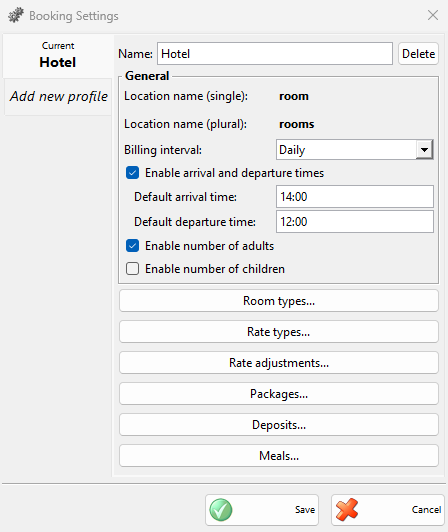
General
| Field | What it does |
|---|---|
| Name: | The name of the profile, shown on its tab. |
| Location name (single): and Location name (plural): | What the booking windows call a rented place, room and rooms by default. Click the name and enter a Custom name:, for example apartment or court. An empty name returns to the default. The new name appears in the buttons, columns and messages, for example Room types… becomes Apartment types…. |
| Billing interval: | Daily: the folio has a row for each night. Hourly: a row for each hour, and the arrival and departure times are always on. |
| Enable arrival and departure times | Shows the Arrival Time and Departure Time in the booking and blocking windows. Without it a daily booking has dates only. |
| Default arrival time: and Default departure time: | The times a new booking row starts with, 14:00 and 12:00 by default. Available with the times enabled. |
| Enable number of adults | Shows the Adults column in the booking. The Booking Plan then shows the guests and the maximum of each room, for example 2/2, highlighted when a room has more adults than its maximum. |
| Enable number of children | Shows the Children column in the booking. |
Room types
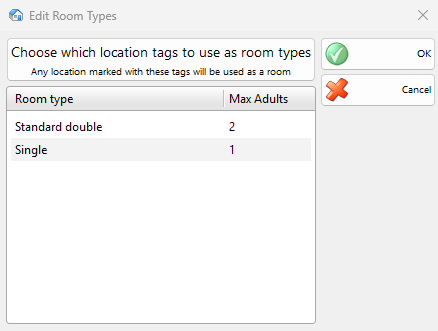
A room type is a location tag, for example Standard double, and every location with that tag is a room of that type. Add the tags to the rooms in Edit → Locations…. The locations without a room-type tag are not rooms for the booking windows.
- Click Room types…. The Edit Room Types window opens.
- Click Choose which location tags to use as room types. In the Choose Location Tag window tick the tags. New creates a tag there.
- In Max Adults enter how many adults a room of the type takes (1 for a newly chosen type). A location with a Maximum capacity: uses its own value instead.
- Click OK, then Save in Booking Settings.
Rate types
A rate type is the price list a booking row is charged with, for example Room only and Bed and breakfast. Each rate type uses an item, which is the row of every night in the folio, and has a rate for each room type. Create the items first, usually with Non-inventory or service (see Adding, editing and deleting items).
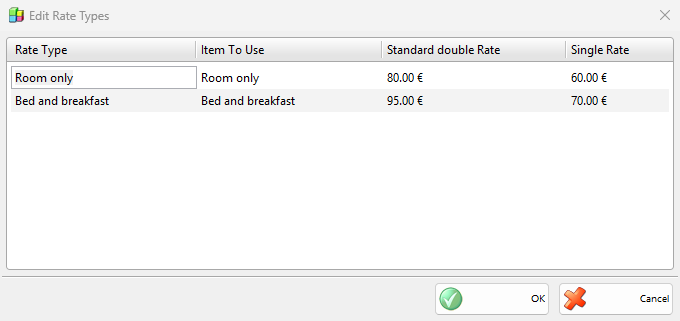
| Column | What it does |
|---|---|
| Rate Type | The name chosen in the booking. It must be unique. |
| Item To Use | Type the name, code or barcode, or double-click to choose from the items. Each rate type needs its own item. |
| <room type> Rate, for example Standard double Rate | The price of one night (or hour) in a room of that type. It starts with the sale price of the item. Double-click it to open the rate adjustments of this rate type and room type. |
To delete a row press Ctrl+Delete and confirm “Are you sure you want to delete this rate type?”. OK refuses a row with a name and no item or with an item and no name (“Please specify a name for all rate types!”, “Please specify an item to use for every rate type!”) and repeated names or items; empty rows are dropped.
OK saves each rate that differs from the sale price of the item as a price rule for booking operations, named “Set price for rate type Room only and room type Standard double”, and updates the rule when the rate changes. These rules are saved at once and appear in Price rules. Deleting a rate type leaves its rules there.
Rate adjustments
Rate adjustments… opens Rate Adjustment Price Rules: the price rules window with only the rules of booking operations, including the rates above. Two lists filter it: Any room type and Any rate type. A rule created with New gets the selected room type and rate type as conditions, and only the Booking operation can be ticked. Opened from a rate cell, the window is limited to that rate type and room type, and the cell takes the new rate when it closes.
Each night of a booking is billed as a sale on its own date, so a rule with a Date or Days of week condition changes only the nights in that period, for example a higher weekend rate or a season price.
Packages
A package adds items to every night of the bookings with its rate type, for example breakfast for each adult in Bed and breakfast. Packages… opens the Packages list with New, Edit and Delete (“Do you want to delete package with name “Breakfast”?”). Close keeps the changes for the Save of the profile.
Edit Package
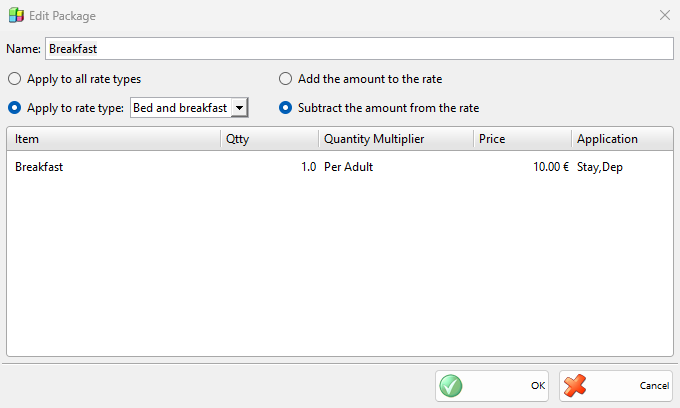
| Field | What it does |
|---|---|
| Name: | The name in the Packages list. Required: “The name of a package cannot be empty!” |
| Apply to all rate types or Apply to rate type: | The bookings that get the package: all of them, or only the rows with the chosen rate type. |
| Add the amount to the rate | The items are charged on top of the rate. |
| Subtract the amount from the rate | The price of the night is reduced by the total of the items, so the guest pays the rate and the items are shown separately, for example breakfast included in the room price. Nothing is subtracted when the items cost as much as the rate or more. |
| Item | The item to add. Double-click to choose. At least one is required: “Please add at least one item to the package!” |
| Qtty | The quantity for each night. |
| Quantity Multiplier | Double-click to choose in Select Quantity Multiplier: x 1 (once per room), Per Adult (times the adults, 1 when not entered) or Per Child (times the children, 0 when not entered). |
| Price | The price of the item in the folio. It starts with the sale price of the item. |
| Application | Double-click to tick in Choose When to Add the Item: On Arrival, During Stay and On Departure, shown as Arr, Stay and Dep. A new row has Arr and Stay. With the daily billing interval, the arrival day gets the items with Arr, the nights in between those with Stay and the departure day those with Dep, so breakfast is usually Stay and Dep. With the hourly interval the column is not used. |
To delete an item row press Ctrl+Delete. Rows without an item are dropped on OK.
Deposits
A deposit taken in a booking is recorded with two items, set in Deposits… (Deposit Settings):
| Field | What it does |
|---|---|
| Default deposit item: | The item of the sale that receives the deposit. It must be Non-inventory or service and not a discount: “Please select a non-inventory item to be used for deposits.” |
| Deposit discount item: | The item of the second sale, which takes the same amount off, so the deposit does not raise the total of the booking. It must have Discount: “Please select a discount item to be used for deposits.” |
Both items must be in the same VAT group, because they end up in the same bill. When the Hotel business type is chosen in the setup assistant, the program creates the items Deposit and Deposit discount and selects them here. Without them, Deposit in the booking stops with “Default deposit item is required in order to add a deposit!” or “Deposit discount item is required in order to add a deposit!”.
Meals
Meals… (Meal Settings) chooses the items that count as meals in Reports → Booking → Meals by Date…: Breakfast item:, Breakfast for children item:, Lunch item:, Lunch for children item:, Dinner item: and Dinner for children item:. The report counts them in the bookings, so the kitchen knows how many meals to prepare each day. Add them to the bookings with a package. Each field can stay empty. A name that is not an item is refused, for example “Please select a valid item to be used for breakfast.”
Rates Types setup card
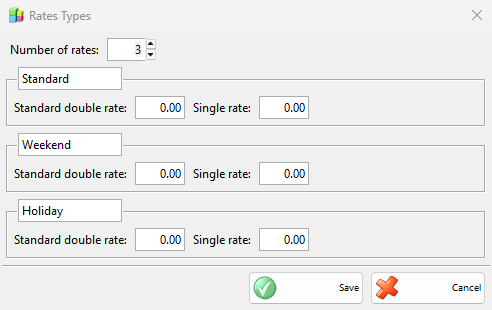
With the Hotel business type, the Getting Started panel of the main window (when no window is open) and the Search tab show setup cards. After the rooms card (Set up your hotel rooms), which creates the rooms and their room types, the Rates Types card (Set up your hotel rates) appears while the current profile has room types and no rate types. Its Setup button opens the Rates Types window.
- Number of rates: (1 to 10, 3 by default) sets how many rate types to create. They are named Standard, Weekend, Holiday and so on, and each name can be changed.
- Enter the rate of each room type in its <room type> rate: field. A rate type with no name and no rates is skipped. Each other one needs a unique name and at least one rate: “Please enter at least one price for each rate type!”
- Save creates a non-inventory item for each rate type, with its first rate as the sale price, writes the other rates as price rules and saves the profile. The card then disappears. Later changes are made in Rate types.
The Bookings tab of the settings
The Bookings tab in Tools → Settings… holds how the booking windows look and print:
| Setting | What it does |
|---|---|
| Layout style: | The arrangement of the rooms on the Booking Plan. Add new… creates a named layout, so another workstation can have a different plan. Remove deletes the selected layout after a question; Default cannot be removed. |
| Rooms movement step: | The step (1 to 30) by which a room moves when you arrange the Booking Plan. |
| Rooms status refresh rate: | How often the Booking Plan and the Booking Sheet read the room statuses again, from 2 to 30 seconds. |
| Combine items when printing Booking Confirmation | Prints the rows with the same item and price for the same room as one row with the total quantity, for example one row for 5 nights. |
| Combine items when printing Booking Bill | The same for the Booking Bill. |
Permissions
Booking Settings… in Permissions (under Edit → Administration) is not allowed by default for the Operator level. Without it the menu entry and the Settings button of the Booking window are hidden, and the deposit message does not offer to open the settings.
Troubleshooting
| Problem | Solution |
|---|---|
| A room cannot be chosen in a booking. | Give the location the tag of a room type in Edit → Locations… and check that the tag is ticked in Room types. |
| The rate columns are missing in Edit Rate Types. | Choose the room types first. |
| A saved booking still shows the old rate or package. | The folio rows are built when a row of the booking changes: its dates, room, room type, rate type or guests. Change the row to build them again. |
| Another workstation does not use the new settings. | It uses its own current profile. Open Booking Settings there, open the tab of the profile and click Save. |
| “Please select a non-inventory item to be used for deposits.” | Tick Non-inventory or service in the item, and do not tick Discount. |
FAQ
How do I include breakfast in the room price?
Create a rate type such as Bed and breakfast with the full price, and a package for it with the breakfast item, Per Adult and Subtract the amount from the rate. The guest pays the rate, the bill shows the night and the breakfast separately, and the breakfast counts in the meals report when it is the Breakfast item:.
Can two hotels in one database have different room types and rates?
Yes. Create a profile for each and save it as the current profile on the workstations of that hotel. The rates are price rules, so give each hotel its own rate type items.
Where do I change a rate for one period?
In Rate adjustments: create a price rule for the rate type and room type with a Date condition.