
Bank Connector is an IncoCloud service that downloads the transfers of your bank accounts and shows them in IncoPOS. You can map each received transfer to the sale or invoice it pays, or let IncoCloud record the payment automatically when the match is certain.
Quick Start
Step 1: Enable the Service
- Log into IncoCloud as the owner or a manager of the database group.
- Open Database groups → your group → Services.
- Find Bank Connector and click Enable, then confirm.
- Click the Bank Connector link to open its settings page.
Step 2: Connect Your Bank
On the Bank Connector page click Add bank. The Connection: field offers these connections:
- Iris Solutions (Bulgaria, Romania, Greece, Croatia) – connects to most banks in these countries through the licensed open banking provider Iris Solutions. You give your consent in your own online banking.
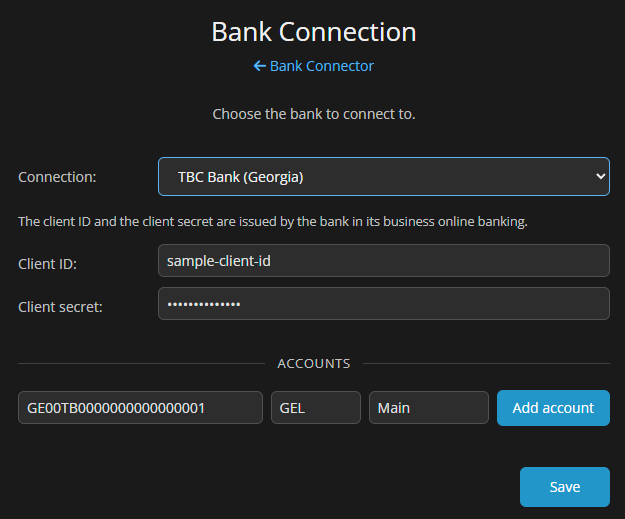
- Bank of Georgia and TBC Bank (Georgia) – connect directly with keys that the bank issues to your company.
- Demo Bank – made-up transfers for trying the service without a bank. See Trying the Service With the Demo Bank.
To connect a bank through Iris Solutions:
- Select Iris Solutions (Bulgaria, Romania, Greece, Croatia) in Connection: and your country in Country:.
- Enter your company’s registration number (EIK, CUI, etc.) in Company registration number:. When you leave the field, IncoCloud registers the company with Iris Solutions and loads the list of banks. If the field is already filled in, click the refresh button next to Bank: to load the list.
- Select your bank in Bank:. Some banks also ask for your Online banking user name: or the IBAN: of the account. Fill them in when they appear.
- Click Connect. You are taken to your bank’s online banking. Log in, select the accounts you want to share, and confirm the consent.
- The bank returns you to IncoCloud. The connection shows the status Authorized and the accounts you shared.
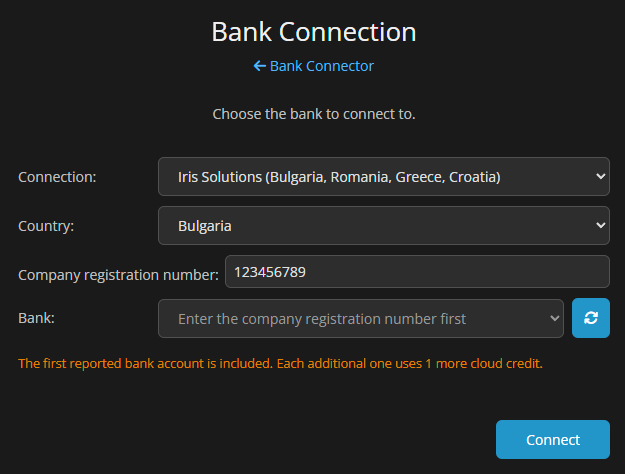
⚠️ Important: The company registration number cannot be changed after the company is registered. If you entered a wrong number, click Remove on that connection and add the bank again. The bank and the country cannot be changed after you click Connect.
To connect Bank of Georgia or TBC Bank:
- Get a client ID and a client secret from your bank’s business online banking.
- Select the bank in Connection: and enter the keys in Client ID: and Client secret:.
- Under Accounts, enter the account number, its currency and an optional label, then click Add account. Repeat for every account you want to download.
- Click Save. IncoCloud checks the keys and every account with the bank. If the bank does not accept them, an error tells you which part is wrong.
Step 3: Choose What to Download
Received transfers are always downloaded. To download the sent transfers too, check Also download the sent transfers under Downloaded transfers. Sent transfers are downloaded only from that moment on, not earlier ones.
Step 4: Turn On Automatic Mapping (Optional)
Under Automatic mapping check Map the matched transfers automatically, then select the user and the payment type to record the payments with. See Automatic Mapping.
Step 5: Work With the Transfers in IncoPOS
The transfers appear in IncoPOS after the first reading from the bank. Open Edit → Payments → Payments… and click Bank Transfers to show them next to the unpaid documents. See Working With the Transfers in IncoPOS.
How It Works
- IncoCloud reads your accounts from the bank three times a day, at 8:30, 12:30 and 16:30 (IncoCloud server time). The first reading downloads up to 90 days back. Each next reading starts 3 days before the last transfer it has, so late bookings are not missed.
- Transfers between your own connected accounts and transfers from or to a skipped account are not stored.
- Every IncoPOS database in the group sees the transfers of all connected accounts. IncoPOS compares each transfer with the unpaid documents and marks the matches.
- When you pay a document with a transfer, IncoPOS records the payment and tells IncoCloud that the transfer is mapped. The transfer then shows how much of it is still free.
- With automatic mapping on, IncoCloud records the payment itself right after each reading when the match is certain. The payment reaches IncoPOS with the next synchronization.
How a Transfer Is Matched
IncoPOS looks for these signs in every transfer:
| Matched by | What is compared |
|---|---|
| IBAN | The IBAN of the sender with the Bank account: of the partner. A partner can hold several IBANs. |
| Company ID (UIC) | The tax ID of the sender with the company ID of the partner. Only banks that send the tax ID (Bank of Georgia, TBC Bank) provide it. |
| Document number | Numbers in the transfer’s Reason with the operation number and the invoice numbers of the document. |
| Partner name | The sender’s name with the partner name, in full or Partner name (partial). |
| Amount | The transfer amount with the amount due. Amount (converted) is used for a transfer in another currency, and Amount (combined) when one transfer pays several documents of the same partner or invoice. |
- Sure match (shown in bold green): the partner or the document is found by IBAN, company ID, full name or document number, and the amount matches.
- Possible match (shown in orange): the partner or the document is found, or the name matches partly, but the amount does not.
- An equal amount alone is not a match.
When several transfers match the same documents, the oldest due document is paid first.
Automatic Mapping
With Map the matched transfers automatically checked, IncoCloud maps a received transfer to a new payment after every reading when IncoPOS would show it as a sure match: the partner is found by its bank account, company ID or name, or the document by its number, and the amount is exactly the one due. A transfer is not mapped automatically when:
- the match is only possible, not sure;
- the sure matches point to more than one partner;
- the transfer’s reason names another document of the partner;
- the transfer is older than Map transfers not older than (days);
- the document already has a payment waiting to be synchronized;
- the transfer comes from the Demo Bank.
These transfers stay for you to map in IncoPOS. Each transfer is mapped automatically only once. If you unmap it, IncoCloud does not map it again. Mapped transfers get the status Mapped automatically.
With Send an email when new transfers are received checked, IncoCloud sends one email after each reading that brings new received transfers. It lists the transfers mapped automatically (partner, document, matched by, amount) and the number of new transfers that were not mapped.
Manual Readings and Bank Limits
You can ask for a reading at any time with Fetch now on the connection page, or Refresh in IncoPOS. Banks limit how often your accounts can be read:
- Iris Solutions: up to 4 manual readings a day, at least 30 minutes apart. Most banks also allow only 4 readings a day per account, counting the scheduled ones, so the schedule leaves one manual reading for the day.
- Bank of Georgia and TBC Bank: up to 20 manual readings a day, at least 5 minutes apart.
- Demo Bank: the same as Bank of Georgia and TBC Bank.
When no reading is left, IncoPOS and IncoCloud show Next fetch possible at with the time.
Settings
Bank Connector Page
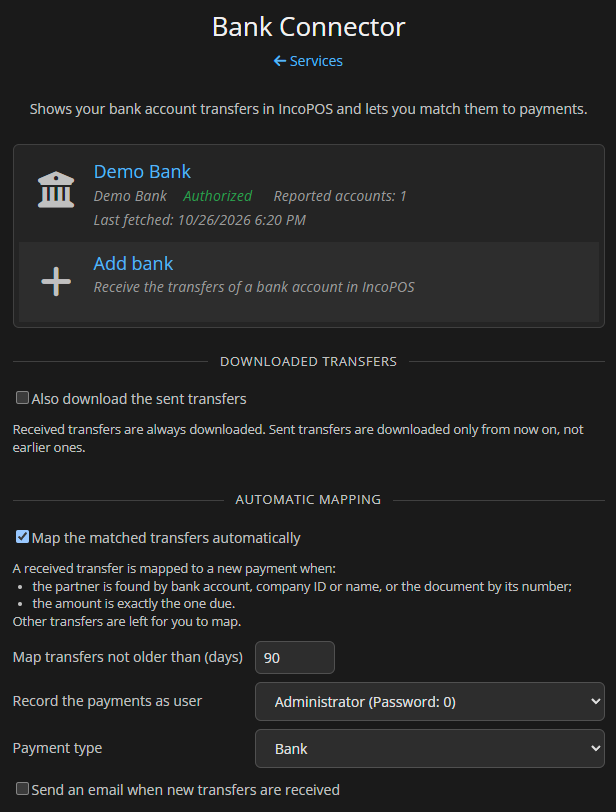
| Setting | What it does |
|---|---|
| Connection list | Each connected bank with its provider, status, number of reported accounts, Consent valid until: (Iris Solutions) and Last fetched:. Click a bank to open its Bank Connection page. |
| Add bank | Starts a new bank connection. |
| Also download the sent transfers | Downloads the outgoing transfers too, from now on. Sent transfers can show salaries. Choose who sees them in IncoPOS with the Bank Transfers View permission. |
| Map the matched transfers automatically | Turns automatic mapping on or off. |
| Map transfers not older than (days) | Only transfers booked within this many days are mapped automatically. From 1 to 180, default 90. |
| Record the payments as user | The IncoPOS user the automatic payments are recorded with. |
| Payment type | The payment type of the automatic payments. Only payment types of the bank transfer kind are offered. If there is none, add one in IncoPOS (Edit → Payments → Payment Types…). |
| Send an email when new transfers are received | Sends an email after each reading that brings new received transfers. |
| Send to | The email addresses to send to, separated by commas. The group owner’s email is proposed. |
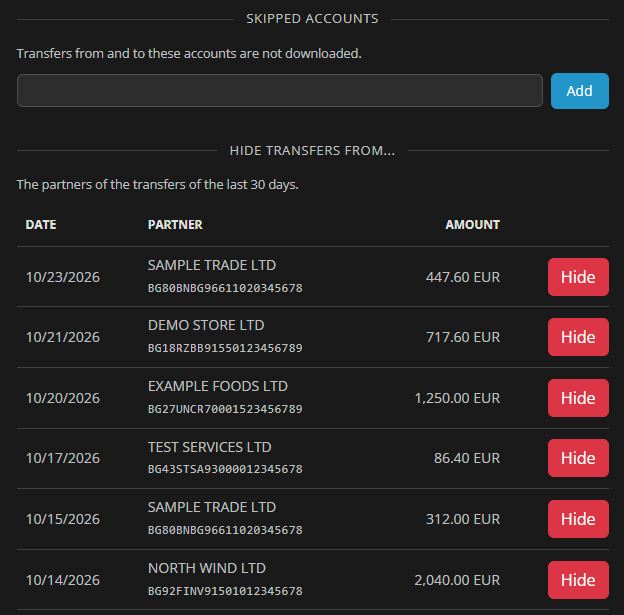
| Skipped accounts | Transfers from and to these IBANs are not downloaded. Enter an IBAN and click Add. Use it for private or internal accounts. |
| Hide transfers from… | Lists the senders of the transfers of the last 30 days. Hide adds the sender’s IBAN to the skipped accounts. |
Bank Connection Page
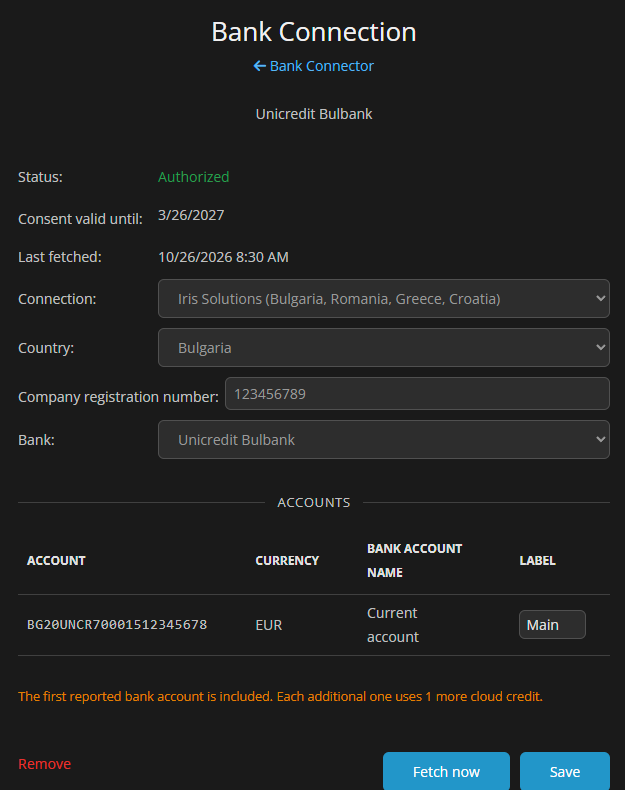
| Setting | What it does |
|---|---|
| Status: | Authorized – working. Waiting for the bank – the consent is not confirmed yet. The consent has expired – reauthorize. Error – see Error: below it. |
| Consent valid until: | The date your consent with the bank ends (Iris Solutions only). From 30 days before that date the Reauthorize button appears. |
| Last fetched: | The time of the last successful reading. |
| Accounts | The accounts of the connection with currency and bank account name. Type a short Label to tell your accounts apart in IncoPOS. |
| Reauthorize | Asks the bank for a new consent for the same bank. |
| Fetch now | Reads the accounts right away, within the bank limits. |
| Save | Saves the labels. For Bank of Georgia and TBC Bank it also checks and saves the keys and the accounts. Leave Client secret: empty to keep the current secret. |
| Remove | Removes the connection and deletes its transfers. An Iris Solutions consent is released. Payments already recorded stay. |
Working With the Transfers in IncoPOS
Bank Connector works in the desktop IncoPOS. The database must be synchronized with the IncoCloud group where the service is enabled.
Paying Documents in the Payments Window
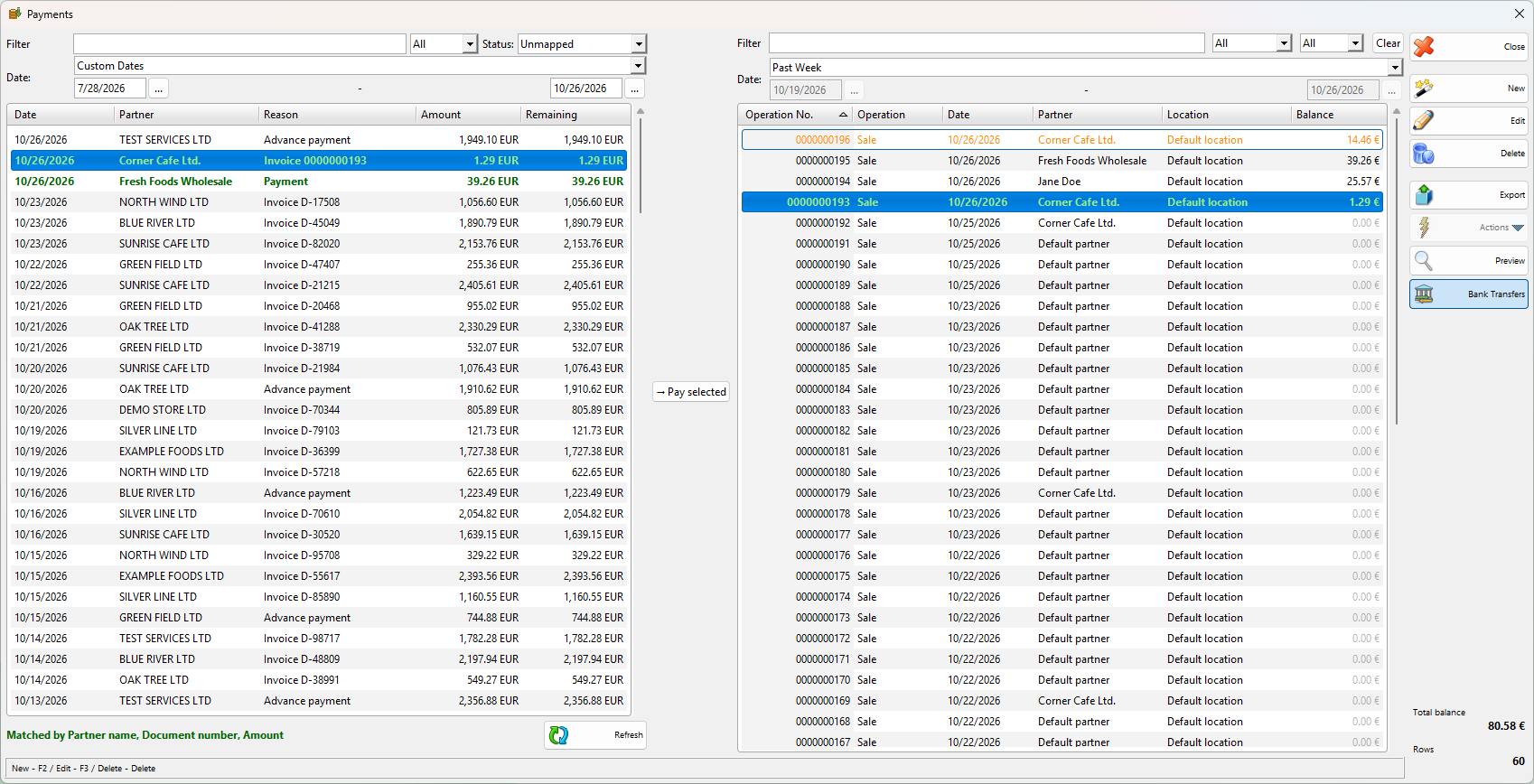
- Open Edit → Payments → Payments… and click Bank Transfers. The panel lists the transfers next to the payments and opens this way every time until you close it.
- Select a transfer. The matching unpaid documents are highlighted (green for a sure match, orange for a possible one) and the best match is selected. The panel shows Matched by or Possible match by with the signs it found.
- Check the selected documents and change the selection if needed.
- Click → Pay selected. IncoPOS pays the documents up to the free amount of the transfer and records the payments with the transfer.
- If the partner does not have the sender’s IBAN or company ID yet, IncoPOS asks to remember it, so the next transfer from the same account is matched by IBAN.
Use Filter, Status:, Account: (with more than one account) and Date: (90 days by default) to find a transfer. Refresh asks IncoCloud to read the bank now.
The Bank Transfers List
Edit → Payments → Bank Transfers… lists all transfers with Date, Partner, IBAN, Reason, Amount, Mapped, Remaining and Status. A transfer has one of these statuses:
- Unmapped – no payment uses it yet.
- Partially mapped – payments use part of the amount.
- Mapped – payments use the full amount.
- Mapped automatically – IncoCloud recorded the payment.
- Settled – marked by hand as done, without payments in IncoPOS (for example a refund or a transfer recorded elsewhere).
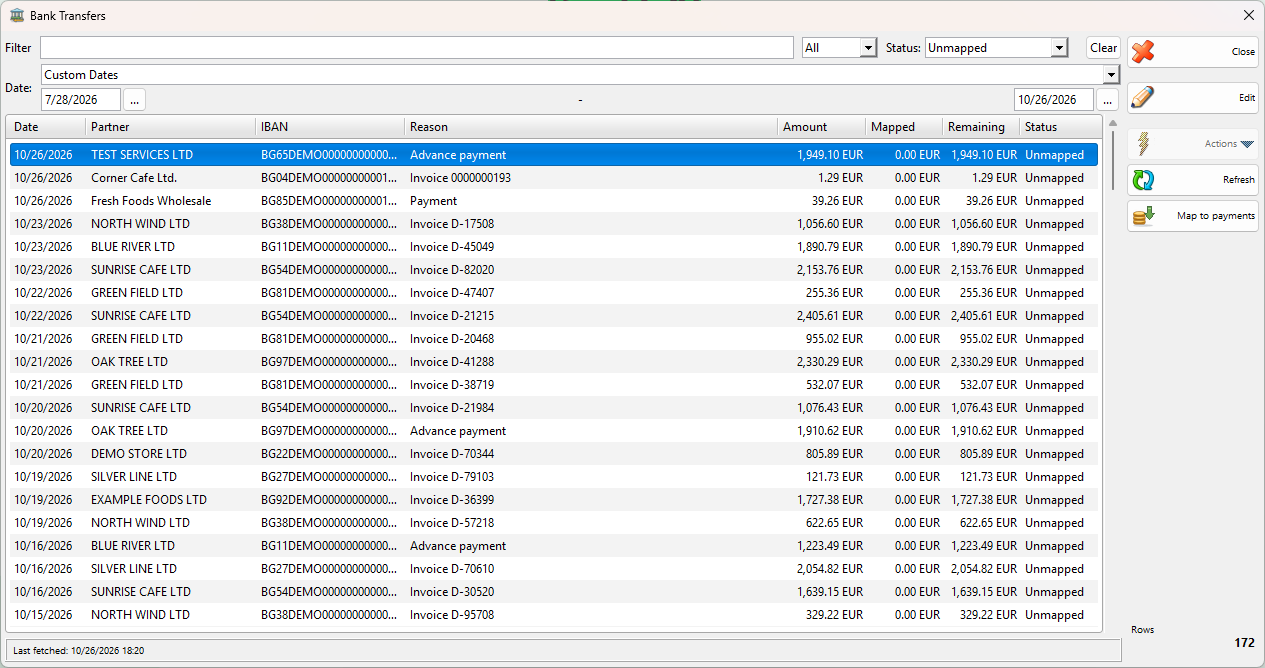
Map to payments opens the Payments window with the Bank Transfers panel. Edit opens the transfer, where you can:
- set the status to Settled or back to Unmapped, when no payment uses the transfer;
- under Mapped payments:, link existing paid payments to the transfer with Map payment, or remove the link with Unmap payment. The payment itself stays.
Paying With a Transfer When Finishing a Sale
- Open Edit → Payments → Payment Processors… on the workstation and add a processor with Processor type: Bank Transfer (IncoCloud Bank Connector).
- In Payment type: select your bank transfer payment type and check Enabled.
- When a document is paid with that payment type, IncoPOS opens the bank transfers, and you select the transfer that pays it. The payment takes the free amount of the transfer, up to the amount due.
User Permissions
| Permission | Default |
|---|---|
| Bank Transfers… (menu) | Not allowed for operators. |
| Bank Transfers… → Edit | Not allowed for operators. |
| Bank Transfers View → Incoming transfers | Allowed for all users. |
| Bank Transfers View → Outgoing transfers | Not allowed for operators and managers. |
Trying the Service With the Demo Bank
The Demo Bank serves made-up transfers, so you can try Bank Connector or show it to others without connecting a real bank.
- On the Bank Connector page click Add bank.
- Select Demo Bank in Connection: and click Save.
- IncoCloud creates one demo account in your base currency and reads it right away. A group can have only one Demo Bank connection.
What the Demo Bank serves:
- Transfers for the last 90 days: 2 to 4 on working days and up to 1 on weekends. New ones arrive during the day. A downloaded transfer never changes.
- About 1 in 5 transfers is sent. Sent transfers are downloaded only with Also download the sent transfers checked.
- Most senders are made-up companies (for example SAMPLE TRADE LTD) with IBANs that contain DEMO.
- In the last 7 days, many received transfers pay real unpaid documents of your partners, so you see sure and possible matches. Most name the document and pay it in full, some only name the partner or pay half. Each document is paid by at most one demo transfer.
- Its transfers are never mapped automatically and are not included in the email.
Pricing
- The service uses one cloud credit. This includes all Bank of Georgia and TBC Bank accounts and the first account connected through Iris Solutions.
- Each additional account connected through Iris Solutions uses 1 more cloud credit.
- Demo Bank accounts use no cloud credits. With only the Demo Bank connected, the service is free.
Troubleshooting
| Problem | Solution |
|---|---|
| IncoPOS shows The Bank Connector service is not enabled. Enable it in the IncoCloud Management. | Enable the service in Services of the group the database synchronizes with. |
| IncoPOS shows The Bank Connector service has no reported bank accounts yet. | Connect a bank and finish the consent until the status is Authorized. |
| Not enough cloud credits for the Bank Connector service to report all your bank accounts. | Purchase more cloud credits or remove accounts you do not need. |
| The bank authorization has expired. or status The consent has expired | Open the connection and click Reauthorize. |
| The authorization was not completed. | The consent in the online banking was not finished. Click Connect again, or Remove the connection and add the bank again. |
| The bank did not accept these keys. | Check the client ID and the client secret in your bank’s business online banking. |
| These accounts were not found in the bank: … | Check the account number and the currency of each listed account. |
| Next fetch possible at … | The bank limit is used up. Wait until the shown time or for the next scheduled reading. |
| A transfer is not matched to its document | Add the sender’s IBAN to the partner’s Bank account: (or answer yes when IncoPOS offers to remember it), and ask your customers to write the invoice number in the transfer reason. |
| A transfer was mapped automatically to the wrong document | Open it in Edit → Payments → Bank Transfers…, Unmap payment, correct or delete the payment, and map the transfer by hand. |
| Sent transfers do not show in IncoPOS | Check Also download the sent transfers and allow Outgoing transfers in the user permissions. Earlier sent transfers are not downloaded. |
Best Practices
- Keep the IBANs of your regular customers in their partner record. IBAN is the strongest sign for matching.
- Print your IBAN and the invoice number on your invoices and ask customers to use the invoice number as the transfer reason.
- Add private and internal accounts to Skipped accounts so their transfers are never downloaded.
- Use a dedicated payment type and user for automatic mapping, so automatic payments are easy to find in reports.
- Reauthorize before the consent expires. The Reauthorize button appears 30 days before the date.
Support & Resources
- IncoCloud Services: IncoCloud documentation
- Support: support@incopos.com
- General Support: office@incopos.com
- Phone: +359 878 223 860
Frequently Asked Questions
Which banks are supported?
Through Iris Solutions, most banks in Bulgaria, Romania, Greece and Croatia. The Bank: list shows the banks available for your country. In Georgia, Bank of Georgia and TBC Bank are connected directly.
Can IncoCloud make payments from my account?
No. Bank Connector only reads the transfers of your accounts. It cannot send money.
How far back are transfers downloaded?
Up to 90 days on the first reading. Sent transfers are downloaded only from the moment you turn them on.
How often are the transfers updated?
Three times a day, at 8:30, 12:30 and 16:30 (IncoCloud server time). You can also read them on demand with Fetch now or Refresh, within the bank limits.
How long is the bank consent valid?
Your bank sets the period, usually 90 to 180 days. The date is shown in Consent valid until:. After it, click Reauthorize.
Can I connect several banks or accounts?
Yes. Add each bank with Add bank. All connected accounts are visible in every IncoPOS database of the group.
Does automatic mapping change existing payments?
No. It only creates new payments for documents that are still unpaid, and it never maps the same transfer twice.
Can I try Bank Connector without connecting my bank?
Yes. Connect the Demo Bank, which serves made-up transfers. See Trying the Service With the Demo Bank.
Can I use Bank Connector on Android?
No. The transfers are shown and mapped in the desktop IncoPOS. Automatic mapping also pays documents created on Android, because it works in IncoCloud.