
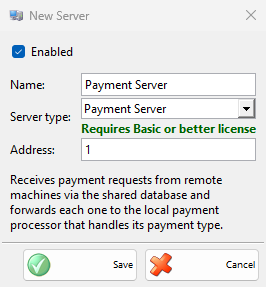
The New Server and Edit Server windows hold the settings of a server. Open them from the Servers window, which also lists the server types and the permissions.
Add a server
- Go to Edit → Administration → Servers… and click New. The New Server window opens.
- Select the Server type:. The window shows the fields of the type and fills in their default values. An address that is already filled in stays.
- Fill in the fields of the type. See Settings of each type.
- Keep Enabled selected and click Save.
To change a server, select it and click Edit. The Edit Server window has the same fields. Saving stops and starts again all the servers of the workstation, so the change works at once. A server without its license does not start, and the program shows a message about it.
Common fields
| Field | What it does |
|---|---|
| Enabled | The server starts with the program. Clear it to stop the server and keep its settings. |
| Name: | The name in the list and in the messages. It is required. When it is empty or holds the name of a type, it takes the name of the selected type. |
| Server type: | What the server does. The window shows a short description of the type. |
| Requires … license | The license the type needs, under Server type:. It is green when this workstation has the license and red when it does not. |
Settings of each type
| Type | Fields |
|---|---|
| Print Server | Logical address:, 1 by default, and Scan interval (seconds):, 3 by default. See Print Server. |
| Payment Server | Address:, 01 by default. The other workstations use a Payment Server processor in Edit → Payments → Payment Processors… with the same Address:. |
| STS ESL Price Tag Server | Image server port:, the port of this workstation from which the base station takes the label images. Base station:, the address of the base station, with its port next to it, 6688 by default. Base station serial:, the serial number of the base station. The labels are set in Edit → Administration → Price Tags…. |
| Access Control Manager | Logical address:, 1 by default, and Scan interval (seconds):, 10800 by default: how often the cards whose period has ended are disabled. The controllers are set up in Devices, and the items that sell a card have Access controller card. |
| Protel Cash Receipts | Input folder:, the folder where Protel saves its XML invoices. Output folder:, the Protel installation folder. Payment types mapping: for each payment type, the Protel payment names, separated by commas, and Print a receipt when this payment is used. VAT groups mapping: for VAT Group A to D, the Protel values, separated by commas. |
Give each enabled server of a type on the workstation its own address, and each enabled server with a port its own port.
Delete a server
- Open the server, clear Enabled and click Save. An enabled server cannot be deleted.
- Select one or more servers in the Servers window and click Delete.
- Answer “Do you want to delete server “…”?” with OK.
Troubleshooting
| Message | Solution |
|---|---|
| “Server name cannot be empty!” | Enter Name:. |
| “Server with this name already exists! Do you want to continue?” | A warning. No returns to the field. |
| “Address cannot be empty!” | Enter the address of the server. |
| “Another server of the same type is already using this address!” | Another enabled server of this type on the workstation uses the address. Enter another address. |
| “Invalid port number!”, “Another server is already using this port!” | Enter a port from 1 to 65535 that no other enabled server of the workstation uses. |
| “FTP host cannot be empty!” | Enter Base station:. |
| “Input folder not selected!”, “Output folder not selected!” | Select both folders. |
| “A value for VAT group A is specified, but a VAT group with code A is not configured in IncoPOS!” | Clear the field, or add a VAT group with this code in VAT Groups. |
| “The server “…” cannot be deleted, because it is enabled.” | Clear Enabled, save, then delete the server. |