
Use Edit → Reprint Documents → Purchase Return… to print a saved purchase return again as a stock receipt. Printing does not change the purchase return, the stock or the payments.
Select and print a purchase return
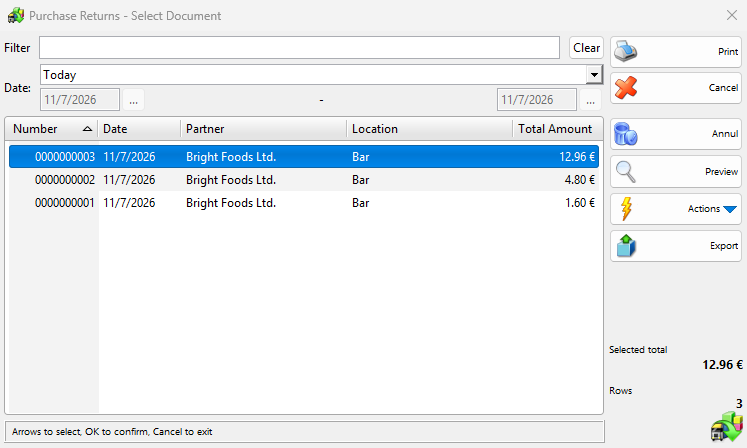
- Go to Edit → Reprint Documents → Purchase Return…. The Purchase Returns – Select Document window opens.
- Find the purchase return with Date: and Filter.
- Select the purchase return and click Print, or double-click the row. To print several purchase returns, select them with Ctrl+click.
- One purchase return opens in the print preview, where you print or export it. Several purchase returns open the Reprint Purchase Returns window (see Print several purchase returns).
| Control | What it does |
|---|---|
| Filter | Shows only the purchase returns whose number, partner or location contains the typed text. |
| Date: | The period of the listed purchase returns. Today is used the first time. Choose Custom Dates to enter a start and end date. The window remembers the last period. |
| Clear | Clears the filter text and sets Today. |
| Prints the selected purchase returns as described above. | |
| Cancel | Closes the window. |
| Annul | Annuls the selected purchase returns (see Annul a purchase return). Shown only to users who may edit purchase returns. |
| Preview | Shows or hides a preview of the selected purchase return. |
| Actions | Actions for the selected purchase returns, for example Related Documents. |
| Export | Exports the listed or the selected purchase returns. Shown only to users with the Export permission for editing purchase returns. |
A red row is a purchase return with an attached received credit note. Reprinting has no limit for these documents or for old dates.
What is printed
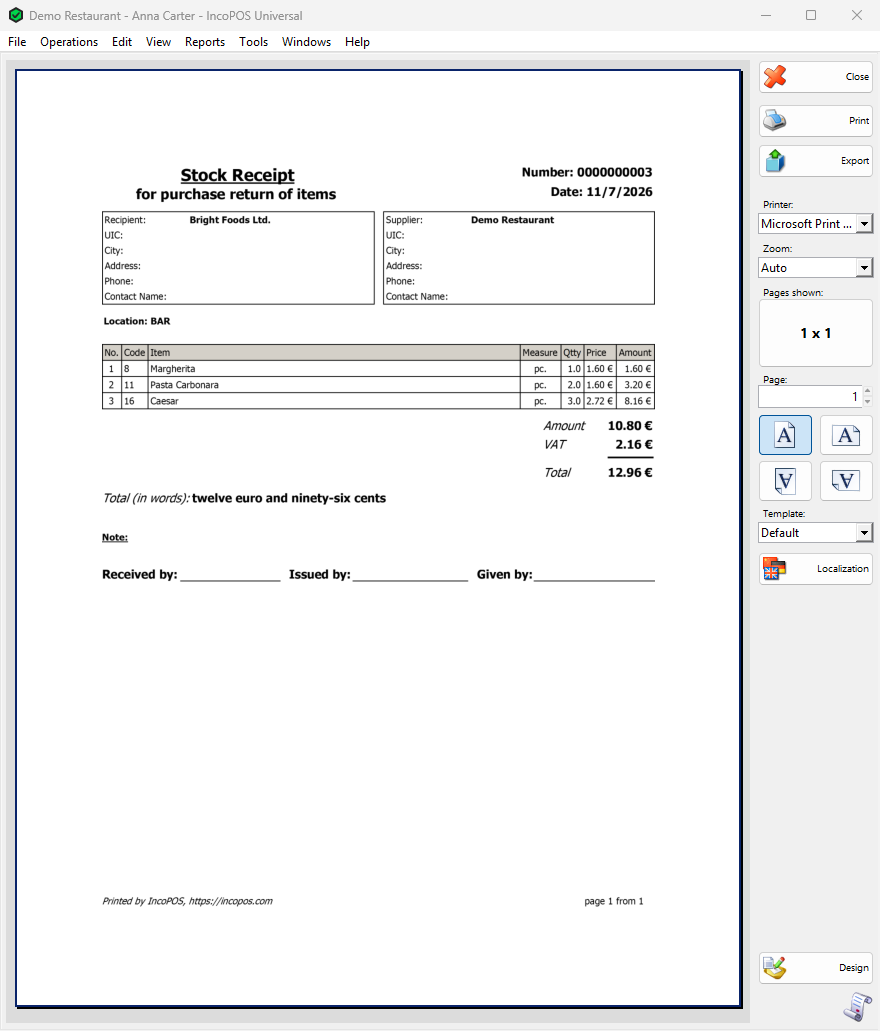
The document is the Stock Receipt “for purchase return of items”, the same document as the print offered after saving a Purchase Return. It shows the current content of the purchase return, so an edited purchase return prints with its changes. It has:
- the number and the date of the purchase return;
- the recipient (the partner), the supplier (your company) and the location;
- the rows with code, item, measure, quantity, purchase price and amount;
- the amount, the VAT, the total and the total in words;
- the note and the lines for the signatures.
The print preview also lets you change the printer, the template, the language and the currency before you print.
Print several purchase returns
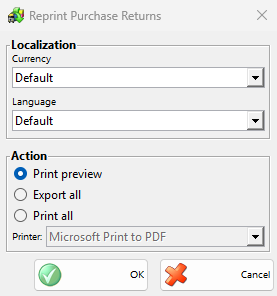
Select the options in the Reprint Purchase Returns window and click OK.
| Option | What it does |
|---|---|
| Currency, Language | Default uses the preferred currency and language of each partner, if set. The window remembers your choice. |
| Print preview | Opens the print preview for each purchase return. |
| Export all | Exports all documents. Available when an exporter for this document exists. |
| Print all | Prints all documents without a preview on the printer selected in Printer:. |
Permissions
Permissions are set in Edit → Administration → Permissions….
| Permission | What it allows | Not allowed by default for |
|---|---|---|
| Reprint Documents → Purchase Return… | The menu item and Actions → Print. | Nobody |
| Documents → Purchase Return… | The Annul button. | Nobody |
| Manage operators and view their operations | Seeing the purchase returns of all users. Without it the list shows only the purchase returns with your user in User. | Operators |
Troubleshooting
| Problem | Solution |
|---|---|
| Reprint Documents is disabled | The computer has no printer and no document exporter. Install a printer. |
| “This operation is not available because the purchase prices are hidden for the current user…” | Ask an administrator to select Show items purchase price for your user. |
| A purchase return is not in the list | Check Date: and Filter. |
| “An error occurred while generating the stock receipt!” | Check the purchase return in Edit purchase return and the printer settings, then try again. |
| “An error occurred while generating purchase return!” | Check the purchase return in Edit purchase return and the printer settings, then try again. |
| “Please select a printer.” | Select a printer in Printer: before you use Print all. |
Related pages
- Purchase Return
- Edit purchase return (Edit → Documents → Purchase Return…)
- Print Preview
- Document Designer