
The Drafts Report lists the rows of the drafts: the unfinished documents that were kept for later with Save draft or imported as drafts. Each row of each draft that matches the filter is one row of the result. Use it to find a draft and open it again to finish it. Open it from Reports → Drafts….
Where drafts come from
A draft is saved when you close a document window that has valid rows, for example Sale or Purchase, and click Save draft in the question that follows. The Debit Note and Credit Note windows have no drafts. Import Operations also creates drafts while Import operations as drafts is selected. A draft does not change the stock, has no payments and gets a document number only when it is saved.
Filter
The Drafts Report window opens first. Fill in only the filters you need: an empty filter does not limit the report. Click OK to run the report. Clear empties the filters and sets the check boxes back to their default. The window keeps the last filter you ran.
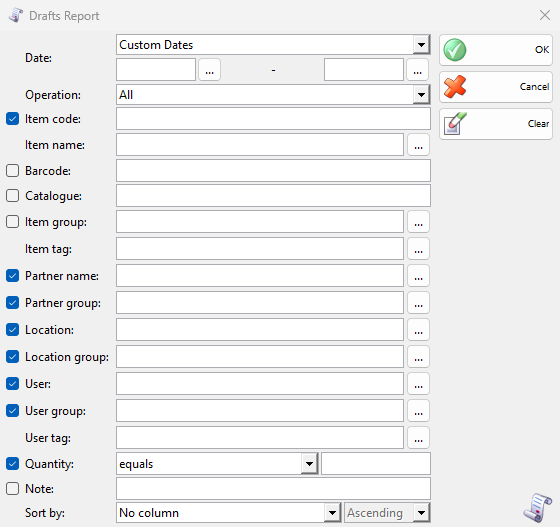
The check box in front of a filter puts its column in the result. A filter without a check box always has its column. Each row is one row of a draft, so a cleared check box only hides its column. A text filter finds the values that contain the text. Press F4 or click … to choose from a list.
| Filter | What it limits | Column by default |
|---|---|---|
| Date: | The period, by the date in the draft. Choose a period from the list, or Custom Dates and a start and an end date. Without dates the report covers all drafts. | Always shown |
| Operation: | The type of the drafts. All shows every type. Transfer shows the transfers in both directions and Production the ingredients and the products. | Always shown |
| Item code:, Item name: | The items. | Item code: shown, Item name: always shown |
| Barcode:, Catalogue: | The items by barcode or catalogue number. Each adds three columns. | Not shown |
| Item group: | The items of a group. | Not shown |
| Lot:, Serial number:, Production date:, Expiration date:, Lot location: | Listed when you work with lots. | Not shown |
| Partner name:, Partner group: | The partner of the draft. | Shown |
| Location:, Location group: | The location of the draft row. | Shown |
| User:, User group: | The user in the User field of the draft. | Shown |
| Item tag:, Partner tag:, Location tag:, User tag: | Listed when such tags exist. They only filter. | No column |
| Quantity: | The rows by their Quantity: choose equals, not equals, more than or less than and type a number. | Shown |
| Note: | The drafts by the text of their note. | Not shown |
| Sort by: | Sorts by Date, Item, Code, Partner Name, Location or User, ascending or descending. It sorts only by a column that is shown. | – |
Results
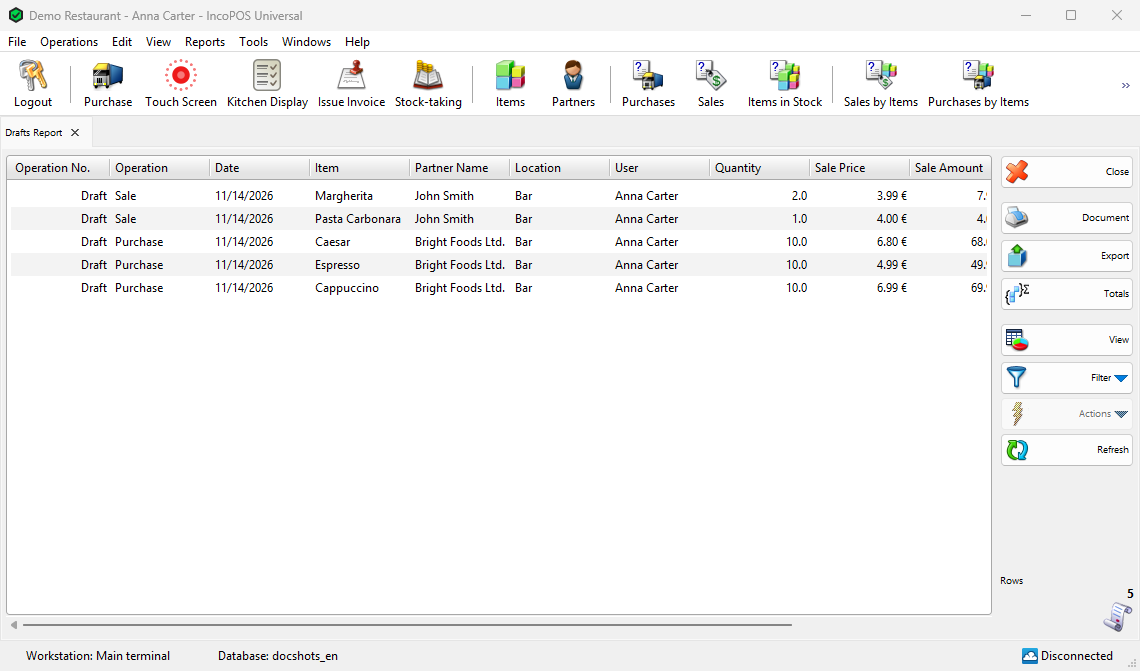
The result opens in its own tab. The example below shows the drafts of today: a sale and a purchase that were closed with Save draft. Item code: and the three group filters are cleared, and Measure and the VAT columns are hidden with View, so the amounts fit on the screen.
| Column | What it shows |
|---|---|
| Operation No. | Draft on every row, because a draft has no number yet. |
| Operation, Date | The type of the draft and the date in it. |
| Code, Item, Barcode 1 to 3, Catalogue 1 to 3, Item Group | The item, as it is now in Items. |
| Partner Name, Partner Group, Location, Location Group, User, User Group | The partner, the location and the user of the draft. |
| Quantity, Measure | The quantity of the row, in the measure it was entered in. |
| Sale Price, Sale Amount | The sale price of one measure in the row, after its discount, and Quantity × Sale Price: with VAT when prices include VAT, without VAT when they do not. |
| VAT Received Included or VAT Received, VAT Received Amount Included or VAT Received Amount | The VAT of the sale price, for one measure and for the row. |
| Purchase Price, Purchase Amount | The purchase price of one measure in the row, and quantity × purchase price. |
| VAT Given Included or VAT Given, VAT Given Amount Included or VAT Given Amount | The VAT of the purchase price, for one measure and for the row. |
| Note | The note of the draft. |
How the numbers are counted
- The report shows only drafts. A draft that was saved became a normal document and is in the Operations report and the report of its type.
- Each row of a draft is one row of the result, and nothing is added up.
- The prices and amounts include VAT when Use prices with included VAT is selected in Tools → Settings… → Special. The VAT columns are hidden when VAT registered is cleared there or all VAT groups are 0%.
- Amounts are in the main currency of the program.
- Item, partner, location and user names come from the lists as they are now.
Work with the results
Document opens the print preview of the result with its filters, and Export saves it to a file. Totals adds a row with the totals of Quantity and the amounts. View shows the result as bars or a pie. Filter → Report Filter shows the filters next to the result and runs it again as you change them, Report Filter as New… opens the result of another filter in a new tab, and Quick Filter searches the text of the rows. Refresh runs the report again. The report can also be a panel of the Dashboard. View Report Results describes all of these.
Double-click a row or use Actions → Edit to open its draft in the window of its type, for example “Edit sale draft” for a sale, with the permissions of its page in Edit → Documents. Finish the document and save it: a sale goes through the Payment window as usual. Then it gets its number, changes the stock and leaves this report.
Permissions
All permissions are set in Edit → Administration → Permissions….
| Permission | What it allows | Not allowed by default for |
|---|---|---|
| Reports → Drafts… | The report. | Operators (the whole Reports menu) |
| Manage operators and view their operations | The drafts of all users. Without it User: is fixed to your name. | Operators |
A user with a Locked partner: or Locked location: in the user’s settings gets that partner or location fixed in the filter. A user without Show items purchase price there does not see the purchase price and purchase VAT columns.
FAQ
Why is my draft not in the Sales report or in the stock?
A draft is not a saved document yet. Open it from this report, finish it and save it.
How do I find the drafts of one cashier?
Type the name in User:, or press F4 there and choose the user. A user without Manage operators and view their operations sees only their own drafts.