
The Booking Sheet shows the rooms in rows and the days in columns, with every booking as a bar from its arrival to its departure. The front desk uses it to answer an enquiry (which rooms are free on which days), to create a booking by dragging over the free days, to move a booking to other dates or another room, to check guests in and out, and to keep the cleaning status of the rooms. It is one of the windows of Booking.
Open the Booking Sheet
Go to Operations → Booking → Booking Sheet. If the sheet is already open, the menu returns to it, unless Allow multiple windows for new operation of the same type is on in the settings. Esc closes it. Without a Pro license the sheet shows the license warning the first time it opens, and Book and Block show it again and open nothing.
What the sheet shows
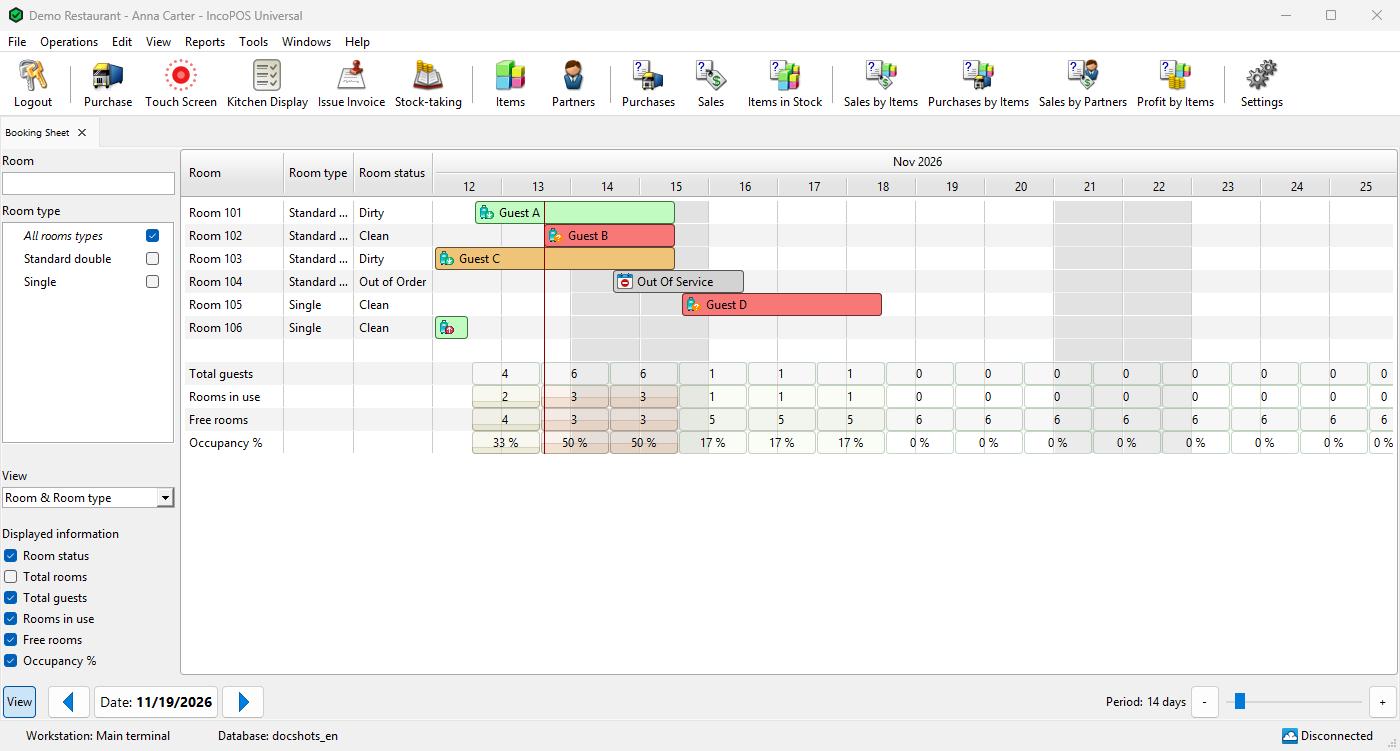
Each row is a room of the booking settings, sorted by name, with its Room type. Each column is a day, under the month and year (with an hourly billing interval, an hour under the date). Weekends are grey and a red line marks the current time. The bars show:
- the name of the first guest, or Out Of Service or Out Of Inventory for a blocking;
- a status icon at the start: arriving, in the house, checked out, no-show, cancelled or blocked;
- the colour of the payment: red when nothing is paid, orange when part is paid, green when the room or the whole booking is paid. No-show and cancelled bookings are light grey, Out Of Service is light grey and Out Of Inventory dark grey.
A booking for a room type without a room appears in lighter colours in every room of that type, and in bright red where that room is already booked on the same dates. Give it a room in the Booking window, or drag it to a room.
The sheet reads the bookings again every few seconds (Rooms status refresh rate: on the Bookings tab of Tools → Settings…, 10 seconds by default), after a change made in the sheet and when the synchronization brings changes.
Period and date
Period: under the sheet sets how many days are shown, with the slider or the – and + buttons: 3 to 150 days, 14 by default (1 to 50 with an hourly billing interval). Date: centres the sheet on a day: click it for the calendar, or use the arrows to move one day back or forward. The sheet opens with yesterday in the first column. You can also scroll sideways.
The side panel
View at the top shows or hides the side panel. The sheet remembers on this computer whether the panel is open and what is chosen in it.
| Field | What it does |
|---|---|
| Room | Shows only the rows whose room or room type contains the text. Typing in the sheet fills the same filter. |
| Room type | The room types to show. All rooms types shows every room. |
| View | Room, Room & Room type (the default) or Room type. In the Room type view each row is a room type and each day shows a count chosen in Displayed information: # of free, # in use, # of free / # of total or # in use / # of total, on a colour from green (free) to red (full). |
| Room status | Adds the Room status column. Not in the Room type view. |
| Total rooms, Total guests, Rooms in use, Free rooms, Occupancy % | Total rows at the bottom of the sheet, for each day. Total rooms leaves out the rooms that are Out Of Inventory. Total guests counts the adults, and the children after a + when the booking settings use them. |
Create a booking
- In the row of a room, press on the arrival day and drag to the departure day. The selected cells turn green with New booking, and Drag to book on the last one. A click on a single day creates nothing.
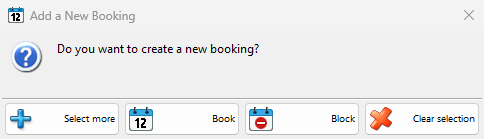
- Release the mouse. The Add a New Booking window asks “Do you want to create a new booking?”.
- Click Book to open the Booking window, or Block to open the Blocking window. Select more keeps the selection: drag over the days of another room, and the next question adds that room to the same booking. Clear selection drops the selection.
- Complete the booking, for example with the guest, and save it. The window closes and the bar appears in the sheet.
The booking starts at the default arrival time on the first selected day and ends at the default departure time on the last one (14:00 and 12:00 unless changed in the booking settings), with one adult in each room. In the Room type view the booking is made for the room type, without a room.
Move a booking or change its dates
When the mouse is over a bar, dots appear on its edges. Drag:
- the left edge to change the arrival;
- the right edge to change the departure, for example when a guest stays longer;
- the middle of the bar to move the whole booking to other days;
- up or down to another room. A faded copy shows where the booking will go.
When you release, the Edit Booking question says what will change, for example “Move entire booking 2 day(s) later?” or “Move entire booking to room “Room 102″?”. Yes saves the booking at once and adjusts its stay rows to the new dates and room. No leaves it as it was.
- If the new room is blocked for those days, “Room “Room 104″ is blocked for the selected period. Are you sure you want to save the booking for these dates?” asks whether to book it anyway.
- If it is booked, “The booking cannot be saved because room “Room 104″ is not available for the selected period.” appears and nothing changes.
- A booking with an issued invoice cannot be changed, and a user who may not edit bookings sees “Editing bookings is not allowed!”.
- With cloud synchronization, a room that another database manages first asks whether to continue, and the change is then saved as a pending edit: “Changes were saved as pending edit and will be reflected in a few minutes.”
Booking details, check-in and check-out
Click a bar to see its details: Arrival:, Departure:, Status:, Adults: and Children: (when the booking has them), Guests: and Note:. Where several bookings are under the click, a list shows the dates and the first guest of each, with an Edit button for each.
| Button | What it does |
|---|---|
| Check In | For an arriving guest. After “Are you sure you want to check in room Room 101?”, the room becomes In-House and its room status Dirty. If printing is available, the sheet asks “Do you want to print the booking registration cards for this room?” and shows the cards of the guests in the print preview. Don’t ask me again keeps the answer. |
| No-Show | For an arriving guest who did not come. After a question the room becomes No-Show. A booking with an issued invoice shows “Changing the booking is not allowed, because there is an invoice issued for it!”. |
| Check Out | For a guest in the house. Allowed only when the room or the whole booking is paid, otherwise “The room cannot be checked out because the whole amount is not paid yet!”. After a question the room becomes Checked Out. |
| Edit | Opens the booking in the Booking window, or the blocking in the Blocking window, for the payments, the guests, the sales and the invoice. |
| Close | Closes the details. |
Check In, No-Show, Check Out and Edit of a booking appear only for users with the Booking permission.
Room status and cleaning
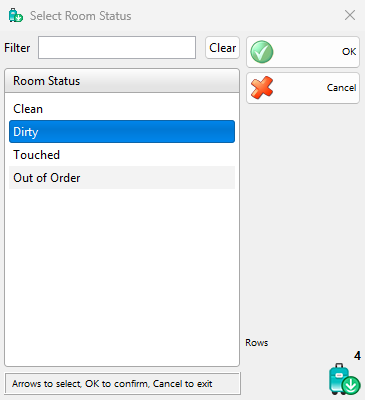
With Room status in the side panel, the Room status column shows the cleaning status of each room: Clean, Dirty, Touched or Out of Order. A room without a status is Clean.
- Click the status of a room. The Select Room Status window opens with the current status selected.
- Select the new status and click OK. It is saved at once for the room, and the other computers show it after their next refresh.
Check In sets the room to Dirty, in the sheet and in the Booking window. Nothing sets it back to Clean: the housekeeping staff or the front desk does it here when the room is ready. Reports → Booking → Housekeeping… lists the rooms with their status, for example to give the cleaners the list of dirty rooms.
Permissions
| Permission | What it allows | Not allowed by default for |
|---|---|---|
| Booking → Booking Sheet | Opening the sheet | Nobody, unless the business type hides the Booking menu |
| Booking → Booking | Book, which opens the Booking window, and the Check In, No-Show, Check Out and Edit buttons of a booking | Nobody |
An administrator changes them in Edit → Administration → Permissions….
Troubleshooting
| Problem | Solution |
|---|---|
| “Opening the Booking Sheet is not allowed!” | Ask an administrator to allow Booking Sheet for your user. |
| A room is missing from the sheet | The sheet shows the locations that have a room type of the booking settings. Give the location the tag of its room type in Edit → Locations…. Check also the Room filter and the Room type list of the side panel. |
| Releasing the mouse creates no booking | Drag over at least two days: the first is the arrival and the last the departure. |
| The Room status column is missing | Turn on Room status in the side panel. The Room type view has no room status. |
| Check Out is refused | Take the rest of the payment in the Booking window (Edit), then check out. |
| “Fix Types?” when the sheet opens | Rooms got another room type in Edit → Locations…. Yes moves their bookings to the new room types. |
FAQ
How do I see which rooms are free next weekend?
Set Date: to the weekend, or turn on Free rooms in the side panel for a count per day. For a count per room type, choose the Room type view with Displayed information set to # of free.
Can one booking hold several rooms?
Yes. Select the days of the first room, click Select more, select the days of the other rooms and click Book.
Does dragging a booking change its price?
The stay rows of the booking follow the new dates and room, as when you change them in the Booking window. Check the amounts there if the rates differ.