
A stock-taking compares the quantities you counted with the quantities in the program and corrects the stock of a location. Saving it changes only the items in the document, by the difference between the counted and the available quantity. It also saves the prices of these items. To record a loss with a known reason, use Waste or Write-off instead.
Open the Stock-taking window
Go to Operations → Stock-taking or press Ctrl+J. Unless stated otherwise, the settings named on this page are in Tools → Settings… → Operations.
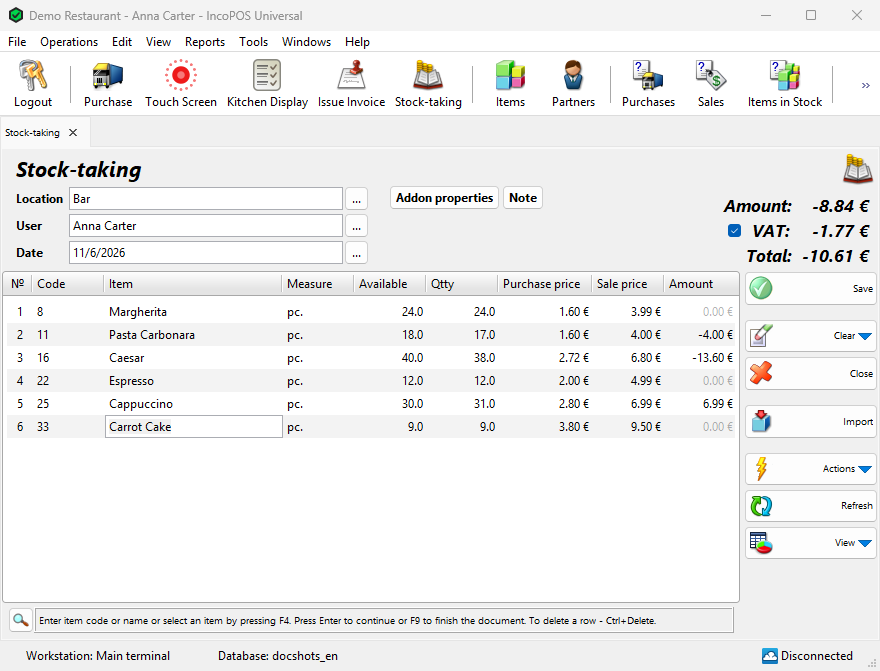
Fill in the header
In each header field type a name or code and press Enter, or open the list with F4, a double-click in the field or the … button. Fill in the header before the items.
| Field | What to enter |
|---|---|
| Location | The location you count. One stock-taking covers one location. It is filled in if your user has a default location or if there is only one. If you change it after adding items, click Refresh. |
| User | The logged-in user is filled in. Changing it requires the Edit User permission (Operations), which operators do not have by default. |
| Date | Today is filled in. Press F4 or double-click to pick a date from the calendar. Changing it requires the Edit Date permission (Operations), which operators do not have by default. For a past date see A stock-taking with a past date. |
Add items
- In the Item column type the item name, code or barcode and press Enter. To choose from the list, press F4 or double-click the cell. In the list you can select several items with Ctrl+click, or with Shift and the arrow keys, and create a new item with New.
- In the Qtty column enter the counted quantity and press Enter.
- In the Purchase price and Sale price columns check or change the prices and press Enter. A new row opens after the last editable column.
- Repeat for each item. To delete the current row press Ctrl+Delete.
Without lots an item can be on one row only. If you type an item that is already in the document, the program shows “Item … was already added to this stock-taking!” and moves to its row. To count by scanning, enter barcodes: the row gets a quantity of 1, the cursor moves to a new row, and the same barcode increases the quantity of that row. To enter the quantity with the code, use an asterisk in the Item column, for example 3*1234.
| Column | Meaning |
|---|---|
| Available | The quantity in the location according to the program. It cannot be edited. Without Show items available quantity in the user, this column, Amount and the totals are hidden and the Payment window does not open, which suits a blind count. |
| Qtty | The counted quantity. It starts at 0 for an item entered by name or code. A row saved with 0 sets the stock of the item to 0, so fill in every row or delete it. |
| Purchase price | The item’s current purchase price. Shown with Show items purchase price in the user. Changing it requires the Edit Purchase Prices permission (Operations → Stock-taking). |
| Markup % | The profit as a percentage of the purchase price. Entering a value recalculates the sale price. Shown with Enable markup. |
| Sale price | The item’s price for the price group of the location. Sale price and Markup % are shown with the Show Sale Prices permission (Operations → Stock-taking). Sale price and Markup % can be changed in a new stock-taking with Edit Sale Prices, which operators do not have by default. |
| Amount | (Qtty − Available) × price. It cannot be edited. |
The totals Amount:, VAT: and Total: at the top right show the value of the differences. A negative total means a shortage.
Price type used in stock-takings: selects the price for Amount: Sale price, which is the default, or Purchase price.
Refresh the availability
Available is read when the row is added and then stays the same, also in a draft. The Refresh button reads it again for all rows.
- If goods moved after the row was added but before you counted them, click Refresh.
- If goods moved after you counted them, do not click it. The difference from your count is still correct.
How a stock-taking changes stock and prices
When you save, the stock of each item in the selected location changes by Qtty minus Available. Items that are not in the document keep their quantity, so you can count only part of the goods.
The prices of all rows are saved to the items. Sale price goes to the price group of the location. The purchase price depends on Item management:.
| Item management | Purchase price after saving |
|---|---|
| Average price, Last purchase price | The price of the row. No average is calculated, even for a surplus. |
| Average price per location | The same, and the price of the row also becomes the average of the selected location. |
| FIFO, LIFO, FEFO, Choice | The price of the row. The quantities change by lot. |
Lots
Lot columns appear only when Item management: uses lots (the last row of the table above), each with its own setting: Enable lot name, Enable serial number, Enable expiration date, Enable manufactured date and Enable lot location.
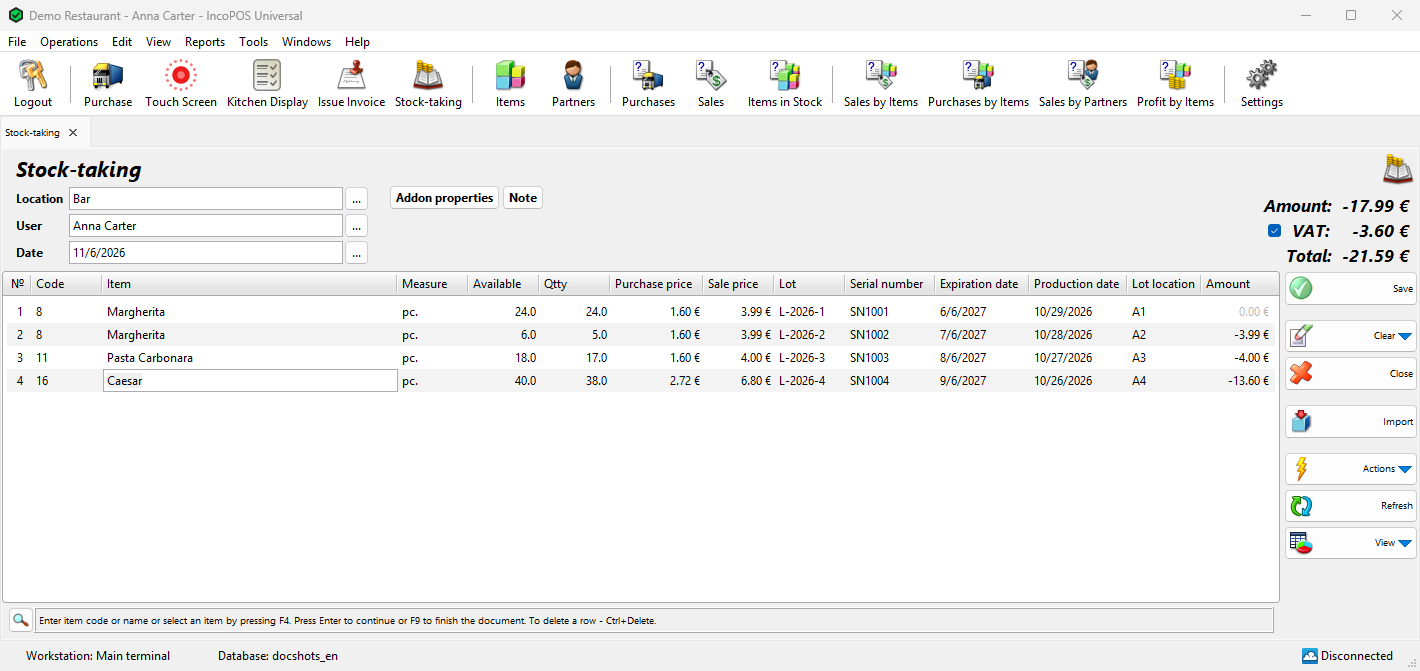
When you enter an item, the program adds one row for each lot with stock in the location, with the Available of that lot. Enter the counted quantity on each row. A lot counted as 0 is emptied.
- On a row with stock, the lot columns and Purchase price cannot be changed.
- To change them, enter 0 on that row and enter the item again in a new row. The new row has no lot, so you can fill in the quantity, the price and the lot columns. Saving creates the new lot.
- An item with no stock in the location gets one row without a lot. Fill it in the same way.
A stock-taking with a past date
What happens when you set Date to a past day depends on Work with negative availability.
| Work with negative availability | What happens |
|---|---|
| On | The program asks if you want to use calculated availability. Yes makes Available show the stock on that date. An item with a later stock-taking is then refused with “Item … has already been involved in another stock-taking…”. Edit the later stock-taking or change the date. |
| Off | The program says that calculated availability is not possible. Available shows the current stock. |
Refresh asks for a confirmation on a past date. In both cases the saved difference changes the current stock.
Buttons
| Button | What it does |
|---|---|
| Clear | Its menu has Delete current row and Delete all rows. |
| Close (Esc) | Closes the window. If there are unsaved rows, the program asks “Exit without saving the stock-taking?”. |
| Import | Loads the rows from a file. Shown when data importers are available. Fill in the header first. |
| Note, Addon properties | Add a note or additional properties to the document. |
| Actions | For a new stock-taking it has Save and Transform (see Transform the stock-taking). |
Import works as in a purchase. The quantity from the file goes to Qtty and the program fills in Available. The price from the file goes to the price selected in Price type used in stock-takings:.
Save, payment and print
- Press F9 or click Save.
- If Total: is above zero, the Payment window opens. Otherwise the program asks “Do you want to save the operation?”. OK saves, Save draft keeps the document as a draft and Cancel returns you to the window.
- If printing is available, the program asks “Do you want to print a document?”. Yes opens the print preview of the Protocol for Items Stock-Taking and Don’t ask me again remembers the answer. The question depends on Print documents: in Tools → Settings… → Printing.
The rows are then cleared for the next stock-taking. The location stays filled in.
Payments
A stock-taking has no partner field, so its payments go to the default partner.
- With a surplus (Total: above zero), enter the paid amount in the Payment window, which is the same as in a purchase, and click OK. What you do not enter stays due from the default partner. Cancel returns you to the stock-taking and nothing is saved.
- With a shortage (Total: below zero), the program creates a paid cash payment with the negative amount, so nothing stays due.
Drafts
A draft keeps an unfinished stock-taking, for example during a long count. It does not change the stock or the prices and creates no payments. Save draft is in the save question and, with valid rows, in the question shown when you close the window. To continue, select the draft in Reports → Drafts… and use Actions → Edit. The window then shows “Edit stock-taking draft”, and saving turns the draft into a normal stock-taking.
Transform the stock-taking
For a new stock-taking click Actions → Save and Transform and confirm. The stock-taking is saved first, with its payment, and then you choose the destination document. The new document gets the difference of each row as a positive quantity, not the counted quantity. Saved stock-takings are transformed with Operations → Transform Document… (Ctrl+T), which can also create a stock-taking from another document. The program then reads Available for its rows. See Transform Document.
Troubleshooting
| Problem | Solution |
|---|---|
| “Opening the Stock-taking screen is not allowed!” | Ask an administrator to allow Stock-taking for your user in Edit → Administration → Permissions…. |
| “This operation is not available because the purchase prices are hidden for the current user…” | Price type used in stock-takings: is Purchase price. Ask an administrator to select Show items purchase price for your user. |
| “There are incomplete orders in the selected location…” | The orders are subtracted from Available. Complete them before the count, or answer Yes and count with this in mind. No does not select the location. |
| “There are no valid rows in the stock-taking document!” | Add at least one item. |
| “Invalid quantity of item “…”!” | A count cannot be negative. With lots, a row without stock needs a quantity above zero. |
| “The stock-taking cannot be saved due to insufficient availability of item “…”.” | The stock has dropped below Available since the row was added. Click Refresh and check the row. |
| “Non-inventory items cannot be used in stock-takings!” | Services and charges have no stock, so leave them out. |
| “The purchase price of item “…” is zero. You are not allowed to use zero prices!…” | Enter a price, or select Allow sales using zero prices for the user. |
FAQ
How do I enter the opening stock?
Save a stock-taking with the quantities and the prices. Available is 0, so the whole quantity is added. Importing items with quantities in Edit → Items… does this by itself: the program saves a stock-taking with the note “Auto Stock-taking after items import”.
How do I print a list for the count?
Use Reports → Items → Items Stock-taking…. It lists the quantities by location and can add an empty Counted column.
Where do I see the differences after saving?
In Reports → Stock-takings…, with the columns Available, Counted and Difference.
Related pages
- Edit stock-taking (Edit → Documents → Stock-taking…)
- Reprint Stock-Taking
- Stock-taking by amount report (Reports → Documents → Stock-takings by Amount…)
- Transfer
- Payments