
Use Edit → Documents → Consignments → Consignment… to change or annul a saved consignment. The edit window works like the Consignment window. That page describes the header, the rows and the buttons, and this page covers only what is different.
Open a consignment for editing
- Go to Edit → Documents → Consignments → Consignment…. The Consignment – Select Document window opens.
- Find the consignment with Date: and Filter.
- Select the consignment and click Edit, or double-click the row. One consignment opens at a time: if several rows are selected, only the row with the cursor opens.
You can also open a consignment from a report: select its row and use Actions → Edit. The limits below apply there too.
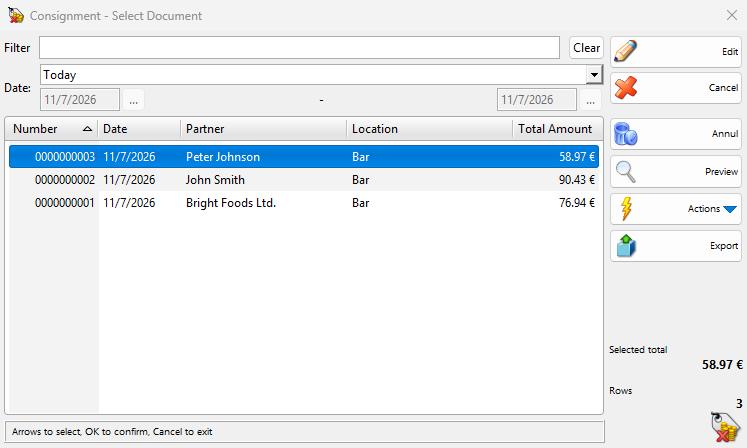
| Control | What it does |
|---|---|
| Filter | Shows only the consignments whose number, partner or location contains the typed text. A valid 12 or 13 digit barcode of the number also works. |
| Date: | The period of the listed consignments. Today is used the first time. Choose Custom Dates to enter a start and end date. The window remembers the last period. |
| Clear | Clears the filter text and sets Today. |
| Edit | Opens the consignment for editing. |
| Cancel | Closes the window. |
| Annul | Annuls the selected consignments (see Annul a consignment). |
| Preview | Shows or hides a preview of the selected consignment. |
| Actions | Edit, Print, Transform Selected Documents and Related Documents. Print works as in Reprint Consignment. |
| Export | Exports the listed or the selected consignments. Shown when exporters are available. |
The list holds every consignment of the period, also the ones that are fully sold or returned. Draft in the Number column marks an unfinished consignment (see Consignment). Rows shows the number of listed consignments and Selected total the total of the selected ones. The Total Amount column depends on Show totals in the choose operations dialogs (slower loading) in Tools → Settings… → Operations.
Consignments that cannot be edited
The program checks the selected consignment when you click Edit.
| Case | Message | Result |
|---|---|---|
| The consignment is older than your user may change | “You don’t have access to edit operations that far in the past!” | The consignment does not open. The limit is Allowed operations modification: in the user’s settings. |
| The consignment is pending in another database | “Pending operations cannot be edited! Please wait for the operation to be completed at the managing database.” | The consignment does not open until that database completes it. |
| You open it with Actions → Edit and a consignment sale of it has an issued invoice | “Consignment No.0000000001 cannot be edited because the issued invoice No.0000000001 is attached to a sale on it. Please, annul the invoice before editing this consignment.” | The consignment opens in the read-only view. To change it, use Void Issued Invoice first. |
Read-only view
The window shows the consignment, but Partner, Location, Date, the rows and the buttons that change them are disabled. With the Edit User permission you can still change User and Note: Save then stores only these two. Without that permission Save is disabled.
What you can change
The window title shows Edit consignment No. and the number of the consignment, which cannot change. A draft opens as Edit consignment draft.
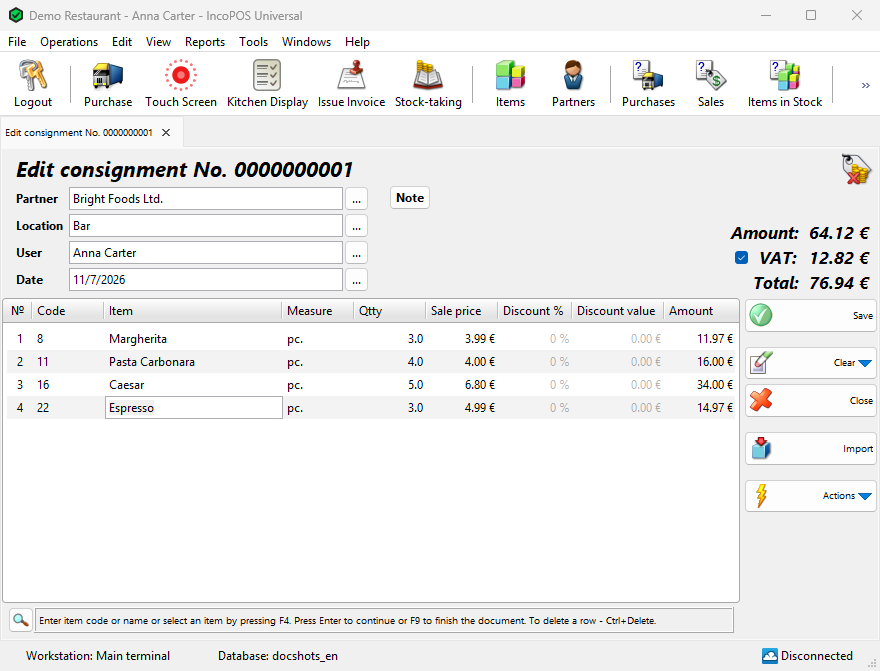
| Part | How it works in an edit |
|---|---|
| Partner, Location | Change them as in a consignment. Location is disabled when Document numbers per location is selected in Tools → Settings… → Special. |
| User, Date | Require the Edit User and Edit Date permissions. |
| Rows | Change the item, the quantity, the price or the discount in the cell. Press Enter on the last row to add a row. A row cannot go below the quantity already sold or returned from it. |
| Lot columns | Shown when Item management: uses lots. A changed quantity takes the lots as in a Consignment. |
| Delete a row | Press Ctrl+Delete, use Clear → Delete current row or set Qtty to 0. The row stays struck through and disappears when you save. |
| Import, Note | The same as in a consignment. |
Lowering a quantity, deleting a saved row, replacing its item or raising its discount requires Make Corrections In Operations. Clear → Delete all rows asks “Do you want to delete all the rows from the operation?” and sets all quantities to 0: saving such a consignment annuls it.
A saved consignment cannot become a draft. If you close the window with changes, the program asks “Exit without saving the changes?”: OK loses the changes and Cancel returns to the consignment.
Save the changes
- Press F9 or click Save.
- The program asks “Do you want to save the changes?”. OK saves and Cancel returns to the consignment.
- If printing is available, the program asks “Do you want to print a consignment?”, depending on Print documents: in Tools → Settings… → Printing. With Yes the print preview opens.
The tab then closes.
What saving changes
| Where | Result |
|---|---|
| Stock | The saved quantities go back to the location of the consignment, and the edited quantities leave the location in the Location field. With lots, each quantity goes back to its lot. |
| Payments | None. A consignment has no payments. |
| Row prices | Saved rows keep their prices and discounts. They are not reloaded from the items, and price rules do not run. There is one exception: if you select a partner or a location with another price group, rows that still have the item’s price from the old group get the price from the selected group. An added row or a replaced item takes the item’s price. |
| Item prices | No change. Saving a consignment never changes the prices in Items. |
| Consignment sales and returns | Saved documents stay as they are. The added quantity is available for the next Consignment Sale or Consignment Return. |
Annul a consignment
- In Consignment – Select Document select one or more consignments and click Annul.
- Answer “Are you sure you want to annul this consignment?” with Yes. For several consignments the question is “Are you sure you want to annul the selected 2 consignments?”.
The consignment leaves the list and its quantities go back to the stock of its location. A consignment with a sale or a return cannot be annulled: first annul them in Edit Consignment Sale and Edit consignment return. Annul is also in the Reprint Consignment window.
Permissions
All permissions are set in Edit → Administration → Permissions….
| Permission | What it allows | Not allowed by default for |
|---|---|---|
| Documents → Consignments → Consignment… | The menu item and Annul. | Operators, through Documents |
| Documents → Consignments | Actions → Edit. | Operators, through Documents |
| Export | The Export button. | Operators |
| Manage operators and view their operations | Seeing the consignments of all users. Without it the list shows only the consignments with your user in User. | Operators |
Troubleshooting
| Problem | Solution |
|---|---|
| A consignment is not in the list | Check Date: and Filter. |
| “This is a free version of the Consignment operation! To save your operation please purchase a license.” | Consignment is part of the paid Advanced Operations module. Without a license you cannot save the changes. |
| “You don’t have permission to make discounts or corrections to the operation!” | A user with Make Corrections In Operations can log in after the message to allow the change. For rows you added in this edit, Make Corrections In New Operations is enough. |
| “The consignment cannot be saved due to insufficient availability of item “…”.” | The location does not have the added quantity, or the row is below what was already sold or returned from it. Change the quantity, or select Work with negative availability in Tools → Settings… → Operations for a stock shortage. |
| “Item … has already been involved in a stock-taking No: … from … which is made after the date of the current operation!” | A warning for a consignment from an earlier day. The change is allowed, but the stock-taking counted the stock before it. |
| “The operation was already modified and cannot be saved!” | Another user saved this consignment after you opened it. Close the tab and open the consignment again. The check comes from Check if the operation was modified before save in Tools → Settings… → Operations. |
| “The operation cannot be annulled because the annulment will cause negative availability of item “…”.” | A consignment sale or a consignment return uses the quantity of this consignment. Annul it first. |
| “You don’t have access to annul operations that far in the past!” | The consignment is older than Allowed operations modification: allows. |
FAQ
Can I change the number of a consignment?
No. An edit keeps the number.
How do I print the edited consignment?
Answer Yes to the print question after saving, or use Reprint Consignment later.
Related pages
- Consignment
- Edit Consignment Sale
- Edit consignment return
- Reprint Consignment (Edit → Reprint Documents → Consignments → Consignment)
- Consignments report