
The New Location and Edit Location windows hold the data of a location. Open them from the Locations window, which also describes the groups, the import and the permissions.
Add a location
- Go to Edit → Locations… and select the group of the location.
- Click New or press F2. The New Location window opens.
- Enter Name: and choose Price group:.
- Click Save.
Save and New saves the location and keeps the window open for the next one. To change a location, select it and click Edit or press F3. In Edit Location the same button is Save as New: it saves the data as another location, and the original stays as it was.
With Document numbers per location selected in Tools → Settings…, saving a location that is not a sub-location opens Document numbers per locations.
General information
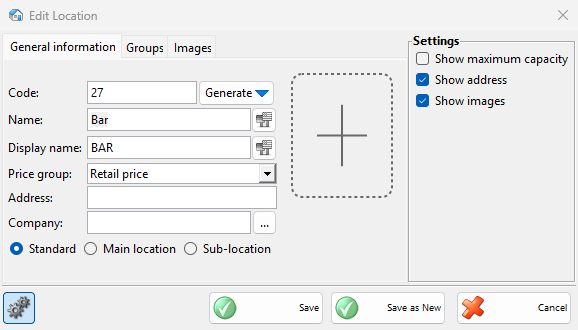
| Field | What it does |
|---|---|
| Code: | The location code. Generate offers Use next available code and Use first available code. With Auto generate location codes in Tools → Settings… → Codes the code is filled in when the window opens. |
| Name: | The name of the location. It is required. |
| Display name: | The name on documents. |
| Price group: | The prices in this location. An operation uses it when the partner has Retail price. A partner with another price group keeps its own. |
| Maximum capacity: | The capacity of the location, shown in the location reports. Hidden by default. |
| Address: | The address of the location. Hidden by default. |
| Company: | The company of this location. If empty, the default company is used. |
| Standard, Main location, Sub-location | A main location can have sub-locations. The operations of a sub-location take their numbers from the document numbers of the main location. Sub-location shows Main location: to choose it. |
The square on the right shows the picture from the Images tab. The button next to Name: and Display name: stores the text in other languages.
When a location with operations becomes a sub-location, the program asks “Move the operations from this location to “…”?”. Yes moves them to the main location, No leaves them, and Cancel does not save.
Other tabs and settings
Groups holds the group of the location. Tags holds its tags and is shown when tags exist. Images holds the pictures.
The button with the gears at the bottom left opens Settings. Its check boxes Show maximum capacity, Show address, Show images and Show tags show or hide these fields and tabs on this computer.
Delete a location
- Select one or more locations and click Delete or press Delete.
- Answer “Do you want to delete the location with name “…”?” with OK.
A location without operations is deleted. For a location with operations, the program asks whether to move it to the Deleted group. Yes moves it there. To bring it back, drag it onto another group (see Locations). The default location of the program cannot be deleted.
Messages
| Message | Solution |
|---|---|
| “Location name cannot be empty!” | Enter Name:. |
| “Location with the name “…” already exists! Do you want to save the location anyway?” | A warning. No returns to the field. The same question appears for the code. |
| “Invalid code value!” | The code does not match the pattern in Tools → Settings… → Codes. |
| “The location cannot be a sub-location of itself!” | Choose another location in Main location:. |
| “Invalid main location specified!” | The name in Main location: does not match a location. Choose it from the list. |
| “Not enough free operation numbers to reserve for a new location!” | All document numbers are in use. See Document numbers per locations. |
| “Cannot delete location “…”!” | This is the default location of the program. |