
A waste writes off goods that are damaged, expired or can no longer be sold. Saving it decreases the quantities in the selected location. It creates no payment and does not change the prices of the items. Waste is part of the paid Advanced Operations module.
Open the Waste window
Go to Operations → Waste. Unless stated otherwise, the settings named on this page are in Tools → Settings… → Operations.
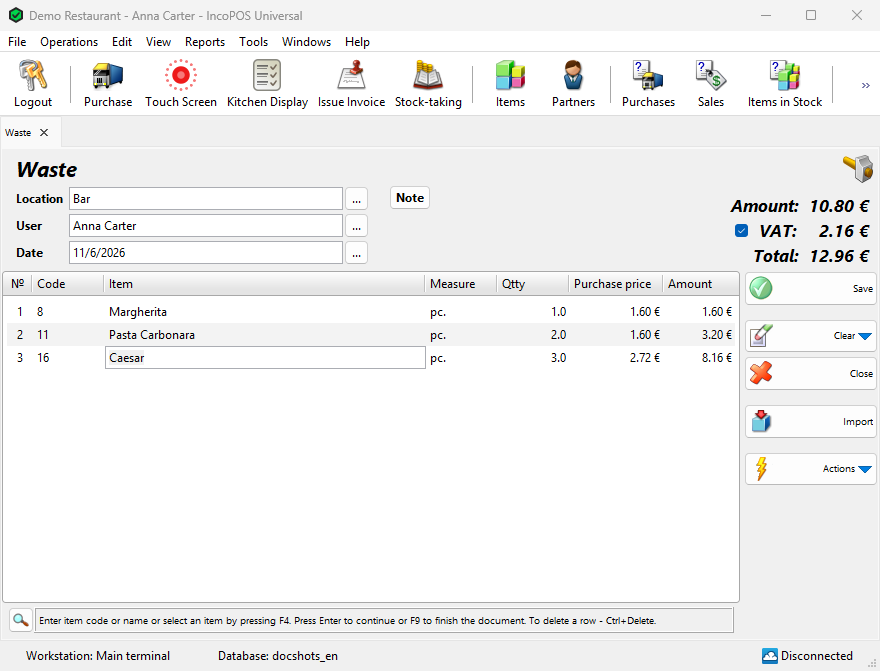
Fill in the header
A waste has no partner. In each header field type a name or code and press Enter, or open the list with F4, a double-click in the field or the … button.
| Field | What to enter |
|---|---|
| Location | The location the goods are taken from. It is filled in if your user has a default location or if there is only one. |
| User | The logged-in user is filled in. Changing it requires the Edit User permission (Operations), which operators do not have by default. |
| Date | Today is filled in. Press F4 or double-click to pick a date from the calendar. Changing it requires the Edit Date permission (Operations), which operators do not have by default. |
Add items
- In the Item column type the item name, code or barcode and press Enter. To choose from the list, press F4 or double-click the cell. In the list you can select several items with Ctrl+click, or with Shift and the arrow keys.
- In the Qtty column enter the quantity to write off and press Enter. A new row opens.
- Repeat for each item. To delete the current row press Ctrl+Delete.
When you enter a barcode, the row gets a quantity of 1 and the cursor moves to a new row. Entering the same barcode again increases the quantity of that row.
| Column | Meaning |
|---|---|
| Purchase price | Filled in by the program and cannot be changed. It is the item’s current purchase price, the price for the selected location with Average price per location, or the price of the lot when you work with lots. |
| Markup % | Shown with Enable markup. The cursor stops here before the new row opens. The value does not change the amount or the item. |
| Sale price | Shown instead of Purchase price, and cannot be changed, if Show items purchase price is off for the user. Amount and the totals then use the sale price. |
| Amount | Quantity × purchase price. With Enable totals edit you can enter the amount and the purchase price of the row is recalculated. |
The totals Amount:, VAT: and Total: are shown at the top right. Clearing the check box next to VAT: makes the whole document VAT exempt after a confirmation.
Colors in the table
- Qtty is red if the location does not have enough of the item. The help line of the window shows the same warning.
- Item is orange if the same item is already on an earlier row. This is only a warning, and the help line shows the row number.
When the stock is not enough
You cannot write off more than the location has. Saving stops with “The waste cannot be saved due to insufficient availability of item “…”.” and the cursor goes to the row. Two settings change this:
- Work with negative availability turns the check off, so the quantity can go below zero.
- Auto production produces the missing quantity when you save, if the item has a recipe.
Lots
When Item management: uses lots, a waste takes the quantity from the lots that exist in the selected location. Purchases create the lots. How the program picks them depends on the method:
| Item management | Lots used |
|---|---|
| FIFO | The oldest lot first. |
| LIFO | The newest lot first. |
| FEFO | The lot with the nearest expiration date first. |
| Choice | If the item has more than one lot with stock, the window “… – Select Lot” opens after Qtty. Select one or more lots and click OK. A single lot is used without the window. |
If one lot does not hold the quantity, the row is split into one row per lot, and each row gets the purchase price of its lot. If all lots together are not enough, the rest stays on a row with “NA” in the Lot column and the waste cannot be saved.
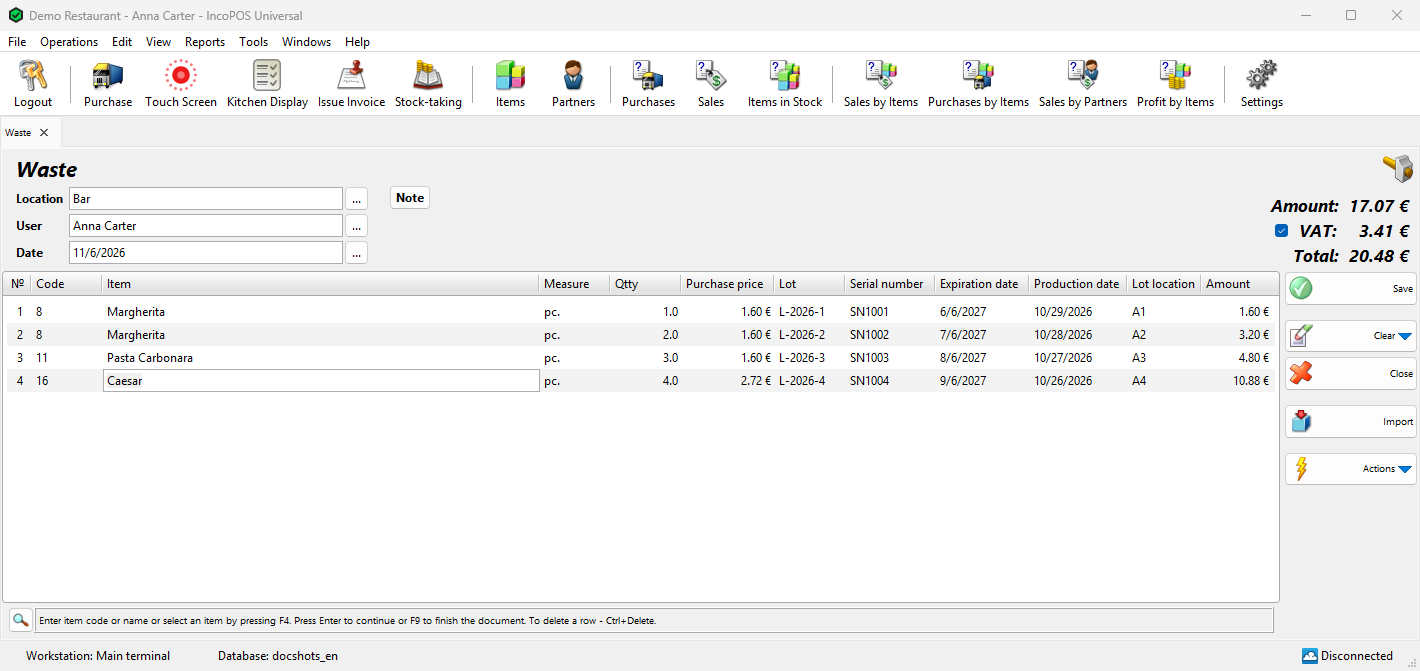
The columns Lot, Serial number, Expiration date, Production date and Lot location are shown with Enable lot name, Enable serial number, Enable expiration date, Enable manufactured date and Enable lot location. In a waste they only show the data of the lot and cannot be edited.
Buttons and the note
| Control | What it does |
|---|---|
| Clear | Its menu has Delete current row and Delete all rows. |
| Close (Esc) | Closes the window. If there are unsaved rows, the program asks “Exit without saving the waste?”. Save draft keeps them as a draft. |
| Import | Loads the rows from a file, in the same way as in Purchase. Shown when data importers are available. Fill in the header first. A price from the file replaces the purchase price of the row. |
| Note | This tab adds a note to the document. The … button opens a larger window for the text. |
Save and print
- Press F9 or click Save.
- The program asks “Do you want to save the operation?”. OK continues, Save draft keeps the document as a draft and Cancel returns you to the waste.
- If printing is available, the program asks “Do you want to print a document?”. With Yes, the print preview of the Protocol for Items Waste opens after the save. Don’t ask me again remembers the answer. The question depends on Print documents: in Tools → Settings… → Printing (Ask, Always, Never or Ask per document type).
The rows are then cleared for the next waste. The location stays filled in, and the user and the date return to the logged-in user and today.
Drafts
A draft keeps an unfinished waste and does not change the stock. To continue, select the draft in Reports → Drafts… and use Actions → Edit. The window then shows “Edit waste draft”, and saving turns the draft into a normal waste.
Transform the waste
For a new waste click Actions → Save and Transform and confirm. The waste is saved first, without the save question, and then you choose the destination document. Saved wastes are transformed with Operations → Transform Document… (Ctrl+T), which can also create a waste from another document. See Transform Document.
Troubleshooting
| Problem | Solution |
|---|---|
| “Opening the Waste screen is not allowed!” | Ask an administrator to allow Waste for your user in Edit → Administration → Permissions…. |
| “This is a free version of the Waste operation! To save your operation please purchase a license.” | Saving requires a license for the Advanced Operations module. |
| “There are no valid rows in the waste document!” | Add at least one item. |
| “Invalid quantity of item “…”!” | Enter a quantity greater than zero. |
| “Item … has already been involved in a stock-taking…” | A warning for a waste dated before a stock-taking. Check the date. You can continue. |
FAQ
What is the difference between Waste and Write-off?
Waste is for goods that are lost or unusable and has no partner. Write-off is for goods taken for the company’s own needs and has a partner field.
How do I correct a saved waste?
Open it in Edit → Documents → Waste….
Related pages
- Reprint Waste
- Wastes report
- Stock-taking
- Items