
Use Operations → CRM → Edit Activity Types… to set up the kinds of activities that your business records, for example Phone call, Visit and Task. A type decides which fields the activity window shows, which of them are required, how they are grouped and which documents are printed. Each active type is an item in Operations → CRM. The fields themselves come from Activity Fields, which all types share. How the parts of CRM work together is described in CRM.
The Activity Types window
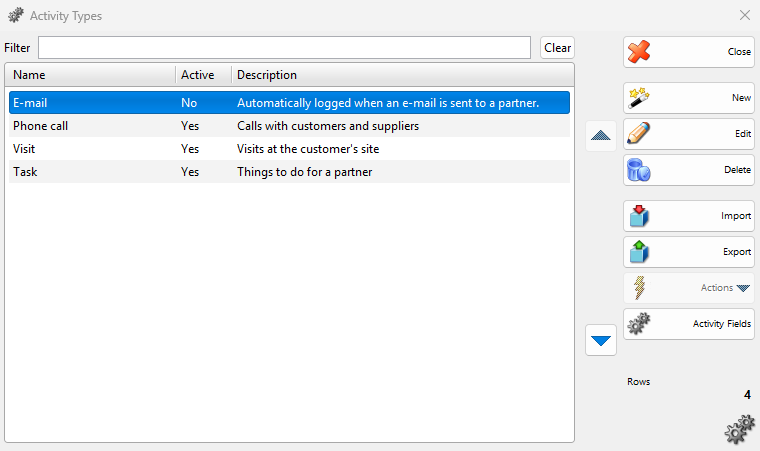
Go to Operations → CRM → Edit Activity Types…. The Activity Types window lists the types with Name, Active and Description. The list always has the built-in type E-mail (see CRM).
| Control | What it does |
|---|---|
| Filter | Shows only the types whose name contains the typed text. |
| Arrow up, arrow down | Move the selected type in the list. The items in Operations → CRM follow this order. The order is saved at once. |
| New | Opens the New Activity Type window. |
| Edit | Opens the selected type. A double-click does the same. |
| Delete | Deletes the selected types after “Do you want to delete activity type “Task”?” (see Delete a type). |
| Import, Export | Load a type from a file or save the selected type to a file (see Import and export). |
| Activity Fields | Opens the Activity Fields window. |
| Close | Closes the window. The Operations → CRM menu is rebuilt with the active types. |
Create or change a type
- Click New, or select a type and click Edit. The New Activity Type or Edit Activity Type window opens.
- Enter the name and the settings, add the fields and, if you print activities, the documents.
- Click Save.
| Field | What it does |
|---|---|
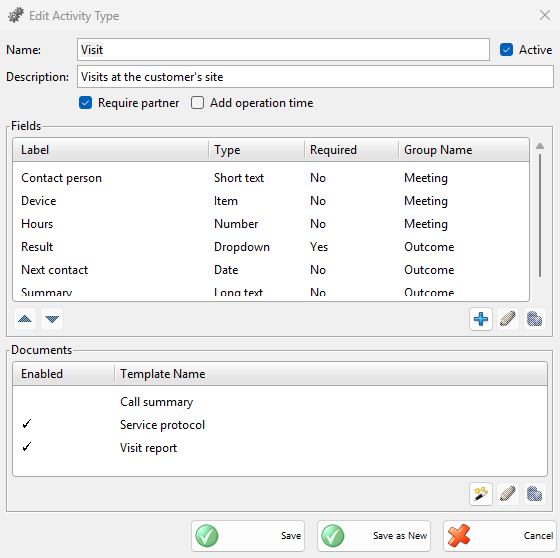
| Name: | The name of the type. It is the menu item, the title of the activity window and the Activity Type in the lists. Required. |
| Active | Shows the type in Operations → CRM and as a destination of Transform Document. Clear it to stop using a type: its saved activities stay and can still be edited and printed. Making an inactive type active needs a Pro license. |
| Description: | A note shown in the list. |
| Require partner | An activity of this type cannot be saved without a partner. |
| Add operation time | Adds Time: next to the date in the activity window. The time is printed with the date. |
| Fields | The fields of the type with Label, Type, Required and Group Name, in the order of the window. The buttons add, edit and delete a field and move it up or down (see Fields of a type). |
| Documents | The printed documents with Enabled and Template Name (see Documents of a type). |
| Save | Saves the type and its documents. |
| Save and New | In a new type: saves it and starts the next one, with the last name in Name: to change. |
| Save as New | In an existing type: saves the changes as a copy with the same fields and documents. The original type stays as it was. A copy of E-mail is a normal type. |
| Cancel | Closes the window without saving the type and the changes to its documents. |
Fields of a type
- Select the row after which the new fields belong and click Add field (the plus button). The Activity Fields window opens.
- Select one or more fields and click OK. To create a field that does not exist yet, click New there (see Activity Fields).
- For each field the Add Field window opens with the label and the kind of the field in its title. Set the options and click Save. Cancel skips that field.
A field that the type already has is not added twice. To change a field later, select it and click Edit field or double-click it. The new field gets the group name of the selected row.
| Option | What it does |
|---|---|
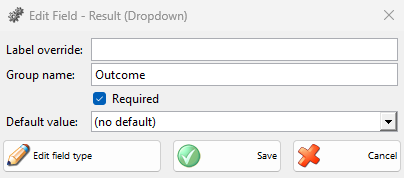
| Label override: | Another label for this type only. For example, the shared field Next contact can be Due date in a Task. Empty uses the label of the field. |
| Group name: | Fields one after another with the same group name show under a bold heading with that name. |
| Required | The activity cannot be saved while the field is empty. The label shows in bold. |
| Default value: | The value that a new activity starts with. The editor matches the kind of the field: a list with (no default) for a dropdown, a check box for Yes / No, a date for a date field. |
| Edit field type | Closes this window and opens the field itself in Edit Field. Changes there apply to every type with this field. When you were adding the field, it is not added: add it again afterwards. Shown only with the Edit permission of Edit Activity Fields. |
Delete field removes the field from this type only. Saved activities keep their value, but the window and the documents of this type no longer show it. Move up and Move down change the order. The fields of the built-in E-mail type can be changed and moved, but not deleted.
Documents of a type
A document is a printed form for the activities, for example a visit report for the customer to sign. You give it a name here and design its layout in Document Templates. One document can serve several types.
- Click New document template. In the Edit Document Template window enter Template name: and click Save. The document is enabled for this type.
- Save the type.
- Go to Edit → Document Templates and open CRM – Visit report, with the name you entered. It starts from the built-in activity layout: the type name, the number and the date, your company, the partner, the item with its serial number and the note.
- Add the fields of the activity in the Document Designer: in Text source: of a TextBox they are listed by their label in Activity Fields. A label override of the type does not change that name.
| Control | What it does |
|---|---|
| Enabled | Click the cell to turn the document on or off for this type. The list shows all documents, also those of other types. |
| Template Name | The name of the document. A red row with “(missing: …)” means that its saved design uses fields that this type does not have. On Save the program lists them under “The following enabled documents reference fields that don’t exist in this activity type:” and asks “Save anyway?”. |
| Edit document template | Renames the document. A saved design is renamed with it. If a design with the new name exists, the program refuses: “A customized document template named “…” already exists. Please choose a different name to avoid overwriting it.” |
| Delete document permanently | Asks “Delete the document “…” permanently? It will be removed from all activity types that use it.” and names the other types that use it. The document goes away when you save the type. |
To print an activity, its type needs at least one enabled document. With several, the user chooses which to print (see Reprint CRM Activities).
Import and export
Export saves the selected type with its fields and the names of its documents to a .json file. Import loads such a file, for example to copy a type to another database.
- A field with the same label and kind as an existing field is not created again: the existing field is used.
- If a type with the same name exists, the program asks “An activity type named “Visit” already exists!”: Replace overwrites that type, Import as new adds the type with “(imported)” after the name, Cancel stops.
- At the end the program shows how many fields and documents were created or reused, and the warnings.
The file does not hold the designs of the documents. A warning says when a document has no design in this database. Copy the design with Document Templates. A file of another kind gives “The selected file does not contain a valid activity type bundle!”.
Delete a type
Select the type and click Delete. For several types the question is “Do you want to delete the selected 2 activity types?”.
| Case | Message |
|---|---|
| The type has saved activities | “The activity type “Visit” cannot be deleted because it is in use.” Clear Active instead. |
| The built-in E-mail type | “The activity type “E-mail” is a built-in type and cannot be deleted. You can disable it instead.” |
Permissions
Permissions are set in Edit → Administration → Permissions…, under Operations → CRM.
| Permission | What it allows | Not allowed by default for |
|---|---|---|
| Edit Activity Types… | The menu item, with New, Edit, Delete, Import and Export as separate rights. | Operators |
| Edit Activity Fields | The Activity Fields button, with New, Edit and Delete as separate rights. | Operators |
Troubleshooting
| Problem | Solution |
|---|---|
| “Please enter a name for the activity type.” | Fill in Name:. |
| “CRM activities require a Pro license! To enable this activity please purchase a Pro license.” | Making an inactive type active needs a Pro license. |
| A saved type is not in Operations → CRM | Select Active. Check also that your user has the permission of the type under CRM. |
| The Activity Fields button is missing | Your user does not have Edit Activity Fields. |
FAQ
What happens to saved activities when I change a type?
They follow the type when you open or print them: a new field shows its default value or stays empty, a deleted field is no longer shown and a new order or group applies at once. Their saved values do not change.
Can two types share a field?
Yes. A field from Activity Fields can be in any number of types, with its own label override, group, required flag and default value in each. A search in Edit CRM Activities by its label finds the activities of all types that show the field with this label.