
Companies are added, changed and deleted in the Company information window, under Edit → Administration → Company Information….
Add a company
- Click New. The New company record window opens.
- Enter Company: and the other data in the two tabs. Only the name is required.
- On Additional information, clear This information is used by default if the first company stays the default one. The option is selected in a new company.
- Click Save.
Edit a company
- Select the company and click Edit. The Edit company window opens with the same fields.
- Change the data and click Save. Cancel closes the window without changes.
General information
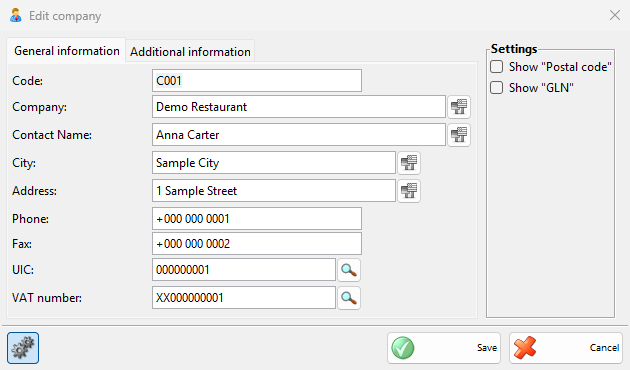
| Field | What it holds |
|---|---|
| Code: | Your code for the company. Optional. |
| Company: | The name on documents. Required. |
| Contact Name: | The person responsible for the company. |
| City:, Address:, Phone:, Fax: | The contact details. |
| UIC:, VAT number: | The company numbers. The magnifier button next to them searches for the company by the number and fills in the fields it finds. The search needs a database connected to IncoCloud. |
The button next to Company:, Contact Name:, City:, Address: and Bank name: stores the text in other languages.
The settings button at the bottom left opens the Settings panel. Show “Postal code” and Show “GLN” add these fields to the tab.
Additional information
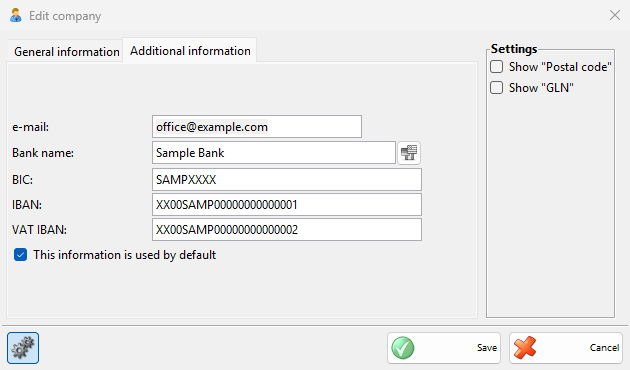
| Field | What it holds |
|---|---|
| e-mail: | The e-mail address of the company. |
| Bank name:, BIC:, IBAN: | The bank account printed on documents. |
| VAT IBAN: | A separate bank account for VAT. |
| This information is used by default | Makes this the default company, and clears the option in the others. If you clear it and no other company has it, the first company becomes the default. |
A location or a user can use another company: see Which company a document shows.
Delete a company
- Select one or more companies with Ctrl+click and click Delete.
- Answer “Do you want to delete company with name “Demo Catering”?” with OK. For several companies the question is “Do you want to delete the selected 2 company records?”.
The first company, created with the database, cannot be deleted. Any other company can be, even if locations, users or documents used it. If the deleted company was the default one, the first company becomes the default. A location or a user that had the deleted company moves to the next step in Which company a document shows.
Troubleshooting
| Problem | Solution |
|---|---|
| “Company name cannot be empty!” | Enter Company:. |
| “Company with the name “Demo Catering” already exists! Do you want to save the company anyway?” | A warning. Yes saves a second company with this name, No returns to the window. The same question appears for a code in use. |
| “Cannot delete record “Demo Restaurant”!” | This is the first company. Change its data instead of deleting it. |
| Documents show another company | Check Company: of the location and Default company: of the user. |