
The Technotrade PTS-2 Receiver server connects IncoPOS with a Technotrade PTS-2 forecourt controller at a fuel station. The controller sends its pump transactions, tank measurements and fuel deliveries to the server over HTTP in its jsonPTS protocol, and the server turns them into sales, stock-takings and purchases. It works in any country. The list of servers is in Servers, and the fields that every server has are in Adding, editing and deleting servers.
What you need
- A PTS-2 controller in the same network as this workstation. In its configuration, set the remote server to the address of this workstation, the port of the server and, if you use them, the user name and password of the server.
- A license on this workstation. A Starter license works with up to 2 pumps, Basic or better with all of them. The window shows “Requires Starter (up to 2 pumps) or better for more license”.
- A fiscal printer in Devices on this workstation, where the country requires a receipt for each sale.
Set up the server
- Go to Edit → Administration → Servers… and click New.
- Select Technotrade PTS-2 Receiver in Server type:. Port: gets 8000 and Base path: stays empty.
- Enter Username: and, to make the controller log in, Password:.
- Click Save. Allow the port in the firewall when IncoPOS asks.
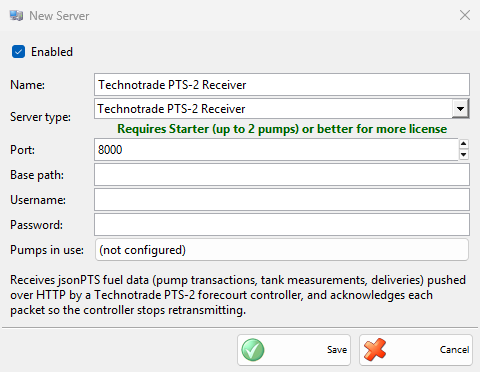
| Field | What it does |
|---|---|
| Port: | The port on which the server takes the data of the controller. No other enabled server of the workstation may use it. |
| Base path: | Empty: the server takes the data on any path, so the request address set in the controller does not matter. |
| Username:, Password: | The login that the controller must send. Username: is required. With an empty Password:, the server takes the data without checking the login. |
| Pumps in use: | The pumps that have sent a transaction, as numbers. The button opens Pumps in Use, which lists them per controller. Forget all pumps clears the list, so the pumps are counted again from their next transaction, for example after a pump was renumbered or removed. |
How it works
| Data of the controller | What the server records |
|---|---|
| Pump transaction | A sale of the fuel item to the default partner, with the litres and the price of the pump, paid in cash, finished with a fiscal receipt on this workstation. When the fiscal printer asks for a daily report, the server prints the Z report and then the receipt. A transaction sent again is not recorded twice. |
| Fuel delivery into a tank | A purchase of the fuel item from the default partner, with the delivered litres. |
| Tank measurement | When the location has no stock of the fuel yet but the tank has fuel, a stock-taking that sets the measured quantity as the opening stock. Later measurements do not change the stock. |
The fuel item is the item whose Code is the fuel grade number of the controller. When there is none, the server creates it with the name of the fuel grade and the unit L. The location is the one whose code is the id of the controller. The first controller takes the default location when its code is not another controller id, and the next controllers get a location named PTS and the id. With document numbers per location, create the location with the id as its code yourself.
Nothing shows on the screen while the data comes in. The server answers each packet, so the controller does not send it again. When it cannot record a transaction, for example of a pump above the license limit, the controller keeps it and sends it again later, so nothing is lost.
Troubleshooting
| Problem | Solution |
|---|---|
| “Username cannot be empty!” | Enter Username:. |
| “Server ‘…’ failed to start due to access denied.” | Windows does not let IncoPOS listen on the port. Click Copy command, run the commands in a Command Prompt opened as Administrator, then save the server again or restart IncoPOS. |
| “Server ‘…’ is running, but the firewall may be blocking incoming connections on port …” | The controller cannot reach the server. Click Copy command and run the command as Administrator, or allow the port in Windows Defender Firewall. |
| The sales of a third pump do not come in | A Starter license works with the first 2 pumps that sent a transaction. Install a Basic or Pro license: the controller sends the waiting transactions again and they are recorded. |
| No sales come in from a second controller | With document numbers per location, the server cannot create its location. Add a location whose code is the id of the controller. |