
Modifiers are the wishes that go to the kitchen with an ordered item, such as “Medium” or “No onion”. A modifier class holds the modifiers of one question, for example how a steak is done, and decides how many of them the waiter may choose. A combo item is a menu put together from combo sets, for example a lunch menu with a starter, a main course and a drink. Both are set up in Edit → Items… and are used in a sale on the Touch Screen. Groups and tags are described in Item groups and tags.
How modifiers work
- A modifier has only a code and a name. It has no price, no stock and no barcode, and it is not listed among the items.
- Each modifier is in one or more classes. An item offers the classes ticked in its Modifiers tab and the classes used by its group.
- On the Touch Screen the chosen modifiers become the note of the order row, separated by commas. The note is printed under the item on the kitchen order and shown on the Kitchen Display. The price and the stock of the row do not change.
Set up modifier classes
- Open Edit → Items…, click Groups to show the panel and choose Modifier Classes in the list at its top.
- Click New modifier class under the panel and fill in the window below.
- Select the class and click New. The New Modifier window has only the General information tab: type the Code: and the name in Item: and click Save. The modifier goes to the selected class.
- Repeat for each modifier. The Touch Screen shows the modifiers of a class in the order of their codes, so the list shows the column as Code / Sort.
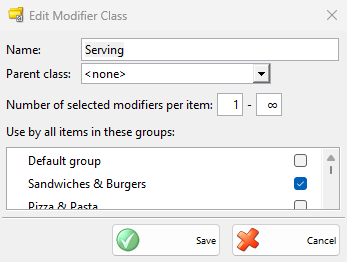
| Field | What it does |
|---|---|
| Name: | Required. The Touch Screen does not show it: the modifiers of each class are one row of buttons there. |
| Parent class: | Puts the class under another class in the panel. |
| Number of selected modifiers per item: | The least and the most modifiers of this class for one row. 0 means no minimum, and ∞ or an empty field means no maximum. With a maximum of 1, choosing another modifier replaces the first. |
| Use by all items in these groups: | Every item of a ticked group offers the class, also the items added later. Ticking a group ticks its subgroups too. |
In Modifier Classes the list shows only modifiers, without quantities and prices. All Modifiers lists them all. To put a modifier into another class too, drag it onto the class and confirm Add to Modifier Class. To take it out of the selected class, drag it onto Drop here to remove from class.
To give a class to single items, open the item and tick the class in its Modifiers tab. The tab shows when modifier classes exist and Show modifiers is ticked in the settings of the item window. A class used by the group of the item applies anyway, and the tab says so: “Modifier class Serving is attached to the current group of this item and is automatically selected”.
Set up combo sets and combo items
A combo set is the list to choose from, for example Starter with the salads. The combo item, for example Lunch menu, is an ordinary item that uses one or more combo sets.
- In the Items window choose Combo Sets in the panel and click New combo set. Fill in the window below.
- To add single items to the set, select it in the panel, select the items, drag them onto the set and confirm Add to Combo Set.
- Open or create the combo item. In its Combo Sets tab tick This is a combo item and contains other items grouped in combo sets, then tick its sets and click Save.
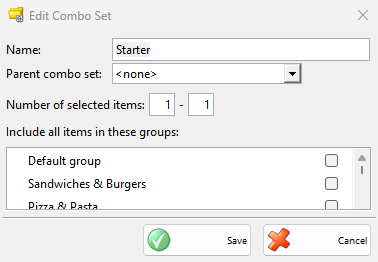
| Field | What it does |
|---|---|
| Name: | Required. The Touch Screen shows it as the heading of the set. |
| Parent combo set: | Puts the set under another set in the panel. |
| Number of selected items: | The least and the most items of this set for one combo. A new set starts with 1 to 1: exactly one choice. |
| Include all items in these groups: | Every item of a ticked group is in the set, also the items added later. Ticking a group ticks its subgroups too. |
The Combo Sets tab of the item shows when combo sets exist and Show combo sets is ticked in the settings of the item window. A combo item needs at least one set: “Please select at least one combo set for this combo item!”. An item that is itself in a combo set cannot become a combo item, and the tab says so: “This item is included in combo set Starter. Only items which are not included in a combo set can become combo items.”
The combo item keeps its own price. Each chosen item is added as a row of its own at its own price, so give the items that are included in the menu price a price of 0. An item with a price adds it to the bill.
An item that is in the set through a ticked group cannot be dragged out of it: “The item was not removed from the combo set. Make sure the item is not in a group which is included in the combo set.” Clear the group in the set window instead.
In a sale on the Touch Screen
Choose modifiers
- Press the item. If one of its classes has a minimum, the row opens with its modifiers at once. Otherwise press the row, then Modifiers:.
- Press the modifiers. Each class is a row of buttons. Add note… opens the New Modification Label window for a wish that is not on the buttons.
- Press the row again to return to the items. When the item has one class with a maximum of 1, the choice returns there by itself.
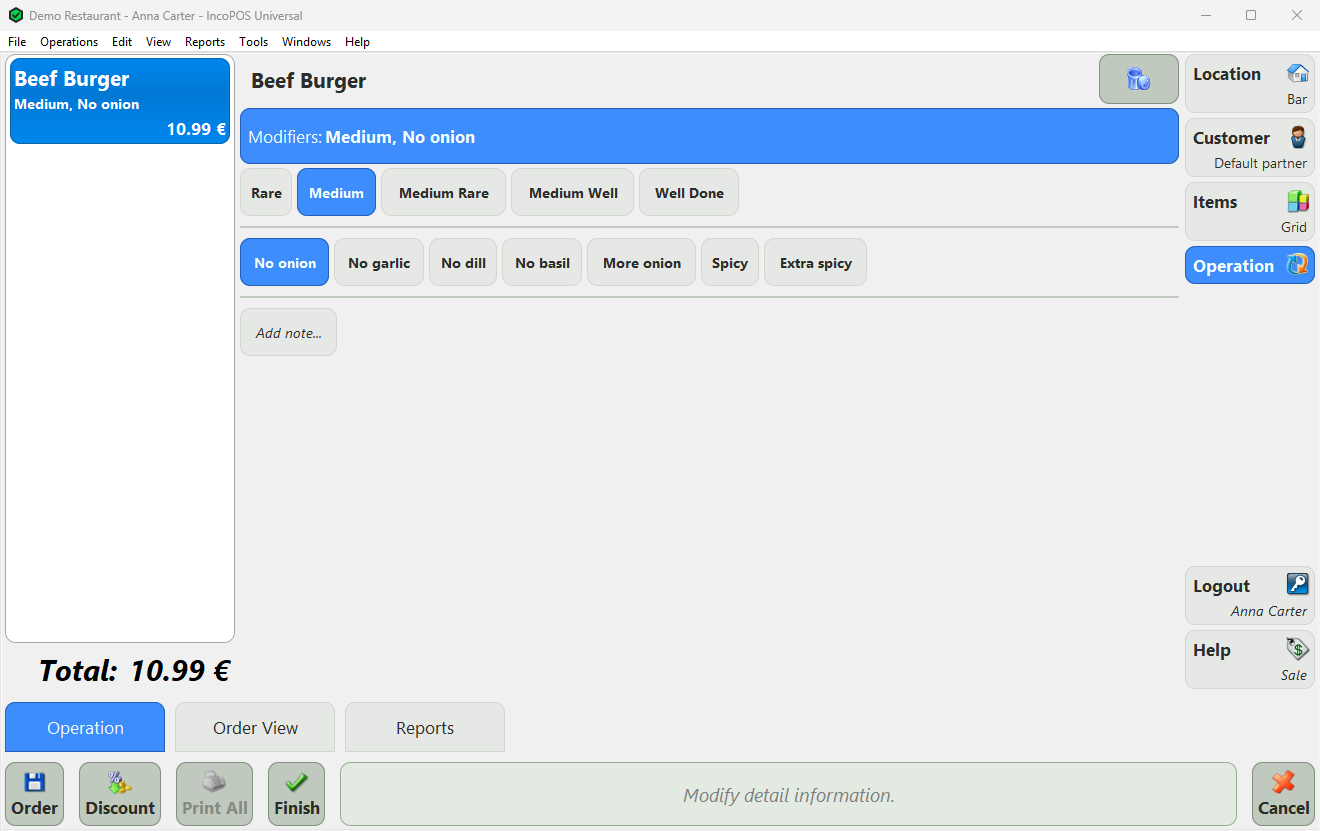
- Modifiers: shows the chosen modifiers, or None. The button needs the Modifiers permission of the Touch Screen.
- Choosing more than the maximum shows “Maximum 2 modifiers can be selected!”, with the maximum of the class.
- Order and Finish do not save while a new row has fewer modifiers than the minimum of a class. The screen opens that row instead.
- With Combine operation details while ordering, a row with modifiers is not joined with the next press of the same item, so each burger keeps its own wishes.
- An item without modifier classes shows the modification labels of the workstation instead, such as “No Sugar” and “No Salt”. With Edit User Interface, Add and Remove under the buttons add a label or delete the label you press.
Sell a combo item
- Press the combo item. If one of its sets has a minimum, which a new set has, the row opens with its sets at once. Otherwise press the row, which opens with its sets. The name of the combo at the top switches between the sets and the quantity and price.
- Each set is a heading with a button for each of its items, in the order of their codes. A button shows “+” and the price when the item has a price.
- Press the items. Each one is added below the combo as a row with the quantity of the combo, in the order of the sets. With a maximum of 1, pressing another item replaces the choice. When all the sets have a maximum of 1 and each has its choice, the screen returns to the items.
- A change of Quantity or Discount (%) of the combo row changes its items too. Deleting the combo row deletes its items too.
- Choosing more than the maximum shows “Maximum 2 ingredients can be selected!”. As for modifiers, Order and Finish do not save while a set has fewer items than its minimum.
- Each row takes the stock of its own item and is printed with its own price.
Other sales windows
The Kiosk offers the modifier classes of an item with the same minimum and maximum. In the Sale window there are no modifiers to choose, and a combo item is one row with its own price.
Delete a class or a set
Select it in the panel. The delete button under the panel becomes active when the entry lists no items. A class that a modifier, an item or a group still uses shows “This modifier class cannot be deleted, because it is in use. Please, remove this modifier class from all items in order to be able to delete it!”, and a combo set “This combo set cannot be deleted, because it is in use. Please, remove this combo set from all items in order to be able to delete it!”. A class or a set with entries under it is in use too.
Permissions
All permissions are set in Edit → Administration → Permissions….
| Permission | What it allows | Not allowed by default for |
|---|---|---|
| Items… → New, Edit, Delete | Adding, changing and deleting classes, sets and modifiers, as for groups. | Operators |
| Touch Screen → Modifiers | The Modifiers: button of an order row. | – |
| Touch Screen → Edit User Interface | Add and Remove of the modification labels. | Operators |
FAQ
Can a modifier cost extra?
No. A modifier is only text on the row. For a paid extra, such as extra cheese, use an item, for example in a combo set.
Why does the Touch Screen not offer modifiers for an item?
Neither the item nor its group uses a class that has modifiers. Check the Modifiers tab of the item and Use by all items in these groups: of the class.
Why does the combo not open its sets?
The item is not marked as a combo item, or its sets have no items. Check the Combo Sets tab of the item.