
The first time IncoPOS starts on a computer, it asks for the language, runs the Setup Assistant to choose where your data is kept, and then opens Connecting To Database to create or select the database. A new blank database is set up by the Database Assistant. This page describes these windows. For the installation and the choice between SQLite and a server, see Installation.
The windows in order
| Window | When it opens |
|---|---|
| Choose Localization | The first start on the computer. |
| Setup Assistant | Right after it, once per computer. |
| Connecting To Database | When IncoPOS has no database to open, after Change database in “The connection with database was interrupted!”, and from File → Change Database…. |
| Create New Database | Create in Connecting To Database. |
| Database Assistant | After a blank database is created. |
| Workstation | When the database does not know this computer yet. |
The Setup Assistant shows once on a computer, also when you close it with the close button of the window. The Database Assistant shows once for each blank database.
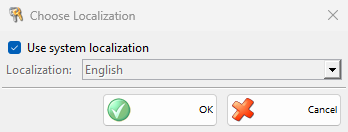
Choose Localization
| Field | What it does |
|---|---|
| Use system localization | The program uses the language of the operating system. Localization: is then dimmed. |
| Localization: | The language of the program, from the languages it is translated to. |
| OK | Switches the program to the chosen language. |
| Cancel | Keeps the current language. The window does not show again. |
To change the language later, use Use system localization and Localization on the Visual tab of Settings.
Setup Assistant
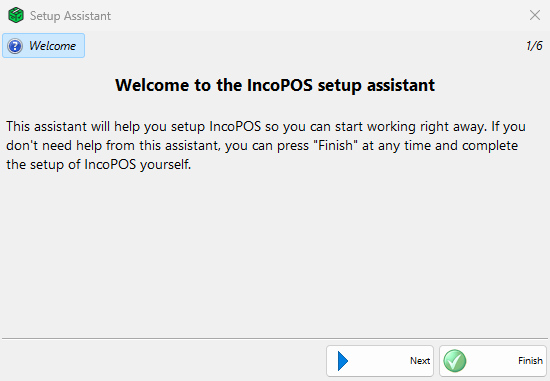
The assistant has a page for each step. The buttons at the top show the pages you have opened: click one to go back to it. Back and Next move between the pages, and Next saves the choice of the page. Finish closes the assistant at once, without saving the page you are on, so click Next on the Database page first. Without a choice there, Connecting To Database opens with MySQL Server on this computer and the user root. Without a choice on Updates, IncoPOS asks it again in an Updates window at a later start.
| Page | What it does |
|---|---|
| Welcome | Explains the assistant. |
| Database | Chooses where the data is kept. IncoPOS first shows “Looking for a database servers…” while it looks for a server on this computer, then the options in the table below. Next works only after the options show. |
| Feedback | Says that IncoPOS collects anonymous telemetry data, which you can turn off in Settings at any time. |
| Updates | How IncoPOS gets newer versions: I will check manually for updates, Check for updates on startup or Automatically download updates on startup, which is selected at first. |
| License | Add License opens the IncoCloud login and then My Licenses, where you add a license or start a trial. See How to Start a Free IncoPOS Pro Trial. You can do this later from Edit → Administration → IncoCloud…. |
| Finished | Says that the setup is complete. Finish closes the assistant. |
Options on the Database page:
| Option | What it does |
|---|---|
| On this computer in SQLite | Keeps the data in an SQLite file on this computer. Selected when no server is found. |
| On this computer in MySQL server (recommended) | Shown only when IncoPOS finds a server on this computer, and then selected. IncoPOS tries the user root with the password root, incopos or no password, on port 3306 or 3307, which finds the server that the Windows setup installs. |
| A server in the local network | For a server on another computer, or on this computer with another user or password. You enter the server in Connecting To Database after the assistant. |
On macOS, when no server is found, the page also links to DBngin, a free program that runs a MySQL or MariaDB server.
Connecting To Database
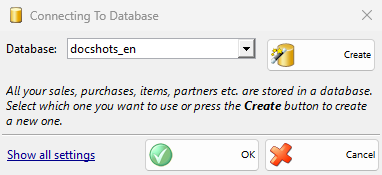
The window lists the databases that IncoPOS can reach with the current settings. At first it shows only Database: and the buttons. Show all settings shows the connection fields. It also opens them by itself when the program cannot connect.
| Field | What it does |
|---|---|
| Type: | MySQL Server (also for MariaDB), SQLite Database or Microsoft SQL Server. Changing it shows the fields the type uses and lists its databases. |
| Server: | The name or IP address of the computer with the server, and for MySQL Server the port next to it, usually 3306. |
| User:, Password: | The login of the database server. A server installed by IncoPOS uses the user root with the password root or incopos. |
| Test | Connects with the entered settings and lists the databases, or shows “The connection to the server was not successful!”. |
| Database: | The database to open. Shows “None” when the server has no database yet. |
| Create | Connects to the server and opens Create New Database. |
| OK | Opens the selected database. Available only when the list has a database. |
| Cancel | Closes IncoPOS. |
The settings are saved for this computer when the database opens. An SQLite database is a file in the data folder of IncoPOS on this computer, so it needs no server, user or password.
Create New Database
| Field | What it does |
|---|---|
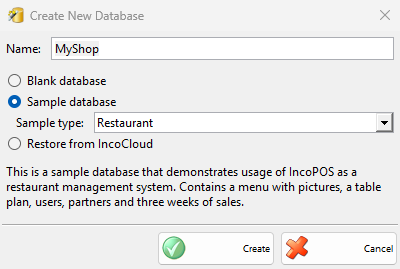
| Name: | The name of the new database. It must not be used by another database on the server. |
| Blank database | An empty database for your own data. The Database Assistant opens after it is created. |
| Sample database, Sample type: | A database with demo data to try the program: Restaurant (a menu with pictures, a table plan, users, partners and three weeks of sales), Store (a grocery store with items, suppliers, clients, users and three weeks of sales) or Hotel (rooms, clients, rate types and bookings). |
| Restore from IncoCloud | Creates the database from the copy of an IncoCloud group, after you log in and choose the group. See IncoCloud. |
| Create | Creates the database and opens it. |
The window refuses an empty name with “Please, enter the name of the new database!”, a name with characters the database cannot use with “The entered database name contains invalid characters!”, and a name in use with “A database with the name of “MyShop” already exists!”.
Database Assistant
The assistant sets up a new blank database. It works like the Setup Assistant, but each page must be confirmed with Next: Finish is available only on the last page.
| Page | What it does |
|---|---|
| Welcome | Explains the assistant. |
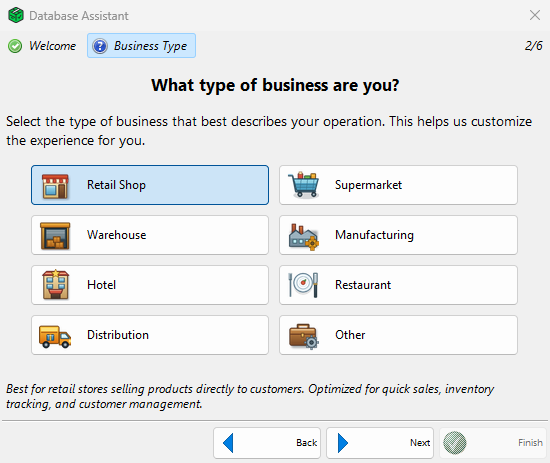
| Business Type | Asks “What type of business are you?”. See below. |
| Country | Asks “Customize for a country?” and applies the local rules of the chosen country, for example the main currency and, for some countries, the VAT groups and document settings. Other uses the program without them. Bulgaria is selected at first when the program is in Bulgarian. The page shows only when your edition offers more than one country. |
| Workstation | Names this computer. See Workstation. |
| Taxes | Asks “How do you want to handle the taxes?”. See below. |
| Finished | Says that the database setup is complete and that F1 opens the help of the window you are in. |
Business Type
Click Retail Shop, Supermarket, Warehouse, Manufacturing, Hotel, Restaurant, Distribution or Other. The text under the buttons describes the selected type. The type sets the default toolbar buttons and decides which setup cards show. In the assistant it also restricts, for all users, the menus the business does not need:
| Business type | Restricted menus | Other changes |
|---|---|---|
| Retail Shop, Supermarket | Booking, Consignment, Kitchen Display | – |
| Restaurant | Booking, Consignment | The Stock Receipt for Items Sale is not printed after a sale, and Auto production in Settings is on. |
| Warehouse, Manufacturing, Distribution | Booking, Kitchen Display | – |
| Hotel | Consignment, Kitchen Display | The Deposit and Deposit discount items of the bookings are added. |
| Other | None | – |
To allow a restricted menu again, use Permissions.
Taxes
| Question | What it does |
|---|---|
| “Are you using VAT or Sales tax?” | VAT or Sales tax. Shown only when the chosen country does not decide it. |
| “Are you VAT registered?” | Yes, VAT registered or No, not registered. |
| “What is the default tax rate you want to use?” | Rate: starts with the rate of the chosen country and is saved as the rate of the default VAT group. See VAT Groups. |
| “How do you want to use the prices in the application?” | With VAT or Without VAT (With sales tax or Without sales tax): whether the prices you enter include the tax. Without VAT is selected at first for Warehouse, Manufacturing and Distribution. Without a VAT registration the prices are with VAT and the choice is dimmed. |
Workstation
The page “Choose a name for this workstation” saves the settings of this computer in the database under a name. Name: starts with the name of the computer. If the database already has workstations, for example when you reinstall IncoPOS, select Load: and the workstation to take its settings. A name that the database already has takes that workstation. The same page shows alone in a Workstation window when you open a database that does not know this computer, for example a sample database. To change the workstation later, use Workstations.
Troubleshooting
| Problem | Solution |
|---|---|
| “The connection to the server was not successful!” after Test or Create | Check Server:, the port, User: and Password:, and that the server is running and accepts connections from this computer. |
| OK is dimmed in Connecting To Database | The server has no database. Click Create. |
| “Selected database “MyShop” is invalid.” after OK | The database cannot be opened with these settings. Select another one or check the settings. |
| The Database page does not offer On this computer in MySQL server (recommended) | The server was not running, or its root password is not one of those IncoPOS tries. Choose A server in the local network and enter the user and password after the assistant. |
FAQ
Can I run the Setup Assistant again?
No. It runs once on each computer. To use another database later, go to File → Change Database…. To change the language, the updates or the telemetry, use Settings.
I closed the Database Assistant before the end. How do I finish the setup?
The pages you did not confirm keep their defaults. The Setup Cards in the main window help you finish, for example with the business type, the company details, the locations and the users. The taxes are in VAT Groups and Settings.