
A production turns ingredients into products. Saving it decreases the quantities of the ingredients and increases the quantities of the products in the selected location, and calculates the purchase price of the products from the cost of the ingredients. A production has no partner and creates no payment.
Open the Production window
Go to Operations → Production → Production. The window is part of the desktop application. Unless stated otherwise, the settings named on this page are in Tools → Settings… → Operations.
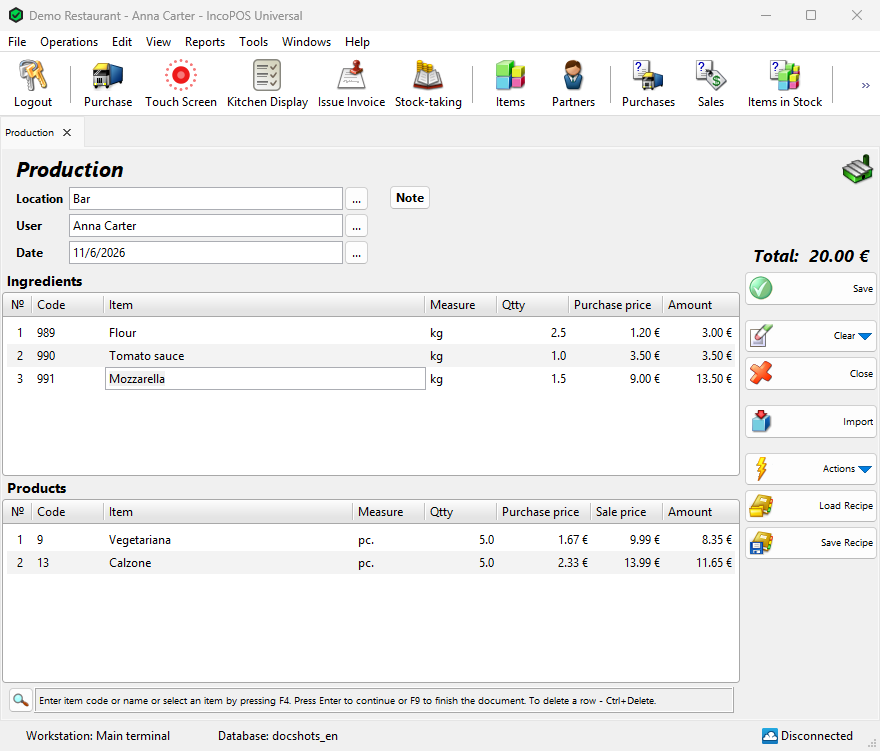
Fill in the header
In each header field type a name or code and press Enter, or open the list with F4, a double-click in the field or the … button.
| Field | What to enter |
|---|---|
| Location | The location that gives the ingredients and receives the products. It is filled in if your user has a default location or if there is only one. |
| User | The logged-in user is filled in. Changing it requires the Edit User permission (Operations), which operators do not have by default. |
| Date | Today is filled in. Press F4 or double-click to pick a date from the calendar. Changing it requires the Edit Date permission (Operations), which operators do not have by default. |
Add ingredients and products
The window has two tables: Ingredients for what you use and Products for what you make. You can load a recipe, as described in the next section, or enter the rows yourself:
- In the Item column of Ingredients type the item name, code or barcode and press Enter. To choose from the list, press F4 or double-click the cell. In the list Ctrl+click selects several items.
- In the Qtty column enter the quantity you use and press Enter. A new row opens.
- Repeat for each ingredient, then click the Products table, or press Tab in the Item or Qtty column. Shift+Tab goes back.
- In the Item column of Products enter the product in the same way. If this item is the only product of a recipe, the program asks “Do you want to load the ingredients for … too?”. Yes adds the ingredients of that recipe. Don’t ask me again keeps your answer until you close the window.
- In the Qtty column enter the quantity you make and press Enter.
- Repeat for each product. To delete the current row press Ctrl+Delete.
When you enter a barcode, the row gets a quantity of 1 and the cursor moves to a new row. Entering the same barcode again increases the quantity of that row.
| Column | Meaning |
|---|---|
| Purchase price (Ingredients) | Filled in by the program and cannot be changed. It is the item’s current purchase price, the price for the selected location with Average price per location, or the price of the lot when you work with lots. |
| Purchase price (Products) | Calculated from the ingredients and cannot be changed. See the section on stock and prices below. |
| Sale price (Products) | The item’s price for the price group of the location. Shown with the Show Sale Prices permission. Changing it requires Edit Sale Prices In New Productions (Operations → Production → Production), which operators do not have by default. |
| Markup % (Products) | The profit as a percentage of the purchase price. Entering a value recalculates the sale price. Shown with Enable markup, under the same permissions as Sale price. |
| Amount | Quantity × purchase price. In Ingredients, with Enable totals edit, you can enter the amount and the purchase price of the row is recalculated. |
Total: at the top right shows the value of the ingredients with VAT.
Colors in the tables
- Qtty of a row you entered yourself is red if the location does not have enough of the ingredient.
- Item is orange if the same item is already on an earlier row of the table. This is only a warning.
- Rows that come from a recipe are blue. While the cursor is on such a row, only the rows of its recipe are blue.
Use a recipe
You create recipes in Operations → Production → Recipes…. Load Recipe and Save Recipe work only while the cursor is in one of the tables.
- Click Load Recipe.
- In the Recipes window select one or more recipes and click OK. The rows are added to both tables and the cursor goes to Qtty of the last product.
- Enter the quantity you want to make and press Enter. The other rows of the recipe are recalculated in proportion.
You can change Qtty on any row of a recipe, and all its rows change in proportion. You cannot change the Item of these rows. Ctrl+Delete removes only the whole recipe, after the question “This ingredient is part of a recipe. Do you want to delete the entire recipe?”, or the same for a product.
Save Recipe stores the current rows as a new recipe. It opens the New Recipe window, and after OK the tables contain only the rows of that recipe.
How a production changes stock and prices
When you save, the ingredients leave the selected location and the products enter it. The prices of the ingredients do not change.
The value of the ingredients, without VAT, is spread over the products in proportion to quantity × sale price. For example, ingredients worth 50.00 and two products, 10 pieces with a sale price of 6.00 and 10 pieces with a sale price of 4.00, give purchase prices of 3.00 and 2.00. If all sale prices are zero, the value is spread by quantity. Rows from a recipe are calculated separately from the other rows, one recipe at a time.
The purchase prices are recalculated when a quantity changes or the item of an ingredient is replaced. In a new production or a draft they are also recalculated when you change Sale price or Markup %, so with two or more products a typed Markup % can shift a little. In a saved production these two changes leave the purchase prices as they are.
Saving updates each product as a purchase does: the purchase price follows Item management:, and Sale price is saved in the price group of the location.
When the stock is not enough
You cannot use more of an ingredient than the location has. Saving stops with “The production cannot be saved due to insufficient availability of item “…”.” and the cursor goes to the row. Work with negative availability turns the check off, so the quantity can go below zero. Auto production makes the missing quantity of an ingredient that has its own recipe.
Automatic production
With Auto production, saving a document that takes out more of an item than the location has creates a production for the missing quantity, if the item has a recipe. No window opens. This works for sales, restaurant orders, transfers, wastes, write-offs, debit notes and productions. The rows get the note “Automatic production of item “…””.
- If the ingredients of a recipe are not enough, the next recipe of the item is tried. Missing ingredients with their own recipes are produced too, up to five levels deep.
- An item with Non-inventory or service has no stock, so the whole quantity is produced each time.
- No auto production on the Special tab of the item turns this off for the item. It is part of the paid Advanced Operations module. A price rule with the action Disable automatic production does the same under the conditions of the rule.
Edit → Administration → Recalculate Automatic Productions… recalculates them for a period and selected locations. It requires a license and Work with negative availability.
Lots
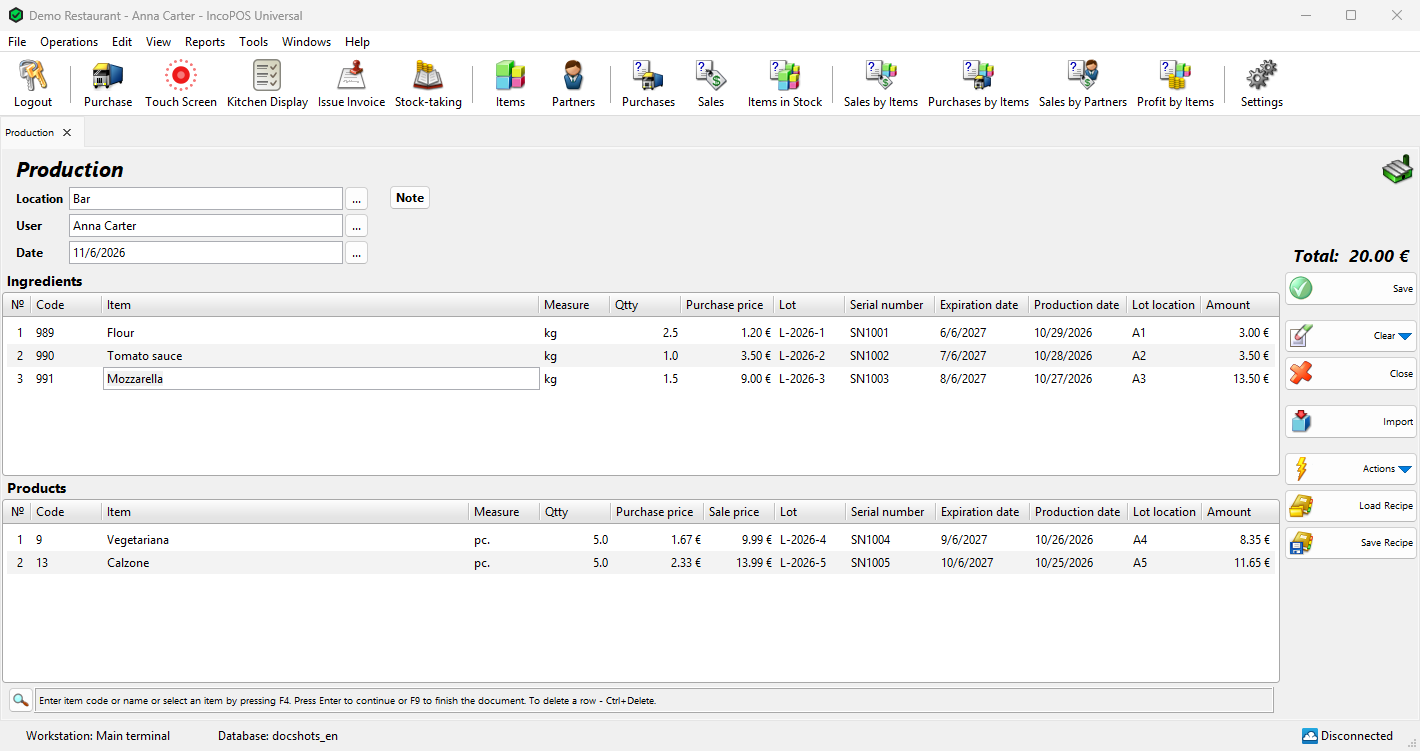
When Item management: uses lots, ingredients are taken from the lots that exist in the location, in the same way as in a waste. With Choice, the window “… – Select Lot” opens only for rows you enter yourself. For rows from a recipe the program picks the lots. A row that one lot cannot cover is split into one row per lot. In Ingredients the lot columns only show the data of the lot.
In Products you enter the data of the lot the production creates: Lot (a new row has “NA”), Serial number, Expiration date, Production date and Lot location. In the date columns press F4 or double-click to pick a date. An empty Production date takes the date of the production. The columns are shown with the same Enable… settings as in a purchase.
Buttons and the note
| Control | What it does |
|---|---|
| Clear | Its menu has Delete current row and Delete all rows. |
| Close (Esc) | Closes the window. If there are unsaved rows, the program asks “Exit without saving the production?”. Save draft keeps them as a draft. |
| Import | Loads rows from a file, in the same way as in Purchase, into the table where the cursor is. Shown when data importers are available. Fill in the header first. |
| Note | This tab adds a note to the document. The … button opens a larger window for the text. |
Save and print
- Press F9 or click Save.
- The program asks “Do you want to save the operation?”. OK continues, Save draft keeps the document as a draft and Cancel returns you to the production.
- If printing is available, the program asks “Do you want to print a document?”. With Yes, the print preview of the Protocol for Items Production opens after the save. Don’t ask me again remembers the answer. The question depends on Print documents: in Tools → Settings… → Printing.
- If the purchase price of a product changed and the product is an ingredient of other recipes, Recalculate recipes when item cost changes: decides if those recipes are recalculated.
The rows are then cleared for the next production. The location stays filled in, and the user and the date return to the logged-in user and today.
Drafts
A draft keeps an unfinished production and does not change the stock or the prices. To continue, select the draft in Reports → Drafts… and use Actions → Edit. The window then shows “Edit production draft”, and saving turns the draft into a normal production.
Transform the production
For a new production click Actions → Save and Transform and confirm. The production is saved first, without the save question, and then you choose the destination document. Saved productions are transformed with Operations → Transform Document… (Ctrl+T), which can also create a production from another document. See Transform Document.
Ingredients and Products in the transform window select which table of the production to use. If the rows become products and one of them is the only product of a recipe, the program asks “Do you want to load the ingredients for the products too?”.
Troubleshooting
| Problem | Solution |
|---|---|
| “Opening the Production screen is not allowed!” | Ask an administrator to allow Production for your user in Edit → Administration → Permissions…. |
| “This operation is not available because the purchase prices are hidden for the current user…” | Ask an administrator to select Show items purchase price for your user in Edit → Users…. |
| “There are no valid ingredients in the production document!”, “The production must contain at least one ingredient with quantity greater than 0.” | Add an ingredient with a quantity greater than zero. |
| “There are no valid products in the production document!”, “The production must contain at least one product with quantity greater than 0.” | Add a product with a quantity greater than zero. |
| “There are no ingredients with quantities greater than 0! The production will be deleted. Are you sure?”, “There are no products with quantities greater than 0! The production will be deleted. Are you sure?” | This appears when you save an edited production with no quantity left in that table. Only Yes deletes the production. No or closing the question returns you to the window. |
| “The item “…” is used as an ingredient and as a product!” | An item cannot be on both sides of a production. Remove it from one of the tables. |
| “The production cannot be saved due to insufficient availability of item “…”.” | You work with lots and the lots in the location do not cover the row of the production. Reduce Qtty. |
| “Recipe … is already added to the production!” | A recipe can be loaded once. To make more, increase Qtty on one of its rows. |
| “You don’t have permission to make discounts or corrections to the operation!” | Lowering a quantity, deleting a row or replacing an item requires Make Corrections In Operations or Make Corrections In New Operations. A user with one of them can log in after the message to allow the change. |
FAQ
How do I correct a saved production?
Open it in Edit → Documents → Production…. Changing sale prices there requires Edit Sale Prices In Saved Productions, which operators do not have by default.