
The Tanzania Fiscal Receipts Server server issues fiscal receipts in Tanzania from the text files that programs wrote for the old fiscal printer drivers (FPDriver). The program writes each receipt as a text file into a folder. The server reads the file, records a sale in IncoPOS, has it signed by the Tanzania Revenue Authority (TRA) through the Tanzania VFD of this workstation and prints the receipt. The list of servers is in Servers, and the fields that every server has are in Adding, editing and deleting servers.
What you need
- A Tanzania VFD device, registered with TRA, in Devices on this workstation, and its receipt printer.
- A license on this workstation. The window shows “Requires Basic or better license”.
- A program that writes its receipts as FPDriver text files (R_TRP, R_PM1, R_TXT…) into a folder that this workstation can open. Bureau de Change files (E_SEL, E_BUY…) are for the Tanzania Bureau de Change Server.
Set up the server
- Go to Edit → Administration → Servers… and click New.
- Select Tanzania Fiscal Receipts Server in Server type:. File pattern: gets *.txt.
- Select the three folders, see the table below.
- Click Save.
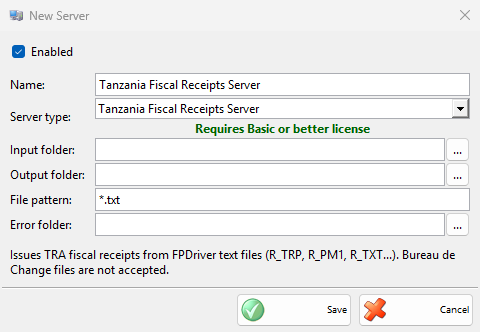
| Field | What it does |
|---|---|
| Input folder: | The folder where the program writes the receipt files. It must exist when the server starts, and no other enabled server may use it, see Settings of each type. |
| Output folder: | Where the processed files go, with the date and time added in front of the name. It is created when it does not exist. |
| Error folder: | Where the files that could not be processed go, each with a file next to it that gives the reason. Its name has .error before the extension, for example 20261113_101500_receipt.error.txt. |
| File pattern: | Which files of the input folder are read. |
The receipt file
Each file is one receipt, with one command per line. Texts are in quotes (“). Empty lines and lines that start with # or // are skipped, and // starts a comment at the end of a line. A file with these lines issues a receipt for two items, paid in cash:
R_NAM "Customer A"
R_TIN "123456789"
R_TRP "Mineral water" 2pcs * 1500.00 V2
R_TRP "Bread" 1 * 2000.00 V1
R_PM1 5000.00| Command | What it does |
|---|---|
| R_TRP, R_TRD | A line of the receipt: the item name in quotes, then the quantity with an optional unit and *, the price with the VAT included and the VAT group. Without a quantity it is 1. V1 is the exempt group E of TRA, V2 to V5 are the groups A to D. |
| R_DMA, R_DMP | A discount as a negative amount (R_DMA) or a negative percent (R_DMP), at most 99.99%. Right after R_TRP or R_TRD it is for that line; right after R_STT it is shared between all the lines before it. |
| R_STT | The subtotal. With an amount, the file is refused when the amount is not the total of the lines. |
| R_PM1, R_PM2, R_PM3, R_PM4 | A payment in cash, by card, by cheque or by e-money. Without an amount it pays the rest. A file without payments is paid in cash. Only cash can be more than the total: the difference is the change. |
| R_NAM, R_TIN, R_DCN, R_VRN, R_ADR | The customer: name, ID number, ID type, VRN, and the address or phone number. R_DCN is 0 for TIN (the default), 1 for driving licence, 2 for voter’s ID, 3 for passport and 4 for NIDA. A TIN has 9 digits. |
| R_TXT | A line of text, printed at the bottom of the receipt. |
| C_CPY | Prints a copy of the receipt. |
| C_DRAW | Opens the cash drawer. |
A file without R_TRP lines issues no fiscal receipt: its R_TXT lines print as a text receipt and C_DRAW opens the drawer. Department sales (D1 to D8), mark-ups, the payments R_PM5 to R_PM9 and the report commands, such as C_DYZ, are refused. Issue the reports from IncoPOS.
How it works
The server records each receipt as a sale in the default location, under the user logged in on the workstation, has it signed by TRA and prints it without any window on the screen. An item is found by name or code, or added as an item with Non-inventory or service and the unit of the line. The customer is found by name, phone and ID, or added as a partner, and a VRN or address in the file is saved to the partner. A receipt without a customer is issued to the default partner. When the device asks for the daily Z report first, the server prints it and then the receipt.
The server reads a file when it has not changed for 2 seconds, the oldest file first. It first renames the file to end in .processing, so a file that the program is still writing waits, and a file is never processed twice. When the server starts and finds a .processing file left from an earlier run, for example after a power failure, it moves it to the error folder without processing it, because its receipt may already be signed. While the license has expired, the files stay in the input folder until it is renewed. The Tanzania VFD REST API, the Bureau de Change and the Fiscal Receipts servers of the workstation sign their sales one at a time.
Troubleshooting
| Problem | Solution |
|---|---|
| “Input folder not selected!”, “Output folder not selected!”, “Error folder not selected!” | Select all three folders. |
| “The input folder must be different from the output and error folders!”, “Another server is already using one of these folders!” | Select other folders, see Settings of each type. |
| Files stay in the input folder | Check that the server is enabled and licensed, that the input folder existed when the server started and that the file names match File pattern:. |
| Files go to the error folder | Open the .error file next to it. The reason names the line of the file, for example “Line 3: the price is missing”. Correct the file in the program and send it again. |
| “Line …: E_SEL is a Bureau de Change command.” | The file is a bureau de change transaction. Send it to the input folder of the Tanzania Bureau de Change Server. |
| “The payments (…) do not cover the receipt total (…)” | Add a payment line without an amount, or correct the amounts. |
| “Sale … was saved but not completed: … Check the sale in IncoPOS before sending this file again.” | The sale was recorded, but signing or printing failed, for example because the device was off. Check the sale in IncoPOS before you send the file again. |
| “Processing of this file was interrupted. Check in IncoPOS whether the receipt was issued before sending the file again.” | IncoPOS closed while the file was processed. Find the sale in the sales of the day. Send the file again only when the sale is not there. |
| “No receipt printer that can print text is connected” | A file without R_TRP lines needs a receipt printer that prints text. Check the printer in Devices. |