
A sales order records what a customer has ordered and you will deliver later: the items, the quantities, the prices and the discounts. Saving it does not change the stock and records no payment. When you deliver, you transform the order into a Sale, which takes the goods out of the stock and records the payment. You can also issue an invoice directly from the order.
License required. Sales Order is part of the paid Advanced Operations module (a Basic or better license). Without a license the window opens with a warning, and saving stops with “This is a free version of the Sales Order operation! To save your operation please purchase a license.”
How sales orders are used
- Record the order. Type it in the Sales Order window, or transform an accepted Offer into a sales order. Orders from a web store can also arrive as sales orders.
- Print it for the customer or for the people who prepare the goods.
- Change it while it is open, in Edit Sales Order.
- Deliver: transform the order into a sale (see Turn the order into a sale). If you deliver less, the program can make a new order for the rest.
- Or invoice the order without a sale (see Invoice the order).
Open the Sales Order window
Go to Operations → Management → Sales Order or press F8. If your user may not use this menu item, the program shows “Opening the Sales Order screen is not allowed!”.
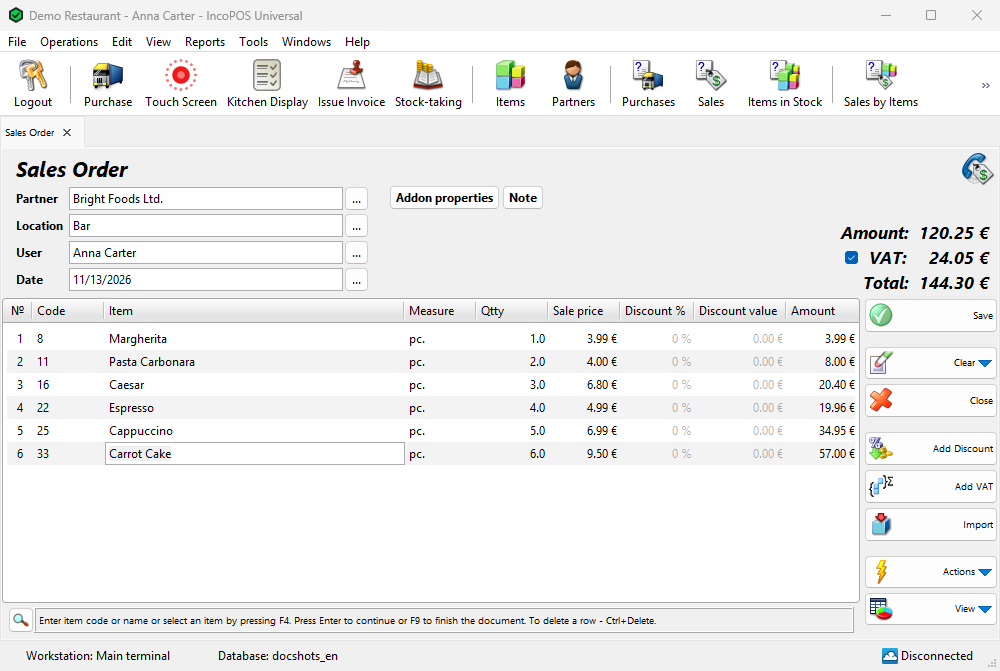
Fill in the order
The window works like the Offer window: the same header fields, columns and buttons.
| Part | What to enter |
|---|---|
| Partner | The customer who orders. The sale prices follow the partner’s price group. |
| Location | The location that will deliver. Its stock does not change until the sale. |
| User, Date | The logged-in user and today are filled in. Changing them requires the Edit User and Edit Date permissions (Operations), which operators do not have by default. |
| Rows | Type the item in Item, the ordered quantity in Qtty and check the Sale price. Ctrl+Delete deletes the current row. |
| Note | For example the delivery address or time. It is printed on the order and copied to the documents made from it. |
The ordered quantity is not checked against the stock, so you can take orders for items you have not bought yet. A sales order has no lots: the lots are chosen in the sale.
Save and print
- Press F9 or click Save. The program asks “Do you want to save the operation?”.
- Click OK to save, or Save draft to keep an unfinished order as a draft. A draft gets a number only when you save it and is listed in Reports → Drafts….
- If printing is available, the program asks “Do you want to print a sales order?”. Yes opens the print preview. Don’t ask me again remembers the answer.
The window is then cleared for the next order. To print the order again later, use Reprint Sales Order.
Turn the order into a sale
- Open Operations → Transform Document… (Ctrl+T) and select the order, or select it in the Sales Order – Select Document window and click Actions → Transform Selected Documents. For a new order, Actions → Save and Transform saves it first.
- In Transformation – Select Destination Document select Sale and click OK.
- The Sale window opens with the rows of the order. Lower the quantities of what you cannot deliver now, then save the sale and record the payment as in any Sale.
The order itself does not change. To close it, select Annul the source document in the destination window, or annul it later in Edit Sales Order. Related Documents in the Actions menu shows the sale made from the order. Transforming requires the Transform Unprocessed Operations permission, which operators do not have by default.
Deliver less than ordered
When you save a sale made from one sales order and it has less of an item than the order, the program asks, before the Payment window, “This sale does not cover the full ordered quantity. Generate a new order for the remaining quantities?”.
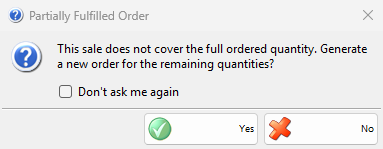
- Yes: after the sale is saved, a new sales order is made for the missing quantities. It has the partner, the location, the user and the prices of the original order, and its note says which order it came from. The original order and the sale do not change.
- No: only the sale is saved.
The program compares only the quantities of the sale and the order, not the stock. An item of the order that is not in the sale counts as missing in full. If you cancel the Payment window, no order is made. Don’t ask me again saves the answer in Generate an order for the remaining quantity when transforming an order into a sale: in Tools → Settings… → Operations, with the values Ask, Always and Never. A sale made from several orders at once never asks.
Invoice the order
Go to Operations → Invoicing → Issue Invoice from Sales Order…, select one or more orders in the Issue Invoices – Select Document window and click OK. The invoice window opens as described in Issue invoices.
- No sale is created, so the stock does not change and no payment is recorded.
- Drafts are not listed. Several orders on one invoice must have the same partner, otherwise the program shows “You can create a document for multiple operations only when they use the same partner.”.
- An order that already has an invoice cannot get another one. In the select windows of sales orders it is shown in red.
- An invoiced order opens only for viewing and cannot be annulled until you void the invoice in Void Issued Invoice.
Troubleshooting
| Problem | Solution |
|---|---|
| “This is a free version of the Sales Order operation! To save your operation please purchase a license.” | Activate a license for IncoPOS. The free version cannot save sales orders. |
| “Opening the Sales Order screen is not allowed!” | Ask an administrator to allow Sales Order for your user in Edit → Administration → Permissions…. |
| “There are no valid rows in the sales order document!” | Add at least one item with a quantity. |
| “Operation No.0000000012 cannot be attached to an invoice because the issued invoice No.0000000005 is already attached to it. Please, annul the invoice before attaching another invoice to this operation.” | The order is already invoiced. Void that invoice first if you need a new one. |
| No question about the remaining quantity | Check Generate an order for the remaining quantity when transforming an order into a sale: in the settings. The question comes only for a sale made from one order. |
FAQ
Does a sales order reserve the items?
No. The stock changes only when the sale is saved, and other sales can use the same items before that.
Can I change an order after part of it was delivered?
Yes, in Edit Sales Order, unless the order has an invoice. The sale made from it does not change.
Related pages
- Edit Sales Order (Edit → Documents → Management → Sales Order…)
- Reprint Sales Order (Edit → Reprint Documents → Management → Sales Order…)
- Offer
- Transform Document
- Issue invoices
- Management reports (Reports → Management → Sales Orders…)