
A CRM activity records one contact with a partner, for example a phone call, a visit or a task. You open a new activity from Operations → CRM, where each active activity type has its own item, such as Operations → CRM → Phone call. The fields of the window come from the type, set up in Edit Activity Types. An activity changes no stock and no payments. How the parts of CRM work together is described in CRM.
Record an activity
- Go to Operations → CRM and select the type, for example Phone call. A tab with the name of the type opens.
- In Partner: type the name of the partner or click … to choose it.
- Check User: and Date:. They start with your user and today.
- Fill in the fields of the type. A label in bold marks a required field. Enter or Tab moves to the next field and Shift+Tab to the previous one.
- Click Save. The tab closes.
If the type has documents and printing is available, the program asks “Do you want to print the activity document?” after saving, depending on Print documents: in Tools → Settings… → Printing. With Yes one document opens in the print preview. If the type has several documents, you first choose them in Select Documents to Print (see Reprint CRM Activities). A type without documents prints nothing.
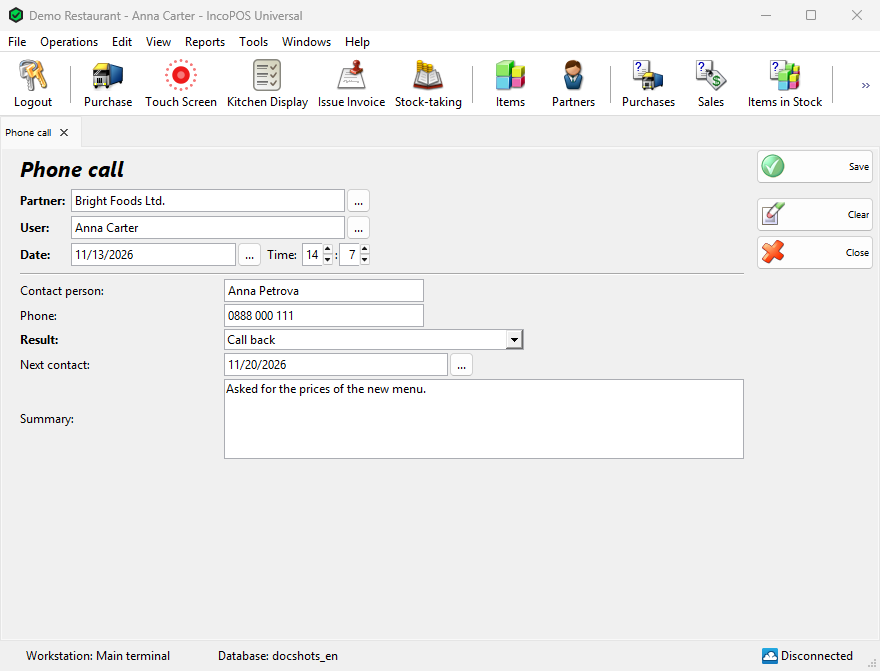
The window
| Part | What it does |
|---|---|
| Partner: | The partner of the activity. Required when the type has Require partner. Otherwise an activity without a partner is saved with the default partner. |
| User: | The user who did the activity. Change it when you record an activity for a colleague. |
| Date: | The date of the activity. Click … for a calendar. |
| Time: | Hour and minute. Shown only when the type has Add operation time. It starts with the current time and is printed with the date. |
| Fields | The fields of the type in their order. A group name of the type shows as a bold heading with a line. A type with more than 10 fields shows them in two columns and keeps each group in one column, except on low screen resolutions. |
| Save | Checks and saves the activity and closes the tab. |
| Clear | Empties the partner, sets your user, today and the current time, and returns each field to its default value. |
| Close | Closes the tab without saving and without a question. Esc does the same. |
| Actions | Shown when you edit a saved activity: Print, Transform Selected Documents and Related Documents. |
The window has no location field. The activity is saved in the default location of your user.
How each kind of field is filled
| Field type | In the window |
|---|---|
| Text, Short text | One line of text. Short text is a narrower box. |
| Long text | A box of several lines for notes. Enter starts a new line, Tab goes to the next field. |
| Number, Integer | A number, or a whole number for Integer. |
| Date | A date, with … for a calendar. |
| Date / Time | A date with … and a time box that starts at 00:00. |
| Dropdown | A list of fixed values. Choose one. |
| Searchable dropdown | Type a part of a value to see the matching values, or click … to see all of them. |
| Partner | A partner name, typed or chosen with …. The field saves the name as text. It is not the partner of the activity, which is set in Partner:. |
| Yes / No | A check box. |
| Item | An item, typed or chosen with …. Depending on the field, boxes for Serial number:, Expiration date:, Production date:, Lot: and Location: follow. The item becomes a row of the activity with quantity 1, which a transformation into a sale or an offer uses. These values do not change the stock or the lots. |
A field can have a default value in its type, which a new activity shows already filled in.
Checks when saving
| Case | Message |
|---|---|
| The type requires a partner and Partner: is empty | “Please select a partner.” |
| A required field is empty | “Field “Result” is required.”, with the label of the field |
| A text does not match the validation pattern of the field, a number is outside its range or an Integer field has a decimal number | The validation error message of the field, or “Field “Phone” has an invalid value.” |
| A date that the program cannot read | “Field “Next contact” must be a valid date.” or, for Date / Time, “… must be a valid date and time.” |
| No Pro license | “Saving activities requires a Pro license! To save your activity please purchase a Pro license.” |
After the message the cursor goes to the field, so that you can correct it.
Activities from other documents
With Transform Document you can create an activity from a saved document, for example a service visit from the sale of a device. In Transformation – Select Destination Document choose Activity. If several types are active, the program asks “Select the activity type:” in the Create Activity window. The new activity gets the partner of the source. From a sale or another document, the first Item field of the type gets the item of the first row with its serial number, lot and dates. From another activity, every field that both types have is copied. The window opens filled in and the activity exists only after you save it.
The other way round, an activity becomes an offer, a sales order or a sale with the items of its Item fields as rows. Their prices come from the items.
Permissions
Permissions are set in Edit → Administration → Permissions….
| Permission | What it allows | Not allowed by default for |
|---|---|---|
| CRM | The CRM submenu and the activity window, also when it opens from a transformation or for editing. | Nobody |
| The type under CRM, for example Phone call | The menu item of that type. | Nobody |
Troubleshooting
| Problem | Solution |
|---|---|
| A type is not in Operations → CRM | The type is not active, or your user may not use it. Check Active in Edit Activity Types and the permissions. |
| “Access to activities is not allowed!” | Your user does not have the CRM permission. |
| “Error saving activity.” | The activity was not saved and the tab stays open. Click Save again. If the message repeats, send its details to support. |
| Nothing is printed after saving | The type has no documents, Print documents: is set not to print, or no printer is available. |
FAQ
Can I change the type of an activity after saving it?
No. Create an activity of the other type from it with Transform Document: the fields that both types have are copied.
Where do I see all activities of a partner?
In the Last operations tab of the partner, or in Edit CRM Activities with the partner name in Filter.
Related pages
- CRM
- Edit Activity Types
- Edit CRM Activities (Edit → Documents → CRM Activities…)
- Reprint CRM Activities (Edit → Reprint Documents → CRM Activities…)