
The License Information window shows the IncoPOS licenses installed on this computer, whether each of them works, and which license each part of the program needs. Open it with Help → License Information…. Licenses are bought, started as a trial and installed through IncoCloud.
Licenses
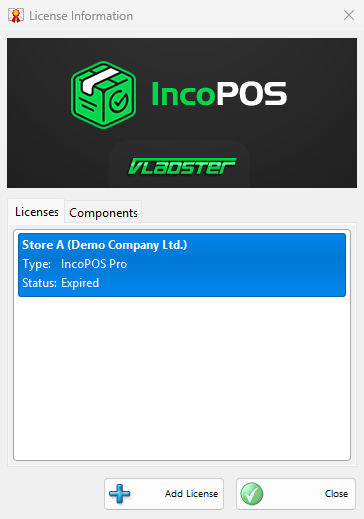
The Licenses tab lists the licenses of the computer. Each row shows the user and the company of the license, or “No user info”, then Type:, the license type such as IncoPOS Pro, and Status:. When no license is installed, the tab shows “No licenses are installed”.
| Status | Meaning |
|---|---|
| Activated | The license works on this computer. |
| No updates | The license works, but its Updates until: date has passed, so versions released after that date will not run with it. |
| Stopped | A Starter license on a database with more than 1 location, 5 users or 3000 items. It works again when the database is within these limits. |
| Version missmatch | This version of IncoPOS was released after the Updates until: date of the license. |
| Expired | The Valid until: date has passed. |
| Not valid yet | The Valid from: date has not come yet. |
| No fiscal printer | The license works only with a certified fiscal printer connected. |
| Product missmatch | The license is for another product. |
| Cannot verify | The activation cannot be checked at the moment. |
| Not activated | The license is not activated for this computer. |
When the same license number is installed more than once, the window keeps the working copy with the latest Updates until: date and deletes the other copies.
Add a license
- Click Add License. If you are not logged in to IncoCloud, the Login window opens first.
- The IncoCloud window opens on My Licenses. Install a license of your account on this computer there, see IncoCloud. To start the free Pro trial, see How to Start a New Trial License for IncoPOS.
- Close the IncoCloud window. License Information shows the Licenses tab again with the installed license, and the program checks all its parts against the licenses.
License Details
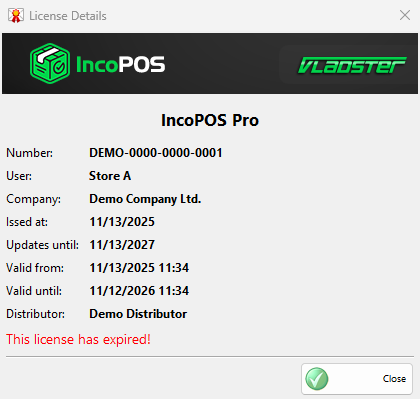
Double-click a license to open the License Details window. It only shows the license; Close returns to the list.
| Field | What it shows |
|---|---|
| The license type | At the top, in large letters. |
| Number: | The license number. |
| User:, Company: | Who the license is for. |
| Distributor: | Who sold the license. |
| Issed at: | The date the license was issued. |
| Updates until: | The last release date of IncoPOS that the license runs. Shown only for a license with this date. |
| Valid from:, Valid until: | The period of a license that works for a limited time, such as a subscription or a trial. Shown only when the license has them. |
A license that does not work shows the reason in red, for example “This license has expired!”, “This license is not valid yet!” or “This license can be used only while a certified fiscal printer is connected! Please connect and enable a proper fiscal printer in Edit->Devices… to use this license.”. A stopped Starter license names the limit, for example “Starter licenses work only if there is up to 1 location in the database. In this database there are 2 locations. Please delete 1 of them and your license will start working.”
Components
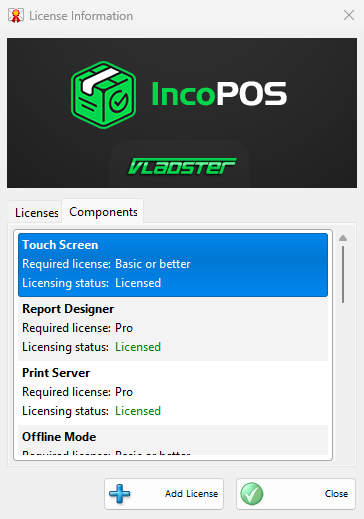
The Components tab lists the parts of IncoPOS that need a license, such as the paid modules. Each row shows Required license:, the license the part needs (Basic or better when the part names none), and Licensing status:, which is Licensed in green or Free mode in red. A part in free mode works with the limits that its guide describes. Double-click a part to read what it does, or “No information is available for this component!”.
Troubleshooting
| Problem | Solution |
|---|---|
| Expired, Not valid yet | Renew the license, or wait for its first day, in IncoCloud. A trial cannot be started again. |
| Version missmatch | Renew the updates of the license, or install a version of IncoPOS released before the Updates until: date. |
| Stopped | Delete the extra locations, users or items that the message names. |
| No fiscal printer | Connect and enable the fiscal printer in Devices. |
| Cannot verify | Follow the message in License Details: restart the computer, or connect the fiscal printer. |
| Not activated | Install the license on this computer again from My Licenses in IncoCloud. |
| “There was an error while adding the license! Please check the license code.” while installing on Windows | See How to Fix the IncoPOS License Addition Error on Windows. |