
The Sales Book lists the saved sales one by one, with the rows and the payments of the selected sale. The rows include those that were changed or removed when the sale was edited, so you see what the sale had at first and when each row was added. From the list you edit or annul a sale, issue its invoice and change its payments. It is part of the paid Advanced Operations module.
Open the Sales Book
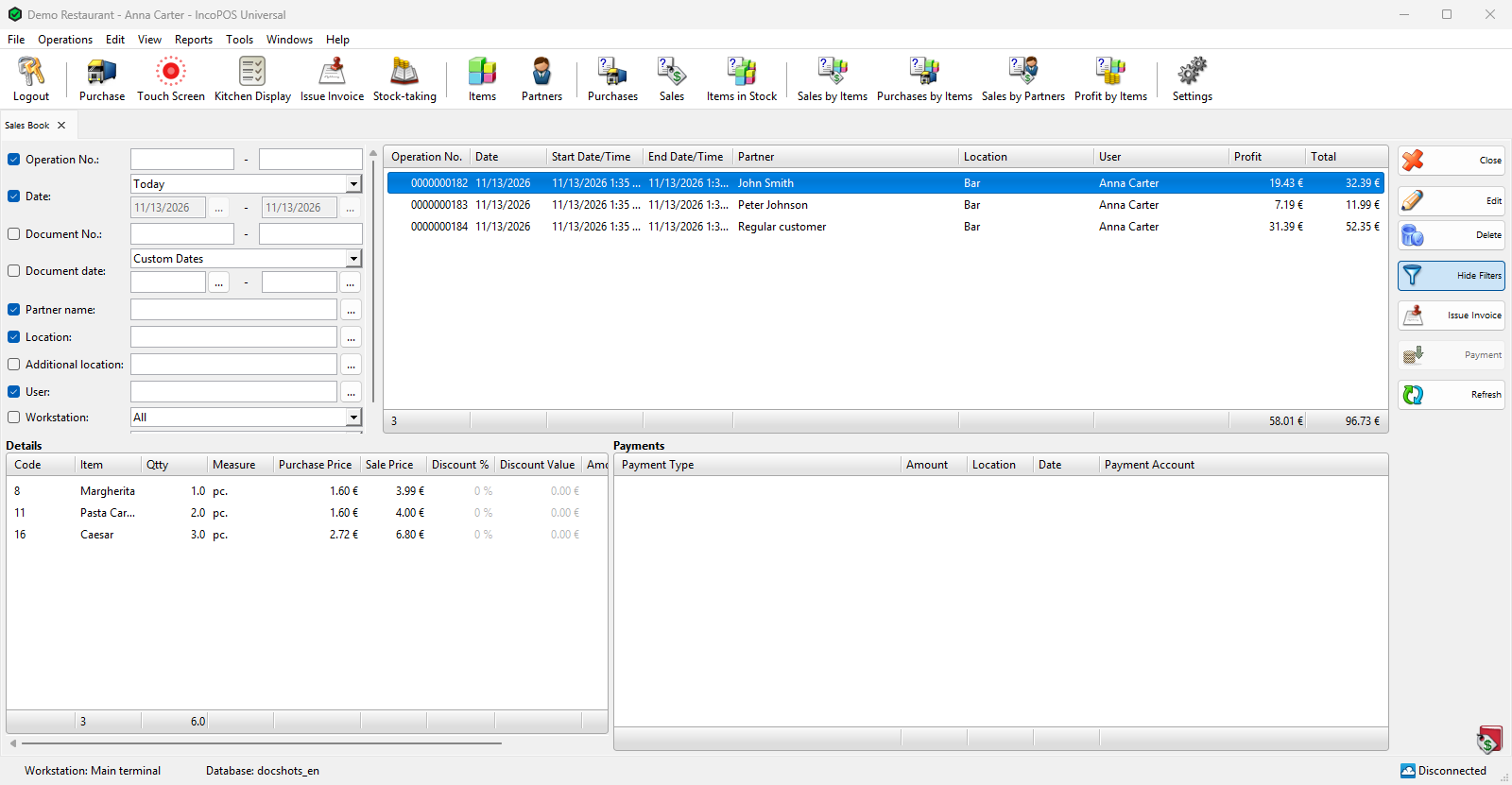
Go to Operations → Sales Book. The filters are on the left, the list of sales is next to them, Details and Payments of the selected sale are under the list and the buttons are on the right. The list opens with the sales of today.
Without a license for the module, a message about the license shows the first time the Sales Book or the Cash Book opens, and Edit and Delete only show a message.
What the list shows
Each row is a saved Sale or Consignment Sale. A sale with an issued invoice is red and an annulled sale is struck through. The last line shows the number of sales and the totals of Profit and Total.
| Column | Meaning |
|---|---|
| Operation No., Date | The number and the date of the sale. |
| Start Date/Time, End Date/Time | When the first row of the sale was added and when the sale was saved. |
| Document No., Document Date | The number and the date of the invoice of the sale. |
| Partner, Location, Additional Location | The customer, the location and the additional location of the sale. |
| User, Workstation | Who saved the sale and on which workstation. |
| Profit | The sale prices minus the purchase prices of the rows, multiplied by the quantities. |
| Total | The amount of the sale. |
Details and Payments
Details lists the rows of the selected sale: Item, Qtty, Measure, Purchase Price, Sale Price, Amount and Time, the time when the row was added. Code, Markup %, Discount % and Discount Value show when the item codes, the markup and the discount types are on in the settings. A row that an edit changed or removed is struck through. The last line shows the number of rows and their total quantity.
Payments lists the paid amounts of the sale with Payment Type, Amount, Location, Date and Payment Account. Payments into an account that your user may not view are left out.
For a user without Show items purchase price in the user’s settings, Profit, Purchase Price and Markup % are hidden.
Filter the list
The list reloads as soon as you change a filter. The check box of a filter shows or hides its column, and Document No. and Document date: are hidden at first. The program remembers the filters and the columns for the next time, except Date, which starts on Today.
| Filter | What it does |
|---|---|
| Operation No., Document No. | A range of sale or invoice numbers. |
| Date, Document date: | A period of the sale or the invoice. The date fields are active only with Custom Dates. |
| Partner name, Location, Additional location, User | Finds any part of the name. |
| Workstation | The sales of one workstation. |
| Status | Active for the saved sales, Deleted for the annulled sales, or Active & Deleted for both. |
Hide Filters gives the list more room and Show Filters brings the filters back. Refresh loads the list again, for example after a sale was saved on another workstation.
Buttons
Edit, Delete, Issue Invoice and Payment work on the selected sale. They are not active for an annulled sale or a consignment sale.
| Button | What it does |
|---|---|
| Edit | Opens the sale for editing, as Edit Sales does, with the same limits. A double-click on the row does the same. For a sale with an invoice, a user with Edit sale with invoice gets “Invoice No…. is attached to operation No…. Changes to the operation will also affect the invoice.”; any other user gets “Operation No…. cannot be edited because the issued invoice No…. is attached to it. Please, annul the invoice before editing this operation.” and the sale opens read-only. |
| Delete | Annuls the sale after “Are you sure you want to annul this sale?”. What annulling does is described in Annul a sale. A sale with an invoice is refused with “Operation No…. cannot be annulled because the issued invoice No…. is attached to it. Please, annul the invoice before annulling this operation.” |
| Issue Invoice | Opens the Issue Invoice window for a sale without an invoice, see Issue invoices. When another document is already attached to the sale, the program first asks “An invoice attached to a selected document already exists in the database! Do you want to continue?”. |
| Payment | Opens the Payment window with the payments of the sale, where you add, change or delete them, see Change the payments of a document. It is active for a sale above zero when a cash receipt printer is connected to the workstation. |
| Refresh | Loads the list again. |
| Close | Closes the Sales Book. |
Permissions
All permissions are set in Edit → Administration → Permissions….
| Permission | What it allows | Not allowed by default for |
|---|---|---|
| Sales Book (Operations) | The menu item. | Operators |
| Edit, Delete under Sales Book | The buttons with these names. | Nobody |
| Issue Invoice… (Operations → Invoicing) | The Issue Invoice button. | Nobody |
| Edit under Payments → Payments… | The Payment button. | Nobody |
| Edit sale with invoice | Editing a sale with an issued invoice. | Operators, managers |
Troubleshooting
| Problem | Solution |
|---|---|
| “This is a free version of the Sales Book! …” | Editing and annulling need a license for the Advanced Operations module. |
| A sale is missing from the list | Check Date, which starts on Today, and Status. A sale that is not saved yet is not in the list. |
| Payment is not active | Select a saved sale above zero, and check that the cash receipt printer is connected in Devices. |
| Issue Invoice is not active | The sale already has an invoice (a red row), or your user may not issue invoices. |