
The STS ESL Price Tag Server server updates the e-ink electronic shelf labels of an STS Base Station ESL. It draws the image of each label on this workstation, and the base station downloads the image from the server and shows it on the label. The labels themselves, their items and their designs are set in Price Tags. The list of servers is in Servers, and the fields that every server has are in Adding, editing and deleting servers.
What you need
- An STS Base Station ESL in the same network as this workstation, with its address and serial number.
- A Pro license on the workstation that runs the server.
- A free port on this workstation, open in its firewall, from which the base station downloads the images.
Add one server for each base station. Each server needs its own Image server port:.
Set up the server
- Go to Edit → Administration → Servers… and click New.
- Select STS ESL Price Tag Server in Server type:.
- Fill in the fields, see the table below, and click Save.
- Add the labels in Edit → Administration → Price Tags….
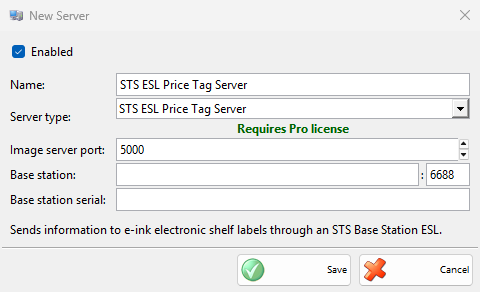
| Field | What it does |
|---|---|
| Image server port: | The port of this workstation from which the base station downloads the label images. A new server starts with 5000. No other enabled server of the workstation may use it. |
| Base station: | The IP address or name of the base station, and next to it its port, 6688 by default. |
| Base station serial: | The serial number of the base station. It also tells the servers of one workstation apart in Price Tags. |
How it works
Every 15 seconds the server checks for changes that a label shows, such as a price, a promotion or a label design, and sends the new images to the base station. Price Tags lists what redraws a label and when a failed label is tried again. The server works only while IncoPOS is open on this workstation and connected to the database. Nothing shows on the screen while the labels change.
Troubleshooting
| Problem | Solution |
|---|---|
| “FTP host cannot be empty!” | Enter Base station:. |
| “Invalid port number!”, “Another server is already using this port!” | Enter in Image server port: a port from 1 to 65535 that no other enabled server of the workstation uses. |
| “Server ‘…’ failed to start due to access denied.” | Windows does not let IncoPOS listen on the port. Click Copy command, run the command in a Command Prompt opened as Administrator, then save the server again or restart IncoPOS. Running IncoPOS as Administrator also works. |
| “Server ‘…’ is running, but the firewall may be blocking incoming connections on port …” | The base station cannot download the images. Click Copy command and run the command as Administrator, or allow the port in Windows Defender Firewall. |
| The labels do not change | Check that the server is enabled and licensed, that Base station: and Base station serial: are filled in and that the base station can reach this workstation in the network. Then see the troubleshooting of Price Tags. |