
The Payment Server server lets several workstations use one payment terminal. The workstation with the terminal runs the server, and the other workstations send their card payments to it through a Payment Server payment processor. The requests and the answers go through the database, so all the workstations must work with the same database. The list of servers is in Servers, and the fields that every server has are in Adding, editing and deleting servers.
What you need
- On the workstation with the terminal: the payment processor of the terminal, set up and working for the payment type in Edit → Payments → Payment Processors…, as for local payments.
- A license on that workstation. The window shows “Requires Basic or better license”.
- IncoPOS open on that workstation while the others take payments.
Set up the server on the workstation with the terminal
- Go to Edit → Administration → Servers… and click New.
- Select Payment Server in Server type:. Address: gets 01.
- Change the Name: if you like and click Save.
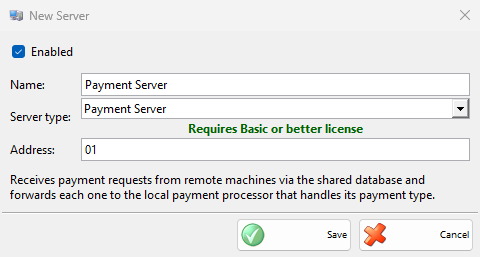
| Field | What it does |
|---|---|
| Address: | The address that the other workstations use to reach this server. A one-digit address gets a leading zero: 1 is the same as 01. Give each payment server in the database its own address. The window checks only the servers of this workstation. |
Set up the other workstations
- On each workstation that pays through the server, go to Edit → Payments → Payment Processors… and add a Payment Server processor.
- Select the payment types that go to the terminal, for example the card payment type.
- Enter the same Address: as the server and save.
How it works
- The cashier pays a sale with a payment type of the processor. The payment window shows “Processing on remote device” and “Expected amount:” with the amount.
- The server checks the database every 3 seconds, takes the request and passes it to the payment processor of its workstation, which charges the card on the terminal.
- The answer comes back, and the sale is finished as with a local terminal. After the sale is saved, the server also passes the saved payment to its processor, for the processors that need it.
The cashier can cancel while waiting. When no answer comes in 3 minutes, the payment fails with “The remote device did not respond in time.”. When the terminal refuses the card, the payment fails with “The remote device reported a payment failure.” and the reason. The server skips requests older than 5 minutes, as their sender has stopped waiting.
Troubleshooting
| Problem | Solution |
|---|---|
| “The remote device did not respond in time.” | Check that IncoPOS is open on the workstation with the terminal, with the same database, that the server is enabled and licensed and that both use the same Address:. |
| “Payment Server address is not configured.” | Enter Address: in the Payment Server processor of this workstation. |
| The server does not start although its settings are right | The server does not start when its own workstation has an enabled Payment Server processor with the same address, because it would send the payments to itself. Remove that processor from the workstation with the terminal. |
| “The remote device reported a payment failure.” | The processor of the terminal workstation refused the payment. The text after the message gives the reason. Check the terminal on that workstation. |