
The Daraja M-Pesa processor takes M-Pesa payments through the Daraja API of Safaricom in Kenya. The cashier enters the customer’s phone number, the customer gets the payment request on the phone and confirms it with the M-Pesa PIN, and the program records the payment when M-Pesa confirms it. This is the STK Push (Lipa na M-Pesa Online) payment of Daraja. You add the processor in Edit → Payments → Payment Processors…. It requires a Basic or better license. The fields that all types share are in Adding, editing and deleting payment processors.
Before you start
- A Basic or better license. The edit window shows “Requires Basic or better license” next to the type, in green when the license is there and in red when it is not.
- A Daraja app of your business, live on the Safaricom production API, with its Consumer Key, Consumer Secret, Business Short Code and PassKey. The Daraja Developers Portal link in the processor window opens the Safaricom portal where you apply for them.
- A payment type for M-Pesa, for example “M-Pesa”, added in Payment types.
- An internet connection on the workstation.
Set up the processor
- Go to Edit → Payments → Payment Processors… and click New.
- Select Daraja M-Pesa in Processor type:.
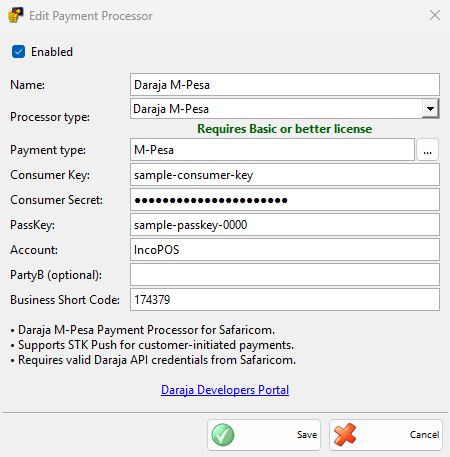
- Enter the Name:, the data from Safaricom and the Payment type:, and click Save.
| Field | What it does |
|---|---|
| Consumer Key:, Consumer Secret: | Required. The keys of your Daraja app. |
| Business Short Code: | Required. The paybill number that receives the money. A new processor starts with 174379, the test code of Daraja: replace it with your own. |
| PassKey: | Required. The Lipa na M-Pesa Online passkey from Safaricom. |
| Account: | Required. The account reference the customer sees in the request. A new processor starts with IncoPOS. |
| PartyB (optional): | The number that receives the payment, if it differs from Business Short Code:. Empty uses the short code. |
| Payment type: | Required. Payments of these types start an M-Pesa request. |
The program checks the keys only when it sends the first request, so make a small test payment after the setup.
Take an M-Pesa payment
- Save the sale and, in the Payment window, choose the M-Pesa payment type. Click OK.
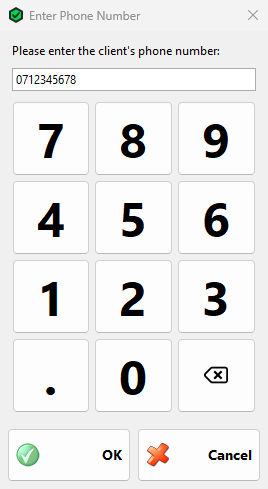
- The Enter Phone Number window asks “Please enter the client’s phone number:”. Type the number or use the keypad and click OK. The numbers 0712345678, 712345678, 254712345678 and +254712345678 all work; OK stays disabled until the number is a valid Kenyan one.
- The Processing M-Pesa Payment window shows “Sending STK Push request…” and then “Waiting for customer to complete payment on phone…”. Ask the customer to confirm the request on the phone with the M-Pesa PIN.
- When M-Pesa confirms the payment, the window closes and the sale is saved. The payment keeps the M-Pesa receipt number.
M-Pesa takes whole amounts, so the request asks for the amount rounded to whole shillings. The program asks M-Pesa for the result 10 seconds after the request and then every 5 seconds, for up to 3 minutes. While it waits, the window shows what M-Pesa reports, for example “Payment request sent. Waiting for customer action…”. Network problems during the wait show “Connection timeout. Retrying…” or “Network issue. Retrying…” and the program keeps asking.
Stop ends the wait and returns to the Payment window without paying. Cancel in the phone window does the same. If the customer has already confirmed on the phone, check the payment on the M-Pesa statement before you take it again.
Without a license, the program shows “The Payments Processor module is not free! To use this module please purchase a license.” once and records the payment as an ordinary payment without M-Pesa.
Troubleshooting
| Problem | Solution |
|---|---|
| “Failed to initiate M-Pesa payment: text“ | Daraja refused the request or could not be reached. With “Failed to initiate STK Push”, check the internet connection, the Consumer Key and the Consumer Secret. Other texts come from Safaricom, for example about the short code or the passkey. |
| “Payment timeout. Please try again or check if the payment was completed on the phone.” | M-Pesa did not confirm within 3 minutes. Ask the customer whether the money was sent before you try again. |
| A message from M-Pesa, for example that the request was cancelled by the user | The customer cancelled, did not answer or did not have enough money. The Payment window stays open: try again or choose another payment type. |
| OK stays disabled in Enter Phone Number | Enter a Kenyan mobile number, for example 0712345678. |
| “Please fill out all the fields!” when saving the processor | Fill in every field except PartyB (optional):. |