
The Mobile Money processor takes M-Pesa (Kenya and Tanzania) and Tigo Pesa payments that customers send to your business phone number. An Android phone with that number runs the Mobile Money Receiver app: it reads the confirmation SMS of each payment and writes the payment to the database. At the till, the cashier sees the payments received in the last minutes and clicks the one that pays the sale. You add the processor in Edit → Payments → Payment Processors…. It requires a Basic or better license. The fields that all types share are in Adding, editing and deleting payment processors.
Before you start
- A Basic or better license. The edit window shows “Requires Basic or better license” next to the type, in green when the license is there and in red when it is not.
- An Android phone with the SIM card that receives the payments, connected to the same database as the workstations.
- A payment type for mobile money, for example “M-Pesa”, added in Payment types.
Set up the phone
- Install Mobile Money Receiver from Google Play. The Download Android App link in the processor window opens its page.
- Open the app and its Settings. Select Enabled and enter a Receiver number:, for example 1.
- Enter the server, the port, the user and the password of the database, click Test, choose the database and click Save.
The app then shows “Waiting for Mobile Money messages…”. It reads only the payment messages of M-Pesa and Tigo Pesa. If the database cannot be reached when a payment arrives, the app keeps the payment and writes it when the connection is back.
Set up the processor
- Go to Edit → Payments → Payment Processors… and click New.
- Select Mobile Money in Processor type:.
- Enter the Name:, the Receiver number: of the phone and the Payment type:.
- Under Payment information, select what the cashier sees for each payment, and click Save.
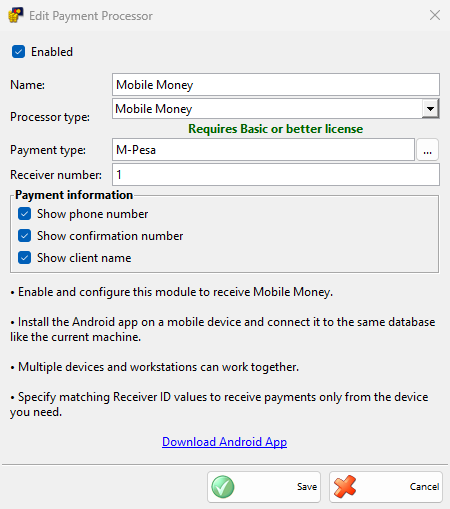
| Field | What it does |
|---|---|
| Receiver number: | Required. The same number as Receiver number: in the app. The workstation shows only the payments of the phones with this number, so give each phone its own number when the payments of one phone must not show at another till. |
| Payment type: | Required. Payments of these types open the mobile money window. |
| Show phone number | Shows the phone number of the sender on each payment. |
| Show confirmation number | Shows the confirmation code from the SMS. |
| Show client name | Shows the name of the sender. |
Several phones and workstations can work with one database. A workstation with several processors of this type shows the window of the processor whose payment type the cashier chose.
Take a mobile money payment
- Save the sale and, in the Payment window, choose the mobile money payment type. Click OK.
- The Process Mobile Money Payment window opens with “Processing payment for amount” and “Please ask the customer to send the Mobile Money payment now”.
- The payment appears a few seconds after the SMS reaches the phone. Click it. The window closes and the sale is saved.
Cancel returns to the Payment window without paying.
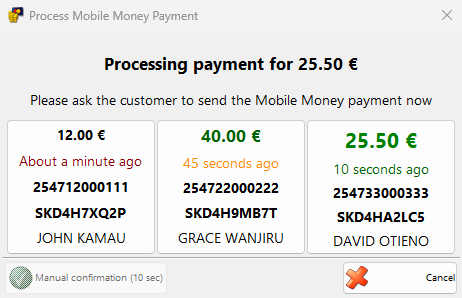
The window refreshes every second and shows up to 9 payments of the last 10 minutes; older ones are removed. The amount is large and green when it equals the amount due, green when it is more and plain when it is less. The time since the payment arrived is green for the first 20 seconds, orange up to a minute and red after that. A payment used in a sale disappears from the list, so it cannot pay a second sale.
If the chosen payment is less than the amount due, the payment gets the received amount and the Payment window stays open with the rest in cash, so you can take the difference with another payment.
Manual confirmation
When the payment does not appear, for example because the phone is offline, click Manual confirmation. The button works after a 10 second countdown. Enter the code from the customer’s confirmation SMS in Confirmation number: and click OK. The payment is recorded for the full amount due, with MANUAL_CONFIRMATION when the code is left as it is.
Without a license, the program shows “The Payments Processor module is not free! To use this module please purchase a license.” once and records the payment as an ordinary payment without the window.
Troubleshooting
| Problem | Solution |
|---|---|
| The payment does not appear in the window | Check that the app shows “Waiting for Mobile Money messages…”, that it is connected to the same database and that its Receiver number: matches the processor. A payment older than 10 minutes is no longer shown; use Manual confirmation. |
| The phone shows “Mobile Money receiver not connected to database…” | The app keeps the payment and writes it when the database can be reached. Check the database settings in the app. |
| “Please fill out all the fields!” when saving the processor | Enter the Receiver number:. |
| “No payment types selected!” | Select a Payment type:. |