
Hotel Link charges a restaurant or bar sale to a hotel guest. The cashier pays the sale with a room payment type, picks the guest’s reservation, and IncoPOS sends the sale to the hotel system, which adds it to the guest’s bill. Hotel Link works with Clock PMS+, Creato Solutions, Fidelio / Opera M87, Mews Systems, Protel and the bookings of IncoPOS itself. Each of them is a separate processor type that you add in Edit → Payments → Payment Processors…. Hotel Link requires a Pro license. The fields that all types share are in Adding, editing and deleting payment processors.
Before you start
- A Pro license. The edit window shows “Requires Pro license” next to the type, in green when the license is there and in red when it is not.
- A payment type for room charges, for example “Room charge”, added in Payment types. Only payments of the types you select in the processor go to the hotel system. Use a type that is not used for anything else.
- The access data of the hotel system: an API address and keys, or the address and port of the interface. Ask the hotel system provider for them. Mews and Clock PMS+ also need the hotel system to have the services, outlets or charge templates that the sales go to.
- For the guest copies of the receipt, a device with Print customer orders selected in Devices.
Set up a hotel system
- Go to Edit → Payments → Payment Processors… and click New.
- In Processor type: select the Hotel Link type of your hotel system, for example Hotel Link – Protel.
- Enter the Name: and select the room payment type in Payment type:. The … button lets you select several types.
- Fill in the fields of the hotel system. The sections below list them for each system.
- For Clock PMS+, Fidelio / Opera M87 and Mews, click the buttons under the fields and choose where the sales go in the hotel system. The windows read the lists from the hotel system with the access data you entered.
- Click Save. For Clock PMS+, Creato Solutions and Mews, the program connects to the hotel system first and does not save the processor if the settings do not work.
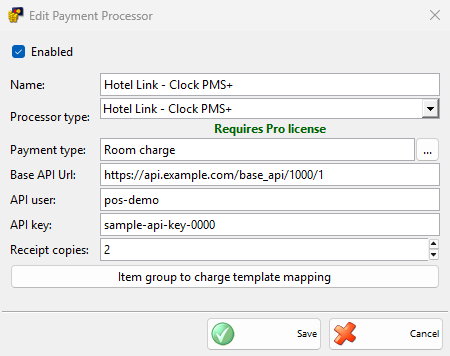
These fields are the same for all hotel systems:
| Field | What it does |
|---|---|
| Payment type: | Required. The payments of these types open the reservation search and go to the hotel system. Payments of other types are not affected. |
| Receipt copies: | How many copies of the receipt print for the guest to sign after a transfer. The default is 2, and 0 prints none. They print only on a device with Print customer orders. |
You can add several hotel processors, for example for two hotels, each with its own payment type.
Clock PMS+
| Field | What it does |
|---|---|
| Base API Url: | The Base API address of the hotel, in the form https://server/base_api/number/number. A longer address copied from Clock PMS+ is cut to this part. Any other address stops the save with “Please enter a valid Clock PMS+ Base API address!”. |
| API user:, API key: | The API credentials from Clock PMS+. |
| Item group to charge template mapping | Opens the mapping window with the charge templates of the hotel. A default template is required. |
The cashier can search by room, guest, key, company or event. The sale goes to the default folio of the reservation, or to the folio of the company or event, one charge per row with the item name, “Order #number from location“, the quantity, the price with VAT, the main currency and the revenue group, category and tax code of the charge template of the item’s group. The main currency must have a name in Currencies. Errors returned by Clock PMS+ are shown after “Error from the hotel system:”.
Creato Solutions
| Field | What it does |
|---|---|
| API ID: | The property ID of the hotel in Creato Solutions. |
| API Token: | The API token from Creato Solutions. |
On save, the program checks the ID and the token with Creato Solutions. The cashier can search by room, guest, event or company. The room and guest searches both look in the room list of Creato Solutions. When a room is selected, the program checks its folio and guest at once, so a closed folio shows “The reservation could not be found!” before the sale is saved. The rows go to the room, the event or the company as services with the item group, the item, the quantity, the price, the value, the VAT rate and the remark “Sale #number from location“.
Fidelio / Opera M87
| Field | What it does |
|---|---|
| Address field | The address of the Fidelio or Opera interface. The field has no label; it is the first field after Processor type:. |
| Port: | The port of the interface. A new processor starts with 5009. |
| Item group to sales itemizers mapping | Opens the mapping window as Item Group to Sales Itemizers Mapping, with the itemizers 1 to 8. Groups without an itemizer go to itemizer 1. |
The cashier searches by room. The program sends the sale total split into the 8 itemizers, with the sale number, the operator and the number of people, and then a copy of the check as text for the hotel system. If the interface stops answering during a search, the program shows “The hotel system is not responding.”. A refusal by the hotel system is shown as “Hotel system error: text“.
IncoPOS Internal Booking
The Hotel Link – IncoPOS Internal Booking type charges the sale to a booking made in Booking → Booking in the same database. It has no fields of its own. The cashier searches by room, which matches the location names, or by guest. Only the bookings with the status In-House today are found.
The sale is added to the booking as an extra and its payment amount is set to 0, so the guest pays it with the booking. Annulling the sale also removes it from the booking.
Mews Systems
| Field | What it does |
|---|---|
| Access token: | The access token that Mews gives for the IncoPOS integration of the hotel. |
| Hotel system service used for sales | Opens Select the Hotel System Service to Use for Sales. Choose the Mews service, for example the restaurant, in Services: and click Save. |
| Hotel system outlet used for external sales | Opens a window with the outlets of the hotel. Choose the outlet for the sales paid on the spot in Outlets: and click Save. |
| Item group to accounting categories mapping | Opens the mapping window with the accounting categories of Mews. Set Default category:: the sale rows go to Mews with this category. |
All three choices are required. On save, the program also checks that Mews has the main currency of IncoPOS: “The default currency in IncoPOS is not defined in the hotel system!” means that the currency name in Currencies is not one of the hotel’s currencies.
The cashier searches by room or guest. Guests in the Mews cash list cannot be charged. The sale goes to the guest as an order of the chosen service, one row per item.
With a Mews processor, the manager end of day reports in Edit End of Day Reports can also run Send sales paid on the spot to Mews. It sends the sales of the location that were not charged to a hotel and not yet in a manager end of day report to the chosen outlet, with their payments.
Protel
| Field | What it does |
|---|---|
| Address field | The address of the Protel interface. The field has no label; it is the first field after Processor type:. |
| Port: | The port of the Protel interface. |
The cashier can search by room, guest or key. Protel tells which reservations are blocked for transfers and their credit limit. The sale is sent with its rows, the table and its payments, and the room charge goes to the selected reservation.
With a Protel processor, the manager end of day reports can also run Send sales paid on the spot to Protel. It sends the other sales of the location to Protel, grouped by item group and VAT group, with their payments.
To print a cash receipt for each invoice printed in Protel, see the Protel Cash Receipts server.
Map the item groups
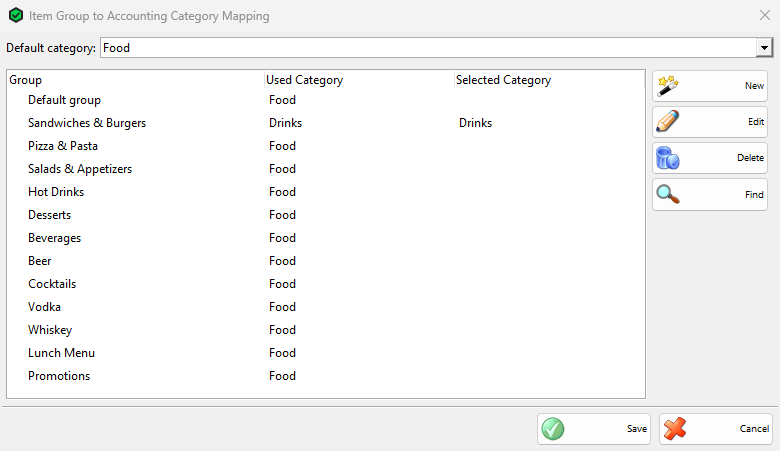
The mapping window tells the hotel system where each item group goes: a charge template in Clock PMS+ or an itemizer in Fidelio / Opera. For Mews, set the default category, see Mews Systems. Its title is Item Group to Accounting Category Mapping, or Item Group to Sales Itemizers Mapping for Fidelio / Opera.
- Choose the Default category:. It is used for every group without a category of its own.
- To send a group elsewhere, click its cell in Selected Category and choose the category. The subgroups use it too, unless they have their own.
- Click Save, then click Save in the processor window. The mapping is kept only when the processor is saved.
Used Category shows the category that each group gets, including the default and the categories inherited from a parent group. If the hotel system does not answer, the window does not open and the program shows “The accounting categories could not be downloaded from the hotel system!”.
Charge a sale to a room
- Save the sale and, in the Payment window, choose the room payment type. Click OK.
- The Transfer Payment to Hotel Reservation window opens with “Processing payment for amount“.
- To search by something else, click the button left of the search field, for example Room:, and choose Search by room, Search by guest, Search by key, Search by company or Search by event. The window offers only the searches of your hotel system and remembers the last one.
- Enter the room number, the name or the key and click Search. A card read on the card reader or a barcode scanned on the scanner searches at once.
- Under “Please select a reservation”, click the reservation. The window closes and the sale is saved.
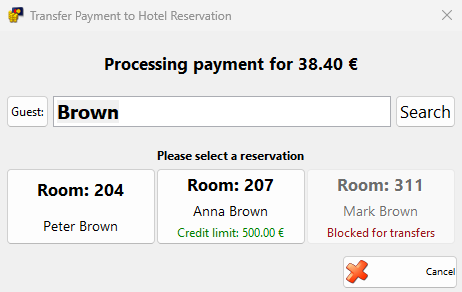
Each reservation shows the room, the guest, the event or the company. A reservation marked “Blocked for transfers” in red cannot be chosen. A credit limit lower than the amount is shown in red and the reservation cannot be chosen either. “No reservations found!” means that nothing matched. Cancel returns to the Payment window without paying.
The program sends the sale to the hotel system while it saves the sale. The receipt shows the room and the guest, or the event or the company. Then the copies of Receipt copies: print with the title “TRANSFER TO ROOM” and a “Guest signature:” line.
Only sale payments go to the hotel system. Returns and the payments of other documents are recorded as usual. Without a Pro license, the program shows “The Hotel Link module requires a Pro license! To use this module please purchase a license.” once and records the payment as an ordinary payment without the hotel system.
Troubleshooting
| Problem | Solution |
|---|---|
| “Payment was cancelled or failed. Please try again.” after choosing the reservation | The hotel system did not accept the charge, so the sale was not saved. Check the connection and the reservation in the hotel system and save the sale again. |
| “No reservations found!” for a guest who is in the hotel | Check the search type and the spelling. For IncoPOS Internal Booking, the booking must be In-House today. A hotel system that does not answer also returns nothing; check the address and the access data. |
| “The services could not be downloaded from the hotel system!” or “The accounting categories could not be downloaded from the hotel system!” | Enter the access data first. The windows read the lists with the data typed in the processor window, before it is saved. |
| “Please configure the item group to charge template mapping!” or “Please configure the item group to accounting categories mapping” | Open the mapping window and choose a Default category:. |
| “The hotel system configuration could not be read!” | Clock PMS+ or Mews did not answer with the entered data. Check the address, the user and the keys or the token. |
| No guest copies print | Set Receipt copies: above 0 and select Print customer orders on a device in Devices. |
FAQ
Does annulling the sale remove the charge from the hotel system?
No, except for IncoPOS Internal Booking. Clock PMS+, Creato Solutions, Fidelio / Opera, Mews and Protel keep the charge; correct it in the hotel system.
Can a sale be paid partly to the room and partly in cash?
Yes. Split the payment in the Payment window. Only the amount of the room payment type goes to the reservation search, and the window shows that amount.