
The Kitchen Display shows the restaurant orders on a screen in the kitchen, the bar or at the pass instead of, or next to, the printed kitchen orders. Each order appears as a card with its rows. The cooks tap a row to move it from Waiting to Preparing and Ready to serve, and the waiters or an expo screen mark it Served. Timers and colours show what has waited too long. Like the Touch Screen, it needs a license (Basic or better).
Open the Kitchen Display
Go to Operations → Kitchen Display or press Ctrl+Shift+K. On a computer that only shows orders, select Kitchen Display in Startup page in Tools → Settings… → Special. The screen hides the toolbar, the page tabs and the status bar. Esc closes it.
The entry is hidden for every business type except Restaurant and Other, and for users without the permission (see Operations). Without a license the screen shows “The Kitchen Display module is not free! To use this module please purchase a license.” and no orders.
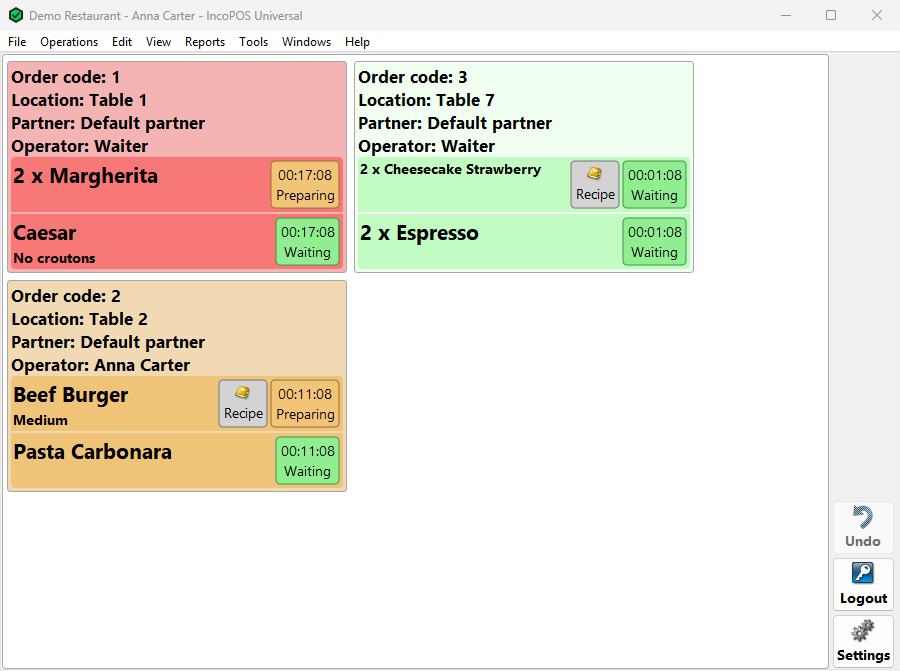
Which orders appear
The screen reads the saved orders from the database, so it shows what the waiters save with Order on the Touch Screen of any workstation or device. Unsaved rows do not appear. The screen checks for changes every second and plays a sound when a new order or a change arrives.
- The open orders of all tables. When the order is finished as a sale, it leaves the screen.
- Deleted orders stay for 60 minutes, with their rows crossed out, so the kitchen sees that they are cancelled.
- Finished sales of the last 30 to 120 minutes, only with Show finished orders as sales in the last: in the profile. This shows the sales made without an order, for example at a fast food counter. Without Preserve kitchen status when a sale is finished in Tools → Settings… → Touch Screen, most rows of a sale finished on the Touch Screen start again from Waiting.
The profile of the screen then filters them by operator, by location (table) group and tag, and by item group and tag. An order whose rows are all filtered out is not shown. The cards are sorted by the time of their first row, oldest first, and fill the columns from top to bottom and left to right. Scroll sideways for more. A card that is taller than the screen continues in the next column.
What a card shows
- At the top, the lines Order code:, Location:, Partner: and Operator: that the profile shows. For a finished sale the code is that of its order.
- One row per item, with the quantity before the name when it is not 1 (2 x Margherita). The Modifiers: of the row, such as “No salt”, are under the name.
- On the right of each row, the status button: the timer on top and the current status under it. The Recipe button is next to it when the item has a recipe.
- When a waiter changes the quantity or the note of a saved row, the earlier version stays crossed out on a grey background, in orange with an edit icon, and is joined to the new row by red lines with dots at the sides. A deleted row stays crossed out in dark red with a delete icon. The new row keeps the status of the earlier one.
With Split added details to the order, rows added to an order more than 30 seconds after the previous row go to a separate card, which takes its own place in the queue.
Statuses and bumping
Each row goes through up to four statuses. Tapping the status button of a row moves it to the next status that the profile uses (bumping). The button is grey when the profile does not allow an action in the current status.
| Status | Button | Meaning |
|---|---|---|
| Waiting | Light green | The row is saved and not started. |
| Preparing | Orange | A cook has started it. Skipped when the step is not Available. |
| Ready to serve | Green | It can be taken to the table. Skipped when the step is not Available: the row then goes straight to Served. |
| Served | Grey, no action | The last status. The timer stops. |
- A crossed-out row goes to Served with one tap, which confirms that the kitchen has seen the change.
- With Change all statuses in the order at the same time, a tap on a row also moves the other rows of the card to the same status.
- A row disappears when its new status is not shown by the profile. With the Kitchen setup a ready row leaves the kitchen screen and appears on a screen with the Expo setup.
- All screens share the statuses: a change on one screen appears on the others within a second.
The status names can be renamed in the profile, and the buttons then show the new names.
Timers and colours
The timer on each row counts the time since the row was added to the order, in hours, minutes and seconds. It stops when the row is Served. A row turns yellow after the time in Enable yellow alert after: (10 minutes by default) and red after Enable red alert after: (15 minutes by default). The background of a card follows its row that has waited longest. The Items Preparation… report shows these times afterwards.
Weighing items
For dishes sold by weight, the kitchen can weigh the portion when it taps the row. This happens for a status with Measure on action in the profile, for the items with the tag in Measure items with tag: (Any tag weighs all items), and only for orders, not for finished sales.
- With a scale in Devices the Measure Item Weight window opens with the item name and reads the scale: Measuring…, then Measured and the weight, or Error!. After an error Click to enter weight appears. Clicking the weight opens a number pad to type it.
- Without a scale, or for an item whose measurement unit is in Measurement units with disabled weighting: in Tools → Settings… → Operations, the Enter Item Weight number pad opens instead.
OK saves the weight as the quantity of the order row, so the bill charges it, and moves the status. Cancel leaves the row as it was. A zero weight is refused with “Measuring items with zero weight is not allowed!” unless the user has Measure Items with Zero Weight. If the order was changed elsewhere in the meantime, “The operation was already modified and cannot be saved!” appears. Tap the row again.
Recipe
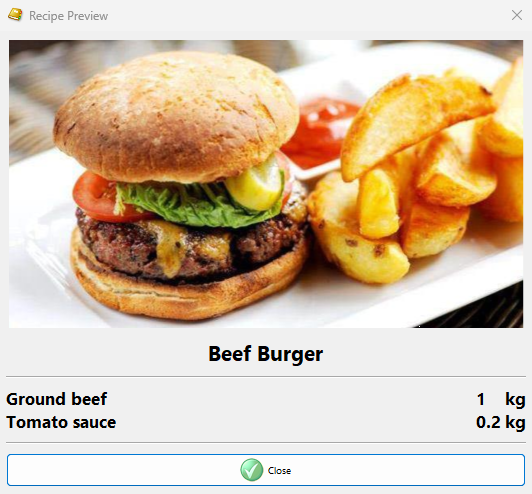
With Show item recipe when available, a row whose item is the product of a recipe has a Recipe button. It opens the Recipe Preview window with the picture of the item, if it has one, its name and the ingredients with their quantities and units. The quantities are those of the recipe, not multiplied by the ordered quantity. Close returns to the orders. If an item is in several recipes, the first one is shown.
Buttons
| Button | What it does |
|---|---|
| Undo | Takes back the last status change made on this screen. Press it again for the earlier ones, one row at a time. A weight entered with the change stays. The list is emptied when the screen closes. |
| Logout | Closes all open windows and shows the login, so the next cook or another user can log in. |
| Settings | Opens the settings of the screen. |
Settings
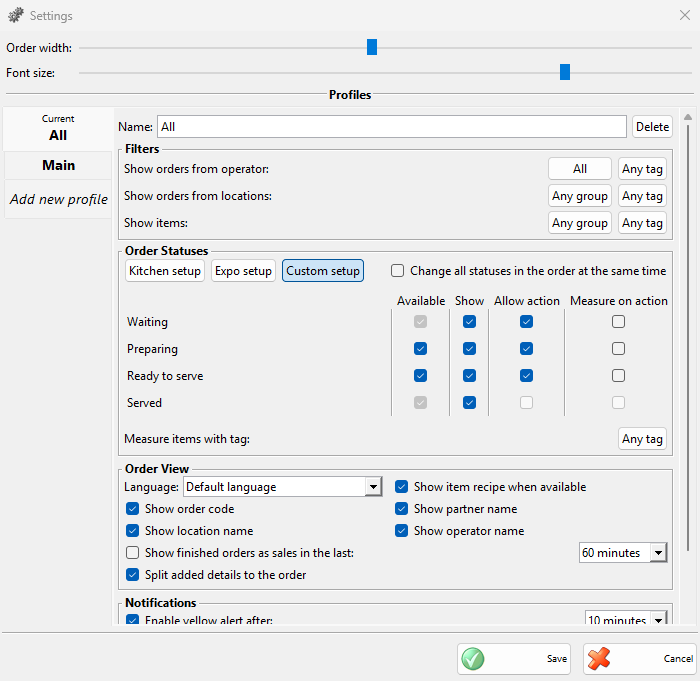
At the top of the Settings window, Order width: (100 to 600 pixels) sets the width of a card and Font size: (1 to 6) the size of the text. The screen behind the window shows the change at once, and Cancel returns the old values. Both are saved for this computer.
Under Profiles each tab is a profile. The profiles are saved in the database, so all computers can use them, and each computer uses the profile whose tab is open when you click Save. That tab is marked Current. Save stores the changes in all tabs and refuses a tab without a name. When no profile is saved yet, the window offers one named Default. To create a profile, open the Add new profile tab and enter a name in Name:. Delete removes the profile after a question. A Kitchen Display that uses it starts working with the default settings.
Filters
| Field | What it does |
|---|---|
| Show orders from operator: | All or Logged in user, the user logged in on this screen. The second button limits the orders to users with a tag. Any tag does not limit them. |
| Show orders from locations: | The location groups, for example one hall or the terrace, and a location tag. Any group shows all. |
| Show items: | The item groups and an item tag of the rows to show, for example only the drinks for a bar screen. |
Order Statuses
Three buttons fill in the table of statuses. Kitchen setup (the default) shows the new rows to be prepared: Waiting and, if available, Preparing are shown with an action, the other statuses are not shown. Expo setup shows the rows to be served: Waiting and Preparing without an action and Ready to serve with an action. Custom setup lets you set each box. Click a status name to rename it in Custom name:. An empty name returns the default one.
| Column | What it does |
|---|---|
| Available | For Preparing and Ready to serve: whether the step is used. A tap skips a step that is not available. |
| Show | Whether rows in this status appear on the screen. Served has only this box. |
| Allow action | Whether a tap moves a row on from this status. Needs Show. |
| Measure on action | Weighs the item when the row is moved on from this status (see Weighing items). Needs Allow action. |
Change all statuses in the order at the same time moves the whole card with one tap. Measure items with tag: limits the weighing to the items with that tag.
Order View
| Field | What it does |
|---|---|
| Language: | The language of the screen texts and of the names of the items, locations, partners and users, if they have a translation. Default language uses the language of the program. |
| Show item recipe when available | Shows the Recipe button. On by default. |
| Show order code, Show location name, Show partner name, Show operator name | The lines at the top of each card. All on by default. |
| Show finished orders as sales in the last: | Also shows the sales of the last 30, 60, 90 or 120 minutes. Off by default. |
| Split added details to the order | Puts rows added later to an order in a separate card. On by default. |
Notifications
| Field | What it does |
|---|---|
| Enable yellow alert after:, Enable red alert after: | When a row turns yellow or red: 1 to 30 minutes. On by default, with 10 and 15 minutes. |
| Play sound when a new order is received | Plays the sound chosen next to it. On by default. |
Kitchen Display and kitchen printers
Kitchen printers and the Kitchen Display work from the same saved orders but do not depend on each other. A device with Print kitchen orders in Devices prints the new rows when the order is saved, filtered by its Items in kitchen orders tab. The Kitchen Display shows the orders on the screen, filtered by its profile, and prints nothing. You can use a screen in the kitchen and a printer at the bar, or both in one place. To work only with screens, turn off Print kitchen orders on the devices. For the guests, Display order statuses on the Client Screen tab of Settings shows the orders in preparation and the ready ones from the same statuses.
Permissions
| Permission | What it allows | Not allowed by default for |
|---|---|---|
| Kitchen Display | Opening the screen | Nobody |
| Kitchen Display → Undo | The Undo button | Nobody |
| Kitchen Display → Settings | The Settings button | Operators |
| Measure Items with Zero Weight | Saving a zero weight | Nobody |
An administrator changes them in Edit → Administration → Permissions….
Troubleshooting
| Problem | Solution |
|---|---|
| “Opening the Kitchen Display is not allowed!” | Ask an administrator to allow Kitchen Display for your user. |
| “No orders to display” although there are orders | Check that the waiters saved the order with Order, and check the filters and the Show boxes of the profile. A finished sale appears only with Show finished orders as sales in the last:. |
| A status button is grey | The profile does not allow an action in that status, or the row is Served. |
| A row disappears after a tap | Its new status is not shown by this profile. It is still on the screens that show that status. |
| “Connection interrupted. Retrying…” | The connection to the database is lost. The screen retries by itself. |
| The Settings or Undo button is missing | Your user needs that permission under Kitchen Display. |
FAQ
Can the bar and the kitchen have their own screens?
Yes. Create a profile for each with its item groups in Show items:, and save each one on its own computer.
Does the Kitchen Display change the stock?
No. The stock changes when the order is finished as a sale. Only weighing changes the order, by its quantity.
Can a waiter see when a dish is ready?
Yes, on a screen with the Expo setup, which shows the ready rows and lets the waiter mark them Served.