
A promotion gives chosen items a lower price for a period. While it is active, the program puts the promotion price into the sale rows of these items instead of the item’s price. A promotion does not change the stock, the payments or the prices of the items: when it ends, the usual prices apply again. Promotion is part of the paid Advanced Operations module.
Open the Promotion window
Go to Operations → Management → Promotion. The window opens with an empty row. Without a license the program shows a warning: you can fill in the window, but not save it.
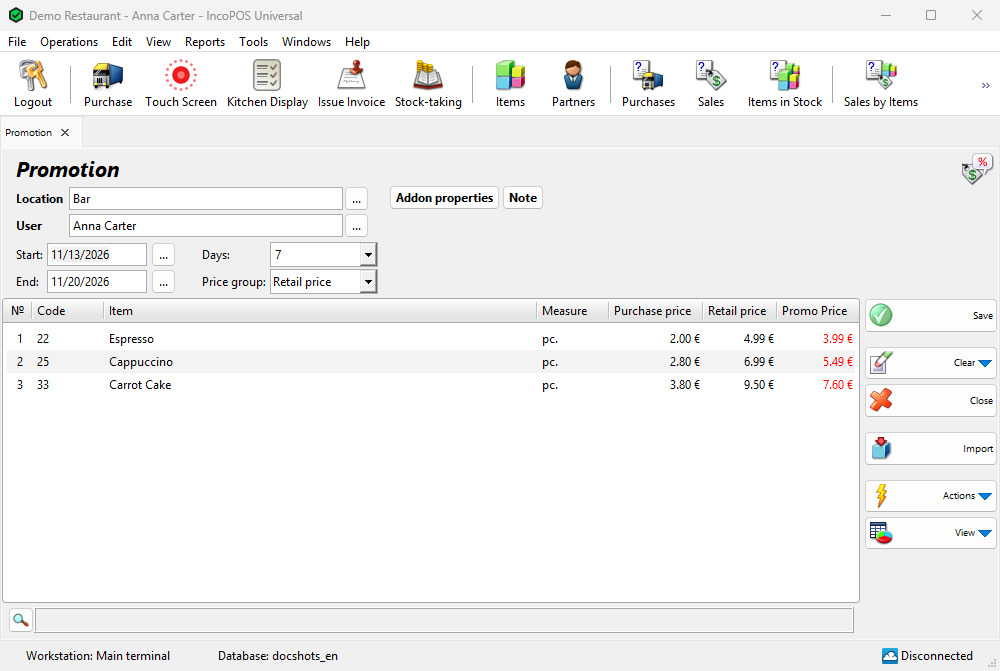
Fill in the header
In Location and User type a name and press Enter, or open the list with F4 or the … button. In Start: and End: type a date, or press F4 or the button next to the field to use the calendar.
| Field | What it does |
|---|---|
| Location | Choosing a location sets Price group: to the price group of the location. The location limits the promotion only with Location price. With the other price groups the promotion works in all locations. |
| User | The user responsible for the promotion. The logged-in user is filled in. Changing it requires the Edit User permission (Operations), which operators do not have by default. |
| Start: | The first day of the promotion. Required. A date before today brings the question “You are entering a start date in the past. Are you sure you want to continue?”: No keeps the earlier date. |
| End: | The last day. Required, and later than Start:. The promotion lasts to the end of this day. |
| Days: | The number of days from Start: to End:. Choose 1 to 10 or type a number, and End: moves. Changing End: changes Days:. |
| Price group: | The price that the promotion replaces: Wholesale price, Retail price, Price group 1 to 8 or Location price. See How a promotion changes sale prices. |
To start and end at a time of day, click View → Addon properties… and select Promotion time. A time field then appears next to Start: and End:. A time of 00:00 at the end means the whole end day. View requires the Change Addon Properties permission, which operators do not have by default.
Add the items
- In the Item column type the item name, code or barcode and press Enter, or press F4 to choose from the list.
- In Promo Price enter the promotion price and press Enter to go to the next row.
- To delete the current row press Ctrl+Delete.
Each item can be on one row only. A second row with the same item brings “Item … was already added to this promotion!”. There is no quantity column: the promotion is for any quantity.
| Column | Meaning |
|---|---|
| The price group, for example Retail price | The current price of the item for Price group:. The header follows the selected price group. You cannot type in it. |
| Promo Price | The price during the promotion. It starts with the regular price of the item for Price group:, not with the price of another promotion. It is red when it is not lower than the price in the previous column. A price you enter that is lower than the current price of the item is red too, as in the other documents. |
| Discount % | Shown after you select it in View → Addon properties…. Enter a percent and Promo Price is calculated from the price group price. |
| Purchase price | For information. Hidden from users who may not see purchase prices. |
Save the promotion
- Press F9 or click Save. The program asks “Do you want to save the operation?”. OK saves the promotion, Save draft keeps it as a draft and Cancel returns to the window.
- The program checks that no item is in another promotion for the same price group in an overlapping period. For Location price only the promotions of the same location count. If one is, it shows “The promotion cannot be saved because item “…” is participating in another promotion No. … during the selected period.” and puts the cursor on that row.
- If printing is available, the program asks “Do you want to print a promotion receipt?”. Yes opens the print preview. Don’t ask me again remembers the answer. The question depends on Print documents: in Tools → Settings… → Printing (Ask, Always, Never or Ask per document type).
The window is then cleared for the next promotion. The receipt lists the period, the items and the promotion prices (see Reprint Promotion).
Drafts
A draft keeps an unfinished promotion and does not change any price. Save draft appears in the question when you save, and when you close the window with valid rows (“Exit without saving the promotion?”). To continue, select the draft in Reports → Drafts… and use Actions → Edit. The window then shows “Edit promotion draft”.
How a promotion changes sale prices
A saved promotion is active from the start of Start:, or from its time, to the end of End:, or to its time. While it is active:
- When you add one of its items to a document with sale prices, for example a Sale, the Touch Screen or a Proforma Invoice, the row gets the Promo Price. This happens only when the price group of the promotion is the price group of the document: the price group of the partner or, for a partner with Retail price, of the location.
- A promotion for Location price is used only in the documents of its own location, when that location has Location price as its price group.
- In the Sale window the price is red, and in the price cell the help line shows “The item is in promotion for … from … to …”. You can still change the price by hand.
- The item window shows Promo price: next to its price, with the dates in the tooltip.
Rows that are already in a document keep their price. Documents with purchase prices, such as a Purchase, do not use promotion prices. When the promotion ends or you annul it, the items get their usual prices again.
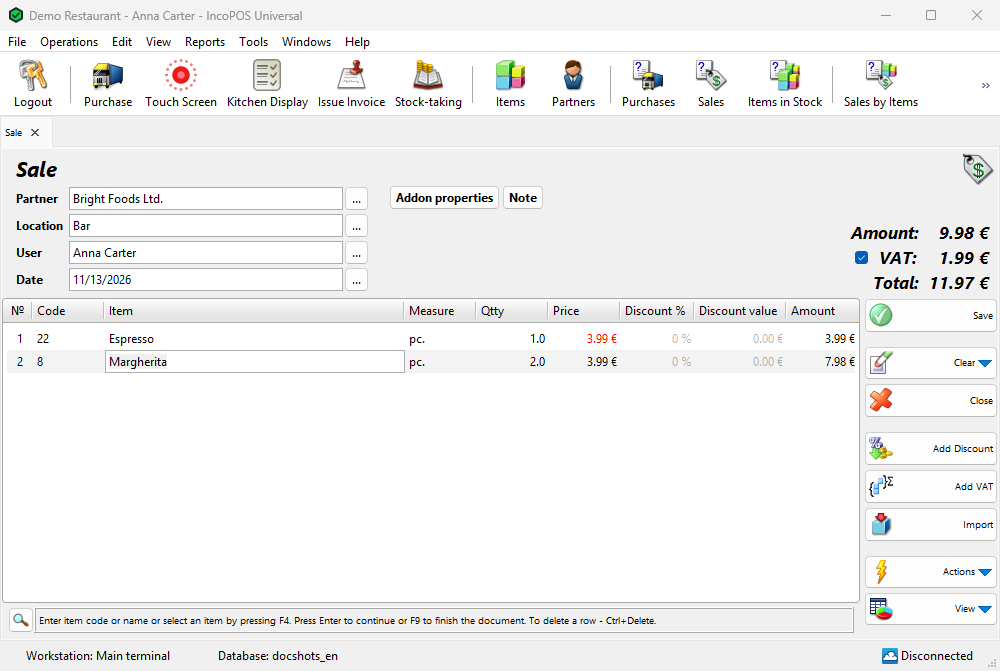
A sale keeps the number of the promotion on its rows. To find these sales, select the promotion in Edit Promotion and use Actions → Show all Sales with this Promotion. The report Reports → Management → Promotions… lists the promotions with their items and prices.
Promotions and price rules
Price rules work on the promotion price like on any other row price, so a rule with Increase discount up to adds its discount to an item in promotion. Two conditions of the rules check promotions:
- The item is in promotion: the item of the row has an active promotion for the price group of the document (for Location price, in the location of the document).
- Presence of item in promotion in the operation: any row has such an item.
To leave the items in promotion out of a discount, add The item is in promotion with do not run the action when this condition is fulfilled. The rule actions Add promotional item to the operation and Add promotional item once for the operation add items to a document and do not use this window.
Create from other documents
Operations → Transform Document… (Ctrl+T) turns saved documents into a promotion, and a saved promotion into another document. To start from a list of items, select them in Edit → Items… or in a report and use Actions → Transform Selected Items. The rows of the same item are merged into one, and Start: and End: stay empty unless the source is a promotion. For a promotion that is not saved yet, Actions → Save and Transform saves it first. See Transform Document.
Buttons
| Button | What it does |
|---|---|
| Save (F9) | Saves the promotion (see Save the promotion). |
| Clear | Its menu has Delete current row and Delete all rows. |
| Close (Esc) | Closes the window. With unsaved rows the program asks “Exit without saving the promotion?”. |
| Import | Loads the rows from a file. Shown only when data importers are available. |
| Actions | Save and Transform. |
| View | Addon properties…, for Promotion time and Discount %. |
| Note, Addon properties | Tabs next to the header for a note and additional document properties. |
Troubleshooting
| Problem | Solution |
|---|---|
| “Opening the Promotion screen is not allowed!” | Ask an administrator to allow Promotion (Operations → Management) for your user in Edit → Administration → Permissions…. |
| “This is a free version of the Promotion operation! To save your operation please purchase a license.” | Promotion is part of the paid Advanced Operations module. Without a license you cannot save. |
| “Please enter a start date!” or “Please enter an end date!” | Fill in Start: and End:. |
| “End date must be after start date!” or “End date and time must be after start date and time!” | Enter a later end. For a promotion of one day, select Promotion time and enter the hours on the same date. |
| “The promotion cannot be saved because item “…” is participating in another promotion No. … during the selected period.” | Remove the item, change the period or the price group, or change the other promotion in Edit Promotion. |
| “There are no valid rows in the promotion document!” | Add at least one item. |
| A sale does not take the promotion price | Check that the promotion is active today, that its price group is the price group of the sale’s partner or location, and that the item was added after the promotion started. A promotion for Location price works only in its own location. |
FAQ
How do I make a promotion for one day?
Without times, End: must be a later date, so the promotion lasts at least two days. Select Promotion time in View → Addon properties… and enter, for example, 08:00 and 20:00 on the same date.
Can an item be in two promotions?
Yes, if the promotions have different price groups, periods that do not overlap or, for Location price, different locations.
Does a promotion change the price of the item?
No. The item keeps its prices. To change them for good, use Price Change.
Related pages
- Edit Promotion (Edit → Documents → Management → Promotion…)
- Reprint Promotion (Edit → Reprint Documents → Management → Promotion…)
- Price Change
- Price rules
- Adding, editing and deleting items