
Purchase Planner forecasts the stock of each item for the coming days from its recent sales and suggests how much to order today, so that the stock lasts until the delivery after your next order. The Purchase Order button turns the suggestion into a purchase order. Open the planner with Operations → Management → Purchase Planner. It opens in its own tab, changes no stock and no payments, and the purchase order it opens exists only after you save it. Making the purchase order needs a Pro license.
Plan an order
- Go to Operations → Management → Purchase Planner. The window opens with the filters and values you used last time.
- In Location, choose the location you order for with the … button.
- To plan only some items, choose them in Item name, Item group or Item tag.
- Set Period to analyze:, Delivery after: and Next Purchase Order after: and click Refresh.
- Check the forecast. A red number is a day on which the item runs out.
- Click Purchase Order. A Purchase Order tab opens with the items to order and the suggested quantities.
- Choose the supplier in Partner, check the quantities and the prices, and save the purchase order.
When the goods arrive, turn the purchase order into a purchase with Transform Document. Only the Purchase adds the goods to the stock.
The Purchase Planner window
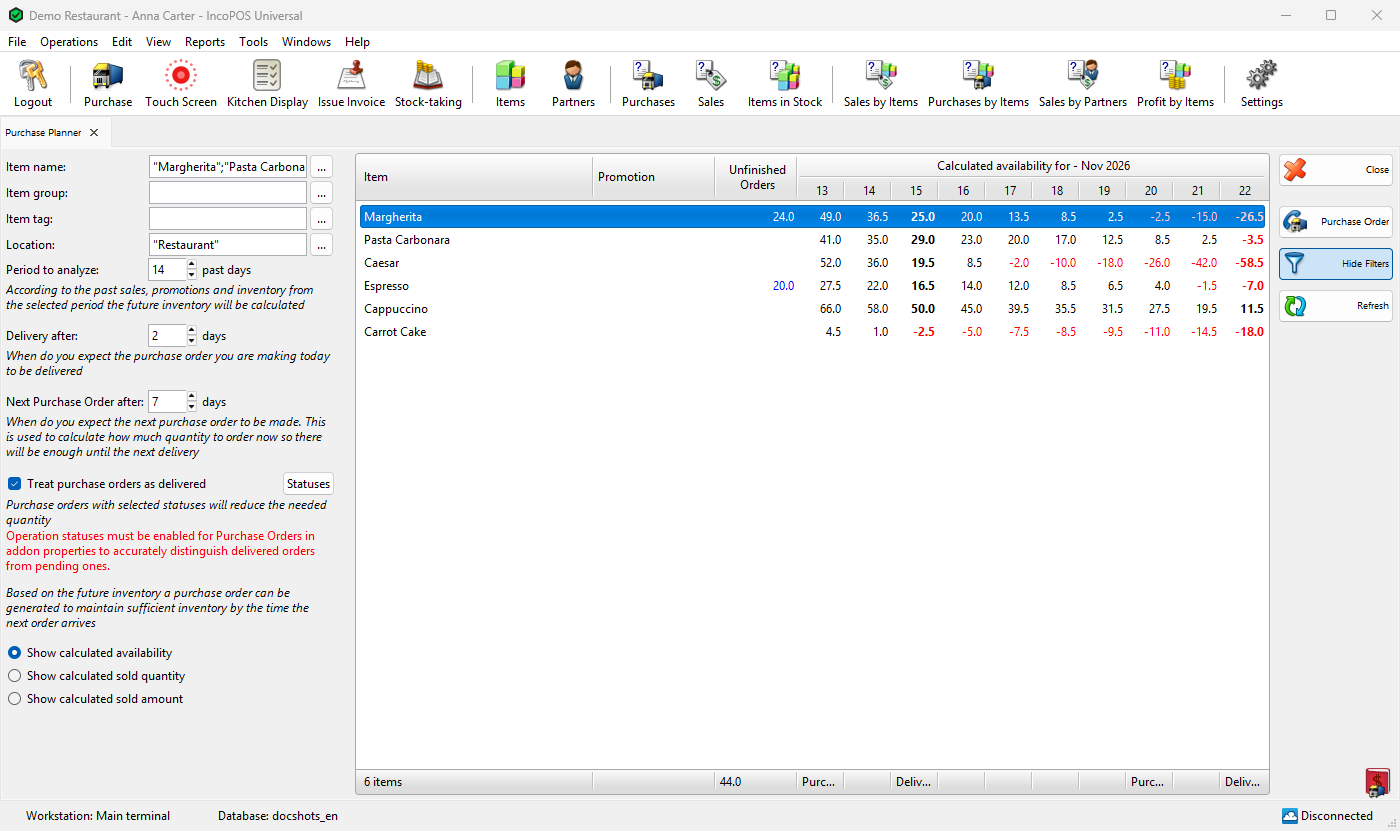
The filters are on the left, the forecast in the middle and the buttons on the right. A change in the item, group, tag and location filters, the purchase order option or the statuses refreshes the forecast after a short pause. The three numbers of days are used only after you click Refresh. The program remembers the filters and the values for the next time.
| Field | What it does |
|---|---|
| Item name | Only these items. Choose them with the … button, or pick a name from the list that opens while you type. Text that you type without choosing a name is not used, and all items are shown. |
| Item group | Only the items directly in the chosen groups, not in their subgroups. |
| Item tag | Only the items with the tag, set on the item or on its group. With several tags an item needs all of them. |
| Location | The stock, the sales and the purchase orders of these locations, added up. Without a location, all locations are used. See The suggested quantities for the location of the purchase order. |
| Period to analyze: | How many days before today are analyzed, from 3 to 1000. The default is 15. Today is not part of the period. |
| Delivery after: | In how many days the order you make today arrives, from 0. The default is 3. |
| Next Purchase Order after: | In how many days you will make the next order, from 0. The default is 7. The order made today must last until that order arrives. |
| Treat purchase orders as delivered, Statuses | Count the goods of open purchase orders as already in stock. See Open purchase orders. |
| Show calculated availability | The day columns show the forecast stock at the end of each day. |
| Show calculated sold quantity | The day columns show the forecast sales of each day. |
| Show calculated sold amount | The forecast sales of each day multiplied by the retail price of the item. |
| Button | What it does |
|---|---|
| Close | Closes the tab. Esc does the same. |
| Purchase Order | Opens a purchase order with the suggested quantities. See The suggested quantities. |
| Hide Filters | Hides the filters to leave more room for the days. Show Filters shows them again. |
| Refresh | Calculates the forecast again with the current values. |
The forecast table
| Column | What it shows |
|---|---|
| Item | The item. The footer shows the number of items. |
| Promotion | The state of the item’s Promotion document, for example Starting tomorrow, Active, Ending today or Ended. Green is running, orange starts or ends around today, red has ended. Empty when there is no promotion or it starts later. |
| Unfinished Orders | Shown only with Treat purchase orders as delivered: the quantity of the item in open purchase orders, in blue. The footer shows the total. |
| One column per day | From today to the day the next order arrives. The header shows the day, with the month above it, for example “Calculated availability for – Nov 2026”. Saturdays and Sundays are shaded. The footer shows Purchase Order under today and the day of the next order, and Delivery under the two delivery days, whose numbers are bold. With Show calculated availability, a stock of 0 or less is red. |
How the forecast is calculated
- The rows are the items sold in the period in the chosen locations. An item without sales in the period is not listed, even when it is in stock. Deleted items and items with Non-inventory or service are left out.
- The forecast starts from the stock at the end of yesterday. Today’s documents are not counted.
- For each day from today on, the program takes the sales of the item on the same day of the week in the period, and uses their average from the days on which the item sold. With 14 days, a Monday is the average of the last two Mondays. A day of the week on which the item did not sell in the period gets no sales, so use a period of at least 7 days.
- Days on which the item was in a promotion are left out of the average, unless all its sales on that day of the week were on such days. A promotion is a Promotion document, or a price rule with a Date condition and a Change price, Change discount or Increase discount up to action, set for the item, its group or a tag.
- Each day’s forecast sales are subtracted from the stock of the day before. With Treat purchase orders as delivered, the open purchase orders are added on today.
The forecast does not include the order you are making: the columns show what happens if nothing more is ordered.
The suggested quantities
Purchase Order calculates for each item in the table:
quantity to order = the higher of Minimal quantity: and Nominal quantity: − the forecast stock on the last day
The last day is the day the next order arrives: today + Next Purchase Order after: + Delivery after:. The minimal and nominal quantities are those of the item for the location of the order, from Location settings when they are set there. An item with a result of 0 or less is not ordered. For example, an item with a nominal quantity of 20 and a forecast of −11 on the last day gets 31. The quantities are averages, so they can have decimals: round them in the purchase order if needed.
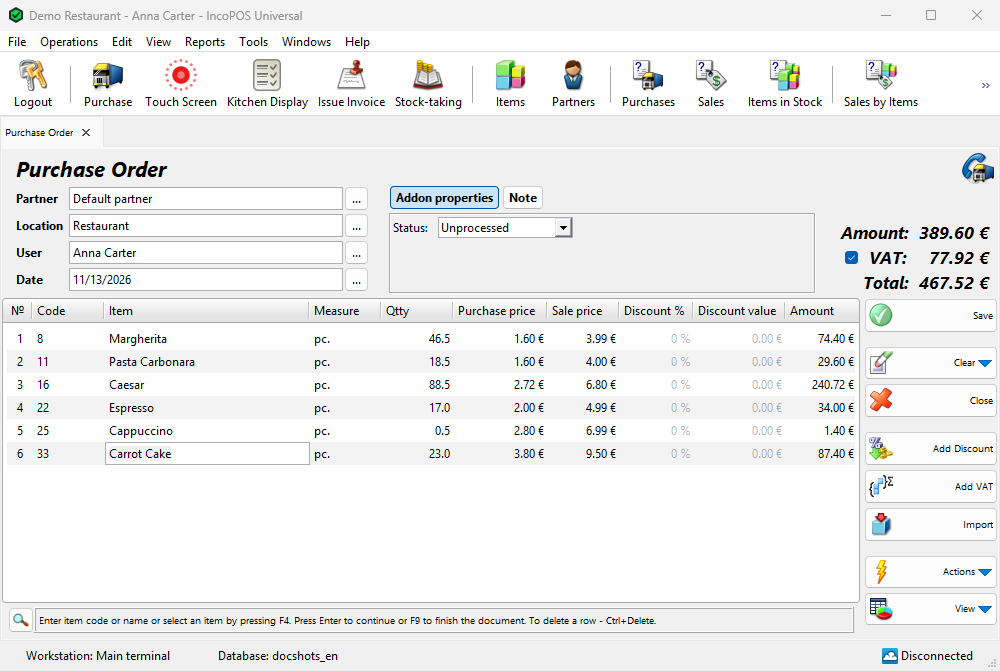
| Part of the purchase order | Value |
|---|---|
| Location | The location chosen in the planner when exactly one is chosen. Otherwise the default location of your user. With several locations, or none, the planner adds up their stock and sales but uses the minimal and nominal quantities of that one location, so plan each location on its own. |
| Partner | The default partner of your user, or of the program when your user has none. Choose the supplier. |
| Rows | The items to order, with the prices that the Purchase Order window gives an item added by hand. |
The purchase order is not saved yet. Save, change or close it as any purchase order. When no item needs to be ordered, the program says “No items need to be ordered!” and opens nothing.
Open purchase orders
Goods that you have already ordered but not yet received are not in stock, so the planner would order them again. Treat purchase orders as delivered adds them to the stock of today and shows the Unfinished Orders column. It counts the purchase orders that:
- are dated from the first day of the period to today, so older orders are not counted;
- are for the chosen locations and items;
- have a status selected in Statuses. A purchase order without a status counts as Unprocessed.
Statuses opens Choose Operation Statuses with Unprocessed, Ready for processing, In processing, Fulfilled and Denied. The first three are selected by default. Select at least one and click OK.
The option is available only when purchase orders have the Status property. Until then it is dimmed. The red text under it, “Operation statuses must be enabled for Purchase Orders in addon properties to accurately distinguish delivered orders from pending ones.”, reminds you of this. To enable the property, open Operations → Management → Purchase Order, click View → Addon properties… and select Status. This needs the Change Addon Properties permission, which operators do not have by default.
Saving a purchase from a purchase order does not change the status of the order. Set the status of the order to Fulfilled when its goods arrive, or it is counted again on top of the stock that the purchase added.
Permissions and license
Purchase Planner is set in Edit → Administration → Permissions…, under Operations → Management. It is allowed by default for all users. The Purchase Order button also needs the Purchase Order permission. Without a Pro license, the planner shows the forecast and says so the first time it opens, but the Purchase Order button makes no order.
Troubleshooting
| Problem | Solution |
|---|---|
| “No items need to be ordered!” | Every item has at least its minimal and nominal quantity on the last day. Set Minimal quantity: or Nominal quantity: on the items, or check the numbers of days. |
| “Auto generating Purchase Orders requires a Pro license! To use this feature please purchase a license.” | Making the purchase order needs a Pro license. |
| “Opening the Purchase Order screen is not allowed!” | Ask an administrator for the Purchase Order permission. |
| An item is missing | It did not sell in the period in the chosen locations, it is deleted or it has Non-inventory or service. Check the filters too. |
| All items are shown although Item name is filled in | Choose the names with the … button or from the list that opens while you type. |
| The forecast does not change after a new number of days | Click Refresh. |
| Treat purchase orders as delivered is dimmed | Enable the Status property of purchase orders, see Open purchase orders. |
| Goods already received are ordered too little | A purchase order of these goods still has a selected status. Set it to Fulfilled. |
FAQ
Does the planner count today’s sales?
No. The period ends yesterday and the forecast starts from the stock at the end of yesterday, so today’s column subtracts a full day of forecast sales.
Why does an item that sells every day get a low forecast on one weekday?
Each day of the week is averaged on its own. If the item did not sell on that day of the week in the period, the forecast for that day is zero. A longer period gives more days to average.