
Use Edit → Administration → Shifts → Edit End of Day Reports… to make named end of day reports. A report is a set of actions: sales summaries printed on the receipt printer, the end of the shift and the fiscal X and Z reports. Each saved report gets its own item in Edit → Administration → Shifts, so it runs from the main window with one click. The reports are saved in the database, so every workstation shows them.
The Operator End Of Day Report and Manager End Of Day Report buttons of the Touch Screen use the same window and the same actions, but each button keeps its own.
The list of reports
- Go to Edit → Administration → Shifts → Edit End of Day Reports…. The End Of Day Reports window opens.
- Select a report and use the buttons on the right of the window.
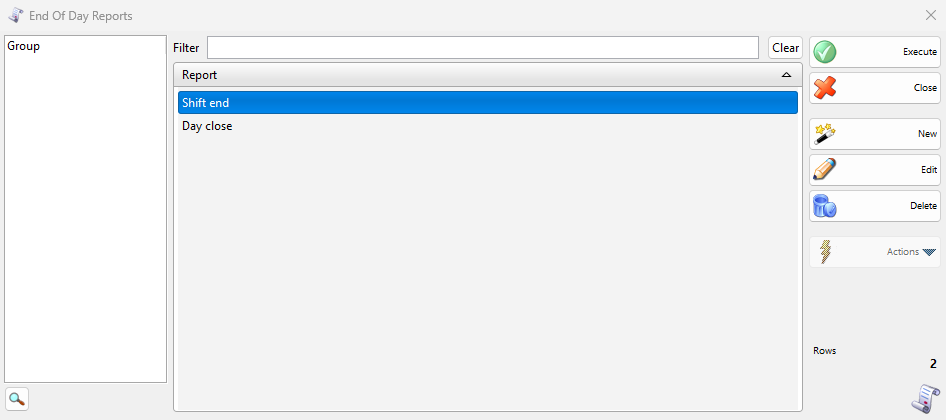
| Control | What it does |
|---|---|
| New | Creates a report. See Create or change a report. |
| Edit | Opens the selected report. |
| Delete | Deletes the selected reports after “Do you want to delete report with name “…”?”. The menu item and the permission of the report go with it. Nothing else changes. |
| Execute | Runs the selected report, as a double-click does. See Run a report. |
| Close | Closes the window. |
Operator and manager reports
| Kind | What it covers |
|---|---|
| Operator End Of Day Report | The sales and payments of the user who runs the report. The printout shows “Operator:” and the user’s name. |
| Manager End Of Day Report | The sales and payments of one location, made by all users. The printout shows “Location:” and the location name. |
A report covers what no earlier report of the same kind with End shift has closed, not a date range. Without End shift the next report prints the same sales again, with the new ones added.
The location is the location locked for the user, else the user’s default location, else the first location of the Touch Screen layout. When none of these is set and the database has more than one location, the report stops with “Please configure at least one location in the Touch Screen before executing the report!”.
Create or change a report
- In the End Of Day Reports window click New.
- To “What kind of report do you want to create?” click Operator End Of Day Report or Manager End Of Day Report. The kind cannot be changed later.
- The window of that kind opens. Enter the Title: and select the Actions.
- Click OK. The report appears in the list and in Edit → Administration → Shifts, where the reports are ordered by title.
To change a report, select it and click Edit. The same window opens with its title and actions.
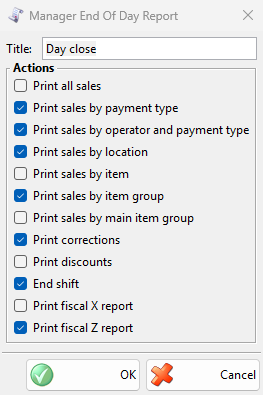
| Field | What it does |
|---|---|
| Title: | The name of the report in the list and in the menu, printed at the top of each printout. A new report proposes the name of its kind. Required. Another report with the same title gives a warning, and you can save anyway. |
| Print all sales | Each sale with its number, time, operator, location, partner and total. |
| Print sales by payment type | The total of each payment type, from the payments of sales, consignment sales, returns and credit notes. |
| Print sales by operator and payment type | For each user, the totals by payment type. Only in a manager report. |
| Print sales by location | The sales total of each location. A sale made at a place of the Touch Screen layout, such as a table, counts under that place. |
| Print sales by item | The quantity and the amount of each item. |
| Print sales by item group | The quantity and the amount of each item group. |
| Print sales by main item group | The quantity and the amount of each top-level item group. |
| Print corrections | Four totals. “Order corrections:” and “Sale corrections:” add up what was removed from orders and sales before they got a number, “Order voids:” and “Sale voids:” what was deleted after. |
| Print discounts | The quantity and the discount amount for each discount percent. |
| End shift | Closes the period of the report, so the next report of the same kind starts after it. See End shift. |
| Print fiscal X report, Print fiscal Z report | Print the daily X or Z report on the fiscal printer, when it supports the report. See Fiscal reports. |
A new report has Print sales by payment type, End shift and Print fiscal Z report selected. With a card terminal or a hotel system set up, a manager report also lists their actions, such as the card payments reconciliation of the terminal. At least one action is required.
Run a report
- Click the report in Edit → Administration → Shifts, or select it in the End Of Day Reports window and click Execute.
- Enter your password. If you do not have the Operator End Of Day Report or Manager End Of Day Report permission of the Touch Screen, the program shows “A user with permission to run operator end of day report needs to login.” (or the manager message), and a user with that permission must log in.
- The program runs the selected actions in the order of the window and shows “Printing report…” with the progress.
The lists print on the device with Print customer orders selected in Devices. Without such a device they are not printed, and the other actions still run. An empty list prints “No data available”. Each run is recorded in Application Log as “End of day report was run” with the title.
End shift
Before printing, a report with End shift checks the open orders:
- An operator report stops with “Please, before ending the day, finish the orders at locations:” and the list, while the user has open orders. Then, if the user has a started shift, the Ending Shift – Enter Cash Balance window asks for the cash in the drawer, as in Register Cash. Without the balance the report stops with “End balance must be entered to end the shift!”.
- A manager report lists the operators who have sales in the location not closed by an operator report, or open orders: “Please, ask the following operators to run an end of day report, before ending the day for the location:”. OK stops the report. When the logged-in user has the Operator End Of Day Report permission, the message also offers End the day for these operators: it closes their operator period without printing it. If one of them has open orders, the program lists them and the report stops.
After printing, End shift marks the sales, consignment sales and returns, with their edits and deletions, as reported: for the user in an operator report, for the location in a manager report.
Troubleshooting
| Problem | Solution |
|---|---|
| “Please enter a title for this button!” | Enter the Title:. |
| “Please select at least one action to be performed, when this button is pressed!” | Select an action. |
| “End of day report with the name “…” already exists! Do you want to save the report anyway?” | A warning. Save anyway or change the title: both reports then show in the menu. |
| “You don’t have permission to run an operator end of day report.” or the manager message | The user who logged in does not have the permission. Log in with another user, or give the permission in Permissions. |
| Nothing is printed but the report ran | No device has Print customer orders selected, or it cannot print free text. |
| The X or Z report is not printed | The fiscal printer is not connected or does not support the report. |
Permissions
| Permission | What it allows | Not allowed by default for |
|---|---|---|
| Edit End of Day Reports… under Administration → Shifts, with New, Edit and Delete | Opening the list and its buttons. | Operators |
| The title of each report with “…” under Administration → Shifts | Running that report from the menu. | Operators |
| Operator End Of Day Report, Manager End Of Day Report under Touch Screen → Reports | Running a report of that kind after entering your own password. | Operators (manager report) |
Set them in Permissions. The Administration menu is closed by default for operators.
FAQ
Can I print a report for yesterday?
No. A report has no dates: it prints what the last report of the same kind with End shift left open. For any period use the sales reports in Reports.
Does changing a report change the Touch Screen buttons?
No. A button keeps the actions set on it in the Touch Screen layout.