
The Currencies window lists the currencies of the database and their exchange rates. The first currency is the main currency of the database: all prices, documents and payments are kept in it and its rate is always 1. The other currencies are used to print a document in another currency, to show totals in a second currency and to change the main currency with Currency Switch. Open the window with Edit → Currencies….
The Currencies window
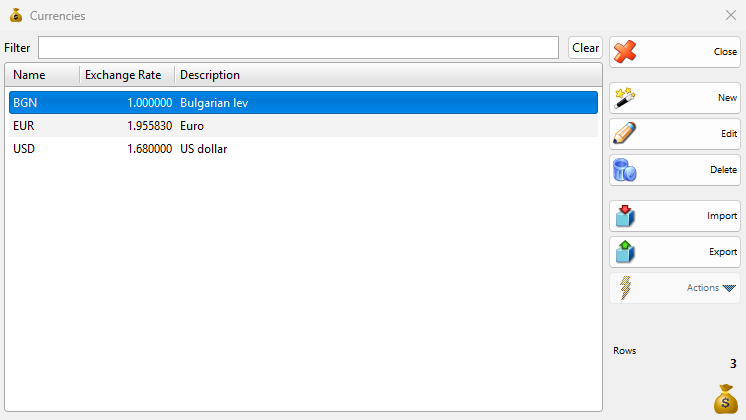
| Control | What it does |
|---|---|
| Filter | Shows only the currencies whose name or description contains the typed text. |
| Clear | Clears Filter. |
| Name, Exchange Rate, Description | The columns of the list. Exchange Rate is the value of one unit of the currency in the main currency. |
| New | Opens the New Currency window. |
| Edit | Opens the selected currency in the Edit Currency window. A double-click does the same. |
| Delete | Deletes the selected currencies. See Delete a currency. |
| Import | Loads currencies from a file. |
| Export | Saves the listed currencies to a file. |
| Close | Closes the window. |
Add or change a currency
- Go to Edit → Currencies… and click New, or select a currency and click Edit.
- Enter Name:, for example USD. For BGN, USD, EUR, GEL, KES, RON, RUB, TZS and GBP the window fills in the sign, the names of the banknotes and coins and the coins ratio.
- Enter Rate:. The text after the field, for example BGN = 1 EUR, shows what the number means.
- Check the two preview lines and click Save.
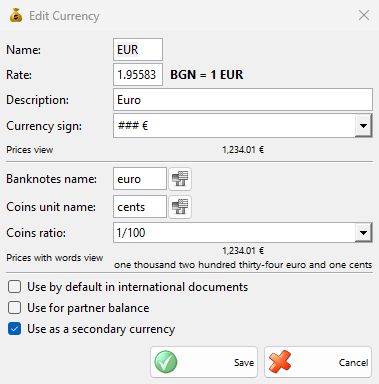
| Field | What it does |
|---|---|
| Name: | The code of the currency, for example EUR. It is required and keeps at most 3 characters. |
| Rate: | How many units of the main currency one unit of this currency is worth. It must be greater than 0. For the main currency the field is locked at 1. |
| Description: | The full name of the currency, for example Euro. |
| Currency sign: | Where the sign stands next to an amount: ### is the amount, for example ### € or $###. Choose a format from the list or type one. Empty shows amounts without a sign. |
| Prices view | A sample amount with the sign and the price decimals set in Settings. |
| Banknotes name:, Coins unit name: | The names used when an amount is written in words on a document, for example euro and cents. The button next to each field stores the name in other languages. |
| Coins ratio: | How many coins make one banknote: 1/1, 1/10, 1/100 or 1/1000. |
| Prices with words view | The sample amount with the coin decimals and in words. |
| Use by default in international documents | Documents printed from an international template use this currency and English. |
| Use for partner balance | Partner balances and payment amounts in lists and reports are shown in this currency. |
| Use as a secondary currency | The second currency of the program. Operation and payment windows can show their totals also in it, see Show operation totals in secondary currency too on the Operations tab of Settings. Currency Switch makes it the main currency. |
Each of the last three check boxes belongs to one currency only. Selecting it on a currency clears it on the others. When no currency has it, the main currency gets it.
A changed rate applies to what you print or show from then on. The amounts of saved documents do not change, because they are kept in the main currency. To print a document in another currency, choose it in Currency in the Print Preview.
Delete a currency
- Select one or more currencies and click Delete.
- Answer “Do you want to delete currency “…”?” with OK.
The main currency cannot be deleted, and neither can a currency used in documents.
Permissions
The permissions are set in Edit → Administration → Permissions…, under Currencies….
| Permission | What it allows | Not allowed by default for |
|---|---|---|
| New | Adding currencies. | Operators |
| Edit | Changing currencies. | Operators |
| Preview | Without Edit, the button becomes Preview and opens the currency with only a Close button. | Operators |
| Delete | Deleting currencies. | Operators |
| Import, Export | Importing and exporting currencies. | Operators |
Troubleshooting
| Message | Solution |
|---|---|
| “Currency name cannot be empty!” | Enter Name:. |
| “Invalid exchange rate!”, “Currency exchange rate must be greater than zero!” | Enter a number greater than 0 in Rate:. |
| “Currency with the name “…” already exists! Do you want to save the currency anyway?” | A warning. No returns to the window. |
| “This currency cannot be deleted, because it is used in operations.” | Saved documents use the currency. Keep it in the list. |
| “Cannot delete currency “…”!” | This is the main currency of the database. |
FAQ
How do I change the main currency?
Renaming the main currency does not convert the saved amounts. Add the new currency with its rate, select Use as a secondary currency and run Currency Switch, which converts all prices, documents and payments.