
Merge Items joins two items that were entered twice. Every saved document with the item to remove is changed to the item to keep, and the item to remove can then be deleted. Open it with Edit → Administration → Merge Items…. It needs a Pro license, and all tabs must be closed first: the program asks “Before merging items all tabs have to be closed. Do you want to close all open tabs?”.
Choose the two items
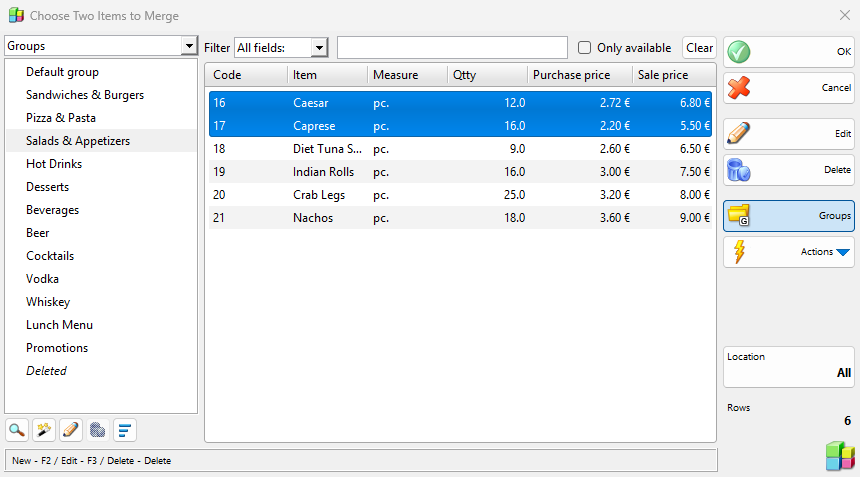
- Go to Edit → Administration → Merge Items…. The Choose Two Items to Merge window opens with the list of items.
- Select the two items: click the first one, then hold Ctrl and click the second one. Filter and the groups help to find them.
- Click OK. With another number of items the program shows “Please select exactly two items to be merged!”.
The Merge Items window
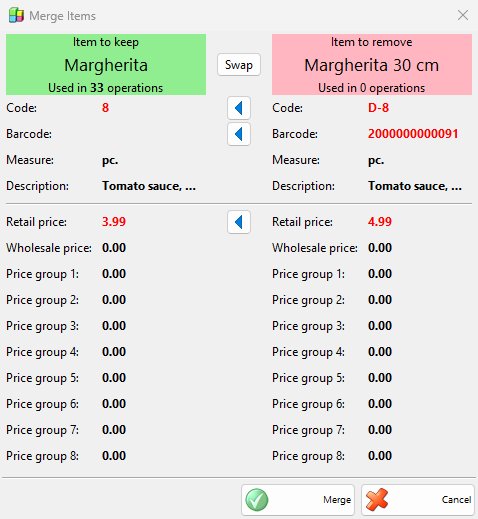
The window shows the two items side by side: Item to keep in green on the left and Item to remove in red on the right. Under each name, “Used in … operations” shows how many rows of saved documents hold the item.
| Control | What it does |
|---|---|
| Swap | Changes which item is kept and which is removed. |
| Code:, Barcode:, Measure:, Description: | The values of both items. A value that differs is red. |
| The prices | Retail price, Wholesale price and Price group 1 to Price group 8, under the names of your price groups. |
| The arrow between two red values | Copies the value of the item to remove to the item to keep. The item to keep is saved with it when you click Merge. |
| Merge | Starts the merge. |
| Cancel | Closes the window without changes. |
What merging changes
| What | Result |
|---|---|
| Documents | In every saved document, whatever its date, the rows of the item to remove get the item to keep, and the document is saved again. The quantities and the prices of the rows stay. |
| Stock | Because the documents are saved again, the quantities of the item to remove move to the item to keep. |
| Stock-takings with both items | The expected quantity of the item to remove is added to the row of the item to keep, and the rows of the item to remove get 0. |
| Item to keep | Gets the values you copied with the arrows. Nothing else of it changes. |
| Item to remove | After a successful merge the program asks “Merging the items was completed successfully! Delete item …?”. Yes deletes it. When some rows still hold it, for example the zero rows of a stock-taking, it moves to Deleted instead, as in Adding, editing and deleting items. No keeps it. |
| Other settings | Recipes, price rules, promotions and other settings that name the item to remove are not changed. |
A progress window shows “Editing operations…” with the number of documents. With IncoCloud synchronization, a document of a location that another database manages is sent to that database as an edit request, and the window shows “Waiting for edit requests…”. A document that could not be saved is tried again: “Retrying failed edits…”. A merge cannot be undone.
When merging stops
| Message | Solution |
|---|---|
| “The Merge Items function requires a Pro license! To use this feature please purchase a license.” | Merging needs a Pro license. |
| “Please select exactly two items to be merged!” | Select two items, no more and no less. |
| “There is a recipe “…” which produces item … from item …. To merge the two items, please, delete this recipe.” | One item is made from the other. The program checks this when the window opens and again on Merge. Delete the recipe in Recipes, then merge. |
| “There is a production number … which produces item … from item …. To merge the two items, please, annul this production.” | Annul the production in Edit production, then merge. |
| “Merging the items could not be completed! Please try again later.” | Some documents were not changed, for example because another database did not answer an edit request. Run the merge again later. The documents already changed stay changed. |
Permissions
The Merge Items… permission under Administration in Permissions controls the menu item. It is not allowed by default for operators.
FAQ
Which item should I keep?
Either, the documents of both end up with the item to keep. Use Swap to keep the one with the right name and copy the other values you want with the arrows.
Are the documents of the past changed too?
Yes. Every saved document with the item to remove is changed, whatever its date.