
The Price Tags window lists the electronic shelf labels, the e-ink price tags of an STS base station, and pairs each label with an item. Open it with Edit → Administration → Price Tags…. An STS ESL Price Tag Server on a workstation draws the labels and sends them to the base station, so a price change reaches the shelf without printing.
Set up the labels
- Add an STS ESL Price Tag Server with the address and the serial number of the base station. See Adding, editing and deleting servers. The server needs a Pro license.
- In Edit → Administration → Price Tags… click Label types and add a type for each size of label. See Label types.
- Click New and add each label with its serial number, its type and its item. See Add or change a label.
A label shows the Standard label: of its type for its item, the Promo label: while the item has an active promotion, and the Blank label: when no item is paired. The designs are labels of Print Barcodes: the ready ones of the ESL group or your own.
When the labels change
The server checks for changes every 15 seconds and draws again the labels whose item changed, for example its price, whose promotion started or ended, whose item or base station was changed in this window, and all the labels when a design or a label type changes. A label that was added draws the first time on the next check. When the base station does not accept an image, the server tries again after 5 minutes.
The list of labels
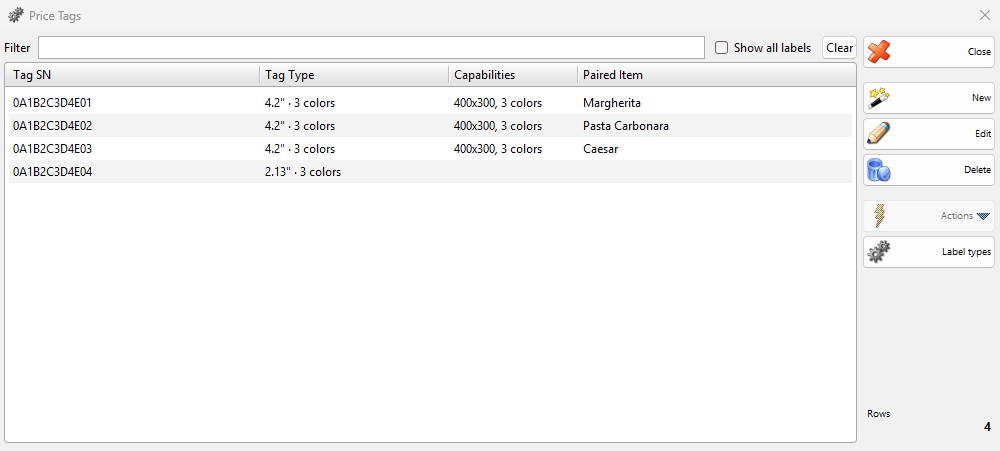
| Control | What it does |
|---|---|
| Filter | Shows the labels whose serial number or item contains the text. |
| Show all labels | The list shows the labels of the base stations of this workstation and the labels not assigned to a base station. Select it to see the labels of all the base stations in the database, with the Base Station column. |
| New, Edit, Delete | Add, change and delete labels. Several labels can be deleted together. |
| Label types | Opens the Price Tag Types window. |
| Base Station | The base station that updates the label, as the server name and the serial number. Shown with Show all labels or when the workstation has more than one base station. |
| Tag SN | The serial number of the label. |
| Tag Type | The label type. |
| Capabilities | The size of the screen in pixels and its colors. Empty until the panel is known. |
| Paired Item | The item the label shows. |
Add or change a label
Click New, or select a label and click Edit. The New Price Tag or Edit Price Tag window opens. Fill in the fields and click Save.
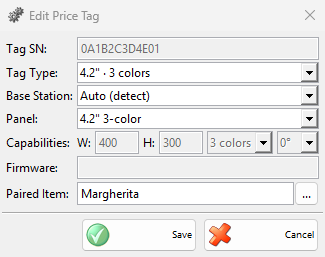
| Field | What it does |
|---|---|
| Tag SN: | The serial number of the label. Required and unique. It cannot be changed later. |
| Tag Type: | The label type, which selects the designs. Required. |
| Base Station: | Auto (detect) or a base station of the servers of this workstation. With Auto (detect), the first server whose base station finds the label takes it, and the field then shows that base station. |
| Panel: | The screen of the label. Auto (detect) asks the label for its firmware and selects the panel. The ready panels are 4.2″ 4-color, 4.2″ 3-color, 2.67″ 4-color, 2.67″ 2-color, 2.13″ 4-color and 1.54″ 4-color. Custom uses the values you enter in Capabilities:. A label whose panel is not recognized gets Unknown and is not updated until you select its panel. |
| Capabilities: | W: and H: in pixels, the number of colors and the rotation, 0° or 90°. They show the values of the selected panel and can be changed only with Custom. |
| Firmware: | The firmware version that the label reported. Read only. |
| Paired Item: | The item the label shows. Type the name or click … to select it. Leave it empty for the Blank label:. One item can have several labels. |
Label types
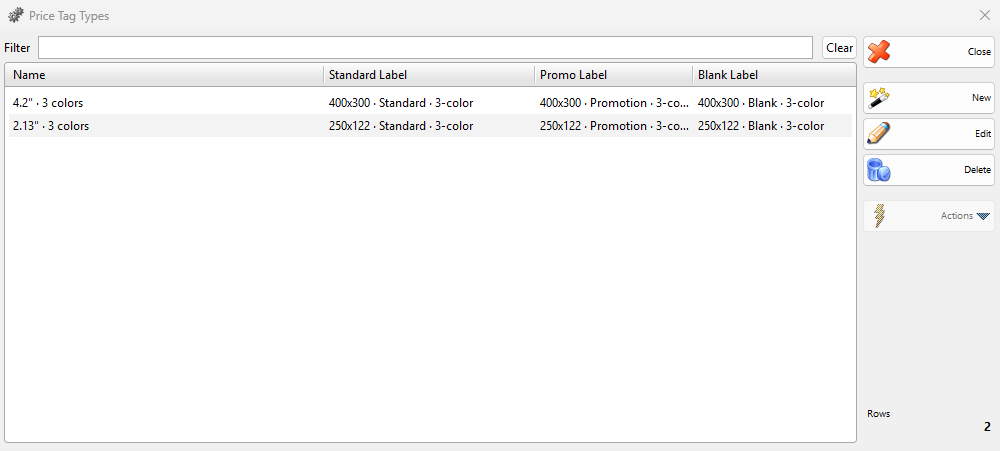
A label type holds the three designs of a size of label. Click Label types in the Price Tags window. The Price Tag Types window lists the types with Name, Standard Label, Promo Label and Blank Label, and has New, Edit and Delete.
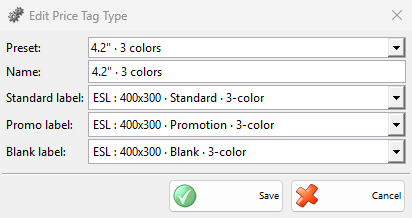
| Field | What it does |
|---|---|
| Preset: | A ready set of the ESL labels for one size and number of colors, some for two currencies. It fills in the three labels, and the name while you have not typed another one. Custom is selected when you change a label by hand. |
| Name: | The name in the lists and in Tag Type:. |
| Standard label: | The design for a paired item. |
| Promo label: | The design for an item with an active promotion. |
| Blank label: | The design for a label without an item. |
Each label list shows (none), the ready labels as group : name and your own as Custom : name. Type words of the name to narrow the list. A label whose design is (none) is not updated in that case.
Delete
To delete a label, select it, click Delete and answer “Do you want to delete tag “…”?” with OK. A label paired with an item asks “Do you want to delete tag “…” and unpair it from item “…”?” and removes the pairing too. The program stops updating the label.
To delete a type, select it in Price Tag Types, click Delete and confirm “Do you want to delete price tag type “…”?”. The program does not check whether labels use the type. Those labels show an empty Tag Type and are not updated until you select another type.
Permissions
All permissions are set in Edit → Administration → Permissions…, under Administration and Price Tags…. The Administration menu is closed for operators by default.
| Permission | What it allows | Not allowed by default for |
|---|---|---|
| New, Edit, Delete | Adding, changing and deleting labels. | Operators, managers |
| Preview | Without Edit, the button becomes Preview and opens the label with only a Close button. | Operators, managers |
| Price Tag Types | The Label types button. Under it, New, Edit, Preview and Delete work the same way for the types. | Operators, managers |
Troubleshooting
| Problem | Solution |
|---|---|
| A label does not change | Check that an STS ESL Price Tag Server for its base station is enabled and running, that the label has a Tag Type: with a design for the case, and that its Panel: is not Unknown. |
| A label of another workstation is missing | Select Show all labels. |
| “Please enter a tag serial number.” | Enter Tag SN:. |
| “A tag with this serial number already exists and is assigned to base station “…”.” | The label is in the list already. Find it with Show all labels and edit it. |
| “A tag with this serial number already exists and is not assigned to a base station.” | The label is in the list already, with Auto (detect). Edit it. |
| “Please select a tag type.” | Select Tag Type:. Add a type with Label types first if the list is empty. |
| “Please enter a valid width and height for the custom panel.” | Enter W: and H: as whole numbers greater than 0. |
| “Please select a valid item or leave the field empty.” | Select the item from the list or with …. |